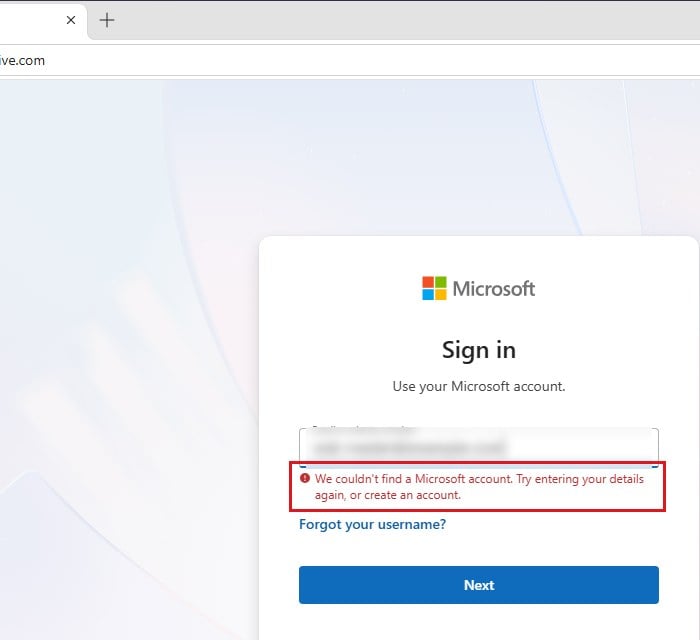
If you’re trying to sign in to Outlook, Teams or any other Microsoft service and it says “We couldn’t find an account with that username“, but when you try to create a new account with the same email, it says “Microsoft account already exists. Enter another email or phone or get a new Outlook email.“, you’re stuck in a pretty frustrating loop. This guide will explain why it happens and how to find out which account your email is actually tied to.
Also see: Lost Minecraft After Microsoft Account Was Deleted, What to do?
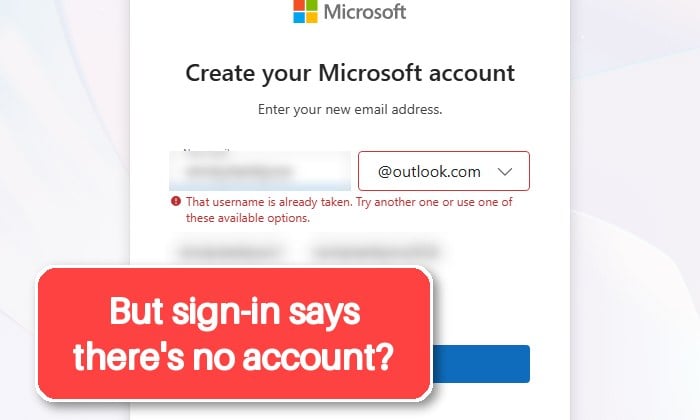
Depending on where you sign in, the first message can also read “We couldn’t find a Microsoft account. Try entering your details again, or create an account.” It means the same thing.
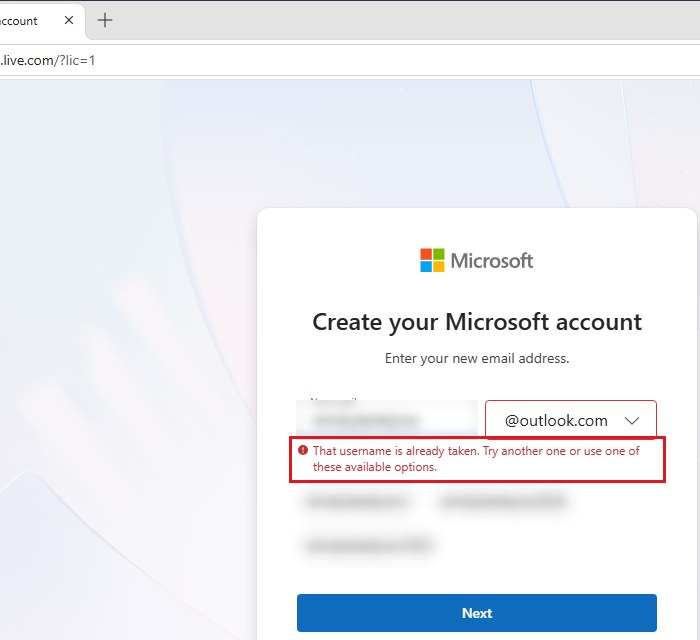
With an Outlook.com address, the sign-up page puts it a little differently: “That username is already taken. Try another one or use one of these available options.”
Page Contents
Why does Microsoft say the account doesn’t exist and is taken at the same time?
An email address can only belong to one Microsoft account at a time. When the sign-in page can’t find an account with it, but the sign-up page refuses it, the address is still tied to another account, just not in a way that lets you sign in with it. Some common reasons are:
- It’s used by another account you forgot about. The address may be the recovery (security) email of a different Microsoft account, or an extra alias on it. This often happens with an old account you stopped using, or a work account that used it as its recovery email.
- The account it belonged to was closed recently. A closed account isn’t deleted right away. It can be reopened for 30 or 60 days, and until it’s gone for good, the address stays tied to it.
- It’s a work or school email. If your company or school uses Microsoft 365, you can no longer create a personal Microsoft account with an address from its domain.
- Someone took over the account and removed your email from it, replacing it with their own.
- It’s an old Outlook.com, Hotmail, Live or MSN address whose account was deleted. Those addresses can never be used with any Microsoft account again.
This is quite a common problem on Microsoft’s forums and Reddit, and often the fix is to find the other account that’s still holding on to the email.
Might be useful: “Microsoft Account Problem” Notification in Windows 10/11
Find the account that’s using your email
Microsoft has a username lookup that works with the recovery email or phone number of an account. If your email is the security info of another account, this will show you which one. Here’s how to do it:
- Go to
https://account.live.com/username/recover. You can also get there by clicking Forgot your username? on the Microsoft sign-in page.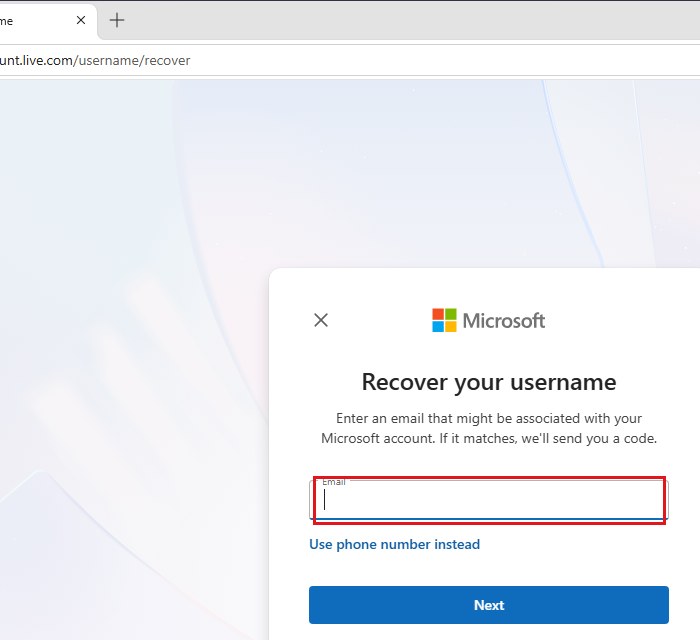
- Enter the email address you can’t sign in with and click Next. If it matches an account, Microsoft sends a code to it. You can click Use phone number instead if you want to look it up by phone number.
- Enter the code you received and click Next.
- Microsoft will show you a partly hidden username, for example
j********@outlook.com. You might see more than one, because the same email or phone number can be the security info of several accounts. - Click Sign In next to the account you recognize, and sign in to it. If you don’t remember its password, reset it at
https://account.live.com/password/reset.
Once you’re in, you’ll know which account your email belongs to. If it’s an old account with your purchases or files on it, you might just want to keep using that one instead of making a new account.
Please note that the lookup only works if the email or phone was set up as security info on that account and you can still get codes on it.
Remove the email from the other account
If you’d rather use the email for a new account, or for another account you already have, you first need to free it from the old one. While signed in to the other account, do one of the following:
- If it’s an alias (one of the addresses you sign in with), go to
https://account.live.com/names/manageand click Remove next to the address. If it’s marked (primary), like the one below, you’ll need to make another alias primary first.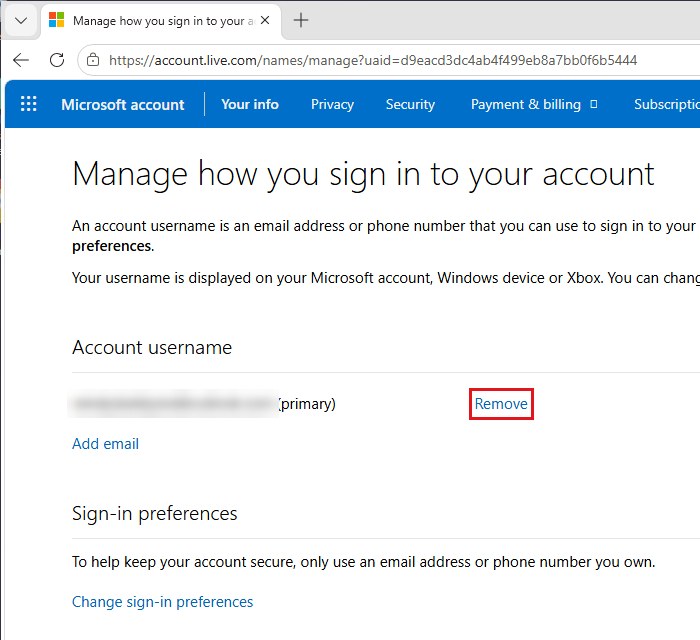
- If it’s only security info, open the account’s Additional security options page at
https://go.microsoft.com/fwlink/?linkid=2204804. Under Ways to prove who you are, expand Email a code for that address, click Remove, then click Remove again to confirm.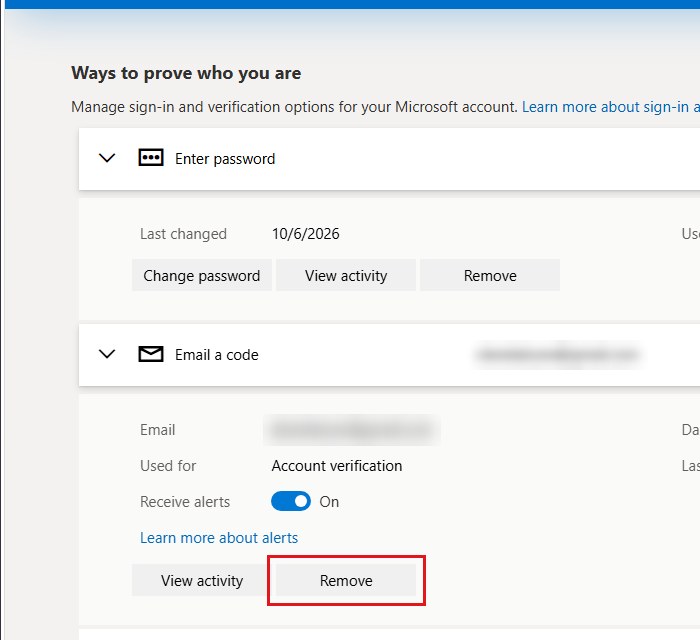
Be warned: If you remove all the security info from an account, Microsoft puts it into a 30-day restricted state. Add a new email or phone number before removing the old one.
After that, sign in to the account you want to use, go to https://account.live.com/names/manage and click Add email, or create a new account with the address. It can take some time before a removed address can be used again, so if it’s refused right away, try again later.
Related guide: How to Change Administrator Email on Windows 11
Try Microsoft’s Sign-in Helper
If the username lookup shows nothing, Microsoft’s own advice for the “couldn’t find an account” error is to run the Sign-in Helper. It asks for the address and checks what’s wrong with it.
- Go to
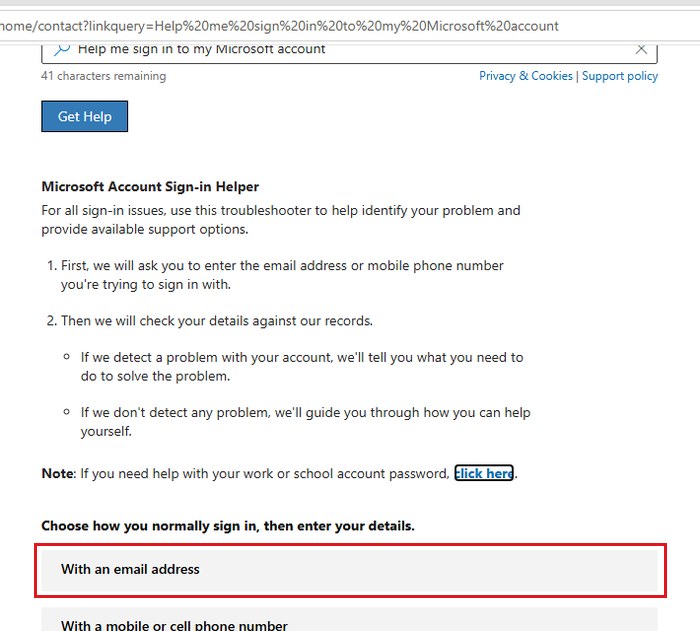
https://go.microsoft.com/fwlink/?linkid=2214157. It opens the Microsoft Account Sign-in Helper on Microsoft’s support site. - Under “Choose how you normally sign in, then enter your details“, select With an email address.
- Enter the email address and follow what the tool tells you.
It doesn’t always find something, and it may just say “No problems found“. If that happens, check the next sections.
Is it a work or school email?
If the email ends with your company’s or school’s domain, the account you’re looking for is probably a work or school account, not a personal Microsoft account. Microsoft blocks new personal accounts with those addresses when the organization uses Microsoft 365, so no amount of retrying will get you through the sign-up page.
In Teams or Office, sign in with it as a work or school account, using your work password. If the password doesn’t work, only your IT admin can help with it.
If you just need to join a Teams meeting, like an interview, you don’t need an account at all. Open the meeting link from the invite, choose to continue in your browser (or the Teams app), type your name and click Join now. Some meetings may still ask for a code sent to your email or for an account.
Linked issue: Can’t Remove School or Work Email from Windows 11 or 10
Was the account closed or taken over?
If the email belonged to an account that you (or someone with access to it) closed less than 30 or 60 days ago, that account can still be reopened, and the address stays tied to it until then. Sign in to it at https://account.microsoft.com with its username and password, enter the security code, and the account comes back with everything that was in it.
If you think someone took over the account, use Microsoft’s account recovery form, ideally from a PC you’ve used with that account before.
If none of this proves the account is yours, the bad news is that there’s not much else you can do. Create a new Microsoft account with a different email address, or get a new Outlook.com address when signing up.