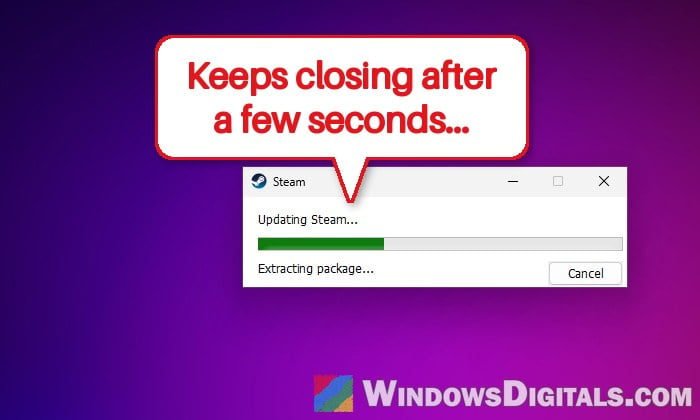
If Steam closes by itself right after you open it (or a few seconds later) on a PC with an AMD Radeon graphics card, and it only started after Steam’s mid-October 2026 update, reinstalling Steam probably won’t help. The crash most likely comes from part of the AMD graphics driver, not from Steam itself. This guide will explain what’s going on and show you the workarounds that get Steam running until AMD fixes it.
Also see: AMD Software Warning: Graphics Driver Replaced?
Page Contents
Why does Steam crash at launch on AMD Radeon PCs?
Since the Steam client update of October 13, 2026, a number of people with Radeon cards (from an RX 590 up to the RX 7900 XT and the newer RX 9070 GRE) have found that Steam won’t stay open. Verifying files, clearing the download cache and even a full reinstall usually do nothing, which is a good hint that Steam isn’t the real problem.
The crash has been traced to GameManager64.dll, a part of AMD’s graphics driver that detects the games you run, although AMD hasn’t confirmed it yet. While Steam starts, this part of the driver can get stuck in a loop and take Steam down with it. It seems to happen mostly when another app it watches is already running at that moment, such as Razer software, Corsair iCUE or another game’s launcher. That may be why it doesn’t hit every Radeon PC, and why the order in which you open things matters.
There’s no fixed AMD driver yet, and the latest one (Adrenalin 26.10.1) still has the problem for some users. The fixes below are workarounds, but they’re quick ones.
How to check if it’s the same crash
If you want to check whether your crash looks like the one people have reported, Event Viewer can show you. Here’s how to check:
- Press Win + R, type
eventvwr.mscand press Enter to open Event Viewer. - In the left pane, go to Windows Logs > Application.
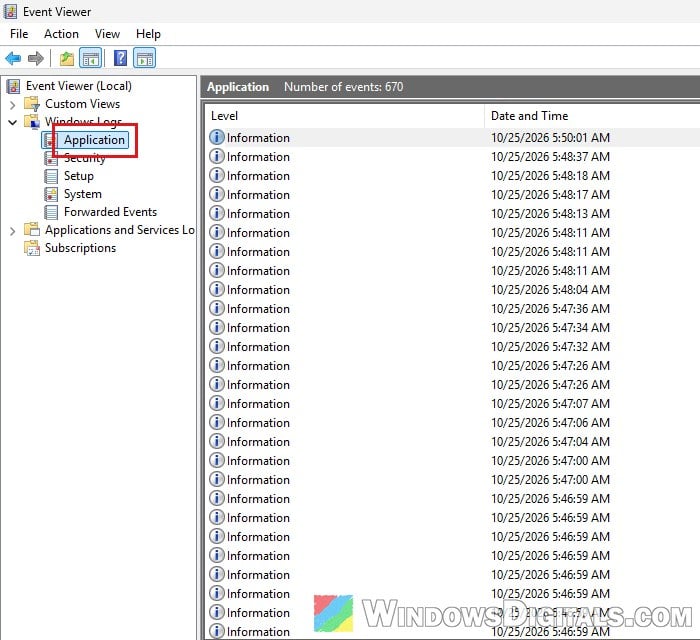
- Look for an Error whose source is Application Error, at the time Steam closed, and click it.
- If the details name steam.exe as the app that crashed, ntdll.dll as the module and c0000005 as the exception code, and you have a Radeon card, it matches the crash described here.
Try opening Steam a second time
It sounds too simple, but for some people only the first launch after turning on the PC crashes. When they open Steam again, it starts normally and keeps working until the next restart.
So before anything else, open Steam once more after it closes.

If it stays open, you can just live with that until AMD releases a fixed driver. If it crashes every time, try the next fix.
Stop the “AMD External Events Utility” service before opening Steam
AMD External Events Utility is a background service installed with the Radeon driver. It helps the driver detect fullscreen and borderless games for features like FreeSync. Stopping it for a moment, opening Steam, and then starting it again has gotten Steam running for several people, including on the latest 26.10.1 driver.
Here’s what you should do:
- Press Win + R, type
services.mscand press Enter.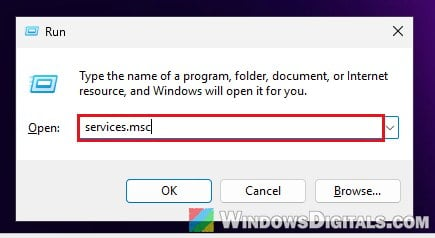
- In the Services window, find AMD External Events Utility. The list is sorted by name, so it’s near the top.
- Right-click it and select Stop. Don’t change its Startup type, just stop it.
- Open Steam and wait until it has fully loaded.
- Go back to the Services window, right-click AMD External Events Utility again and select Start.
Starting the service again afterwards is important, because without it some AMD features, FreeSync in particular, may stop working. You can also do the same from Task Manager (Ctrl + Shift + Esc) on its Services page: right-click AMD External Events Utility, stop it, open Steam, then start it again.
Please note that this only works for the current session. Since you didn’t change its startup type, it will most likely be running again after a restart, so you may have to repeat these steps until AMD fixes the driver.
Start Steam before Razer, iCUE and game launchers
Since the crash seems to happen when apps that AMD’s driver watches are already running, opening Steam before them can get around it. If you fully quit your peripheral or overlay software first (Razer Synapse, Corsair iCUE and the like) and any game launchers, Steam should be able to start. Once Steam is up, you can open the rest again.
Sometimes you also have to close AMD Software: Adrenalin Edition itself before Steam will open, so try that too if quitting the other apps alone isn’t enough.
To avoid doing this after every restart, stop those apps from opening with Windows and start them yourself after Steam. Here’s how to do it:
- Press Ctrl + Shift + Esc to open Task Manager.
- Select Startup apps on the left.
- Select the app you want to keep from starting with Windows (for example, Razer Synapse or iCUE) and click Disable.
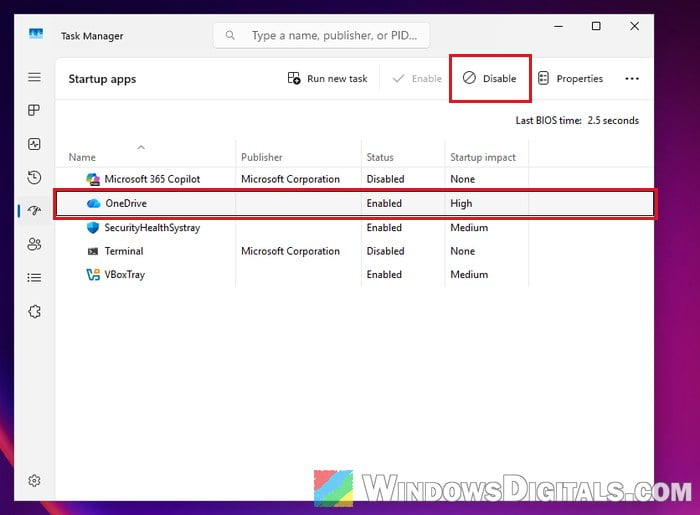
- Restart your PC, open Steam first, then open the other apps.
If Steam now stays open, one of those apps was most likely setting it off.
Pro tip: How to Disable Startup Programs in Windows 11
Update the AMD driver once a fix is out
Since the bug sits in AMD’s driver, the real fix has to come from AMD. Keep an eye on driver updates in AMD Software or on https://www.amd.com/support, and install the next release when it comes out. The problem shows up on several driver versions, so rolling back to an older driver isn’t likely to help.
If you’re affected, it’s also worth sending a report through AMD’s Bug Report Tool so AMD has your crash on file.
Related guide: How to Update Graphics Driver in Windows 11
What about removing GameManager64.dll?
Renaming every copy of GameManager64.dll on the PC can get rid of the crash, but it means taking ownership of the driver’s own files in System32 and the driver store, which isn’t easy and isn’t something most people should be doing to their system folders. I wouldn’t recommend it. The workarounds above get Steam running without touching any system files, and a driver update will make them unnecessary anyway.