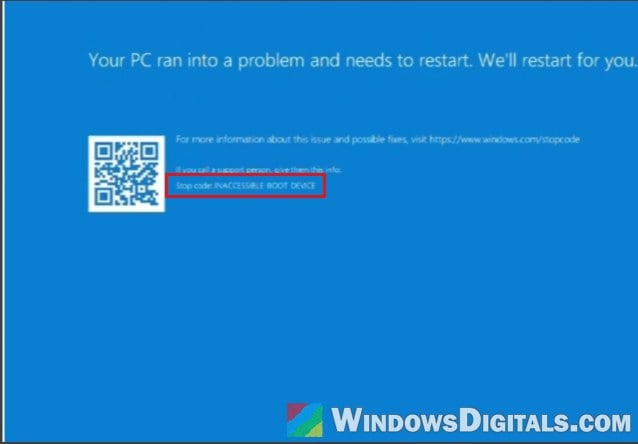
If you turned on an option called “VMD” or “Enable VMD controller” in your BIOS (maybe thinking it had something to do with virtual machines) and now Windows 11 or 10 stops at a blue screen with the stop code INACCESSIBLE_BOOT_DEVICE, don’t panic. Your files are almost certainly still there, and in most cases you only need to undo that one setting. This guide will explain what VMD actually is, how to turn it back off, and what to do if you really want to keep it on.
Also see: Windows 11 PC Won’t Boot Past the BIOS, Why?
Depending on your Windows version, the crash screen is blue or black, but the stop code at the bottom is the same.
Page Contents
What is VMD, and why did it stop Windows from booting?
VMD stands for Intel Volume Management Device. It’s a storage feature on PCs and laptops with an Intel 11th gen or newer processor, and Intel uses it to manage RAID arrays and Intel Optane memory through Intel RST (Rapid Storage Technology). Despite the name, it has nothing to do with virtual machines. The setting for those is usually called Intel Virtualization Technology or VT-x.
When VMD is on, your NVMe SSD sits behind the VMD controller, and Windows can only see the drive with the Intel RST VMD driver (iaStorVD). If Windows was installed while VMD was off, it uses its own built-in NVMe driver and doesn’t load that one when it starts. So after you flip the switch, Windows simply can’t find the drive it’s installed on, and it stops with INACCESSIBLE_BOOT_DEVICE.
Intel itself warns that changing this setting after Windows is installed will cause exactly this blue screen, and Microsoft lists changes to the storage controller mode in the BIOS as one of the causes of the error.
Please note that a BIOS update or BIOS reset can also turn VMD on by itself, and the fix is the same.
Linked issue: “Reboot and select proper boot device” on Windows 10/11
Turn VMD back off in the BIOS
This is the fix both Dell and ASUS give for this blue screen: put the storage setting back the way it was when Windows was installed. It’s also what most people on Reddit did to get their PC booting again.
How to get into the BIOS
Restart the PC and spam press the BIOS key as soon as it powers on. It’s usually Del or F2 (F2 is common on laptops), or F10 on many HP computers.
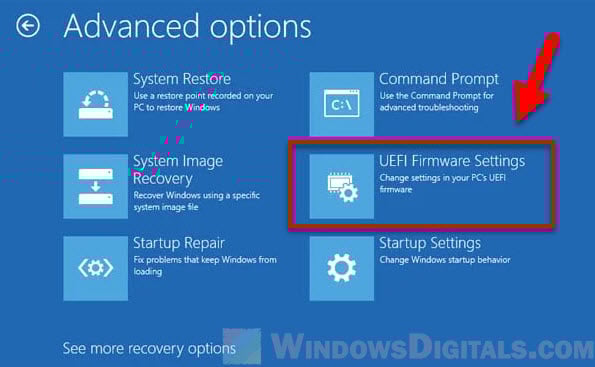
If that doesn’t work, use Windows’ recovery screen, which shows up by itself after Windows fails to start a few times. You can also bring it up by turning the PC off with the power button while it’s trying to boot, twice in a row. On the third start, go to Troubleshoot > Advanced options > UEFI Firmware Settings, and the PC restarts straight into the BIOS.
On an ASUS PC or laptop
Here’s what ASUS says to do:
- On an ASUS laptop, hold F2 while pressing the power button. On a desktop, use the BIOS key from the section above.
- Press F7, or click Advanced Mode, to see all the settings.
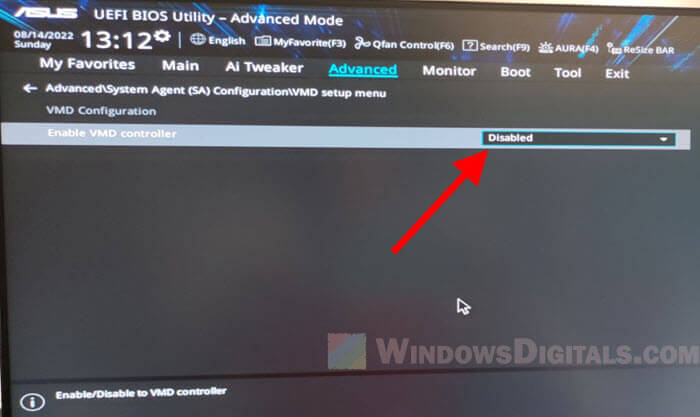
- Go to the Advanced page and select VMD setup menu.
- Under Enable VMD controller, switch it back to the option you had before (Disabled if you just turned it on), then click Ok.
- Press F10 and click Ok to save the changes and restart.
On many ASUS desktop motherboards, the same VMD setup menu sits one level deeper, under Advanced > System Agent (SA) Configuration.
On a Dell PC or laptop
Dell’s BIOS calls it SATA/NVMe Operation, in the Storage section. The two options are AHCI/NVMe and RAID On (RAID On is the default on many Dell models). Switch it back to whichever one it was set to before you changed it, then save and exit.
On other PCs and laptops
The menu and the names differ from one maker to another. Look for anything with VMD in its name, such as VMD Controller or Intel VMD, and set it to Disabled. If you can’t find it, check the manual or the support page for your motherboard or laptop model.
Once you’ve saved the change, let the PC start normally. Windows should boot just like before, with all your files and apps intact.
Might be useful: Can’t find TPM 2.0 and Secure Boot options in BIOS
What if Windows keeps starting in Safe Mode?
If you forced Safe Mode while trying to get past the blue screen, Windows may now start in Safe Mode every time. To clear it, open Command Prompt as administrator in Safe Mode, type the following command and press Enter:
bcdedit /deletevalue {current} safeboot
Restart the PC, and it should start normally again. For more ways to get out of it, see: Windows 11 Keeps Booting in Safe Mode (Fix).
Pro tip: Enter Safe Mode in Windows 11/10 when PC isn’t booting
Want to keep VMD on? Add the Intel RST driver to Windows first
For most people, VMD isn’t worth the trouble. Intel ties it to RAID and Optane memory, so if you don’t use either, leaving it off costs you nothing. If you do want RAID, or your PC came with VMD on, you can add the VMD driver to your existing Windows from the recovery environment with DISM.
Be warned: Intel’s own advice is to set VMD before installing Windows, so this isn’t the route Intel recommends, and a typo here can leave Windows unbootable. If you’re not sure what you’re doing, it’s better to just leave VMD off or get someone to help you.
Here’s how to do it:
- On another working computer, download the Intel RST driver for your PC from its maker’s support page, or Intel’s SetupRST.exe. Extract it and copy the folder that has the iaStorVD.inf, .sys and .cat files to a USB flash drive. For the download links and how to extract SetupRST.exe, see: Intel RST Driver to Install Windows 11 When No Drives Show Up.
- Plug the USB drive into the PC that won’t boot, and open the recovery screen as shown earlier. Go to Troubleshoot > Advanced options > Command Prompt.
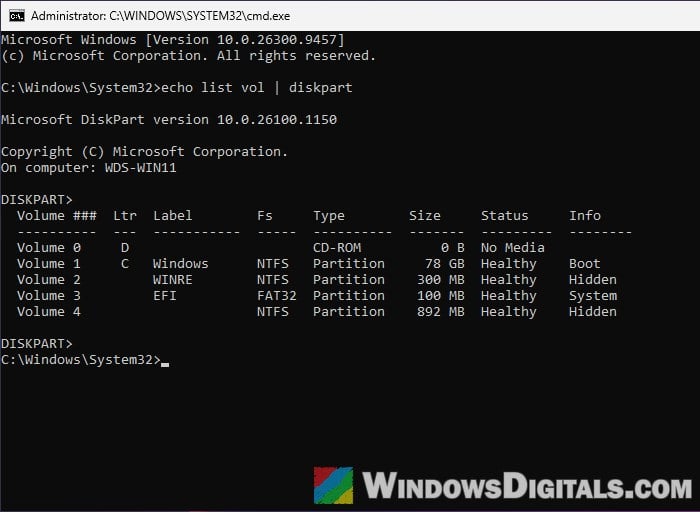
- Type the following commands one by one, and press Enter after each:
diskpart
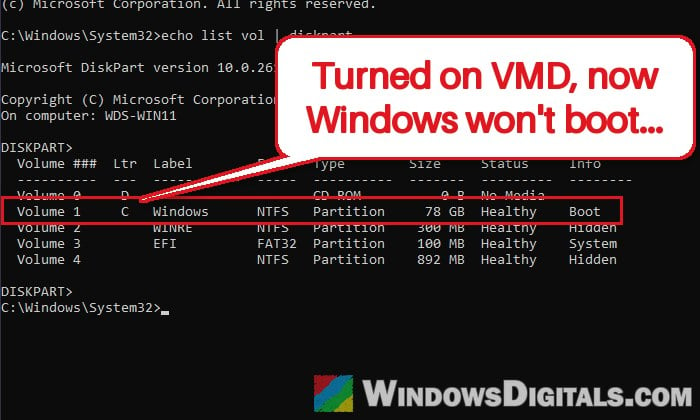
list vol
exit
Note the letters of your Windows drive and of the USB drive. In the recovery environment, they’re often not C: and D:.
- If your drive is encrypted with BitLocker or device encryption, open it first with your 48-digit recovery key, replacing C: with your Windows drive letter:
manage-bde -unlock C: -RecoveryPassword <your recovery key>
- Add the driver to Windows with the following command, replacing D: with your Windows drive and E:\driver with the folder on your USB drive:
dism /image:D:\ /add-driver /driver:E:\driver\iaStorVD.inf
- Close Command Prompt, turn the PC off, go into the BIOS and turn VMD on again.
With the driver now part of Windows, it should be able to see the SSD through the VMD controller and start normally. If you still get the blue screen, turn VMD back off and Windows will boot as before.
Related concern: BitLocker Keeps Asking for the Recovery Key at Every Startup
Reinstall Windows with VMD on (last resort)
If you still want VMD on, Intel and Dell both point to installing Windows again with VMD already turned on. Back up your files first (you can boot with VMD off to do that). During the installation, Windows setup won’t see the drive until you load the Intel RST driver, which is covered step by step in the Intel RST guide linked above.