If your Windows 11 or 10 PC shows the BIOS and the loading screen just fine, but then the monitor goes black and says “No signal” right when the sign-in screen should appear (while the PC keeps running), it’s usually not a dead monitor or graphics card. This guide will explain why the picture disappears at that moment and how to get it back.
Also see: Monitor Not Working After Update in Windows 11/10
Page Contents
Why does the monitor lose signal right when Windows loads?
Up until the loading screen, your PC shows a basic picture the same way the BIOS does. At the sign-in screen, Windows loads the full graphics driver and switches to the resolution and refresh rate it has saved. If the monitor can’t handle what Windows switches to, it shows “No signal”. Common reasons are:
- A resolution or refresh rate the monitor can’t display, especially if the same PC works on a TV or another monitor
- A broken graphics driver, often right after fitting a new graphics card
- The monitor plugged into the motherboard’s video port while a graphics card is doing the work
- A cable or adapter that can’t handle the resolution and refresh rate Windows switches to
- The graphics card’s PCIe setting in the BIOS
Safe Mode is a good clue. It doesn’t load the full graphics driver, so if your screen works there, the driver or the display settings are more likely the problem than the hardware.
Linked issue: Windows 11 PC Won’t Boot Past the BIOS, Why?
Try the display shortcuts first
When the monitor says “No signal”, press Win + Ctrl + Shift + B. This resets the graphics driver; a beep or a flicker means it worked.
If nothing happens, press Win + P, then P again and Enter. This cycles the display mode (PC screen only, Duplicate, Extend, Second screen only), which helps when Windows is sending the desktop to a screen that isn’t there.
Start Windows with low-resolution video and fix the display settings
If the PC works in BIOS and on other screens, this monitor most likely doesn’t accept the mode Windows switches to. Windows has a startup option for exactly this: “Enable low-resolution video” starts Windows with your current driver but at a low resolution and refresh rate, so you can reset your display settings.
The recovery screens come before the graphics driver loads, so they usually show on the problem monitor just like the BIOS. If your PC is encrypted with BitLocker, you’ll need your BitLocker recovery key to get into Startup Settings. The Settings paths below are Windows 11’s; the recovery screens are the same on Windows 10. Here’s what you should do:
- Turn on the PC, and when the Windows loading screen appears, hold down the power button for about 10 seconds to turn it off. Do this 2 to 3 times in a row until Windows shows its recovery screen.
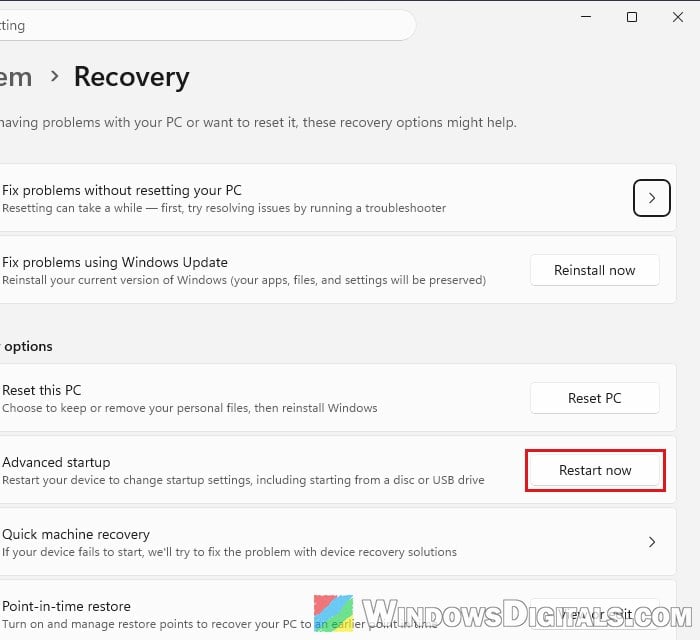
- If you can use Windows on another monitor or a TV, go to Settings > System > Recovery and click “Restart now” next to “Advanced startup” instead.
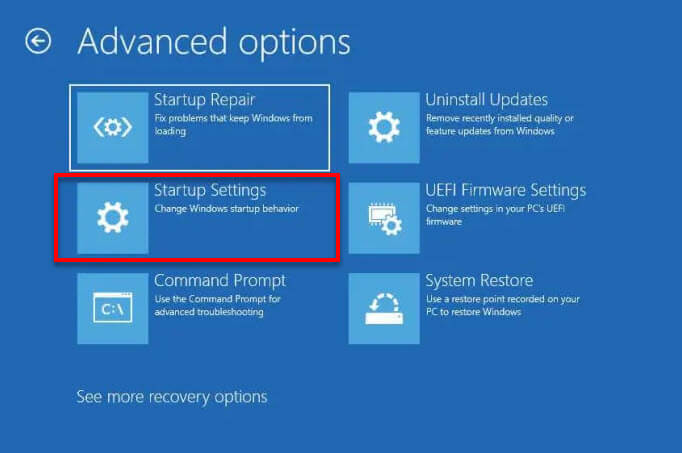
- Select Troubleshoot > Advanced options > Startup Settings, then click “Restart“.
- When the list of startup settings appears, press 3 or F3 to choose “Enable low-resolution video“.
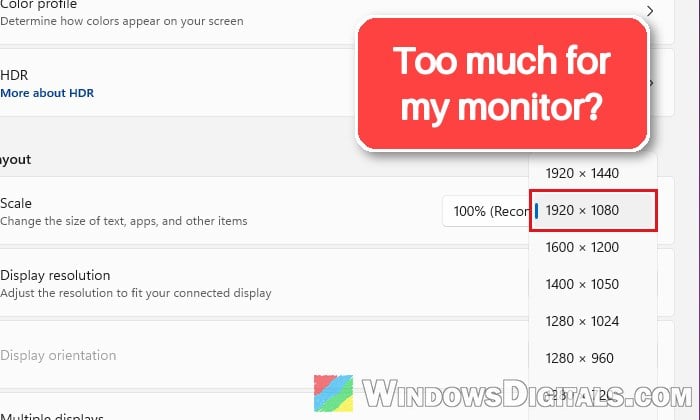
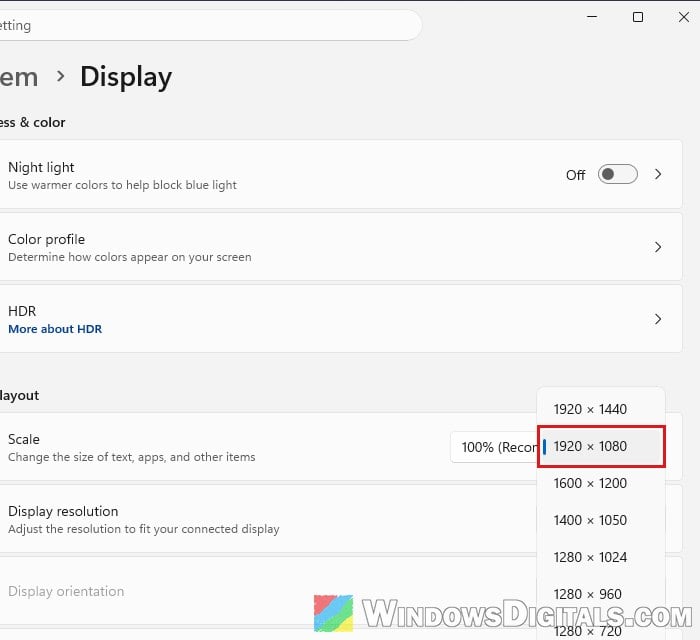
- Once you’re in Windows, open Settings > System > Display and set “Display resolution” to the one marked “(Recommended)“.
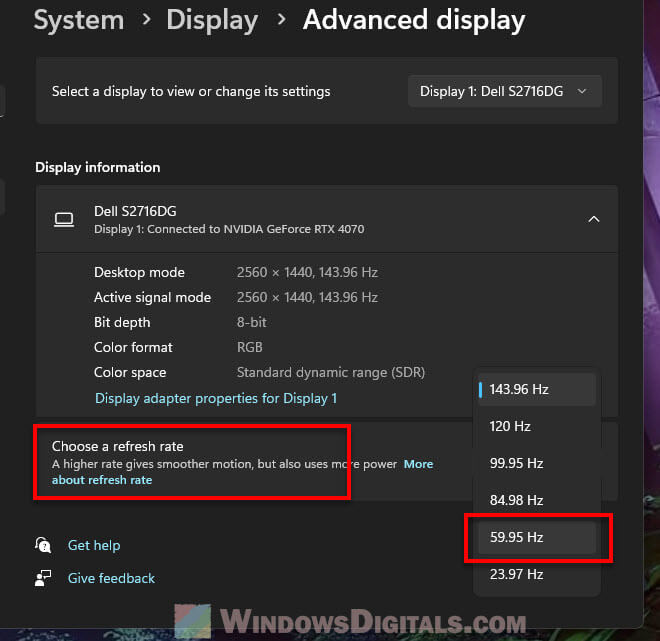
- Then go to Settings > System > Display > Advanced display and set “Choose a refresh rate” to 60 Hz for now. Rates with an asterisk (*) will change the resolution as well.
- Restart the PC normally.
If the desktop shows up, the resolution or refresh rate was the problem.
Might be useful: How to Change Desktop Screen Refresh Rate in Windows 11
Reinstall the graphics driver cleanly from Safe Mode
If even low-resolution video gives you “No signal”, or it started after a new graphics card or driver update, suspect the driver. Removing the driver completely and installing a fresh one is the most common fix. Do it from Safe Mode, where the driver doesn’t load. If it started after a driver update, rolling back the driver may be enough instead.
- Get to Startup Settings as above and press 4 for “Enable Safe Mode” (or 5 for “Safe Mode with Networking” if you need the internet).
- In Safe Mode, press Win + X and select “Device Manager“.
- Expand “Display adapters“, right-click your graphics card and select “Uninstall device“.
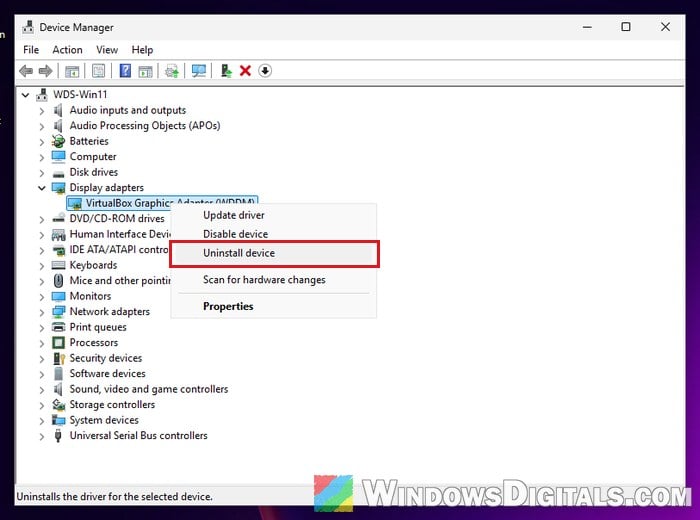
- Restart, then download and install the latest driver for your card from NVIDIA, AMD or Intel’s own website, and see if the sign-in screen shows up.
For a more thorough cleanup, many people use Display Driver Uninstaller (DDU) instead:
- Download it only from its maker’s website,
https://www.wagnardsoft.com/display-driver-uninstaller-ddu. - Disconnect the internet (or use the option in DDU’s settings), so Windows Update doesn’t install its own driver first.
- Start Safe Mode as above, which its maker recommends, and open DDU.
- Pick the device type and your card’s brand, then click “Clean and restart” (ignore the partner offer on the right).
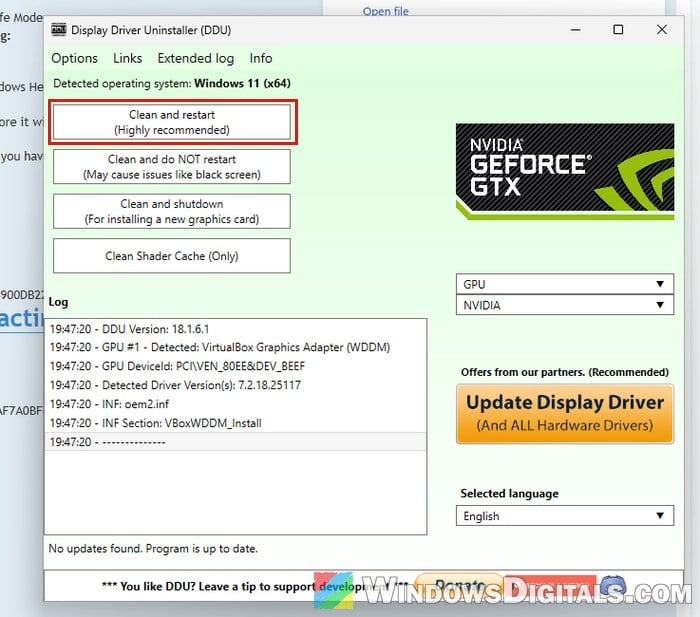
Related concern: Windows 11 Keeps Booting in Safe Mode (Fix)
Make sure the monitor is plugged into the graphics card
It sounds obvious, but on a desktop with a graphics card, the monitor has to be connected to the card’s ports, not the motherboard’s video port. The card’s outputs sit lower on the back of the case, in the expansion slot area.
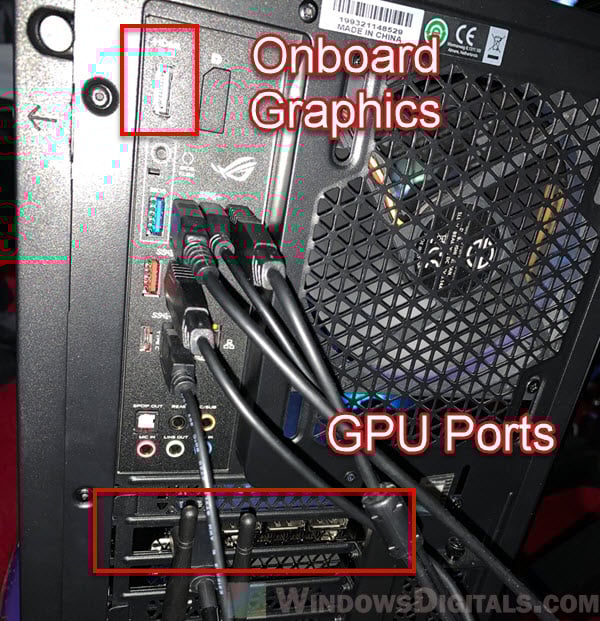
On some PCs, the motherboard’s port can still show the boot screens, then go blank once Windows takes over with the card. If you’d rather use the motherboard’s port, integrated graphics may need to be set to “Enabled” in the BIOS, since some boards turn it off when a card is installed. Also push the cable in fully at both ends.
Try another cable, port or input
A cable or adapter can work fine for the boot screens and still lose the picture once Windows switches modes. An adapter (HDMI to VGA, for example) can drop the signal at higher resolutions, and swapping it for a direct cable can fix it.
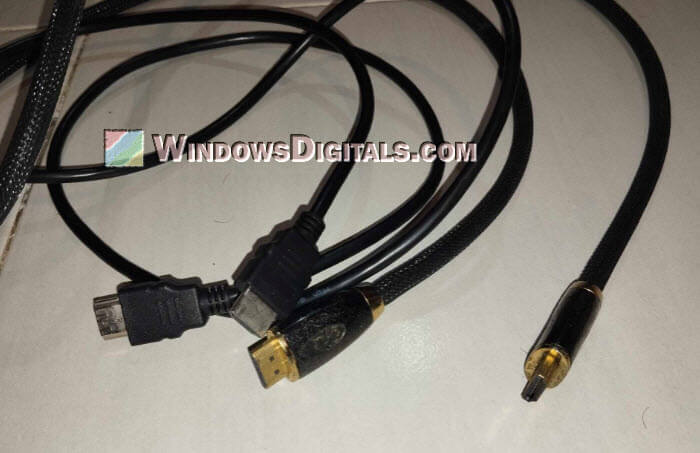
Try a different cable, switch between HDMI and DisplayPort, and try another output on the card and input on the monitor.
Set the graphics card slot’s PCIe speed in the BIOS
Some people with recent NVIDIA RTX cards only got their picture back after changing the BIOS’s PCIe setting for the card’s slot from “Auto” to a fixed generation, usually Gen 4. Setting it to Gen 3 is also suggested.
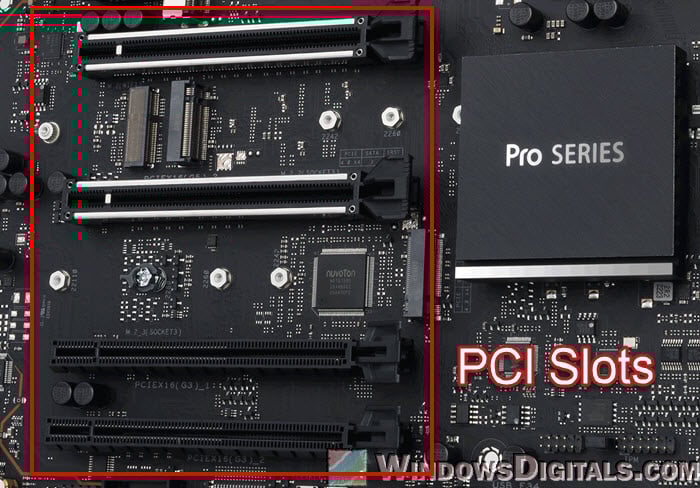
Be warned: Changing the wrong BIOS setting can stop your PC from booting. This option has a different name and place on every motherboard (something like PCIe link speed or PCIe slot configuration, in the advanced or chipset settings), so check your motherboard’s manual. If you’re not sure, get someone to help.
Try System Restore or check the hardware
If the problem started after a driver or Windows update, go back to the recovery screen, select Troubleshoot > Advanced options > System Restore and pick a restore point from before it began.
If it still happens, think about the hardware. It’s less likely, but Safe Mode and the BIOS ask less of the graphics card than Windows does, so a badly seated card, a loose power connector or a struggling power supply could also cause this. Reseat the card and its power cables, and test it in another PC if you can. If it’s still under warranty, contact the manufacturer.
As a last resort with a newly fitted card, reinstall Windows cleanly. This erases the drive, so back up your files first. Install Windows with the monitor on the motherboard’s graphics, install the drivers and updates, then fit the card and install its driver.