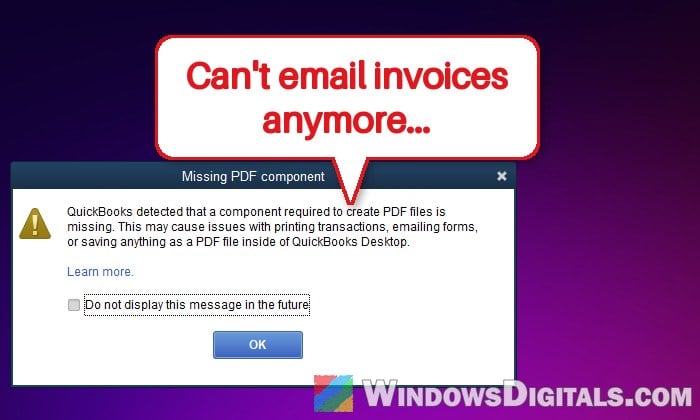
If QuickBooks Desktop shows you a “Missing PDF component” box saying “QuickBooks detected that a component required to create PDF files is missing“, and you can’t save invoices as PDF, email forms or print anymore, it’s usually not QuickBooks that’s broken. On Windows 11, the small Windows printer QuickBooks uses to make its PDFs is often turned off, especially on a new or freshly installed PC. This guide will show you how to turn it back on and what else to check if the error stays.
Also see: How to Open XPS File in Windows 11
Page Contents
Why does QuickBooks say a PDF component is missing?
QuickBooks Desktop doesn’t create PDFs on its own. It relies on Windows’ built-in Microsoft XPS Document Writer, a printer that saves to a file instead of paper. If that printer isn’t there, every PDF action fails, and QuickBooks shows this warning, sometimes right when it starts.
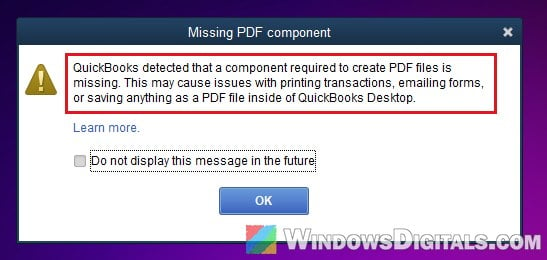
The XPS Document Writer comes with Windows 11, but it isn’t always turned on. Intuit itself tells Windows 11 users to make sure it’s enabled before trying anything else, and it’s what fixed the error for most people who reported it on Intuit’s community and Reddit. Less often, it’s an outdated QuickBooks release, security software, the Temp folder’s permissions or the Print Spooler service.
The same problem can also show up as “QuickBooks can’t complete the current action due to a missing component: Missing pdf file component“, “Unable to save as .pdf file” or “Could not print to printer“.
Linked issue: Turn Windows Features On or Off: “Please wait…”
Turn on Microsoft XPS Document Writer
This is the fix for most people. It turns the XPS printer back on, which QuickBooks needs for every PDF it makes. Close QuickBooks first, then follow the steps below:
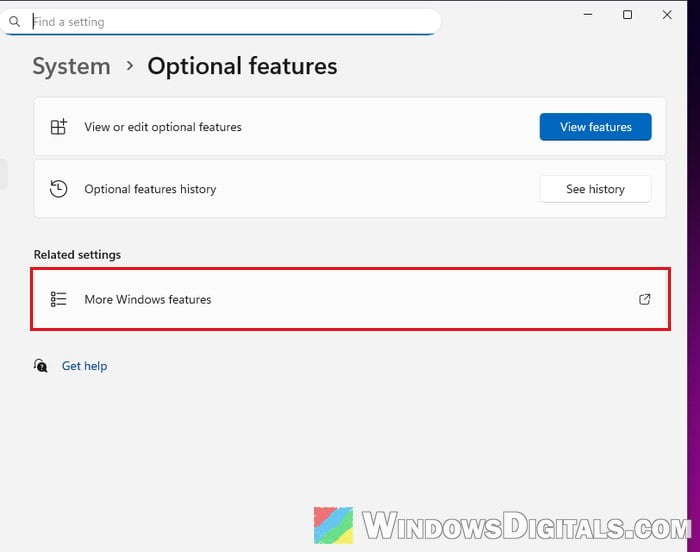
- Open “Settings” (Win + I) and go to System > Optional features.
- Under Related settings, click “More Windows features“.
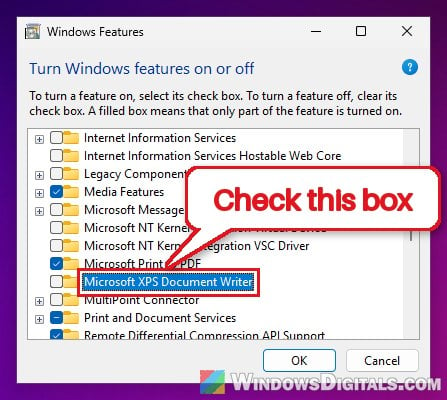
- In the “Windows Features” window, check “Microsoft XPS Document Writer” and click “OK“.
- Restart your PC, then open QuickBooks and try saving or emailing a form as PDF again.
You can also open the same “Windows Features” window by pressing Win + R and typing “optionalfeatures“, or from Control Panel > Uninstall a program > Turn Windows features on or off.
What if it’s already checked?
If “Microsoft XPS Document Writer” is already checked, the printer itself may be damaged. Microsoft’s own advice is to turn it off and on again: uncheck it and click “OK“, then check it again and click “OK“. Restarting the PC in between doesn’t hurt.
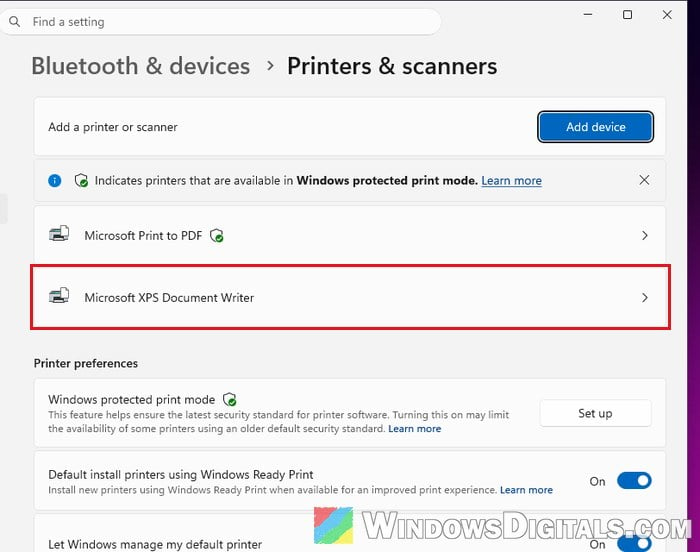
To see if Windows now has the printer, go to Settings > Bluetooth & devices > Printers & scanners and look for “Microsoft XPS Document Writer” in the list.
Might be useful: How to Reinstall Printer Driver on Windows 11
Test the XPS printer outside QuickBooks
If QuickBooks still complains, find out whether the problem is in Windows or in QuickBooks. Intuit suggests a quick test with Notepad:
- Open “Notepad” and type a few words.
- Press Ctrl + P, select “Microsoft XPS Document Writer” and click “Print“.
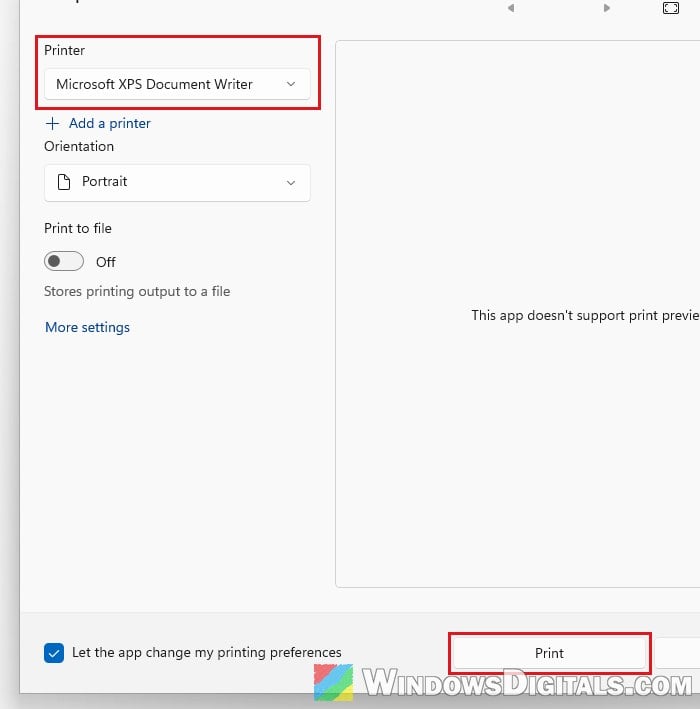
- Give the file a name and save it.
If Notepad can’t save the .xps file either, the problem is on the Windows side, so go back to the previous section or check the Temp folder and Print Spooler below. Antivirus software (Intuit names Norton and McAfee) can also block .xps files from being created. If Notepad works fine, the problem is in QuickBooks, so run Intuit’s repair tool next.
Run the QuickBooks Print & PDF Repair Tool
Intuit has a small tool that resets the print and PDF parts of QuickBooks Desktop. It’s in the QuickBooks Tool Hub, which you download from Intuit’s website. It’s also worth running right after turning the XPS writer back on. On its own, though, it often doesn’t fix this error.
- Close QuickBooks.
- Download “QuickBooks Tool Hub” from Intuit’s support site, install it and open it.
- Select “Program Problems“.
- Click “QuickBooks Print & PDF Repair Tool“. It takes about a minute.
- Open QuickBooks again and try printing, emailing or saving as PDF.
Check the Temp folder permissions
QuickBooks needs to write temporary files while it creates a PDF. If your account can’t write to the Temp folder, the PDF fails. Intuit recommends checking it:
- Press Win + R, type “%TEMP%” and press Enter.
- Right-click an empty area in the folder and select “Properties“.
- Open the “Security” tab, click each user and group in the list, and check that “Full control” is allowed for them.
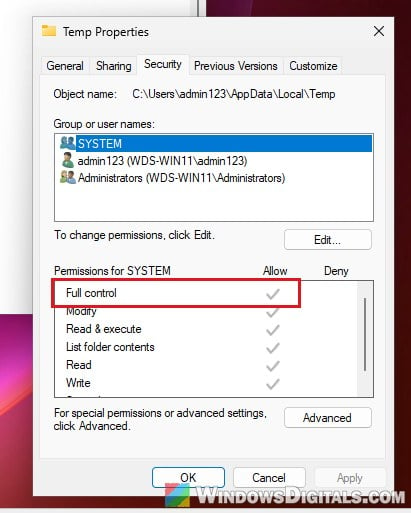
If one doesn’t have it, click “Edit…” on the same tab to change its permissions, then try saving the PDF in QuickBooks again.
Set the Print Spooler to start automatically
All printing in Windows, the XPS writer included, goes through the Print Spooler service. If it’s stopped, or doesn’t start with Windows, QuickBooks can’t print anything:
- Press Win + R, type “services.msc” and press Enter.
- Right-click “Print Spooler” and select “Properties“.
- Set “Startup type” to “Automatic” and click “Apply“.
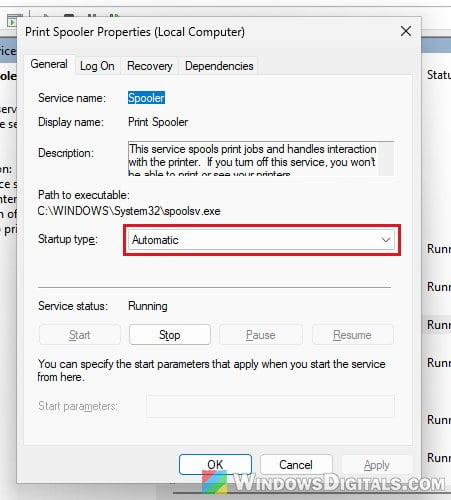
- If Service status doesn’t say Running, click “Start“.
- Click “OK“.
Then open QuickBooks and try printing or saving the PDF again.
Update QuickBooks Desktop
An outdated QuickBooks release can also trigger this error. Press F2 in QuickBooks to see your version and release in the “Product Information” window, and install the latest update for your version. Intuit also lists a damaged or outdated Adobe Reader as a possible cause, so update or reinstall it if you use it.