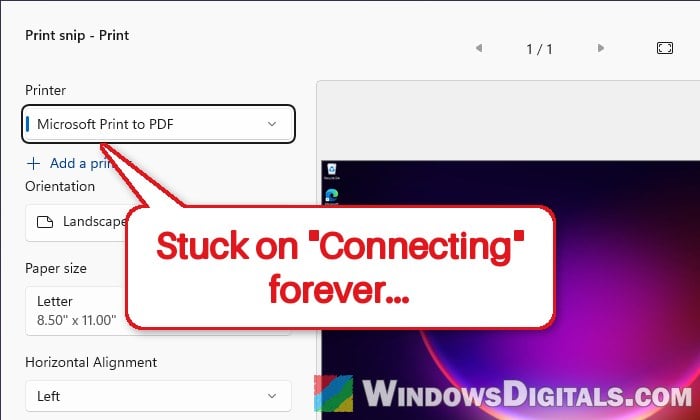
If you try to print a screenshot from Snipping Tool and it just sits on “Connecting” to your printer forever, while Word still prints fine to the same printer, it most likely started with the latest Windows 11 update. This guide will show you how to print your snip right now and how to get Snipping Tool printing again.
Also see: How to Reinstall Printer Driver on Windows 11
Page Contents
Why does Snipping Tool get stuck on “Connecting”?
Snipping Tool doesn’t print the way Word does. Like Photos, it uses the newer Windows print dialog, which is a small app of its own, so it can break while Word keeps printing.
Microsoft hasn’t confirmed a bug, so the exact cause isn’t known yet. The likely reasons are:
- The update changed how your printer driver works with Windows, and Snipping Tool, being a Microsoft Store app, is pickier about it than Word.
- The print dialog app itself is broken or corrupted, which has made Photos and Snipping Tool fail to print before, even when other apps worked fine.
- A stuck Print Spooler or print queue, or a printer driver that the update swapped for a generic one.
The fixes below start with a quick workaround, then the fix most likely to work, and end with the most drastic one.
Print the snip from Paint or Word for now
If you just need the page printed now, skip Snipping Tool’s print button. Printing the same image from Paint or Word should still work, since Word still prints fine to the same printer. Here’s what to do:
- In Snipping Tool, press Ctrl + S and save the snip as an image.
- Right-click the saved image and select Open with > Paint.
- In Paint, click File > Print and print it as usual.
You can also copy the snip with Ctrl + C, paste it into a Word document and print from there. Photos may work too, but it uses the same print dialog as Snipping Tool, so it can get stuck the same way.
Pro tip: How to Find Snipping Tool History in Windows 11 or 10
Reset the Windows print dialog
Since Snipping Tool relies on the newer print dialog, resetting that dialog’s app package can get printing working again. It has fixed Snipping Tool and Photos before when both refused to print.
Note: Run this from the Windows account that has the printing problem, because the command only works on the account it runs in. If that’s a standard account, give it admin rights for a moment first, then take them away again afterwards.
Here’s how to do it:
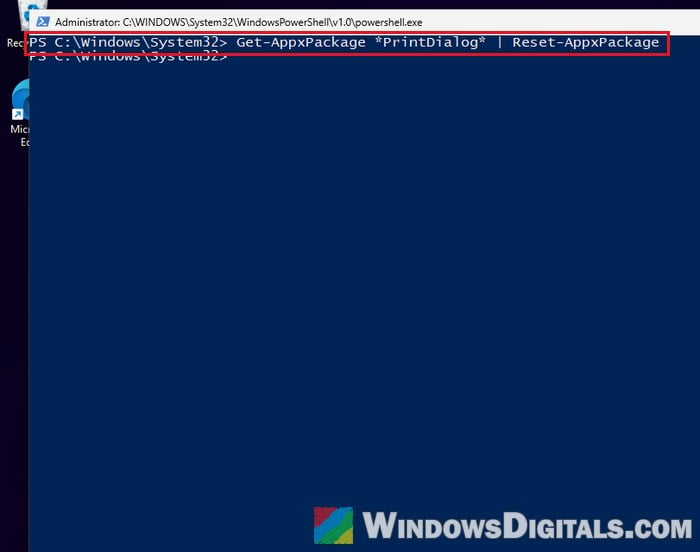
- Right-click the Start button and select Terminal (Admin). Click Yes when asked.
- Make sure it’s a PowerShell tab, then type the following command and press Enter:
Get-AppxPackage *PrintDialog* | Reset-AppxPackage
- If printing still hangs, run this command as well to register the print dialog again:
Get-AppxPackage *PrintDialog* | Foreach {Add-AppxPackage -DisableDevelopmentMode -Register "$($_.InstallLocation)\AppXManifest.xml"}
Once it’s done, open Snipping Tool, take a snip and press Ctrl + P to see if it prints this time.
Restart the Print Spooler and clear stuck jobs
The Print Spooler is the Windows service that hands print jobs to your printer. If it’s stuck, or an old job is jammed in the queue, apps can hang while they try to reach the printer. Clearing it out is quick, but it also cancels anything still waiting in the queue. Follow the steps below:
- Press Win + R, type
services.mscand press Enter. - Double-click Print Spooler and click Stop.
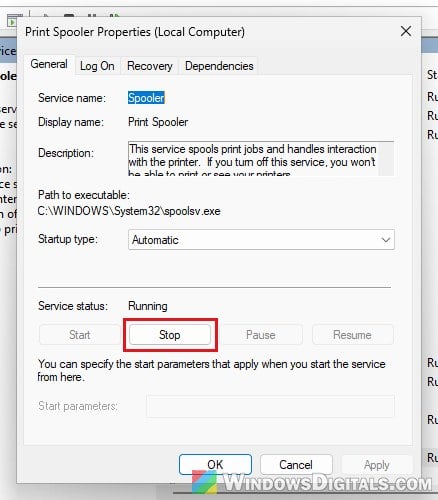
- Open File Explorer, copy and paste the following path into the address bar and press Enter:
%WINDIR%\system32\spool\PRINTERS
- Delete all the files inside that folder (not the folder itself).
- Go back to the Print Spooler window, click Start, make sure Startup type is set to Automatic, and click OK.
Try printing from Snipping Tool again. If it still says “Connecting”, move on to the next fix.
Linked issue: Services.msc “Startup Type” Greyed Out in Windows 11 or 10
Repair or reset Snipping Tool
Reinstalling Snipping Tool hasn’t fixed this on its own, but a repair or reset is quick and rules the app itself out. Here’s what you should do:
- Open Settings and go to Apps > Installed apps.
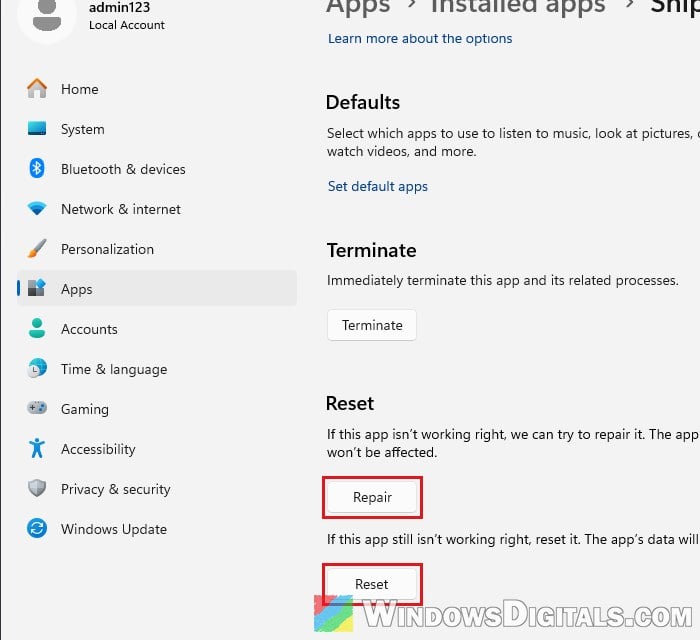
- Find Snipping Tool, click the three dots next to it and select Advanced options.
- Click Repair first. If that doesn’t help, click Reset (this clears the app’s own settings).
- Open Microsoft Store, click the Downloads icon and then Check for updates to make sure Snipping Tool is on its latest version.
Then take a new snip and press Ctrl + P to see if it prints.
Might be useful: Install or Uninstall Windows 11 Snipping Tool via PowerShell
Reinstall your printer with its full driver package
Windows updates sometimes swap a printer’s own driver for a generic one, and the newer print dialog may not get along with it, even if Word does. Removing the printer and installing it again with the full driver package from the printer maker’s website (Brother, HP, Canon, Epson and so on) puts the right driver back. Here’s how to do it:
- Download the full driver package for your exact printer model from the maker’s support website.
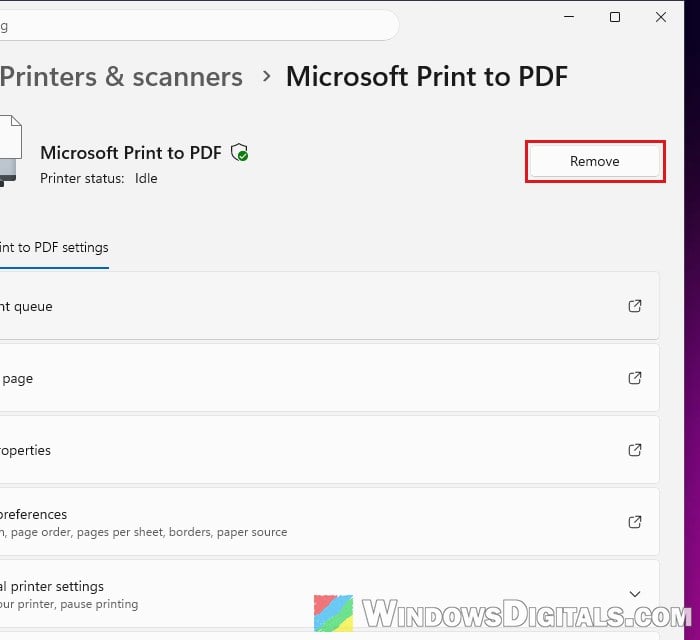
- Open Settings and go to Bluetooth & devices > Printers & scanners.
- Select your printer, click Remove, and then click Yes.
- Run the driver package you downloaded and follow its steps to add the printer again.
- Try printing from Snipping Tool again.
If your printer is connected over Wi-Fi, try a USB cable for a moment as well. If it prints over USB, the problem is more likely the network connection.
Uninstall the latest Windows update (last resort)
If nothing else works, removing the update that started it can bring Snipping Tool printing back. The catch is that you also lose that update’s security fixes, so only do this if you really need to print from Snipping Tool, and plan to install the updates again later.
To remove the update, follow the steps below:
- Open Settings and go to Windows Update > Update history.
- Look at the dates and note the update that installed around the day printing stopped working (see how to check if a KB update is installed if you’re not sure which one it is).
- Scroll down and click Uninstall updates.
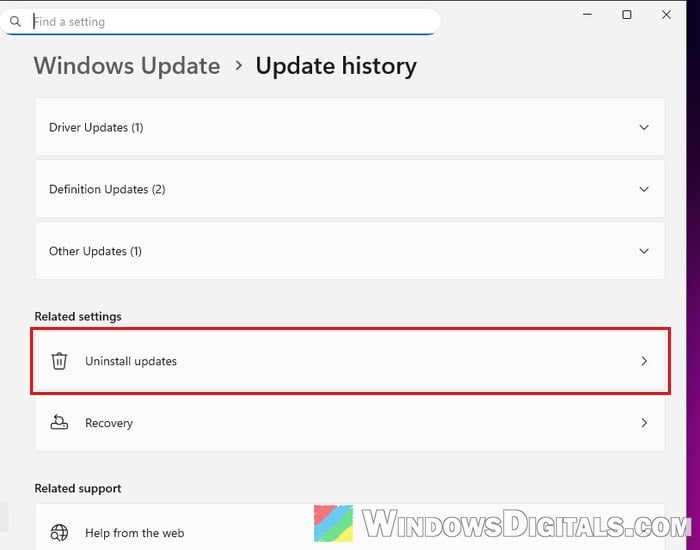
- Find that update, click Uninstall, and restart your PC when it’s done.
To stop it from coming straight back, go to Settings > Windows Update and pause updates for a few weeks. Before you let the updates install again, create a system restore point so you have a way back if it breaks again. Don’t keep updates off for good, though, since they carry security fixes your PC needs.