If your laptop has an Intel Wi-Fi 6 AX201 160MHz or Wi-Fi 6E AX211 160MHz adapter and you’ve noticed that the channel width setting only offers “Auto” and “20 MHz“, with no 160 MHz option anywhere, while your Wi-Fi speed seems stuck at around 150 to 200 Mbps, the missing option isn’t really the problem. This guide will explain what that setting actually does and show you how to find out why your connection isn’t using the wider channels.
Also see: Why is My Internet So Slow on My PC but Not My Phone?
Page Contents
Is the 160 MHz option really missing?
No. This confuses a lot of people. According to Intel, the channel width setting for 5 GHz only has two choices: Auto (the default) and 20 MHz. When it’s on Auto, the adapter uses 20, 40, 80 or 160 MHz depending on what your wireless router offers. There’s no separate 160 MHz option to pick, because Auto already covers it.
In other words, the adapter doesn’t decide the channel width on its own. Intel says it plainly: your router controls the channel width. So if you’re connected at 20 MHz, the reason is usually one of these:
- The adapter’s channel width is set to “20 MHz” instead of “Auto“.
- The router isn’t offering a wider channel, or it’s on a channel where 160 MHz isn’t possible.
- The Wi-Fi driver is old or has a bug.
- A limit is set by your country’s rules or the laptop maker.
Suggested read: WiFi 5 vs WiFi 6 vs WiFi 6E for Virtual Desktop (VR)
Make sure the channel width is set to “Auto”
The first thing to check is that the adapter isn’t set to “20 MHz”. Intel recommends “Auto” for Wi-Fi 6 connections. Here’s how to check it:
- Right-click the “Start” button and select “Device Manager“.
- Expand “Network adapters“.
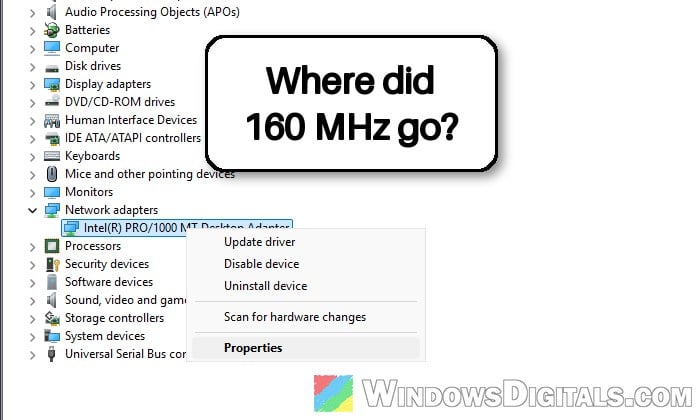
- Right-click your Intel Wi-Fi adapter (for example, “Intel(R) Wi-Fi 6E AX211 160MHz“) and select “Properties“.
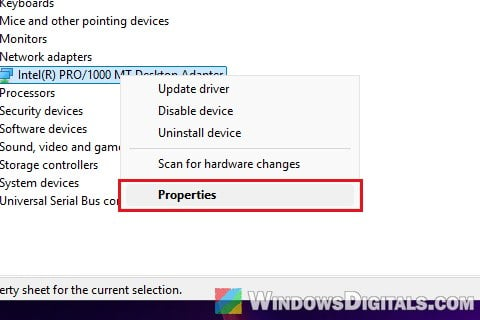
- Go to the “Advanced” tab.
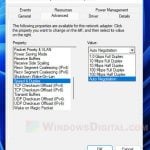
- Select “Channel Width for 5GHz” in the “Property” list and set its “Value” to “Auto“. On some laptops, the name is a little different, such as “802.11n channel width (band 5GHz)” or “5G Channel Bandwidth“.
- While you’re there, check that “802.11n/ac/ax Wireless Mode” is set to “802.11ax“, then click “OK“.
Then check the connection speed as shown in the next section.
Check the speed and band Windows actually connects at
Windows can show you what your Wi-Fi connection is using. Open Settings > Network & internet > Wi-Fi > Hardware properties, and look at:
- Protocol: Wi-Fi 6 (802.11ax) is what you want. If it says Wi-Fi 5 (802.11ac), the router or the settings above aren’t letting the adapter use Wi-Fi 6.
- Network band and Network channel: which band (2.4, 5 or 6 GHz) and channel you’re on.
- Link speed (Receive/Transmit): the speed your PC and router agreed on. A link speed that sits in the low hundreds on a Wi-Fi 6 router usually means a narrow channel.
Come back to this page after each change on the router to see if the link speed goes up.
Might be useful: How to Change 5GHz to 2.4GHz or Vice Versa in Windows 11/10
Let your router use wider channels
Since the router decides the channel width, this is where the fix usually is. Every router names these settings differently, so check its manual or admin page for the exact wording. In general:
- Turn on Wi-Fi 6 (802.11ax) mode for the 5 GHz band.
- Set the 5 GHz channel width to allow 160 MHz (or a mode that allows all widths). Intel recommends enabling support for all channel widths.
- DFS channels usually need to be turned on for 160 MHz on 5 GHz, so make sure they aren’t disabled.
- Leave the channel on Auto unless you know what you’re doing with Wi-Fi channels.
Please note that 160 MHz isn’t always the better choice. Intel itself warns that 80 MHz and 160 MHz channels pick up and cause a lot more interference. If the connection becomes unstable at 160 MHz, 80 MHz is often the better balance. If you keep losing the connection on a DFS channel, try a non-DFS channel instead.
Update the Intel Wi-Fi driver
If the router is set up right and you’re still stuck at 20 MHz, the driver is the next suspect. Some people with this problem were running older drivers, while others ran into it right after a newer driver.
You can get the driver from your laptop maker’s support page, or Intel’s “Intel Wireless Wi-Fi Drivers for Windows 10 and Windows 11” package, which covers both the AX201 and the AX211. The latest version at the time of writing is 24.70.0. Intel notes that laptop makers sometimes customize their drivers, and its Intel Driver & Support Assistant can detect which one fits your PC.
- Go to Intel’s driver page:
https://www.intel.com/content/www/us/en/download/19351/intel-wireless-wi-fi-drivers-for-windows-10-and-windows-11.html - Click “Download” to get the installer.
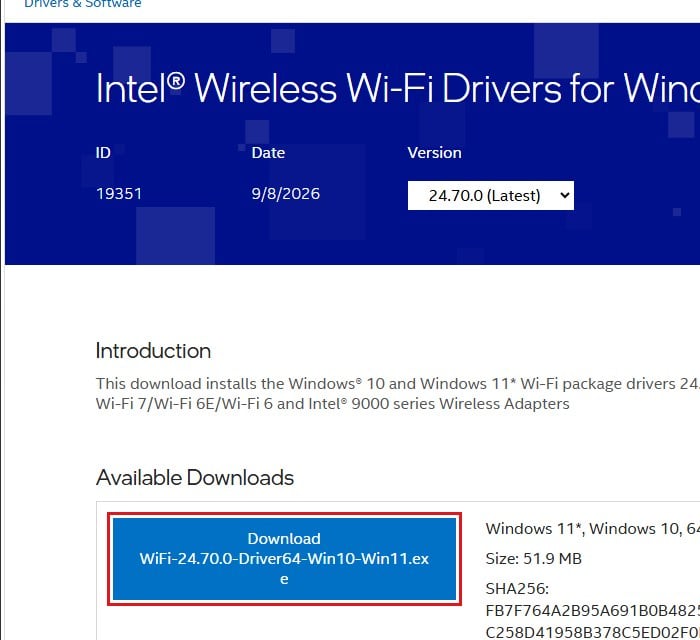
- Right-click the downloaded file, select “Run as administrator“, and follow the steps.
- Restart the laptop and check the link speed again.
Related guide: How to Install or Update Driver in Windows 11
Do a clean reinstall of the driver
If a normal update doesn’t change anything, Intel suggests removing the old driver completely before installing the new one. Download the driver first, since you’ll lose Wi-Fi during this.
- In Device Manager, expand “Network adapters“, right-click your Intel Wi-Fi adapter and select “Uninstall device“.
- Tick “Attempt to remove the driver for this device” and click “Uninstall“.
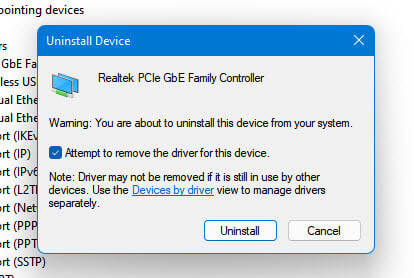
- Repeat this until the checkbox is greyed out or no longer shows up.
- Restart the laptop, then run the driver you downloaded as administrator.
Roll back if it started after a driver update
If the speed dropped right after a new driver, try going back to the previous one. This hasn’t worked for everyone, so don’t spend too long on it.
- In Device Manager, right-click your Intel Wi-Fi adapter and select “Properties“.
- Go to the “Driver” tab and click “Roll Back Driver“.
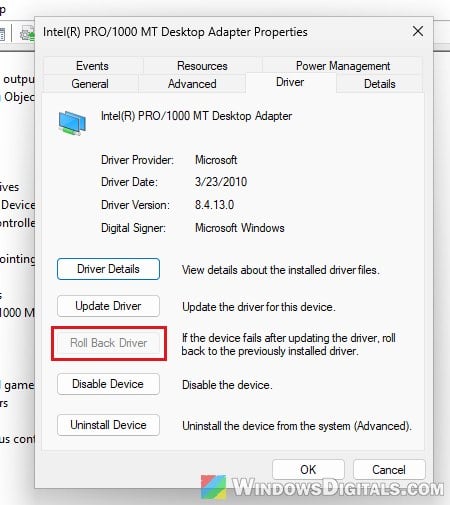
- If the button is greyed out, there’s no previous driver saved. You can download an older version from Intel’s driver page instead (pick it from the “Version” list) and install it.
Using 6 GHz on the AX211
The AX211 can also use the 6 GHz band (Wi-Fi 6E). According to Intel, 6 GHz needs Windows 11 with the latest updates, a Wi-Fi driver of at least version 22.70.0, and a Wi-Fi 6E router. 6 GHz also has to be allowed in your country, and some laptop makers don’t enable it. The AX201 is a Wi-Fi 6 card, so it doesn’t support 6 GHz.
Once you’re connected to the router’s 6 GHz network, Network band in Hardware properties should show 6 GHz.
Still stuck at 20 MHz on every router?
Intel has said that the channels an adapter can use are regulated by country, and depending on the laptop maker, the adapter may come with restrictions. If your laptop stays at 20 MHz on different routers, even with the latest driver and a clean reinstall, the Wi-Fi card itself may be at fault, so contact the laptop maker’s support or Intel’s. If your laptop is still under warranty, that’s the time to use it.