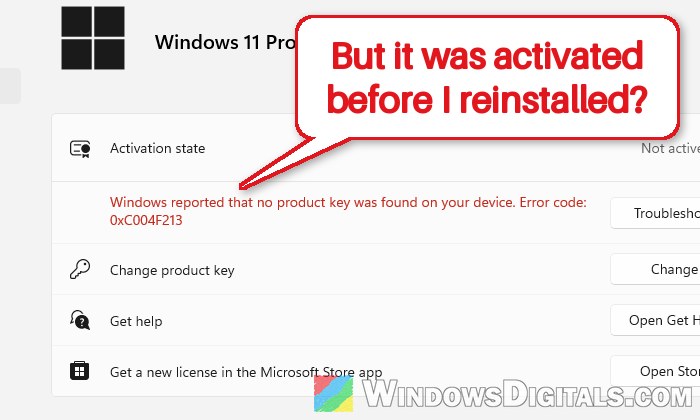
If you’ve just reinstalled Windows 11 or 10, maybe on a new SSD or after wiping the drive, and the Activation page now says “Windows reported that no product key was found on your device” with error code 0xC004F213, it means Windows can’t match this copy to a license. This guide will show you why it happens and how to get Windows activated again without buying a new license you might not need.
Also see: Windows 11 Not Activated After BIOS Update
Page Contents
Why does Windows say no product key was found?
A Windows license is tied to your PC’s hardware, either as a digital license that Microsoft keeps on record, or as a product key you typed in or one built into the PC. After a clean install, Windows has to find one of these again. According to Microsoft, reinstalling the same edition on a PC with a digital license should activate on its own once you’re online. When it doesn’t, it’s usually because of one of these:
- You installed a different edition than the one you had before (Home instead of Pro, or the other way around).
- Windows only has a generic default key installed, which was put in because you skipped the product key during setup. This key can’t activate anything by itself.
- There’s no key in the PC’s firmware, so Windows has nothing to pick up automatically.
- The old install might have been activated through a school, work or volume (KMS) license, which doesn’t leave a digital license for your PC.
- Windows thinks the hardware has changed too much, for example after a motherboard replacement.
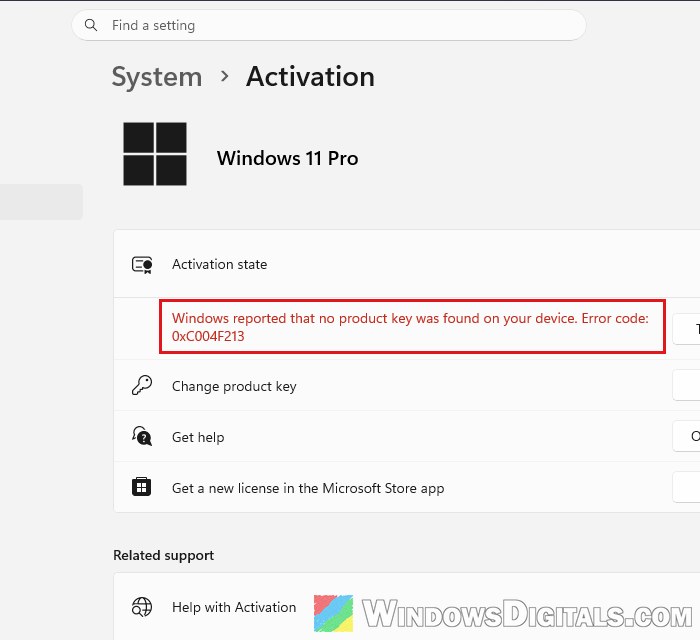
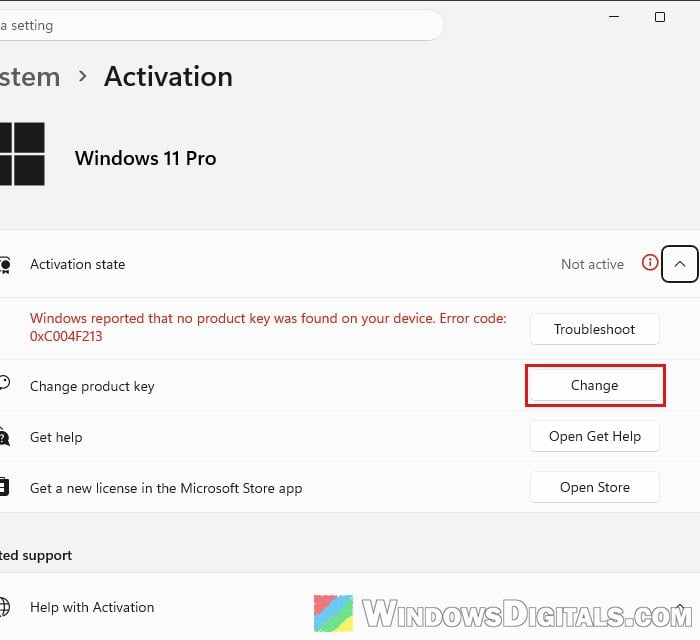
You’ll see the error under Settings > System > Activation, where “Activation state” shows “Not active” and the message is in red right below it.
Pro tip: How to Find Windows 11/10 Digital License Product Key
Run the activation troubleshooter first
The activation troubleshooter checks with Microsoft whether there’s a digital license recorded for your PC, and restores it if there is. Microsoft recommends it for activation errors like this one, and it’s the quickest thing to try. Make sure you’re connected to the internet and signed in with an administrator account, then follow the steps below:
- Open Settings > System > Activation.
- Click Troubleshoot next to the error message.
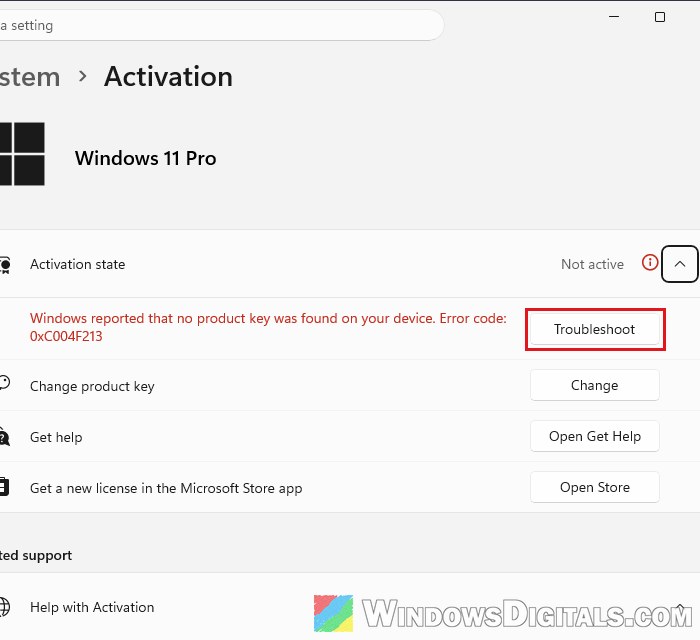
- Wait for it to finish. If it finds a digital license for this PC, it will activate Windows for you.
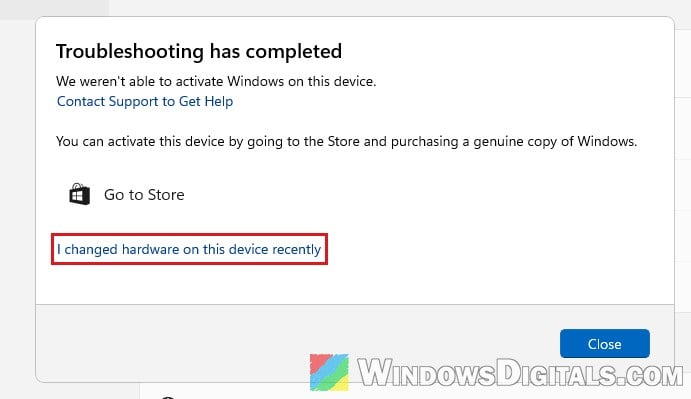
On Windows 10, the same button is under Settings > Update & Security > Activation. If the troubleshooter says “We weren’t able to activate Windows on this device“, check the edition next, since a mismatch is a common reason it fails.
Check that you installed the same edition
A digital license only works for the edition it was issued for. If your PC had Windows 11 Pro before and you installed Home this time (or the other way around), Windows won’t find a matching license and shows 0xC004F213. It’s an easy mistake to make when the installer asks you to pick an edition.
To see which edition you have now, look at the top of the Activation page, or go to Settings > System > About and check Edition under Windows info (called Windows specifications on older versions of Windows 11 and on Windows 10).
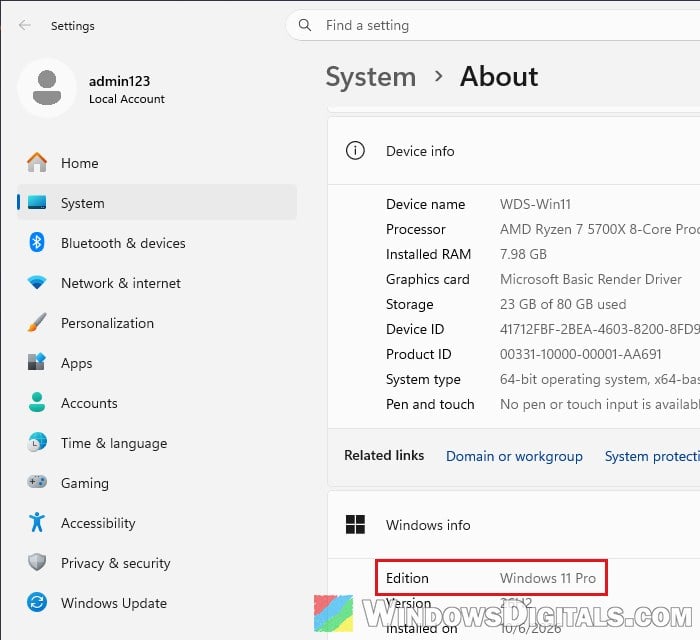
If it’s not the edition you had before, the cleanest fix is to reinstall the right one. When setup asks for a product key, choose “I don’t have a product key” and then pick the edition you used to have. Once it’s installed and online, it should activate on its own.
Related guide: How to Burn Windows 11 ISO to USB
Installed Home but you have a Pro key?
If you have a Pro product key, you don’t need to reinstall. You can enter it on the Activation page (next section) and Windows will upgrade Home to Pro.
Might be useful: Upgrade Windows 10/11 Home to Pro without losing data
Enter your product key
If you bought Windows as a key, or your PC came with one, entering it again is often the quickest way out. You can usually find it:
- On the Certificate of Authenticity (COA) sticker on a PC that came with Windows.
- On the label inside the box for a boxed copy.
- In the confirmation email or the seller’s account page, if you bought it online.
- Under Order history in your Microsoft account, if you bought it from the Microsoft Store.
Check if your PC has a key in its firmware
Most PCs and laptops that came with Windows 8 or newer have the key stored in the firmware, so it isn’t printed anywhere. You can read it yourself:
- Search for “PowerShell” in the Start menu, right-click Windows PowerShell and select Run as administrator.
- Run the following command:
(Get-CimInstance SoftwareLicensingService).OA3xOriginalProductKey
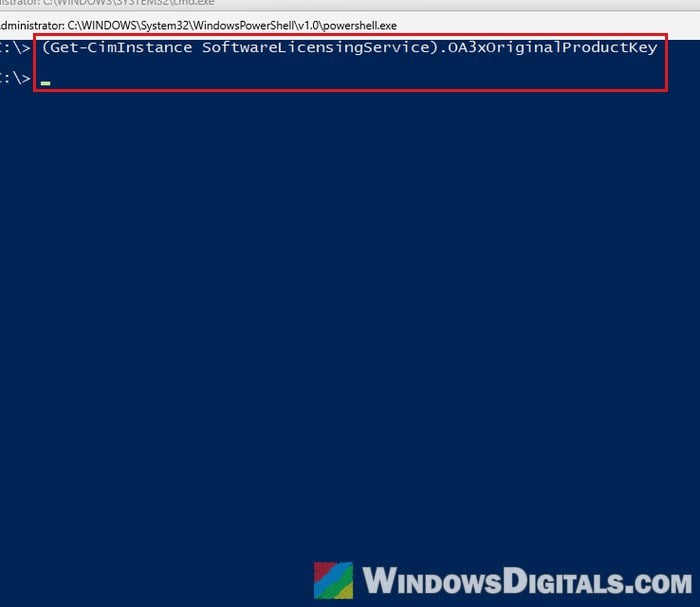
- If it shows a 25-character key, that’s the key your PC came with. If it just returns an empty line, like in the screenshot above, there’s no key stored in the firmware.
A firmware key only works for the edition the PC was sold with.
Enter the key
- Go to Settings > System > Activation.
- Click Change next to Change product key.
- In the “Enter a product key” box, type your 25-character key and click Next, then follow the prompts to activate.
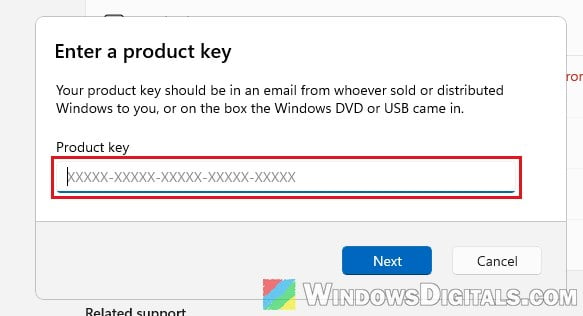
If the key doesn’t work, check that it’s for the edition you installed (see above).
Not sure what key Windows is using?
To see what’s actually installed, open Command Prompt as administrator and run:
slmgr /dlv
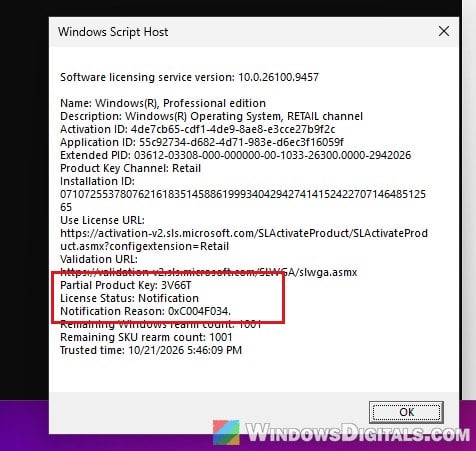
A Windows Script Host box pops up with your edition, the license channel, the Partial Product Key (the last five characters of the installed key) and the License Status. If the status says “Notification” and the partial key is one you don’t recognize (for example, 3V66T on Pro or 8HVX7 on Home), Windows is running on the generic key that setup puts in when you skip the product key. That key will never activate Windows, so you need your real key or a digital license.
Use “I changed hardware on this device recently”
If you linked your digital license to your Microsoft account before reinstalling, the troubleshooter has an option to move the license to this install. The Activation page used to say “Windows is activated with a digital license linked to your Microsoft account” if that was the case. Here’s how to use it:
- Go to Settings > System > Activation and click Troubleshoot.
- When it says it couldn’t activate Windows, select “I changed hardware on this device recently“, then Next.
- Sign in with the Microsoft account the license is linked to.
- Find your PC in the list, tick “This is the device I’m using right now“, and select Activate.
If it says it can’t find any devices linked to your Microsoft account, the license was never linked, and this option won’t help. The edition has to be the same as before for this to work too.
Contact Microsoft support if nothing works
If you’re sure your license is genuine and none of the above worked, contact Microsoft support. Have the error code, your Windows edition, the device name and your proof of purchase ready. Support can check your purchase and, in some cases, send you a working key or reactivate Windows for you. If your PC came with Windows and the firmware key is gone, the PC maker is the one to ask.
Don’t buy a new license until you’ve checked this, and stay away from cheap grey-market keys and “activator” tools. If you really don’t have a license, you can buy one by clicking Open Store next to “Get a new license in the Microsoft Store app” on the Activation page.