If you’ve turned on DLSS Frame Generation, FSR Frame Generation or NVIDIA’s Smooth Motion and your games feel choppy and stutter when you move the camera, even though the FPS counter shows a high frame rate and G-SYNC still says it’s on, the problem is usually how G-SYNC is set in your NVIDIA driver, not the game itself. This guide will show you why G-SYNC and frame generation clash and what you can do to get smooth frames back.
Also see: How to Turn On G-Sync or FreeSync in Windows 11
Page Contents
Why does G-SYNC stutter with frame generation?
G-SYNC makes your monitor’s refresh rate follow the game’s frame rate, and frame generation adds extra frames between the real ones. On some NVIDIA drivers, the two don’t work well together, and the frames reach the screen at uneven intervals.
This has been showing up throughout 2026 on RTX 40 and RTX 50 cards, laptops and desktops, in games like Cyberpunk 2077, Battlefield 6, Helldivers 2 and World of Warcraft. The confusing part is that G-SYNC still shows as active, even though it isn’t doing its job.
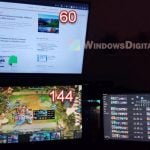
One way to spot it is the refresh rate readout in your monitor’s on-screen menu. With the stutter, it stays almost fixed while your FPS changes, or jumps around while your FPS is steady. When G-SYNC is working, the number follows your FPS.
NVIDIA hasn’t confirmed this issue yet, but it fixed a similar G-SYNC frame pacing bug with a hotfix driver in June 2026.
Might be useful: How to Fix Game Stuttering on Windows 11
Turn on G-SYNC per game instead of globally
With the same game, the same driver and the same settings, the stutter happens when G-SYNC is set in the global profile, but goes away when G-SYNC is set in the game’s own profile instead. So the idea is to keep G-SYNC switched on, set it to fixed refresh for everything by default, and then turn it back on only for the games where you use frame generation.
Make sure the variable refresh rate option (G-SYNC, FreeSync or Adaptive-Sync) is also turned on in your monitor’s own menu, otherwise the setting below won’t show up.
Please note that NVIDIA retired the classic NVIDIA Control Panel in May 2026, and new drivers no longer install it. If you already have it, it keeps working (unless you do a clean driver install). If you don’t, you can still get NVIDIA Control Panel from the Microsoft Store.
Here’s how to do it:
- Open the NVIDIA Control Panel.
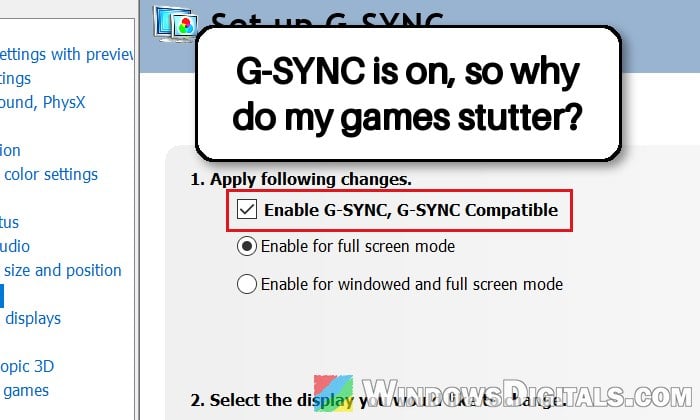
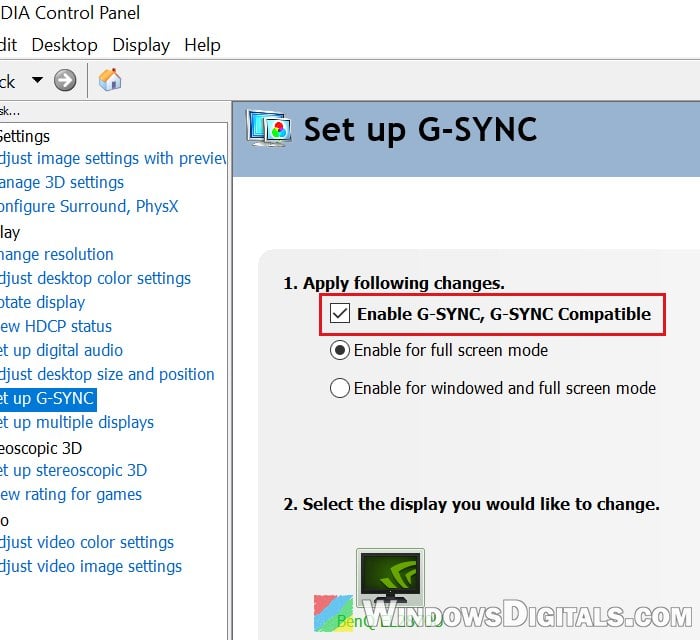
- Go to Display > Set up G-SYNC, and make sure “Enable G-SYNC, G-SYNC Compatible” is still ticked.
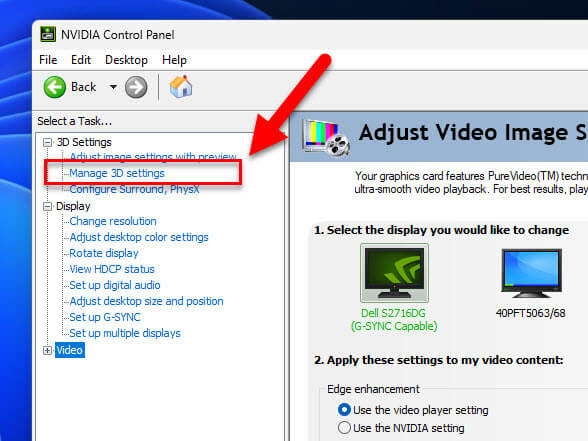
- Go to 3D Settings > Manage 3D settings and stay on the Global Settings tab.
- Find Monitor Technology in the settings list, set it to Fixed Refresh and click Apply.
- Switch to the Program Settings tab.
- Under “Select a program to customize“, pick your game from the list. If it isn’t there, click Add and browse to the game’s .exe file.
- In the settings list for that program, set Monitor Technology to G-SYNC or G-SYNC Compatible (whichever your display shows), then click Apply.
- Repeat steps 6 and 7 for every game where you use frame generation.
Launch the game with frame generation on and move the camera around for a while. It should now feel as smooth as the FPS counter says. Your desktop and other apps will run at a fixed refresh rate, which is normal.
Go back to the last NVIDIA driver that worked
If the stutter started after a driver update, going back to an older driver is the next best fix. It has worked for many people, but there isn’t one “good” version for everyone. Some went back to 596.49, others to 610.88 or even 566.36. The right one for you is the last driver where your games were still smooth. Don’t count on the current 621.01 driver to fix it, as the stutter has been reported on it too.
The quickest way is Device Manager’s Roll Back Driver, which takes you back to the driver you had right before:
- Right-click the Start button and select Device Manager.
- Expand Display adapters, right-click your NVIDIA graphics card and select Properties.
- Go to the Driver tab and click Roll Back Driver.
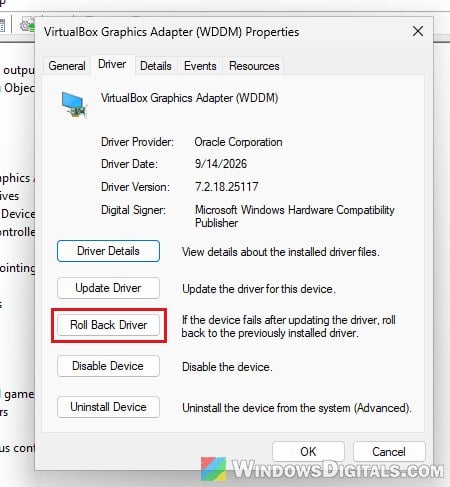
- Pick a reason, click Yes and restart the PC.
If you installed your drivers through the NVIDIA App, it can also roll back to a driver it installed before, from the option at the bottom of its Drivers page.
If Roll Back Driver is grayed out, or you need an older version than the previous one, download it from NVIDIA’s drivers page at https://www.nvidia.com/en-us/drivers/ using the manual driver search.
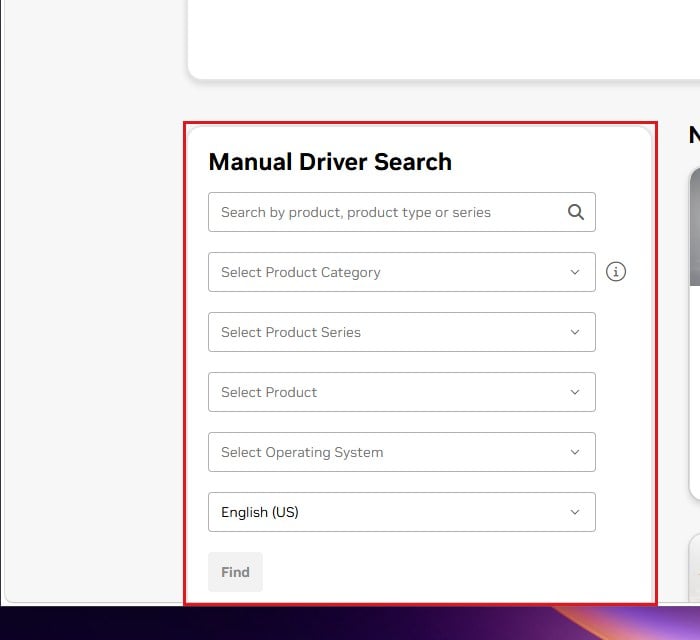
Run the installer, choose Custom (Advanced) and tick Perform a clean installation.
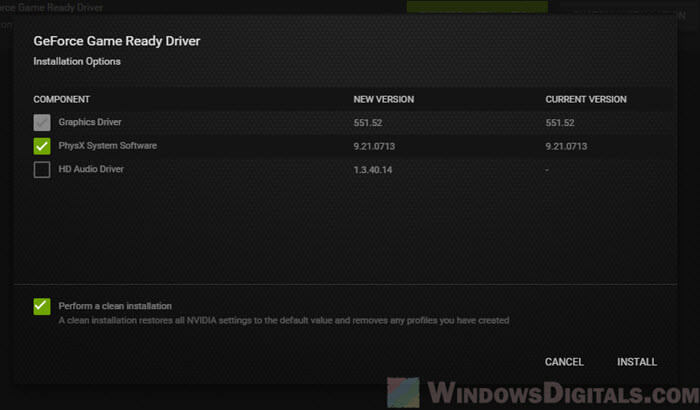
Keep in mind that a clean install of a 610.47 or newer driver removes the NVIDIA Control Panel, so get it again from the Microsoft Store afterwards.
Restart and play the game with frame generation on. If the stutter is gone, don’t let the NVIDIA App or Windows Update install the newer driver until a later version fixes it.
Linked issue: nvlddmkm Event ID 153 After NVIDIA Driver 621.01, What to do?
Try turning off MPO (multiplane overlay)
MPO is a Windows feature that lets the graphics card combine several image layers (a video, a window, the game) on its own. It’s known to cause flicker and stutter on some systems, especially with more than one monitor. Turning it off has fixed this stutter on some PCs and done nothing on others, so treat it as one more thing to try.
Turning MPO off is a registry change, and NVIDIA provides a ready-made file for it. The full steps, including how to turn it back on, are in: How to Disable MPO (Multiplane Overlay) on Windows 11. If nothing changes after a restart, turn MPO back on, since it can cause problems in some DirectX 12 games when it’s off.
Use fixed refresh or skip frame generation in the affected game
If the stutter is still there, stop using one of the two in that game. With G-SYNC off (fixed refresh), frame generation usually runs smoothly, and so does G-SYNC without frame generation.
To keep G-SYNC for your other games, set Monitor Technology to Fixed Refresh only for that game in the Program Settings tab, the same way as shown above. The downside is that you may see screen tearing again, or have to rely on V-Sync to avoid it. Otherwise, just turn off frame generation in the game’s graphics settings.
Related guide: How to Turn Off VSync in Windows 11
Turn off flip metering with Special K (DLSS games only)
DLSS 4 uses a feature called flip metering to time when frames are shown. On some PCs this is what clashes with G-SYNC, and turning it off with Special K, a third-party game modding tool, fixes the stutter with DLSS Frame Generation. It doesn’t apply to FSR Frame Generation or Smooth Motion.
Be warned: Special K hooks into the game while it runs. DO NOT use it with online games that have anti-cheat, as it could get your account banned. If you’re not comfortable with modding tools, skip this one.
- Download Special K from its official site at
https://special-k.info/, install it and launch the game through it. - In the game, press Ctrl + Shift + Backspace to open the Special K menu.
- Turn off “Allow Flip Metering“.
- Close the game and launch it again through Special K.
You’ll need to launch the game through Special K every time for this to work.