If an email shows up when you search for it in Outlook but is nowhere to be seen in your Inbox, it’s usually not lost, just moved to another folder or hidden by the Inbox view. This guide will show you how to find where it went and how to make sure it lands in your Inbox next time.
Also see: Checkboxes Missing in Outlook? How to Select Multiple Emails Again
Page Contents
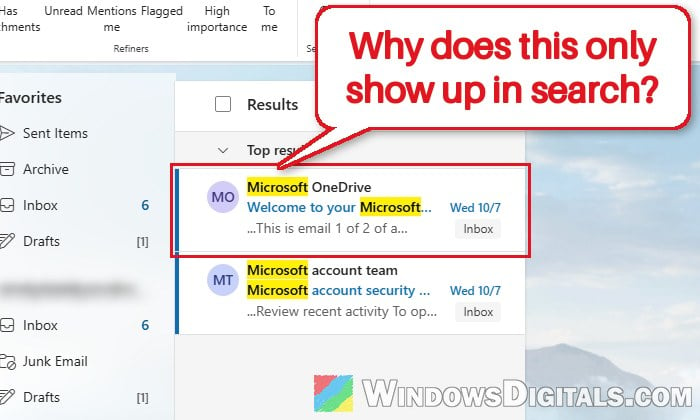
Why does an email only show up when you search?
This happens because Outlook’s search doesn’t only look in your Inbox. By default it searches the whole mailbox, every folder included, so it can find a message that isn’t actually in the Inbox at all. Here’s what usually moves the email or hides it:
- A rule (sometimes an old one you forgot about) moves mail from a certain sender to another folder.
- The message was put in Junk Email, or in the Other tab of Focused Inbox.
- A filter on the Inbox view, such as unread only, hides messages that are really there.
- In classic Outlook, the copy of your Inbox saved on the PC can get out of sync with the server, so new mail stays hidden even though it’s downloaded.
The first thing to do is to find out which of these it is, and the search results can tell you.
Check which folder the email is actually in
Before changing anything, look at where Outlook says the message is. In the new Outlook for Windows, the button next to the search box reads All folders while you search, and each result has a small tag with the name of the folder it’s in, so a message sitting in another folder is easy to spot. Here’s how to check:
- Click the Search box at the top of Outlook.
- Type the sender’s name or a word from the subject, and press Enter.
- Look at the folder tag under the date of each result.
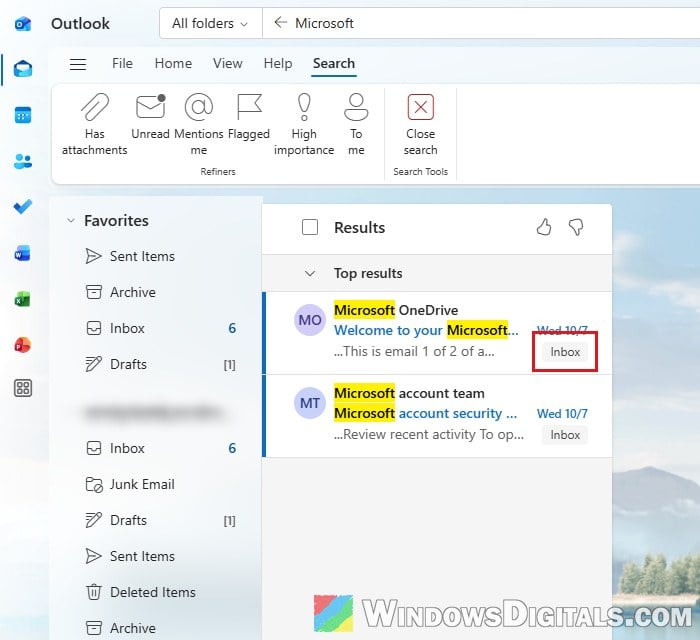
In classic Outlook, hover your mouse over a message in the search results to see its folder. You can also add the folder as a column: select View > Change View > Single, then go to View > View Settings > Columns and add In Folder.
If the folder isn’t Inbox, a rule or the junk filter most likely moved it there. If it does say Inbox, the Other tab or a filter is probably hiding it.
Might be useful: Deleting or Hiding Default Folders in Outlook
Turn off the rule that’s moving your email
Rules run on their own every time a message arrives, and they keep working long after you’ve forgotten making them. An old rule that sends one sender’s mail to another folder is a very common cause, especially when it only happens with emails from certain people.
In the new Outlook and Outlook.com, here’s how to check your rules:
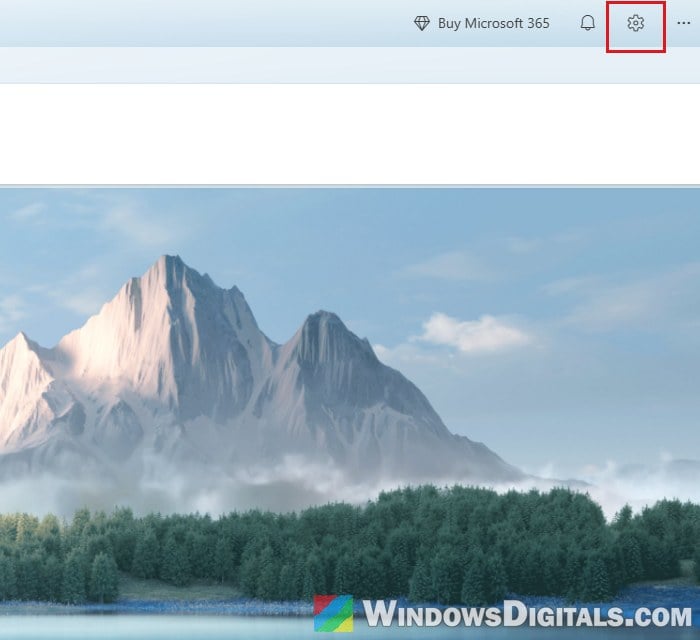
- Click the Settings icon (the gear) at the top right.
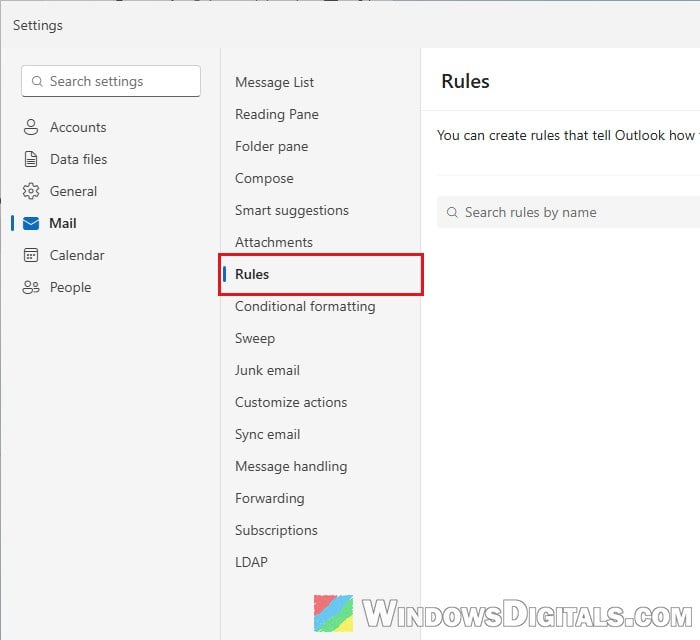
- Go to Mail > Rules.
- Look for any rule that mentions the sender, a word in the subject, or that moves mail to another folder.
- Use the toggle next to the rule to turn it off, or click the More actions (…) button next to it and choose Delete rule if you don’t need it anymore.
In classic Outlook, go to File > Manage Rules & Alerts. Clear the checkbox next to a rule to turn it off, or select it and click Delete.
Then go to the folder the search showed, select the messages and move them back to your Inbox. New emails from that sender should now land in the Inbox as normal.
Suggested read: Classic Outlook Keeps Switching Back to the New Outlook, What to do?
Look in the “Other” tab and Junk Email
If the search says the message is in your Inbox but you still can’t see it, check whether your Inbox is split into Focused and Other tabs. With Focused Inbox, Outlook decides by itself which emails go to Focused. Everything else goes to Other, which is still the Inbox folder.
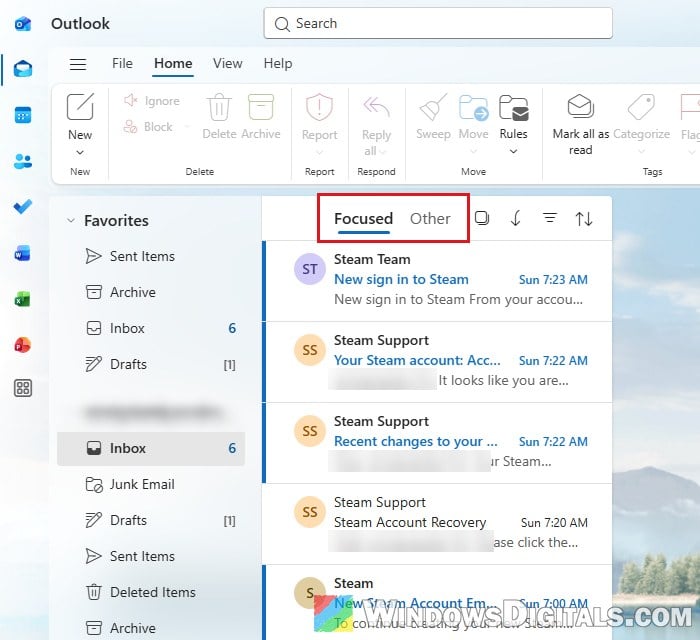
To keep emails from a sender in Focused, right-click one of their messages in the Other tab, select Move > Move to Focused inbox, then Always move to Focused inbox. In classic Outlook, right-click the message and choose Always Move to Focused.
If you’d rather have all your mail in one list, turn Focused Inbox off:
- In the new Outlook or Outlook.com, click the Settings icon (the gear) at the top right.
- Go to Mail > Message List.
- Under Focused Inbox, uncheck “Sort messages into Focused and Other“. If you see a Save button, click it.
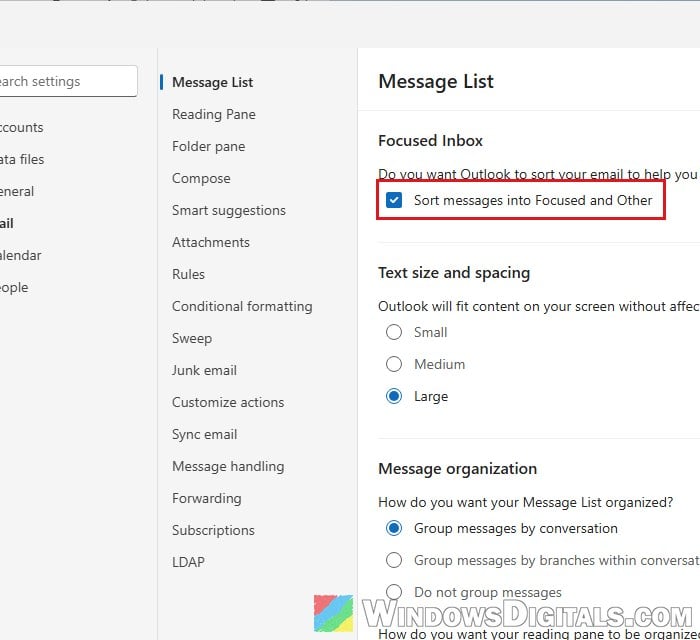
In classic Outlook, it’s just View > Show Focused Inbox to turn it on or off.
Once Focused Inbox is off, your Inbox shows everything in one list, so scroll through it and see if the email is there.
Also open your Junk Email folder. If the message is there, move it back to your Inbox.
Clear any filter on the Inbox
If a filter like Unread or Flagged is on, the message list only shows those emails, so everything else in your Inbox seems to be gone.
In the new Outlook and Outlook.com, click the Filter button (the icon with three lines) at the top of the message list and make sure All is selected, not Unread, Flagged, To me or another option. Once it’s on All, every message in the folder shows again.
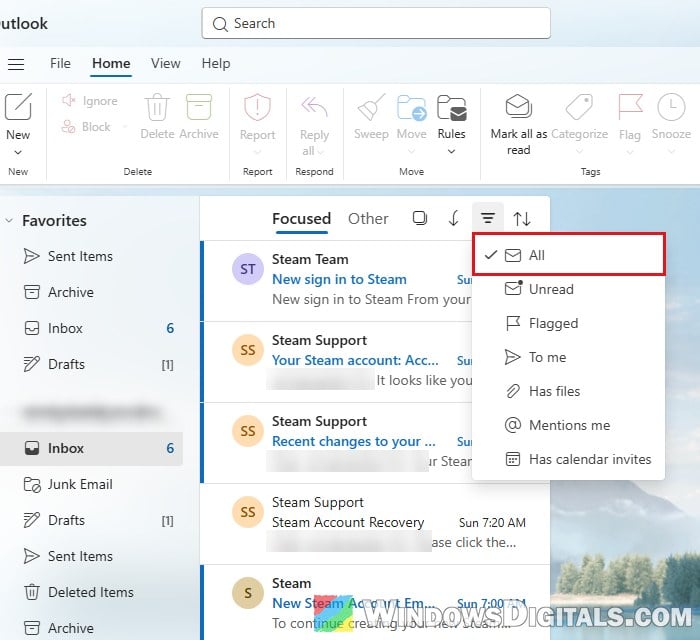
In classic Outlook, open the Inbox, then go to View > View Settings > Filter and click Clear All. If the Inbox still looks wrong, select View > Reset View, which puts the folder’s view back to how it was by default.
Related problem: New Outlook Won’t Open Attachments in Windows 11
Make classic Outlook sync the Inbox again
If you’re using classic Outlook with an Outlook.com, Microsoft 365 or work account, sign in to Outlook on the web in your browser and look in the Inbox there. If the email shows up normally on the web, the problem is only Outlook’s own copy of your mailbox on the PC.
According to Microsoft, new messages can get stuck in Outlook’s incoming mail processing and stay hidden in the Inbox even after they’re downloaded. Outlook has a startup switch that clears this up:
- Close Outlook.
- Press Win + R to open the Run dialog box.
- Type
outlook.exe /cleanipsand press Enter.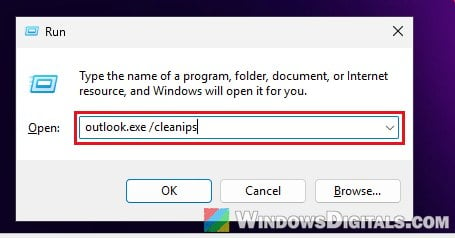
If the email still doesn’t show, you can make Outlook download the whole Inbox again. This only removes the copy on your PC, not the emails on the server:
- Right-click your Inbox and select Properties.
- On the General tab, click Clear Offline Items, then OK.
- Click OK to close the Inbox Properties.
- With the Inbox selected, press Shift + F9 to download it again.
It can take a while for a big Inbox to fill back up, so give it a few minutes before you check again.
Create a new Outlook profile as a last resort
If nothing above helps and the email still only shows up in search in classic Outlook, its profile may be damaged. A new profile sets up your account from scratch, and your mail is downloaded again from the server.
- Open Control Panel, type “Mail” into its search box, and click Mail (Microsoft Outlook).
- In the Mail Setup window, click Show Profiles, then click Add.
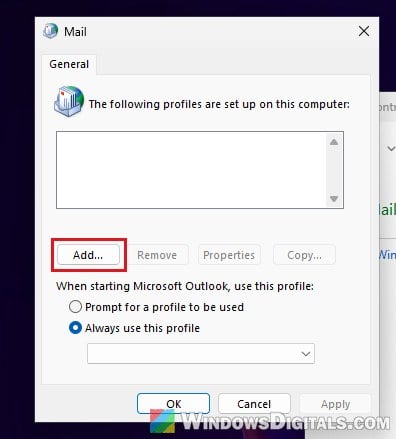
- Give the profile a name and follow the steps to add your email account.
- Back in the Mail window, select the new profile under “Always use this profile” and click OK.
Open Outlook and check your Inbox once it has finished downloading your mail.