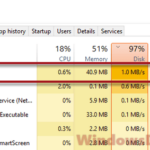
If you’ve noticed AMD External Events Client Module (atieclxx.exe) at the top of the “Disk” column in Task Manager, writing to your drive nonstop even when the PC is doing nothing, and everything feels slower than it should, it’s not your SSD dying. It’s a bug in AMD’s driver, and AMD has already said a fix is on the way. This guide will explain what this process is, why it suddenly hammers the disk (and sometimes the CPU), and how to stop it until the fixed driver arrives.
Also see: What is this random AMDAutoUpdate.exe window?
What is AMD External Events Client Module (atieclxx.exe)?
AMD External Events Client Module is a background process that comes with AMD’s graphics driver. It runs under a Windows service called “AMD External Events Utility“, whose own process is atiesrxx.exe. Its job is to react to display-related “events”, things like FreeSync, the hotkeys in AMD Software: Adrenalin Edition, plugging in or unplugging a monitor, and some monitor profiles and display settings.
You don’t need a Radeon graphics card to have it, though. The same service is also installed by AMD’s chipset driver, so a PC with a Ryzen processor and an NVIDIA graphics card can show the exact same process and the exact same problem.
The real atieclxx.exe is part of the driver and sits in a driver folder under C:\Windows\System32\DriverStore\FileRepository\, started by the service’s own atiesrxx.exe.
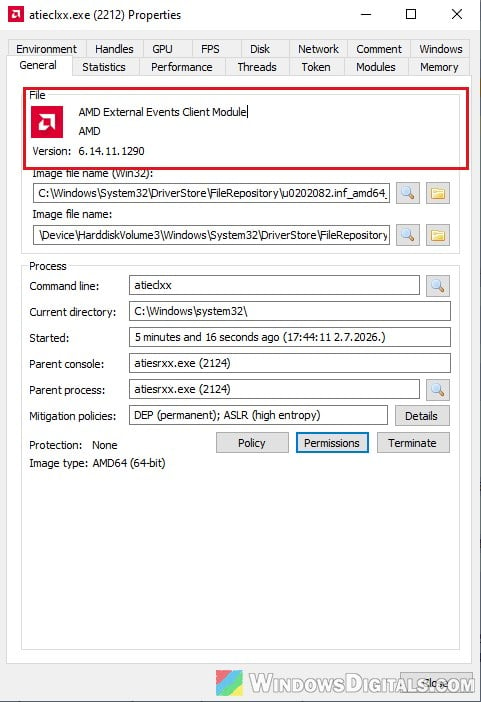
If you want to be sure the one you see is genuine, right-click it in Task Manager and select “Open file location“. If it opens a folder that has nothing to do with AMD’s driver, scan your PC for malware instead.
Might be useful: How to Turn On G-Sync or FreeSync in Windows 11
Why is it suddenly using so much disk (or CPU)?
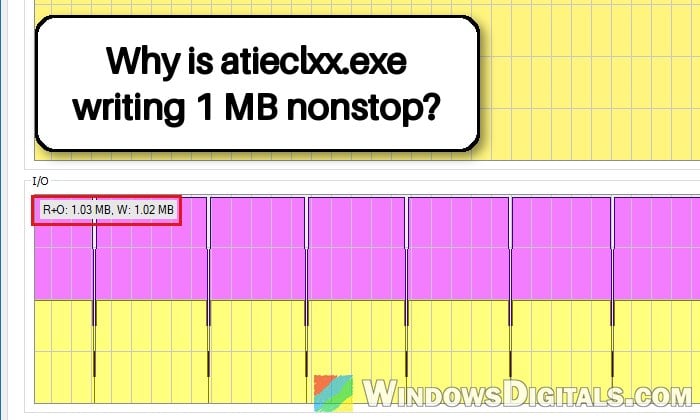
The process keeps writing log files over and over, usually in C:\Windows\System32\AMD\EEUDumps\ (on some PCs in an AMD folder inside the driver’s own folder instead). People have measured anywhere from about 0.3 MB/s to 5 MB/s of constant writes, and some saw their disk sit near 100% until the whole PC slowed down. Others also noticed stuttering and slow texture loading in new games, which went away once the writes stopped.
Most of the recent reports come from PCs on Windows 11 26H2 with recent Adrenalin drivers, though the same problem was reported back in late 2025 on 25H2. AMD has confirmed it’s a bug in the External Events Utility, related to Microsoft’s PCIe filter driver. Its engineers reproduced it and submitted a fix, which should come in a future driver (possibly not the very next one). As of the 26.10.2 driver, the release notes still don’t mention it, and not everyone on the newest driver has the problem.
There’s also a second version of the same issue. On some PCs, atieclxx.exe makes a burst of calls every time you move or resize a window, Microsoft Defender scans in response, and you get CPU spikes and short freezes while dragging windows around.
Small, short bursts of log writing from this process won’t wear out a modern SSD for years. But when it writes nonstop, or makes your PC or games slow, it’s worth stopping.
Related problem: Windows 11 Search Indexer High CPU and Disk Usage
First, check that atieclxx.exe is really the one writing
Before you change anything, make sure it’s actually this process and not something else using your disk. Here’s how to check:
- Press Ctrl + Shift + Esc to open Task Manager.
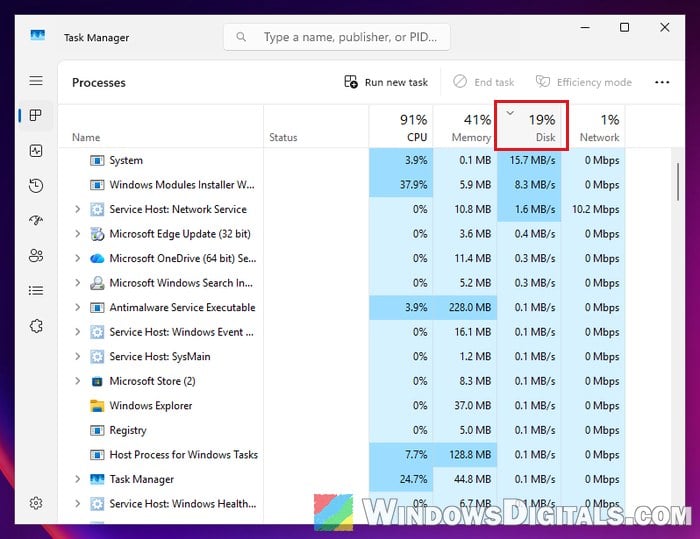
- On the “Processes” tab, click the “Disk” column to sort by disk usage, and look for “AMD External Events Client Module“.
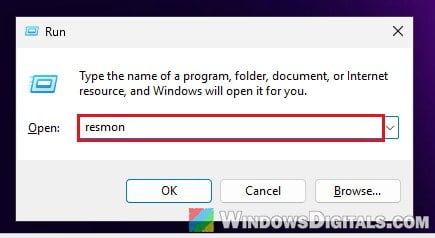
- For a closer look, press Win + R, type “resmon” and press Enter to open Resource Monitor.
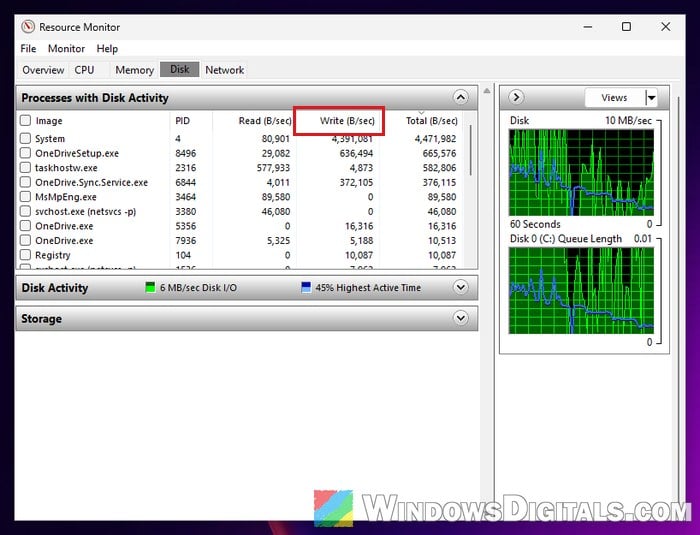
- Go to the “Disk” tab and expand “Processes with Disk Activity“. Find atieclxx.exe and check its “Write (B/sec)” value. If it keeps writing every second while you’re not doing anything, it’s this bug.
If you’re seeing the CPU version instead, sort Task Manager by “CPU“, then drag a window around the screen for a few seconds and watch whether AMD External Events Client Module jumps up together with Antimalware Service Executable (Microsoft Defender).
Stop the “AMD External Events Utility” service
Until AMD releases the fixed driver, the workaround that works for most people is to stop the AMD External Events Utility service and keep it from starting automatically. Several users on Reddit have confirmed that the writes and the CPU spikes stop the moment the service is stopped.
Please note that turning it off has a cost. The Adrenalin hotkeys stop working, and FreeSync, monitor hot-plugging and some display settings may not behave as they should while the service is off. If you rely on FreeSync, test a game or two after the change.
Pro tip: How to Disable Startup Services on Windows 11 or 10
Here’s how to do it:
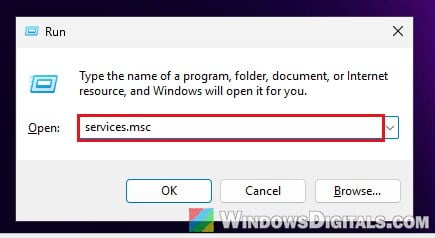
- Press Win + R, type “services.msc” and press Enter to open Services.
- Scroll down to “AMD External Events Utility” and double-click it.
- Click the “Stop” button to stop the service right away.
- Set the “Startup type” to “Manual” so it doesn’t start by itself again. If the service still comes back after a restart, set it to “Disabled” instead.
- Click “Apply” and then “OK“.
Open Task Manager again and check the “Disk” column. AMD External Events Client Module should be gone, and the disk should calm down.
Once a driver with the fix is out, go back to the service, set its “Startup type” back to “Automatic” and click “Start“, so FreeSync and the hotkeys work as before.
Linked issue: Services.msc “Startup Type” Greyed Out in Windows 11 or 10
Update the AMD driver once the fix is released
The real fix has to come from AMD in a driver update. Every time a new AMD Software: Adrenalin Edition driver (or AMD chipset driver, if you have an NVIDIA card) comes out, read its release notes for a line about the External Events Utility or constant disk writes.
Get the driver from AMD’s own website rather than the version Windows Update installs.
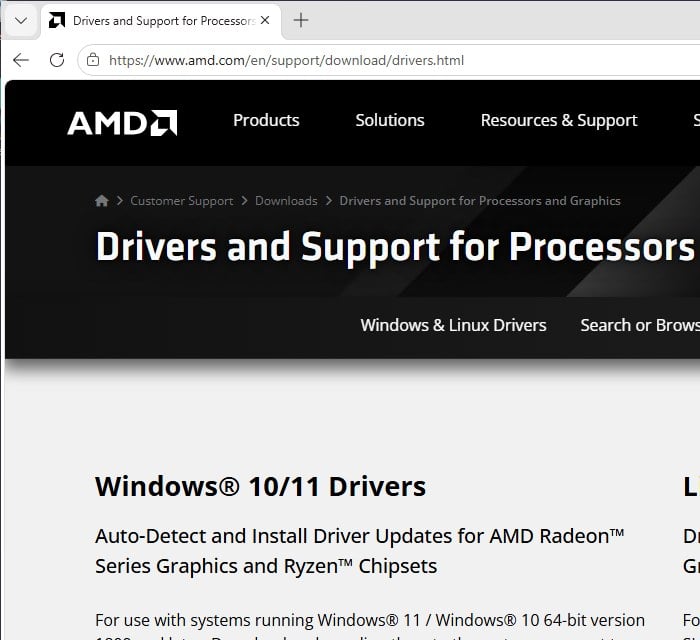
Just don’t expect a clean reinstall of your current driver (with DDU or AMD Cleanup Utility) to fix this on its own. It didn’t help on Windows 11 26H2, since the bug is in the driver itself.
Related guide: How to Update Graphics Driver in Windows 11
Turn off Resizable BAR in the BIOS (temporary, not recommended)
Some people stopped the writes by turning off Resizable BAR (ReBAR, called Smart Access Memory or SAM in AMD’s software) in the BIOS. It didn’t help everyone, though, and turning ReBAR off can cost you performance in games, so it’s a worse deal than just stopping the service. Only try it if you need the service running and can’t wait for the fix.
Be warned: Changing the wrong BIOS setting can stop your PC from booting properly. If you’re not sure what you’re doing, it’s better to just get someone to help you instead, and remember to turn ReBAR back on once AMD’s fix is out.
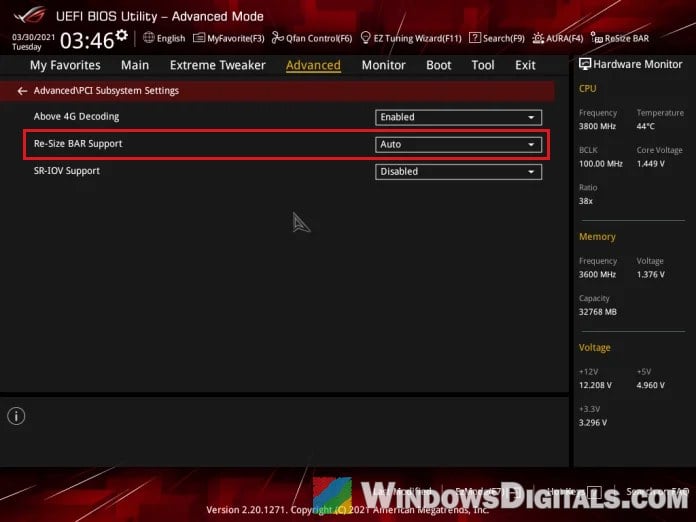
Where the setting is and what it’s called differs between motherboard brands. It usually goes together with “Above 4G Decoding“, and ASRock, for example, calls ReBAR C.A.M., so check your motherboard’s manual if you can’t find it.