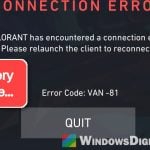
League of Legends’ “Close Client During Game” option is meant to shut the client down while you’re in a match, so more of your PC’s power goes to the game. Since early November 2026, the box keeps unticking itself and the League Client stays open during matches, which can cost lower-end PCs a lot of FPS. This guide will walk you through what’s likely behind it, why forcing it back on can get you penalized, and how to win back some performance while the client stays open.
Also see: Vanguard Error VAN 57 in League of Legends
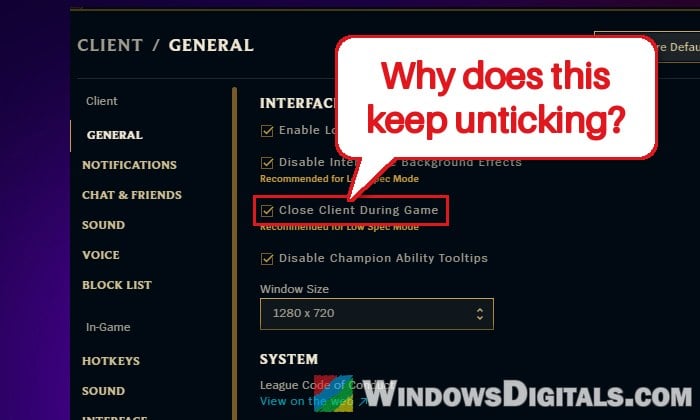
Why does “Close Client During Game” keep turning off?
The problem started for a lot of players around November 6 and 7, 2026, just after patch 26.22, and it’s still there after patch 26.23 on November 17. You tick the box, and a little later it’s unticked again, often by the time champion select ends. Reinstalling the game doesn’t seem to change it.
The best clue so far is error VAN 7003. According to Riot, it happens when Vanguard can’t detect an open League Client as it starts up, and a known cause is having “Close Client During Game” turned on. The error reads “VANGUARD ERROR: VAN 7003. An unexpected error with Vanguard has occured and the client will now close.”
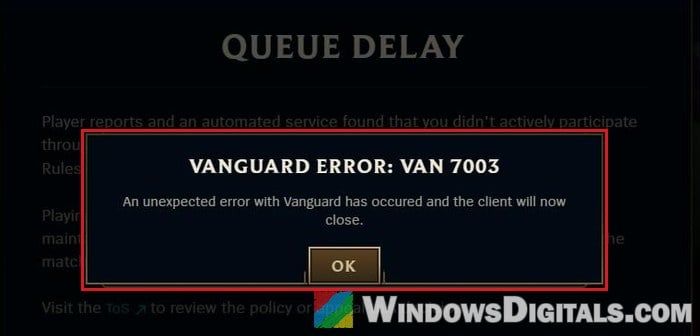
Many players on Reddit believe Riot is switching the option off on purpose to stop this error, which would fit the timing. Riot hasn’t actually said so, though, and the patch 26.23 notes don’t mention the issue, so there’s no fix date to go by.
Related problem: League of Legends Stuck on “Vanguard session is initializing”
Don’t close the client yourself during a match
When the client is eating your CPU, it’s tempting to end it in Task Manager once the game has loaded, but don’t do it during a match. Riot says Vanguard must be active during play and any time the League Client is open. Players who ended the client mid-game report getting the Vanguard error, being thrown out of the match and then receiving a leave penalty, in some cases with lost LP.
The same goes for scripts that keep flipping the setting back on by editing League’s config file, and for changing how Vanguard’s process runs in Task Manager. A script like that forces on the very option linked to VAN 7003, and Riot warns that interfering with Vanguard can stop you from playing.
Leave the option off for now
If you’ve been getting VAN 7003, this is Riot’s own fix. It’s also the safest way to play for now. Here’s how to do it:
- Open the League Client and click the cog icon at the top right.
- On the “General” tab, make sure “Close Client During Game” is unticked.
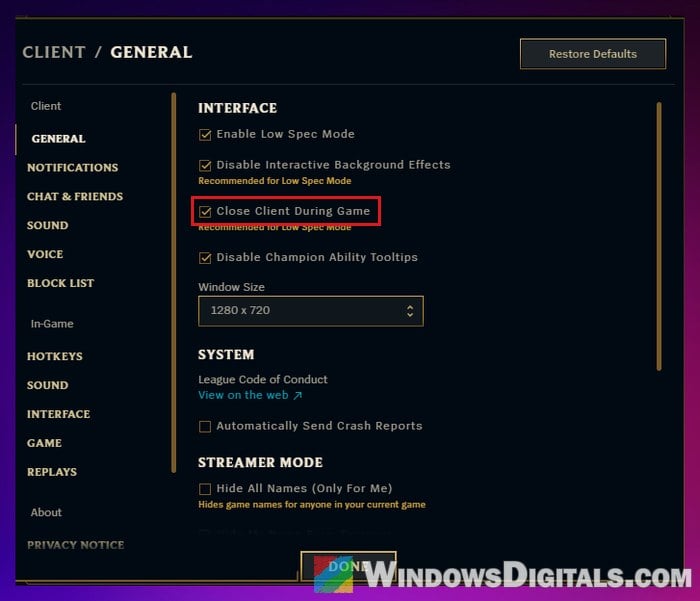
- Close the settings and queue up as usual.
This should stop the error, but the client will stay open during your matches, so the next few fixes are about getting some FPS back.
Turn on Low Spec Mode
Since the client is going to keep running, make it as light as you can. Low Spec Mode turns off several of the client’s animations and visual effects. Riot also says the client runs best at its default window size of 1280×720. Do all of this before you queue up, since Low Spec Mode can’t be turned on during a game. Here’s what to do:
- Click the cog icon at the top right of the League Client.
- If the client window isn’t at 1280×720, click “Restore Defaults” at the top right of the settings page. This may also reset the other options on this page.
- On the same “General” tab, tick “Enable Low Spec Mode“.
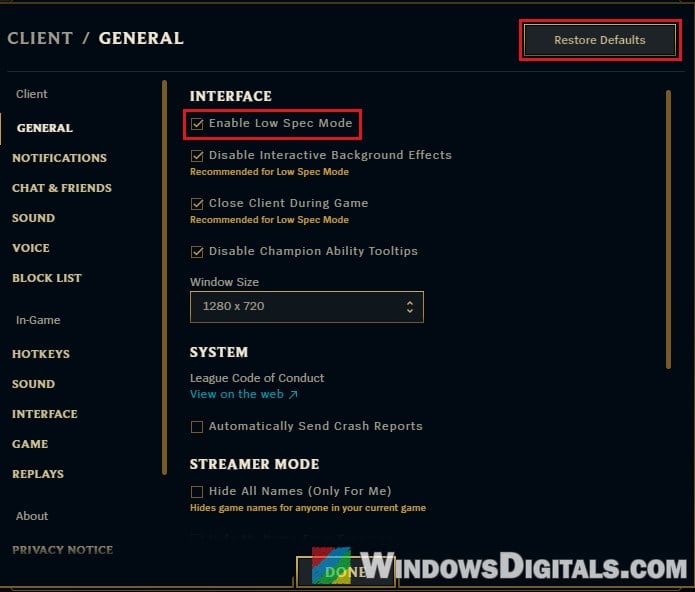
- Make sure “Close Client During Game” is still unticked. It’s ticked in the picture and the page marks it “Recommended for Low Spec Mode“, but leave yours off.
- Close the settings.
Play a game and see if your FPS holds up better.
Lower your in-game video settings
The client takes part of your CPU, so the game has less room to work with, and lowering its graphics can make up for some of the lost FPS. Change a few at a time and, as Riot suggests, try them in a Custom Game before you play ranked. Follow the steps below:
- In a game, press Esc and select “Video“.
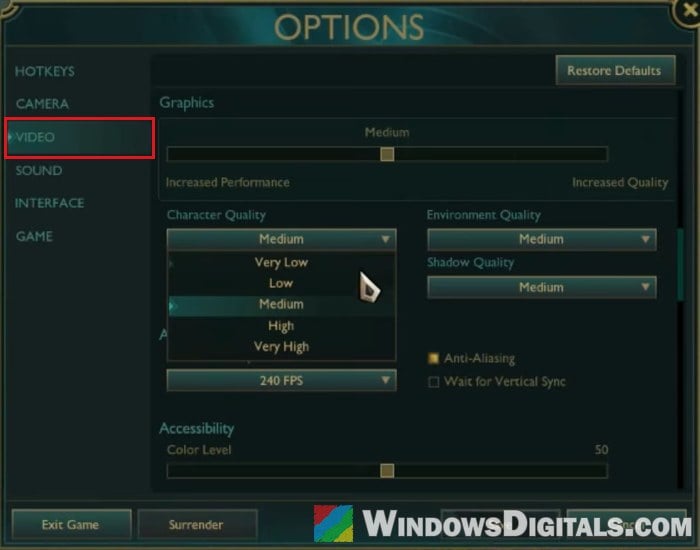
- Lower “Character Quality“, “Environment Quality” and “Effects Quality“.
- Set the shadows as low as they go and untick “Anti-Aliasing“.
- Try adjusting “Frame Rate Cap” too.
- If “Wait for Vertical Sync” is ticked, try unticking it. Just note that it can cause screen tearing.
- Save your changes.
Play a Custom Game and see if your FPS is steadier. You can also press Esc and open “Interface” to cut down on HUD animations.
Might be useful: How to Fix Game Stuttering on Windows 11
Close other apps and update your graphics driver
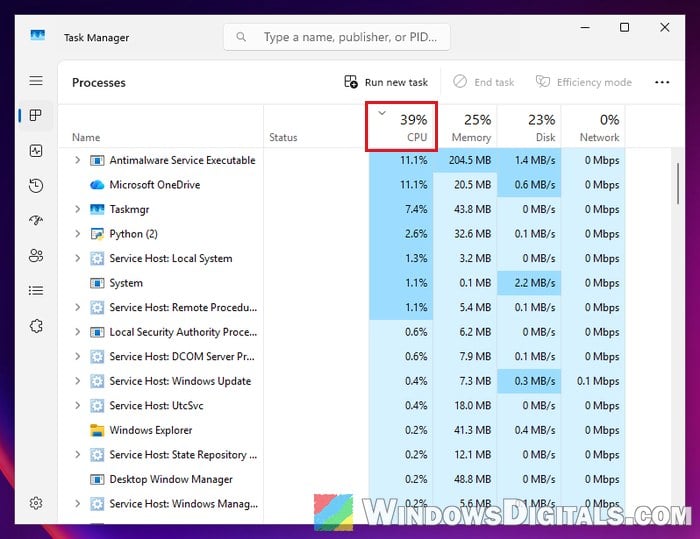
Other programs using your CPU can drag your FPS down even more while the client is open. Press Ctrl + Shift + Esc to open Task Manager, click the “CPU” column to sort by usage, and close anything heavy you don’t need while playing, such as extra browser windows. Leave anything with League, Riot, Vanguard or vgc in its name alone.
Riot’s low FPS guide also lists updating your graphics driver, so make sure yours is up to date.
Pro tip: How to Update Graphics Driver in Windows 11
Can you tick the box during champion select?
Be warned: Never try this in ranked, and anywhere else it’s at your own risk. You’re switching on the exact setting Riot links to VAN 7003, and changing it around the loading screen can get you kicked from the match and penalized.
Some players get the client to close for a single game by ticking the box in the last few seconds of champion select, or right as it changes to the game-in-progress screen, and confirming it quickly. It works for some people and not for others, and you have to repeat it every game.
What if VAN 7003 still shows up with the option off?
Riot’s advice here is to submit a ticket to Player Support with logs from the Riot Repair Tool. Its instructions are at https://support.riotgames.com/riot/performance/gathering-logs-riot-repair-tool-rrt. If the error cost you a penalty, mention that in the same ticket, though players report mixed results.