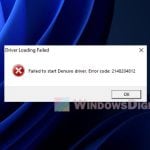
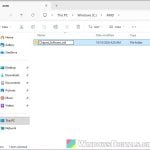
If Valorant keeps showing the “VAN -83” error when you launch it, and the Riot Client seems to install Vanguard for a few seconds and then goes back to Play without the red Vanguard icon ever showing up in your system tray, it means Riot Vanguard isn’t installed or can’t start. This guide will look into why Vanguard goes missing and what you can do to get it installed and running again.
Also see: vgk.sys Blue Screen (Riot Vanguard) in Windows 11
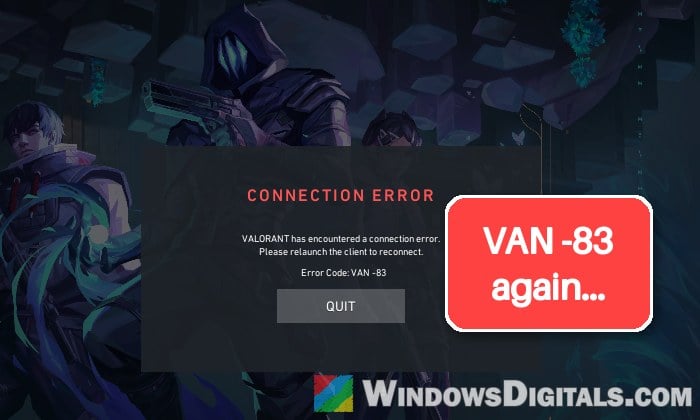
What does VAN -83 actually mean?
According to Riot, VAN -83 is a connection error that usually means Vanguard is having trouble starting, staying connected, or confirming it’s ready while the game launches. Riot’s short answer is to reinstall Vanguard.
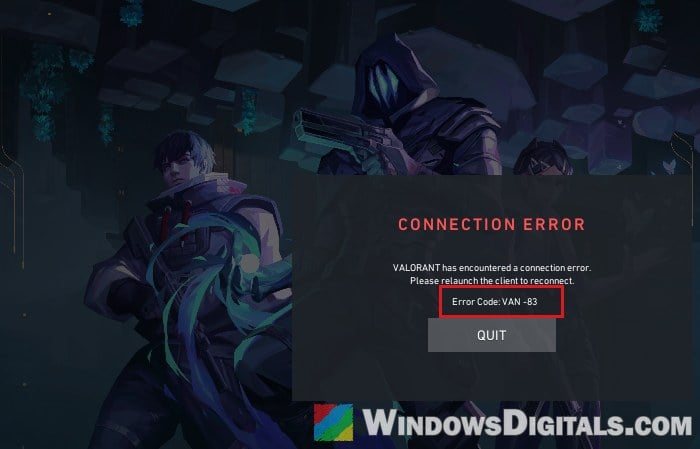
In most cases, though, Vanguard isn’t on the PC at all. There’s no Vanguard icon in the system tray, no “vgc” service in Services, and no Riot Vanguard folder in Program Files. Reinstalling the game doesn’t bring it back either. You might also see VAN -79 or VAN -81 along with it.
A fresh wave of reports came after the Valorant update around November 11, 2026, but the error has shown up all year, in League of Legends too.
Restart, then open the Riot Client as administrator
Riot’s first suggestion is simply restarting your PC. Opening the Riot Client as administrator can also help it finish installing Vanguard.
- Restart your computer.
- Right-click the Riot Client shortcut and select Run as administrator.
- Give it a few minutes. If it says a restart is needed, restart the PC.
Sometimes just closing everything and waiting 30 minutes to an hour before trying again is enough for the Riot Client to reinstall Vanguard by itself.
Is your laptop running on an ARM processor?
Riot lists ARM processors as not supported for Valorant. On a Windows laptop with a Snapdragon chip, Vanguard won’t install no matter what you try. To check, go to Settings > System > About and look at System type. If it says “ARM-based processor”, that’s why.
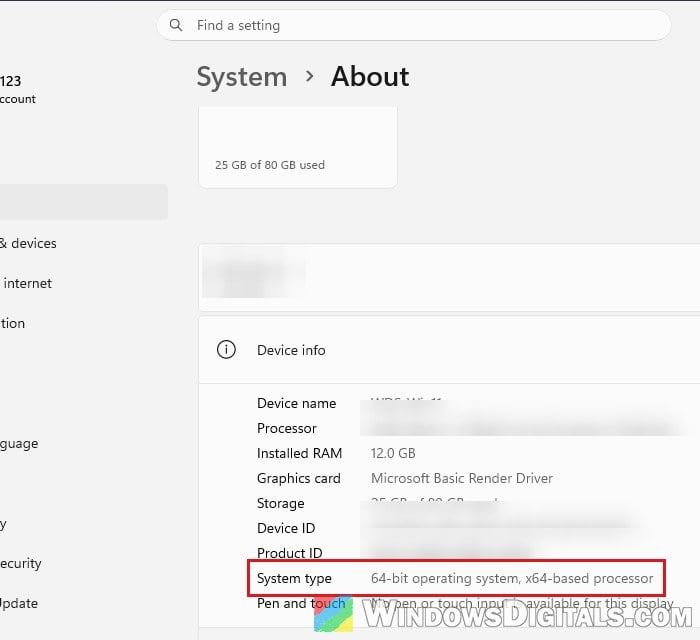
Get the Riot Client to actually install Vanguard
When the Riot Client keeps flipping between Update and Play without installing anything, try these three things.
Repair the game files.
- Sign in to the Riot Client and click the profile icon in the top-right corner.
- Select Settings and go to the VALORANT section.
- Scroll down to Repair Game Files and click Repair.
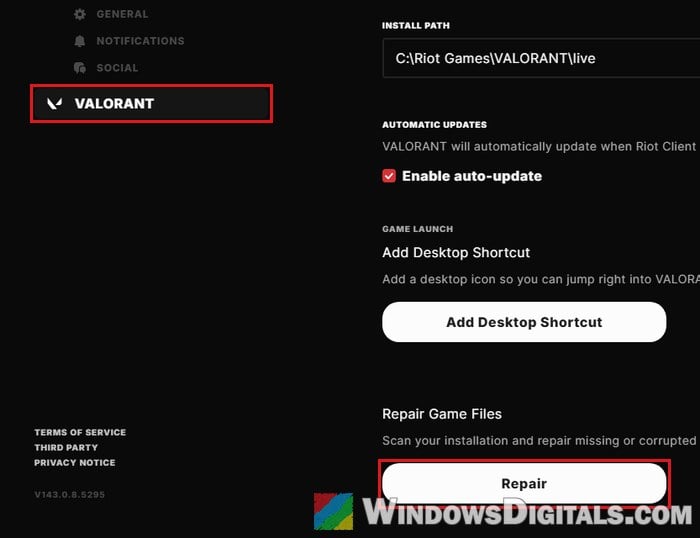
- Click Update and see if the Vanguard install starts.
Make the Riot Client exit instead of minimizing.
- Click the profile icon in the top-right corner of the Riot Client and select Settings.
- Click General under Riot Client.
- Under Close window, switch from Minimize to system tray to Exit application.
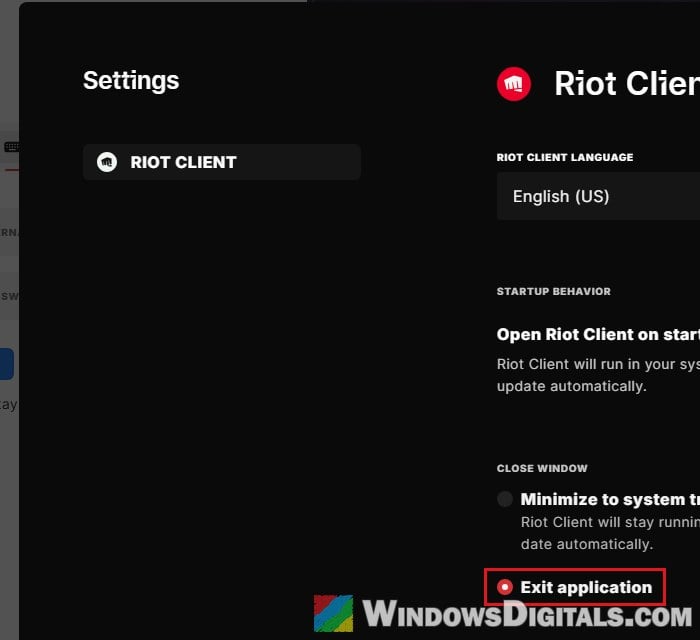
- Close the Riot Client, open it again and click Update. The Vanguard install should show up.
Pause and resume the update. It sounds silly, but it’s worth a try.
- Click Update.
- As soon as it says “Preparing download“, pause it, then resume it.
- Do this two or three times. The client then finishes updating and asks you to restart for Vanguard.
If none of this works, Riot also has a Riot Client Full Repair Tool on its support site for missing or corrupted Riot files.
Might be useful: VAL 3 Error Code in Valorant: What it Means & How to Fix
Remove every bit of Vanguard and reinstall it
Riot recommends this one. Leftover Vanguard services or files can stop a new install from going through, so you remove everything and let the Riot Client start from scratch. Close Valorant and the Riot Client first (right-click the Riot Client icon in the system tray and select Exit).
- If the red Riot Vanguard icon is in the system tray, right-click it, select Advanced, then Uninstall Vanguard, and follow the prompts.
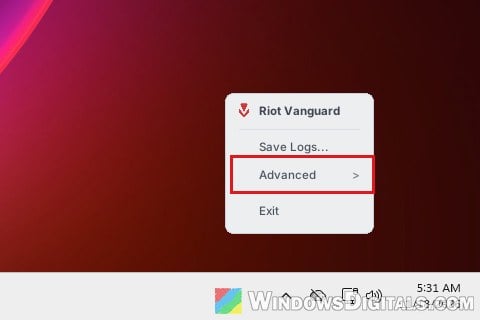
- If there’s no tray icon, open Settings > Apps > Installed apps, find Riot Vanguard, click the three dots and select Uninstall.
- Restart your computer.
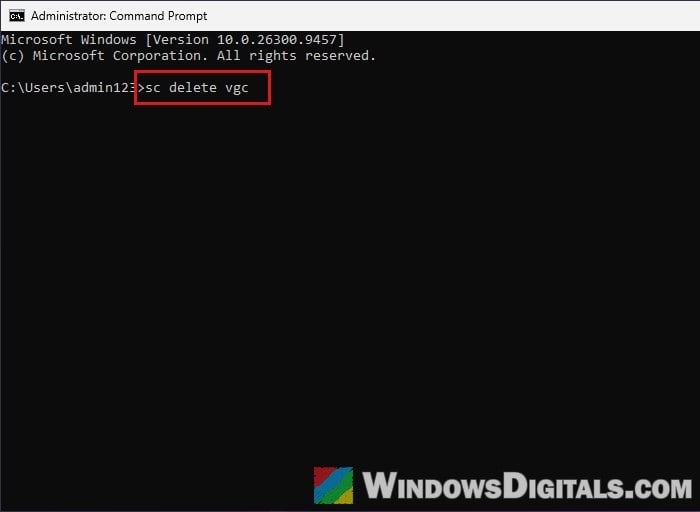
- If Vanguard won’t uninstall, or it was never fully installed, search for “cmd” in Start, right-click Command Prompt and select Run as administrator.
- Type the following commands one by one, and press Enter after each:
sc delete vgc
sc delete vgk
- Restart the PC, then open File Explorer and go to
C:\Program Files. If there’s still a Riot Vanguard folder there, delete it. - Open the Riot Client or Valorant. Vanguard should reinstall by itself, and its red icon returns to the tray after a restart.
Set the vgc service to “Automatic”
Vanguard runs as a Windows service called vgc. Riot’s fix for a vgc service that won’t start is to set it to start automatically. This only applies when vgc shows up in Services. If you can’t find it, Vanguard isn’t installed, so go back to the section above.
- Press Win + R, type “services.msc” and press Enter.
- Find vgc in the list and double-click it.
- Set Startup type to Automatic.
- If Service status says Stopped, click Start.
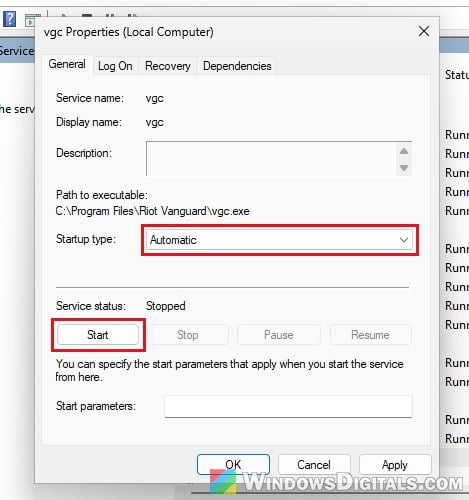
- Click Apply, then OK, and restart your computer.
If you’ve turned on Riot’s “Vanguard Pre-Check” option, Vanguard starts only when needed, so these steps don’t apply.
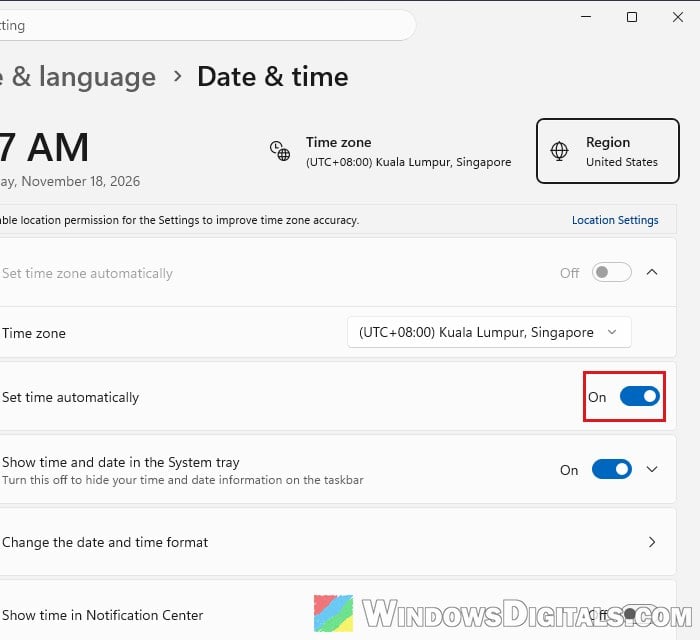
Also make sure your date, time and time zone are right. A wrong clock can break secure connections, Riot says. Go to Settings > Time & language > Date & time and turn on the automatic options.
Check for another program that clashes with Vanguard
Riot suggests a clean boot, because a background app or service can get in the way of Vanguard. Sometimes another program loads its own file into Vanguard’s vgc.exe and crashes it. In two cases it was Fasoo DRM, and uninstalling it fixed VAN -83.
To see if something is crashing Vanguard:
- Press Win + R, type “eventvwr.msc” and press Enter.
- Go to Windows Logs > Application.
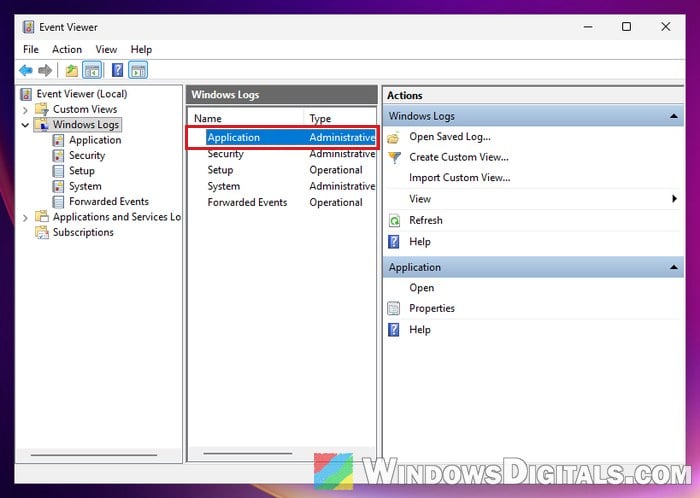
- Look for an Application Error that names vgc.exe, and check its Faulting module name line.
If the faulting module belongs to another program (not Windows or Riot), uninstall it and try again.
To do a clean boot instead:
- Press Win + R, type “msconfig” and press Enter.
- Go to the Services tab, check Hide all Microsoft services, then click Disable all.
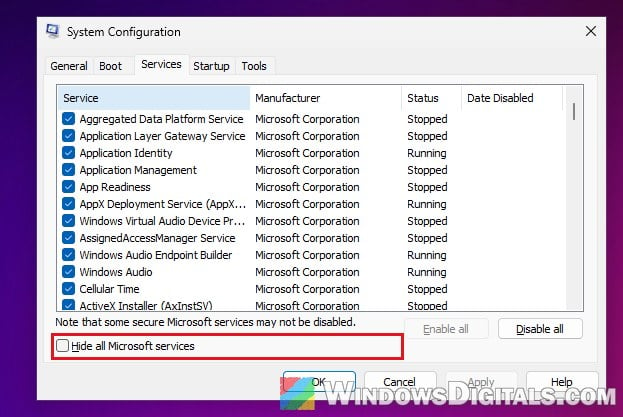
- Find vgc in the list and check it again, since Vanguard games won’t launch with it disabled. Click OK.
- Open Task Manager (Ctrl + Shift + Esc), go to Startup apps and disable everything there.
- Restart and open Valorant again.
If it works now, turn things back on a few at a time to find the culprit.
Uninstall the Windows update that came right before it
In November 2026, a couple of players fixed VAN -83 by uninstalling the Windows security update installed on November 10 or 11 (KB5132061 on most Windows 11 PCs, KB5132059 on 26H1). It didn’t help everyone, and Microsoft hasn’t listed any known issue with Vanguard, so try it only if the error started right after an update.
- Open Settings > Windows Update > Update history.
- Scroll down and click Uninstall updates.
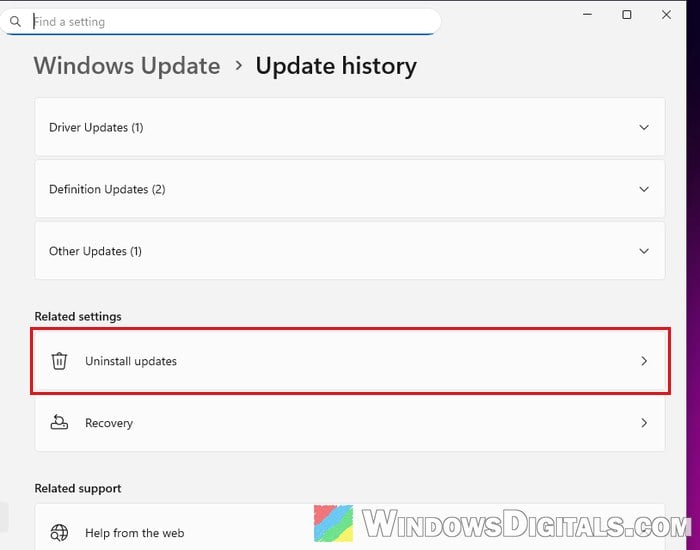
- Find the latest security update and click Uninstall.
- Restart the PC.
- Back in Windows Update, use Pause updates so it doesn’t reinstall right away.
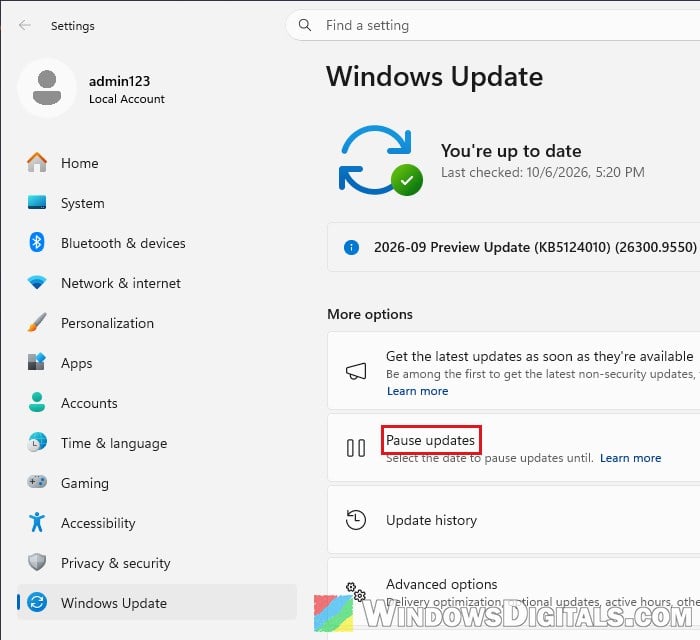
Don’t leave updates paused forever, since that update carries security fixes.
Related guide: How to Roll Back Windows 11/10 Update to Previous Version
Reinstall the game or contact Riot support
If Vanguard still won’t install, Riot’s last steps are to reinstall the game, check your internet connection, and then submit a ticket to Riot Player Support with your logs, which Riot’s support site explains how to collect. Support may repeat the steps above at first, but your logs are what let Riot spot conflicts like the Fasoo DRM one, so send them anyway.