When you play Roblox on your Windows 11 or 10 PC, you might see the game freeze for a few seconds and then show “Roblox Game Client is not responding”, or the whole client might just close to the desktop without any error after a few minutes, even in the main menu. It often happens with both the website version and the Microsoft Store version, and reinstalling usually doesn’t stop it. This guide will explain why Roblox keeps doing this and what actually helps.
Also see: Does Faulty RAM Cause Freezes or Crashes on PC?
Why does Roblox keep crashing on PC?
In many cases, it isn’t your PC at all. Roblox crashes tend to come in waves right after a Roblox client update. In May 2026, for example, lots of PC players had Roblox close by itself every 5 to 10 minutes for a few weeks. It’s a pretty common issue that you’ll find discussed on Reddit and Roblox’s own developer forum, and it hits high-end PCs too.
That said, there are a few things on your side that are known to trigger it:
- Plugging in or unplugging a USB or Bluetooth device while Roblox is running (a mouse, keyboard, controller, headset or earbuds).
- Overlays, especially the NVIDIA overlay, whose file Roblox’s anti-cheat blocks right before the client freezes (Discord’s overlay and RivaTuner are worth turning off too).
- High graphics settings, where Roblox’s memory use keeps growing until the client freezes and closes.
- Third-party antivirus, mods or custom launchers, and broken Visual C++ files.
The fixes below go through these one by one, starting with the ones that help the most people.
Don’t plug or unplug devices while Roblox is open
Since around late September 2026, Roblox has been freezing or crashing for many players the moment a USB or Bluetooth device connects or disconnects: a mouse, a headset dongle, a controller, or Bluetooth earbuds you turn off. For some, turning off the monitor does it too. Roblox has been told about it, but so far it’s only partly fixed.
Until it is, connect your controller, headset, dongle or Bluetooth earbuds before you start Roblox.
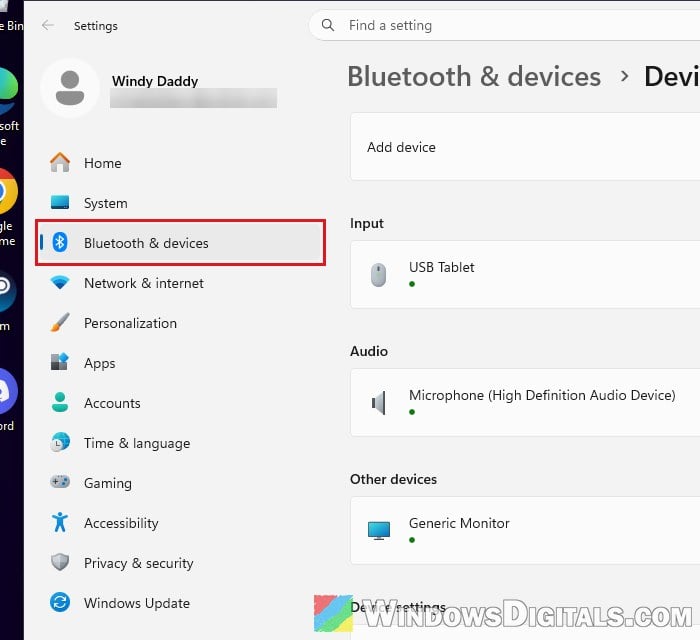
- Leave them connected while you play, and don’t turn your monitor off with Roblox open.
- If a Bluetooth device keeps dropping out and reconnecting by itself, each reconnect can freeze Roblox too.
- If Roblox freezes anyway, close it and open it again.
Pro tip: Force Close Program in Windows 11 without Task Manager
Turn off the NVIDIA overlay and other overlays
Overlays hook into the game, and Roblox’s anti-cheat doesn’t like that. Roblox’s logs often show a “Blocked DLL” line naming nvspcap64.dll (part of the NVIDIA overlay) right before the client stops responding, and turning the overlay off stopped the freezes for those players.
To turn off the NVIDIA overlay in the NVIDIA app:
- Open the NVIDIA app and click Settings.
- On the Features tab, under Overlay, turn off the NVIDIA overlay switch.
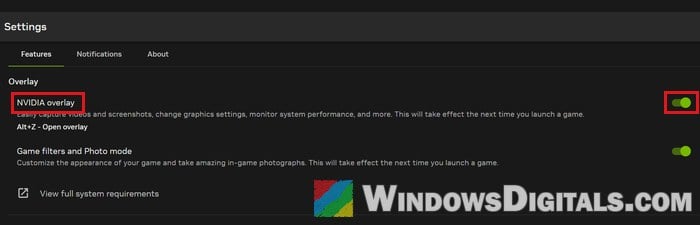
If you still use the older GeForce Experience, the switch is called In-Game Overlay under Settings > General.
It’s worth turning off any other overlay you have running too:
- Discord: open User Settings (the gear icon, or Ctrl +
,), go to Game Overlay under Games & Apps, and turn off Enable Overlay and Enable Legacy Overlay.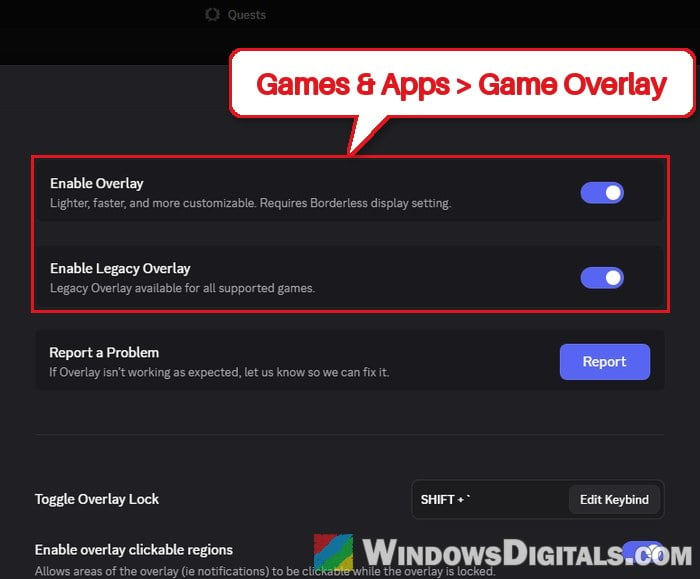
- MSI Afterburner: turn off its on-screen display, and close RivaTuner Statistics Server from the system tray.
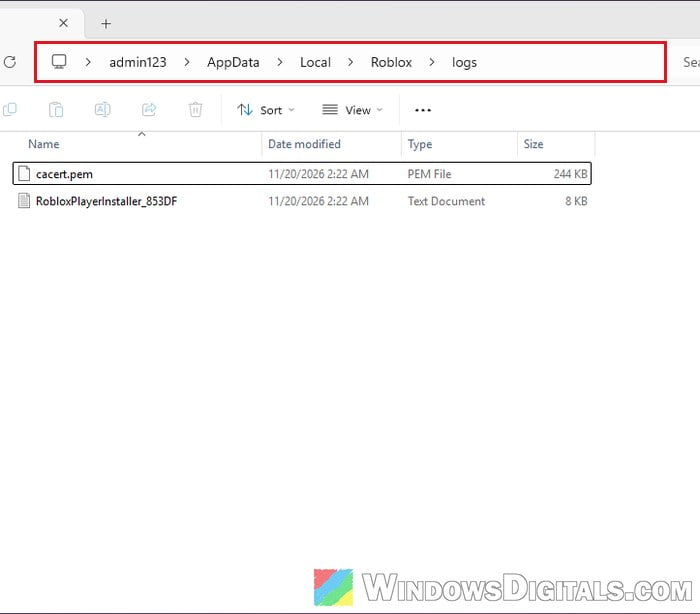
To see whether this is your problem, press Win + R, type %localappdata%\Roblox\logs and press Enter. Open the newest log file in Notepad and search (Ctrl + F) for “Blocked DLL“. If a line names nvspcap64.dll, the NVIDIA overlay is the likely cause.
Lower the graphics quality in Roblox
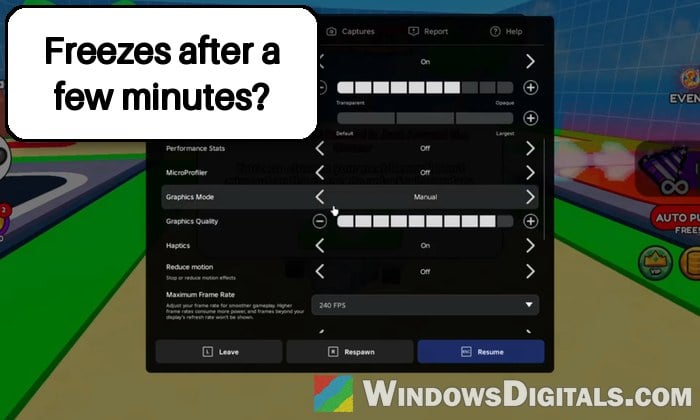
Roblox tends to freeze and close only on higher graphics settings for some players, with its memory use climbing the longer they play. Roblox’s own help pages suggest lowering the graphics quality too. Here’s how to do it:
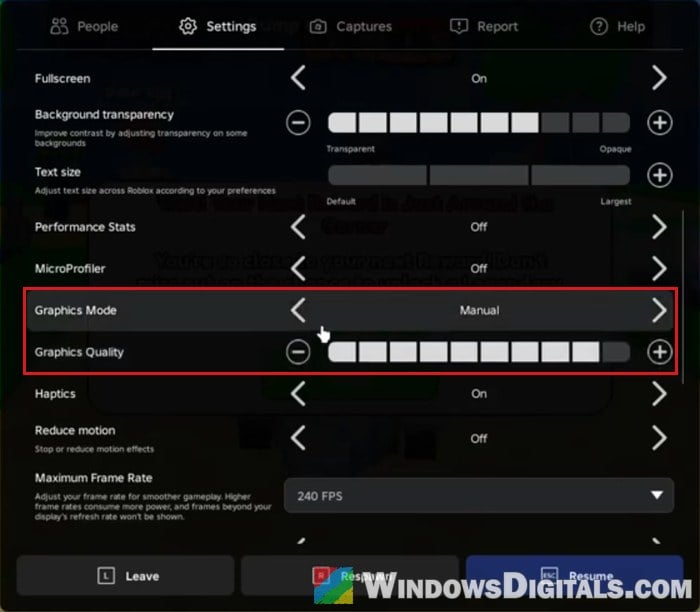
- In any Roblox game, press Esc (or click the Roblox logo at the top left) to open the menu.
- Go to the Settings tab.
- Set Graphics Mode to Manual.
- Move the Graphics Quality slider to the left. Start very low to test, then raise it step by step.
Also close apps you don’t need while playing. Task Manager (Ctrl + Shift + Esc) shows what’s using the most memory.
Might be useful: Why is My Memory Usage So High When Nothing is Running?
Try the other Roblox version (Microsoft Store or website)
Roblox comes in two versions on Windows: the Roblox Player from roblox.com and the Roblox app from the Microsoft Store. During the May crash wave, the Microsoft Store version kept working for several players while the website version kept closing.
- Uninstall the version you have now, since two Roblox installs can get in each other’s way.
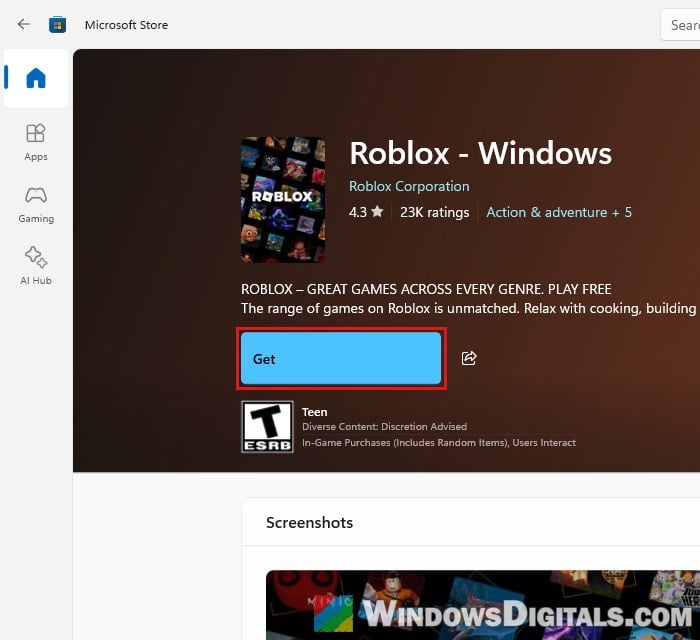
- Install the other one. For the Microsoft Store version, open Microsoft Store, search for “Roblox“, open Roblox – Windows and click Get.
This doesn’t always work. In some newer reports both versions crash the same way, and the Store version isn’t available in every country.
Check your antivirus, mods and custom launchers
A third-party antivirus can kill Roblox without telling you. After one Roblox update, for example, Sophos made Roblox close after 5 to 10 minutes with no message at all, and removing it fixed the crashes. If you use a third-party antivirus, add Roblox to its exceptions, or turn the antivirus off for a short test and turn it back on afterwards.
If you use Bloxstrap, Fishstrap or a tool that removes the frame rate cap, try plain Roblox for a while. According to Bloxstrap’s own help page, crashes with it are usually caused by bad settings (fast flags) or mods. Uninstall Bloxstrap without keeping your settings, check that Roblox runs normally, then add your settings back one at a time.
Repair the Microsoft Visual C++ Redistributables
Roblox, like many games, uses Microsoft’s Visual C++ runtime files. If they’re damaged, Roblox can open and close right away or crash when you join a game, and repairing them has fixed this kind of crash before. To repair them:
- Open Settings > Apps > Installed apps.
- Search for “Visual C++“.
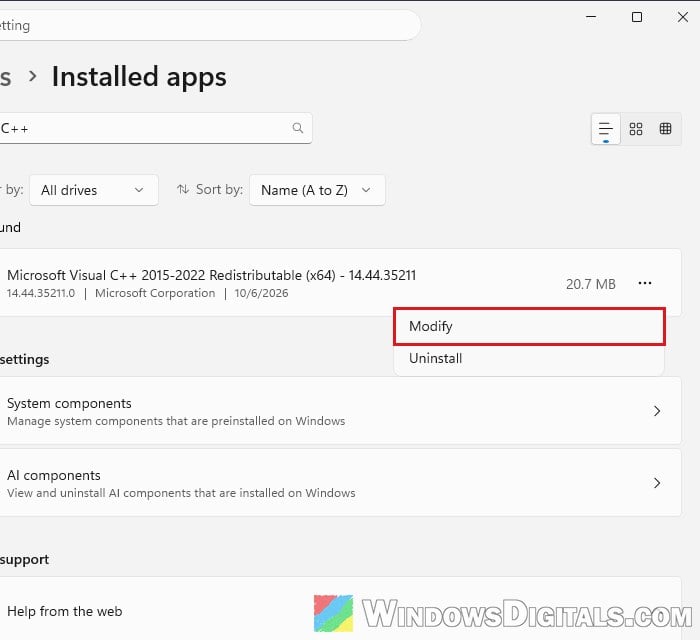
- Click the three-dots icon next to Microsoft Visual C++ 2015-2022 Redistributable (x64) and select Modify.
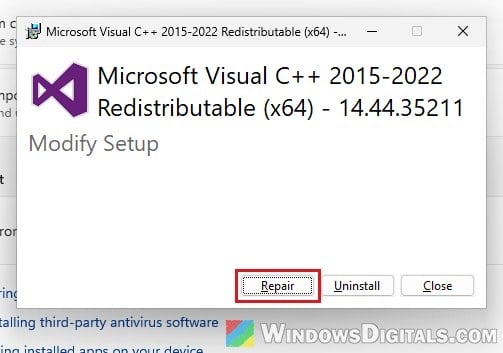
- Click Repair and wait for it to finish.
- If there’s also an (x86) one in the list, repair it the same way, then restart your PC.
Related problem: Microsoft Visual C++ Runtime Library Error Windows 10/11
Do a clean reinstall of Roblox
A normal reinstall rarely helps with these crash waves, but a clean one also removes the leftover files, so it’s worth a try:
- Uninstall Roblox from Settings > Apps > Installed apps.
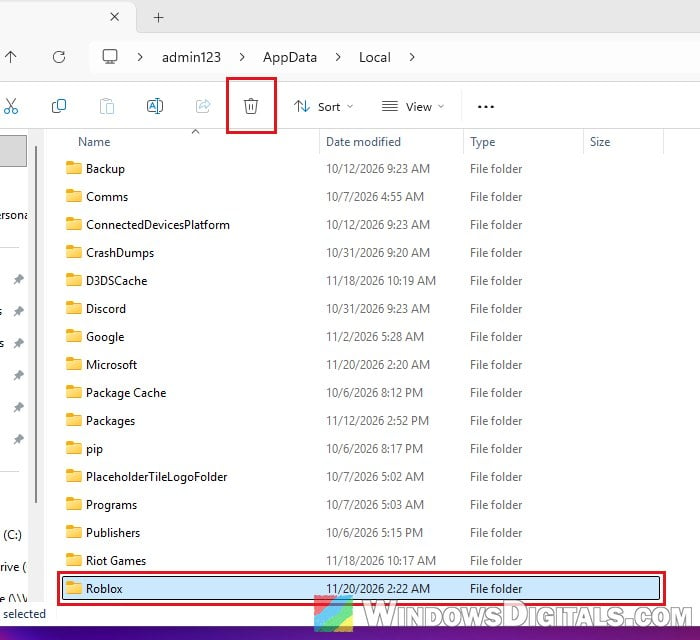
- Press Win + R, type
%localappdata%and press Enter. - If you plan to report the problem (next section), copy the logs folder inside Roblox somewhere else first. Then select the Roblox folder and click the Delete (trash) icon.
- Restart your PC and install Roblox again.
Send Roblox your logs and wait for a fix
If nothing above helps, the crash is most likely a bug in the current Roblox version that only Roblox can fix. Roblox’s staff keep asking affected players for log files and crash dumps to track these bugs down, and the May crashes stopped for most players once Roblox released its patches.
Contact Roblox Support from https://www.roblox.com/support, describe when it crashes and what you’ve tried, and mention that you have the log files from %localappdata%\Roblox\logs ready if they ask for them.