You open an email in Outlook.com or the new Outlook app, and instead of the pictures, a banner at the top says “Images and scripts have been blocked“. Then the next one says the same, and the one after that, even from senders you know and trust. This guide will show you why Outlook blocks the images and which settings get them to load again.
Also see: Outlook.com Junk Folder Flooded With “Unverified” Emails
Why does Outlook block images and scripts in emails?
Many emails don’t actually carry their pictures inside the message. They load them from the sender’s server the moment you open the email, which can also tell the sender that you opened it and send back some details about your device. Outlook holds back this “external” content when it isn’t sure about the sender, and shows the banner instead.
Here’s what usually causes the banner:
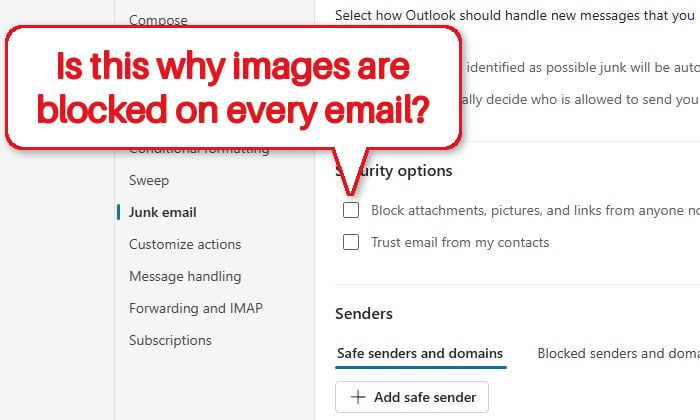
- A junk email setting that blocks pictures and links from anyone who isn’t on your safe senders list. With this on, almost every email has its pictures blocked.
- The sender isn’t on your safe senders list or in your contacts, so Outlook holds their images back.
- The External images setting under Privacy and data was changed, which can stop images from loading properly.
- On a work or school account, your organization’s admin can decide how external images are handled.
As for the “scripts” part, Outlook never runs scripts in an email. That’s by design and there’s no setting for it, so it’s only the images you need to worry about.
Linked issue: Outlook Email Shows Up in Search but Not in the Inbox
Load the images for that one email first
If you only need to see the pictures in one particular email, you don’t have to change any settings. Select the “Images and scripts have been blocked” banner at the top of the message. If it offers to show the blocked content, choose that, and the images should load for that email only. It’s also a quick way to see whether the images are there at all.
Turn off “Block attachments, pictures, and links” in junk email settings
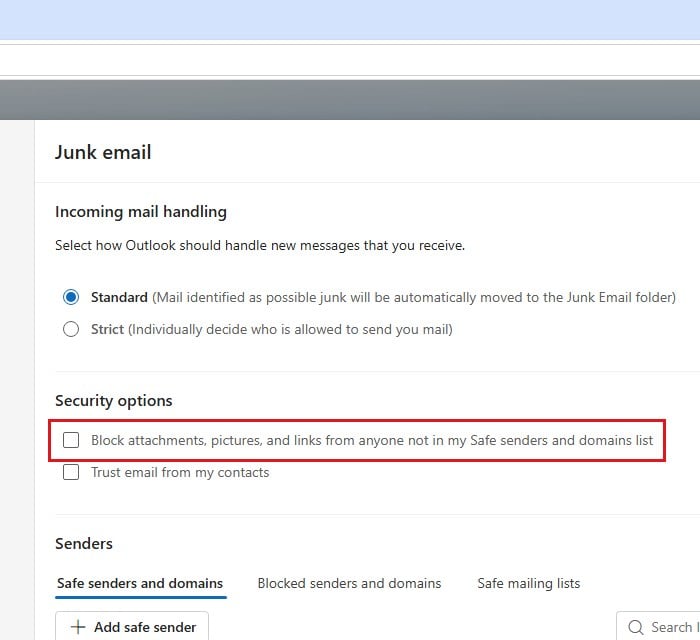
When the banner shows up on every single email, this setting is the most likely reason. It tells Outlook to block pictures, links and attachments from anyone who isn’t on your safe senders list, and since most people never fill that list, it ends up blocking nearly everything.
Here’s how to turn it off in Outlook.com (the new Outlook app should have the same settings):
- Select the Settings (gear) icon at the top right of Outlook.
- Go to Mail > Junk email.
- Under Security options, uncheck “Block attachments, pictures, and links from anyone not in my Safe senders and domains list“.
- Select Save.
Open a new email from a sender you know and see if the pictures load now without the banner.
Might be useful: Outlook Will Block .msix Attachments From November, What to do?
Add the sender to your safe senders list
If the setting above was already off and it’s mostly emails from certain senders (a newsletter, a shop, your bank) that keep showing the banner, add them as safe senders. Outlook trusts the content from addresses or domains on this list. Adding a whole domain (everything from @company.com, for example) covers every email that company sends you.
To add a safe sender:
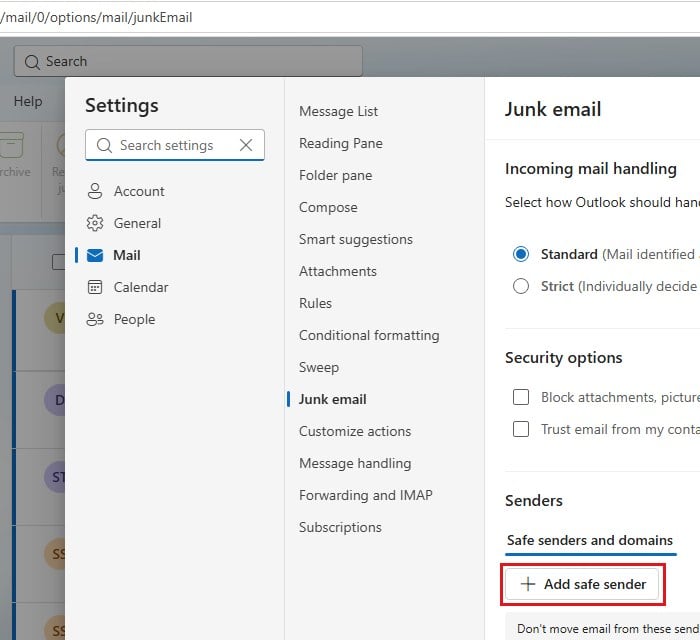
- Select the Settings (gear) icon, then go to Mail > Junk email.
- Scroll down to Senders and select the Safe senders and domains tab.
- Select Add safe sender.
- Type the sender’s email address or domain, then select OK.
- Select Save.
You can add up to 10,000 addresses or domains. Keep in mind that this works for the senders you add, not for every email you get, so if it’s truly every email from everyone, go back to the previous section.
Also trust email from your contacts
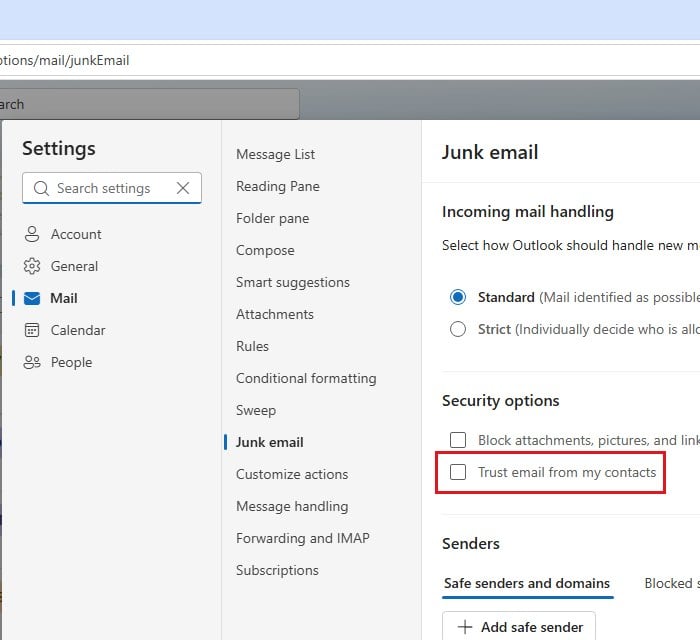
On the same page, under Security options, there’s a “Trust email from my contacts” option. Ticking it makes Outlook treat everyone in your contacts like a safe sender, so you don’t have to add them one by one. Select Save after checking it.
Check the “External images” setting under “Privacy and data”
Outlook.com normally loads external images through its own service, which Microsoft says helps protect your data, since some external images can pose a security risk. If this setting was switched to the other option, images might not load the way you expect, and Outlook may show a “Connection not secure” message instead.
To check it:
- Select the Settings (gear) icon and go to General > Privacy and data.
- Scroll down to External images.
- Make sure “Always use the Outlook service to load images” is selected.
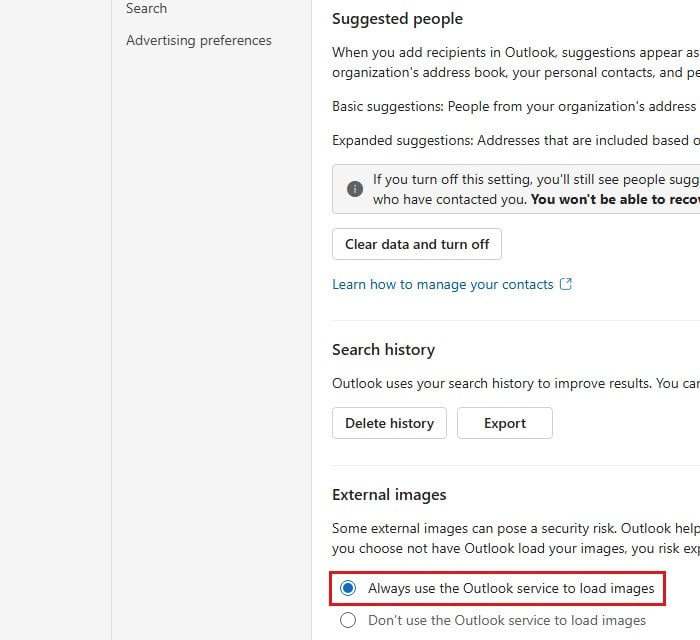
Once “Always use the Outlook service to load images” is selected, reopen an email and see if the images load.
Please note that switching to “Don’t use the Outlook service to load images” isn’t a good workaround. According to Microsoft, that option can put your personal data at risk, since the images then load straight from the sender’s server.
Work or school account? Ask your admin
If you’re using Outlook with a work or school account, your organization’s admin can control how external images load for everyone, and Microsoft has been rolling out new admin settings for this in Outlook on the web and the new Outlook. Some of the options above may be missing or have no effect. In that case, only your IT department can change it, so ask them whether external images are blocked for your account.
Still blocked on everything? Contact Microsoft support
If you’ve cleared the junk email setting and added your senders, and the images are still blocked on every single email, there isn’t much more you can change yourself. Microsoft hasn’t published anything about this banner so far.
Select Help on the menu bar in Outlook.com, describe the problem, and if the suggestions don’t solve it, look for the option to contact support. Mention that the banner appears on every email and list what you’ve already tried, so they don’t send you through the same steps again.