Event Viewer on Windows 11 can show errors even on a PC that works fine, and one you’ll likely run into while looking for the cause of a crash is a Perflib error with Event ID 1023 that says “Windows cannot load the extensible counter DLL “C:\WINDOWS\system32\sysmain.dll” (Win32 error code The specified module could not be found.)”. In most cases, it’s harmless and has nothing to do with the crash. This guide will walk you through what the message means, why it shows up and how to stop it if you’d rather not see it again.
Also see: Event: “The IO operation at logical block address…”
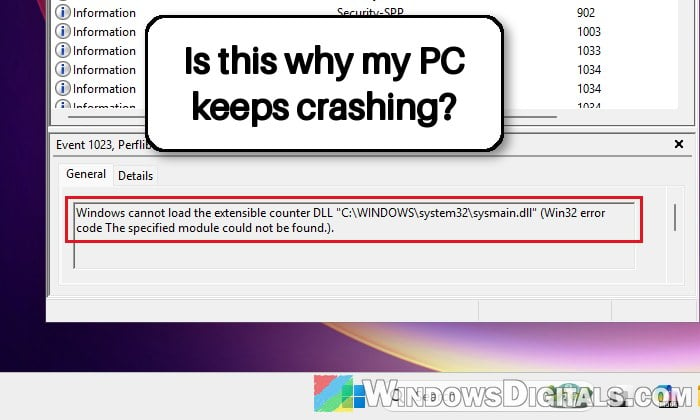
What does “Windows cannot load the extensible counter DLL” mean?
It means Windows couldn’t load one of the files that supply performance counters into a program that asked for them. Performance counters are the live numbers about your PC (CPU, disk, network and many more) that tools like Performance Monitor read. Windows keeps a list of every DLL that provides them, called the Performance Library, which is where the “Perflib” source name comes from.
When a program asks for performance data, Windows loads each DLL on that list. If one of them fails to load, Perflib writes Event 1023 to the Application log with the path of the DLL that failed.
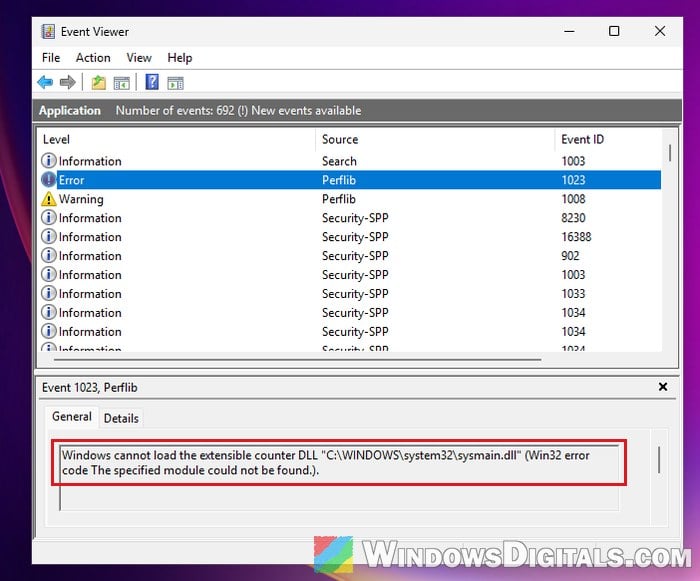
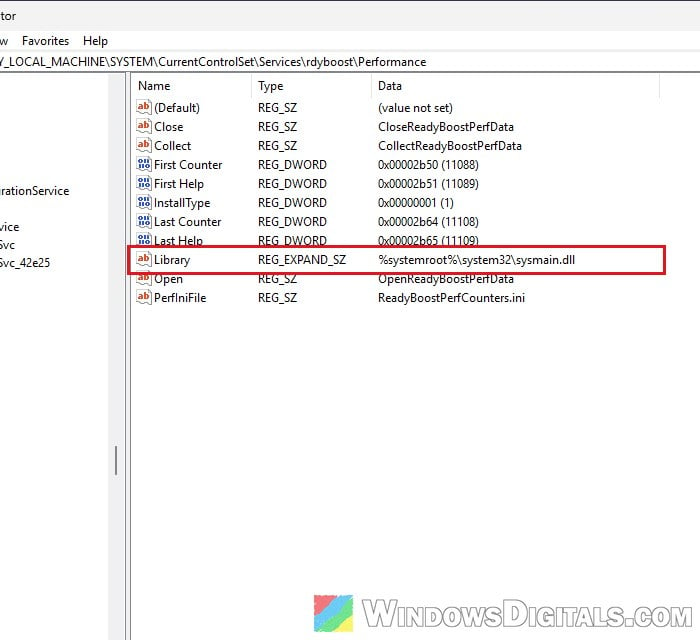
In the sysmain.dll case, the counter belongs to ReadyBoost. You can see it in the registry under HKEY_LOCAL_MACHINE\SYSTEM\CurrentControlSet\Services\rdyboost\Performance, where the “Library” value points to %systemroot%\system32\sysmain.dll (the same file as in the error).
Quite often, it comes with a second Perflib entry logged in the same second, a warning with Event ID 1008 that says “The Open procedure for service “BITS” in DLL “C:\Windows\System32\bitsperf.dll” failed“. It’s the same kind of message for the counters of the Background Intelligent Transfer Service (BITS), and it’s set off by the same thing, a 32-bit program reading performance counters.
Why does Windows fail to load sysmain.dll?
It happens because a 32-bit program asked Windows for performance data. The sysmain.dll file in C:\Windows\System32 is a 64-bit file, and Windows doesn’t have a 32-bit copy of it in the C:\Windows\SysWOW64 folder, where 32-bit programs get their system files from. So when Windows tries to load the ReadyBoost counter into a 32-bit program, there’s no file it can use, and the result is “The specified module could not be found.”
We tested this on a clean install of Windows 11. Running the 32-bit version of the built-in counter tool (C:\Windows\SysWOW64\typeperf.exe) logged the sysmain.dll error and the BITS warning at once, while the 64-bit version of the same tool didn’t log either of them.
In other words, sysmain.dll isn’t missing or corrupted. The error is just what a normal Windows 11 installation logs when a 32-bit program reads performance counters, though not every time. When we ran the same 32-bit tool again right after, no new entry showed up.
Related concern: How to Disable Superfetch and Prefetch in Windows 11 or 10
Is it causing your crashes or blue screens?
No, the message only means that one program didn’t get ReadyBoost’s numbers. Nothing in it points to a blue screen, a freeze or an app crash. Because it’s easy to spot while scrolling through Event Viewer after a crash, it can look related, but it isn’t. In the cases reported by users on places like Reddit, the crashes came down to other things, such as damaged system files, a memory overclock or the graphics card.
If you’re trying to find out why your PC crashed, look at the Critical events and the errors logged at the exact time of the crash instead, and check the crash’s dump file if Windows saved one.
Pro tip: Windows 11 Dump File Location
How to stop the error from showing up
If you just want a cleaner log, you can turn off the ReadyBoost performance counter with the built-in lodctr tool. Windows then stops trying to load sysmain.dll for performance data, so the error won’t be logged again. This only turns off ReadyBoost’s own counters (the ReadyBoost numbers you could otherwise add in Performance Monitor), not ReadyBoost or the SysMain service itself, and it can be undone with one command.
Here’s how to do it:
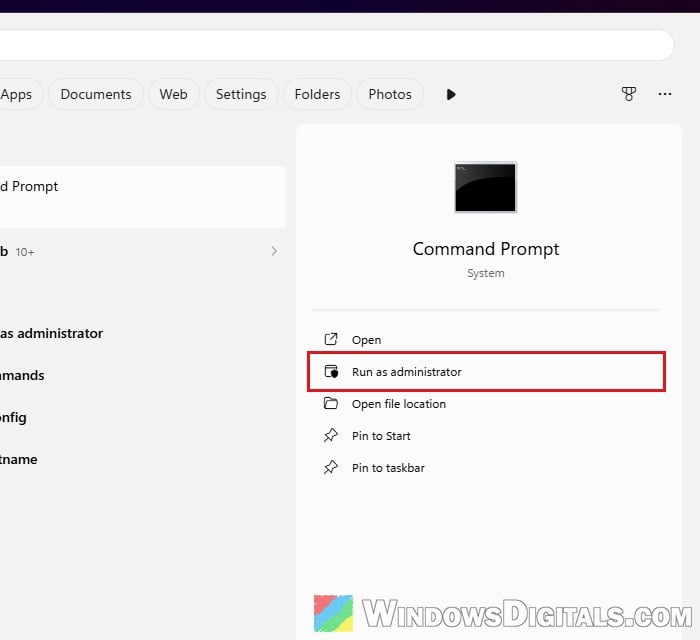
- Search for “cmd” in the Start menu and click “Run as administrator” under “Command Prompt“.
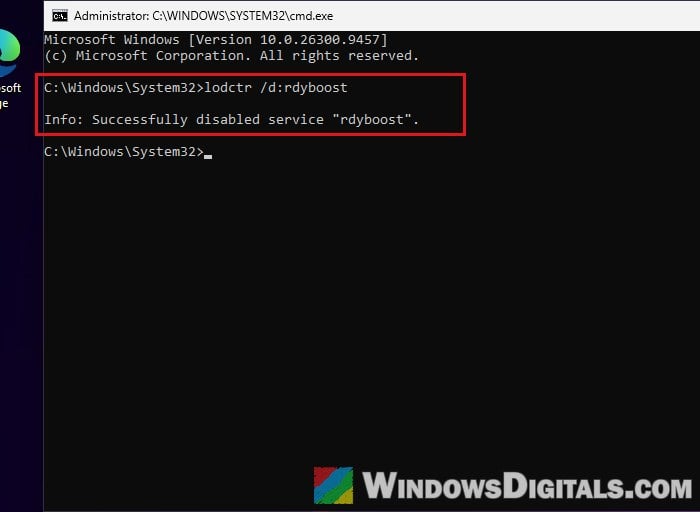
- Type the following command and press Enter:
lodctr /d:rdyboost
You should see “Info: Successfully disabled service “rdyboost”.”
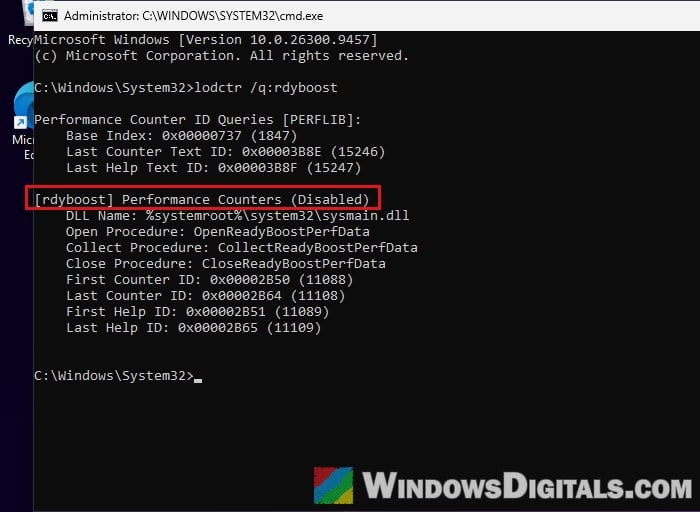
- To check that it’s off, run the following command:
lodctr /q:rdyboost
The result should say “[rdyboost] Performance Counters (Disabled)“.
The entries already in the log will stay there, but no new sysmain.dll errors should appear from now on.
What about the BITS warning (Event 1008)?
You can turn off the BITS counters the same way. In the same administrator Command Prompt, run the following command:
lodctr /d:BITS
You should see “Info: Successfully disabled service “BITS”.”
Again, this only turns off the performance counters for BITS, not the BITS service itself.
How to undo it
To turn the counters back on, open an administrator Command Prompt, type the following commands one by one, and press Enter after each. You only need the second one if you turned off the BITS counters too.
lodctr /e:rdyboost
lodctr /e:BITS
Will rebuilding the performance counters or running SFC fix it?
Neither of them fixes this error. You might come across advice to rebuild the performance counters with lodctr /R. When we ran it in both C:\Windows\System32 and C:\Windows\SysWOW64, both said “Successfully rebuilt performance counter settings from system backup store“, but the next 32-bit program that read the counters logged the same sysmain.dll error again. According to Microsoft, rebuilding is meant for when performance counters are missing or corrupted in Performance Monitor, which isn’t the case here.
The same goes for SFC and DISM. They repair Windows files that are damaged or missing, but a normal Windows installation doesn’t have a 32-bit sysmain.dll in the first place, so there’s nothing for them to restore. Run them if you’re dealing with real crashes, not to get rid of this error.
Might be useful: Can I cancel “SFC /scannow” while it’s running?
What if the error names a different DLL?
The same Event 1023 can show up with other files, such as aspnet_perf.dll from an old version of the .NET Framework, or a DLL from a backup or database program, or another third-party app. The path in the message usually tells you which program it belongs to.
For a DLL that comes with a program from another company, update or reinstall that program first. If that doesn’t help, Microsoft’s advice is to contact the program’s maker. If you don’t need its performance counters, run lodctr /q in an administrator Command Prompt to find the counter’s name (it’s shown in square brackets, like [rdyboost]), then turn it off with lodctr /d:<name>, replacing <name> with that name, the same way as for ReadyBoost above.