If Event Viewer on your Windows 11 or 10 PC keeps logging an Error from TPM-WMI with Event ID 1801, often at every startup, saying “Secure Boot CA/keys need to be updated” or that “updated Secure Boot certificates are available on this device but have not yet been applied to the firmware“, it means Windows has the new Secure Boot certificates ready but hasn’t put them into your firmware yet. This guide explains what the event is about, whether to worry, and how to get the update to finish.
Also see: Secure Boot “Failed Signature Verification” After Resetting Keys
Page Contents
What does TPM-WMI Event 1801 mean?
Microsoft is replacing the Secure Boot certificates from 2011 with new ones from 2023, along with a new Windows boot manager signed by the 2023 certificate. Event 1801 means Windows has the new certificates ready, but they haven’t been written into your PC’s firmware (BIOS/UEFI) yet, and Windows keeps logging it until they are.
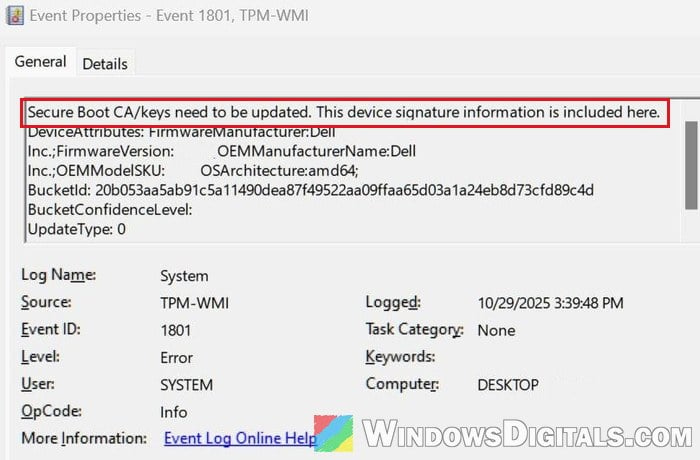
The wording differs a bit depending on when it was logged, but the meaning is the same. Below the message, the BucketConfidenceLevel is worth a look. Microsoft rolls the update out in stages, grouping PCs with the same hardware and firmware into “buckets”, and Windows applies the certificates by itself once Microsoft is confident your firmware handles them (“High Confidence”). If yours says “Under Observation – More Data Needed”, your PC is most likely still waiting for its turn, not failing.
Despite the name, the certificates aren’t stored in the TPM chip but in the firmware’s Secure Boot database.
Is it causing my crashes or blue screens?
It’s very unlikely. Event 1801 is often logged at every startup, so it sits next to crash events like Kernel-Power 41 and gets blamed. Check the other errors instead.
Should you worry about Event 1801?
Not really, since nothing is actually broken. Your PC will keep starting and working normally. However, the old 2011 certificates already started expiring in June 2026, and more expired in October 2026. A PC that never gets the 2023 certificates can no longer receive new Secure Boot protections, Windows boot manager updates or updates to the list of blocked boot files, so while it isn’t urgent, it’s worth getting the update to finish.
Check if the update has already finished
Since April 2026, the Windows Security app shows where your PC stands. Here’s how to check:
- Open Windows Security from the Start menu, then go to Device security > Secure boot.
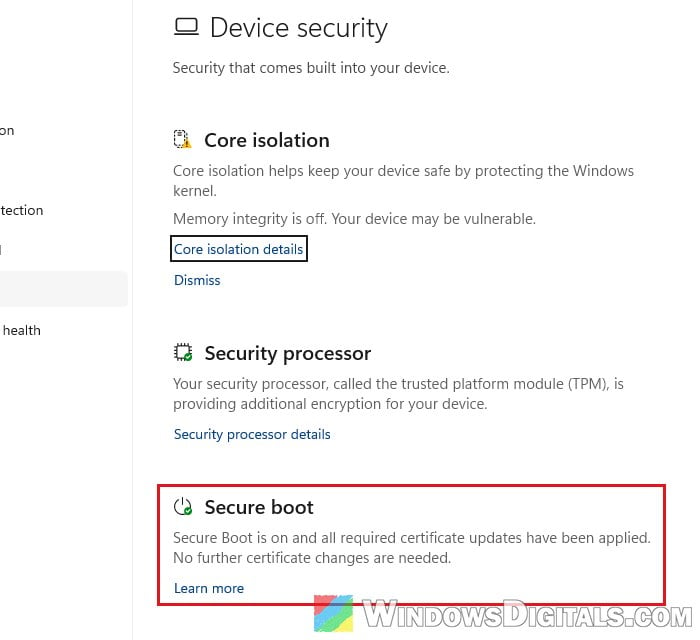
- Read the status message:
- “Secure Boot is on and all required certificate updates have been applied” means you’re done and there’s nothing else to do.
- “…your device is using an older boot trust configuration that should be updated” means the update hasn’t finished. Continue with the sections below.
- “…your device does not support the automated Secure Boot certificate update due to hardware or firmware limitations” means your firmware is the problem. Skip to the BIOS section.
- “…this device can no longer receive required updates for the Windows boot experience” (shown in red) means Microsoft wants you to follow its guide at
aka.ms/getsecureboot.
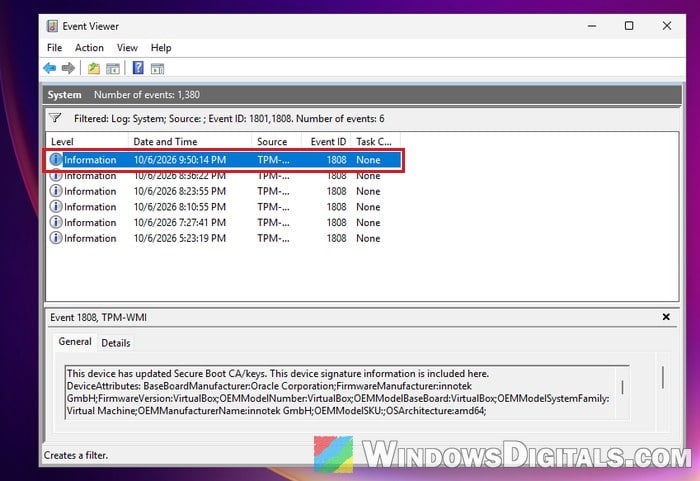
You can also look in Event Viewer for Event ID 1808 (“This device has updated Secure Boot CA/keys“). If a 1808 was logged after your last 1801, the update has completed. Here’s how:
- Press Win + R, type
eventvwr.mscand press Enter. - Go to Windows Logs > System, then click Filter Current Log on the right.
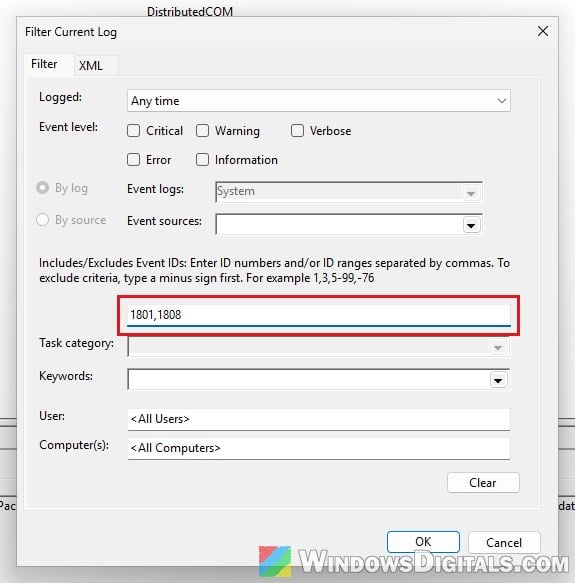
- Type “1801,1808” in the event ID box and click OK.
- Check which event is at the top, the newest one (click Date and Time if it isn’t sorted that way).
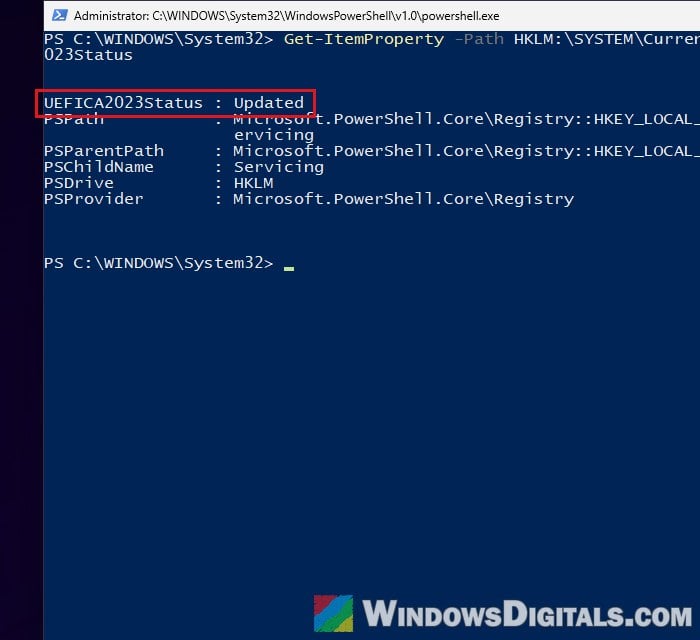
If you prefer a command, open PowerShell as administrator and run:
Get-ItemProperty -Path HKLM:\SYSTEM\CurrentControlSet\Control\SecureBoot\Servicing -Name UEFICA2023Status
It shows NotStarted, InProgress or Updated.
Install all Windows updates and restart twice
For most home PCs, the certificates come through Windows Update, and a scheduled task applies them in the background at startup and every 12 hours. Some users found that the 1801 event simply stopped after a later cumulative update. Here’s what you should do:
- Open Settings > Windows Update and click Check for updates.
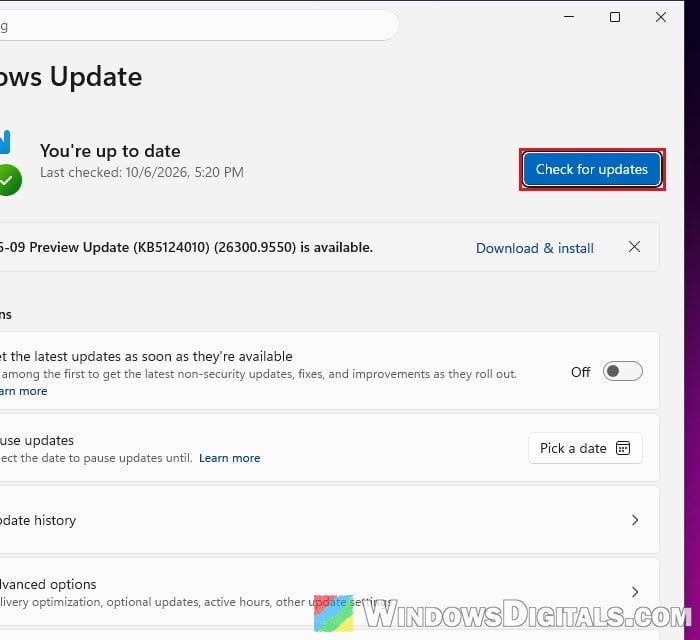
- Install everything it finds.
- Restart your PC, then restart it once more after Windows has loaded.
Event ID 1800 (“A reboot is required before installing the Secure Boot update“) is normal and just means it’s waiting for the next restart. Then check Windows Security or Event Viewer again as shown above.
Start the certificate update manually
If your PC is fully updated and still logs 1801, you can tell Windows to apply the certificates now. It’s Microsoft’s method for IT admins, and it works on home PCs too.
First, back up your BitLocker recovery key if your drive is encrypted. Microsoft notes that BitLocker can ask for it once after the Secure Boot update, and keep asking on PCs set to boot from the network (PXE) first. Also create a system restore point.
Please note that if your event says the update is blocked by a known firmware issue (1802), the firmware returned an error (1795), or the BucketConfidenceLevel says “Not Supported – Known Limitation”, don’t force it. On some older PCs, running the task has even frozen Windows, and getting back needed a forced shutdown and System Restore. Go to the BIOS section instead.
- Search for PowerShell in the Start menu, right-click it and select Run as administrator.
- Run the following commands one by one, pressing Enter after each:
reg add HKEY_LOCAL_MACHINE\SYSTEM\CurrentControlSet\Control\Secureboot /v AvailableUpdates /t REG_DWORD /d 0x5944 /f
Start-ScheduledTask -TaskName "\Microsoft\Windows\PI\Secure-Boot-Update"
The first tells Windows to apply all the Secure Boot updates. The second runs the task now instead of waiting up to 12 hours.
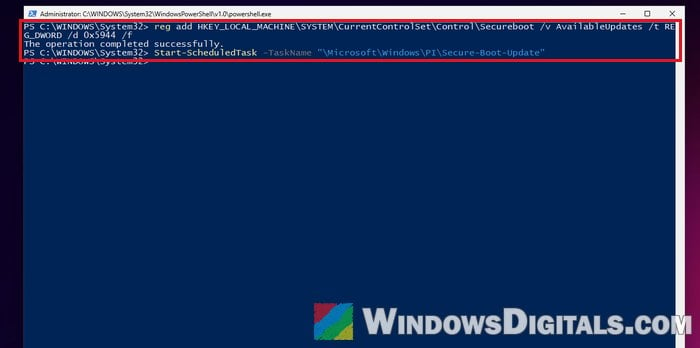
- Restart your PC. The task runs again at startup to finish the remaining steps.
- Restart once more, then check the status again with the steps above.
When it’s done, UEFICA2023Status shows Updated and Event Viewer logs Event ID 1808. The task itself is in Task Scheduler under Microsoft > Windows > PI as Secure-Boot-Update. Its status should say Ready; if it shows Disabled, the update can’t run.
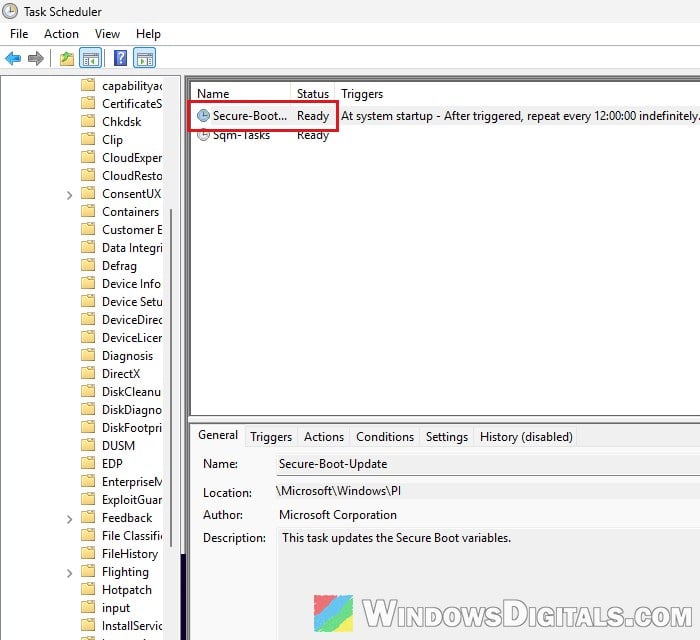
Linked issue: BitLocker Keeps Asking for the Recovery Key at Every Startup
Update your BIOS (UEFI) if your PC maker has a newer version
Some firmware won’t accept the new certificates, or Windows skips it because of a known problem. Then a BIOS update from your PC or motherboard maker is the fix, especially if you see Event ID 1795 (“The system firmware returned an error…“) or Event ID 1802 (“…blocked due to a known firmware issue“).
To find your current BIOS version, press Win + R, type msinfo32 and press Enter, then look at BIOS Version/Date.
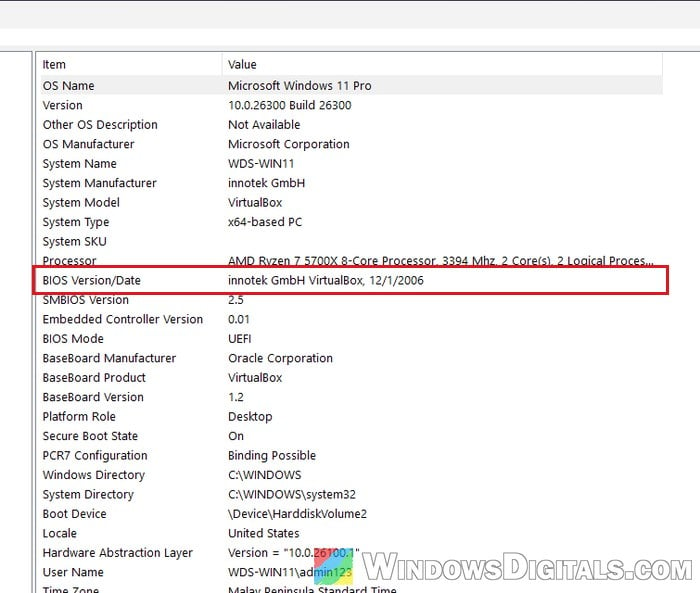
Compare it with the latest BIOS on your maker’s support page for your model.
Be warned: A BIOS update can brick your motherboard if it’s interrupted or if you flash the wrong file. Follow your maker’s instructions exactly, and if you’re not sure what you’re doing, get someone who knows to help you instead.
Related concern: Windows 11 Not Activated After BIOS Update
Might be useful: Can’t find TPM 2.0 and Secure Boot options in BIOS
What if your PC never gets the update?
Older PCs past their end of support may never get a BIOS update that accepts the new certificates. Ask your PC maker to make sure, but don’t panic. Your PC will keep running Windows as usual; it just won’t get future boot-level security updates, and 1801 will likely stay in the log.