If you’ve turned on TPM 2.0 and Secure Boot for Call of Duty: Modern Warfare 4, but the game or the Secure Attestation Wizard still says “BIOS Firmware Update Required” and blocks online play even though your motherboard has no newer BIOS, your TPM’s firmware version is usually the real problem. It mostly hits older Intel boards and AMD Ryzen PCs using the CPU’s firmware TPM. This guide will show you what the message actually checks and what you can still do about it.
Also see: “New Key Failed to be generated” in Call of Duty on Intel PTT (AIK 0x80190190)
Page Contents
Why does MW4 say “BIOS Firmware Update Required”?
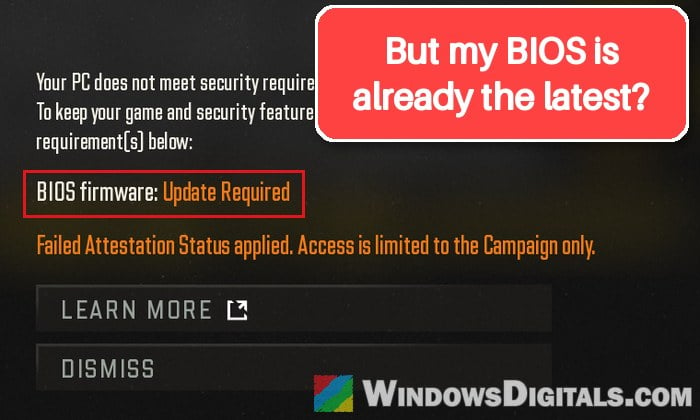
Call of Duty checks that TPM 2.0 and Secure Boot are working before it lets you play online, and part of that check looks at the firmware version of your TPM. If Activision doesn’t accept that version, the wizard says “BIOS Firmware Update Required”. In the game itself, it shows as “BIOS firmware: Update Required” with “Failed Attestation Status applied. Access is limited to the Campaign only.”
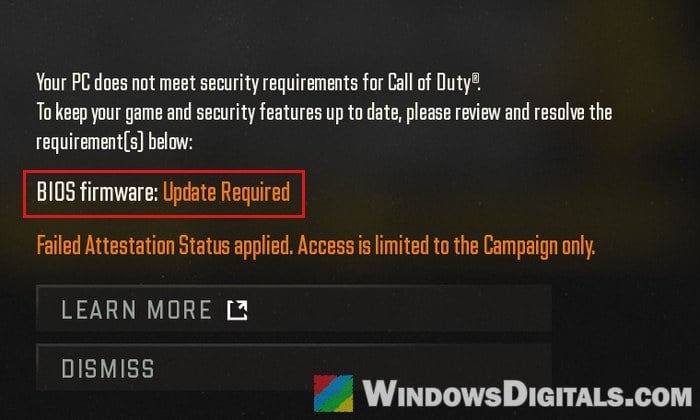
According to Activision, a PC that doesn’t pass is blocked from every online mode in Modern Warfare 4 (the campaign still works), while Black Ops 7 and Warzone only lock some modes like Ranked Play.
Here are the usual reasons, going by what Activision and AMD say:
- AMD fTPM version 3.x.0.x (for example 3.92.0.5). AMD says this firmware has an attestation bug on Ryzen 1000 to 5000 series chips. AMD fixed it in 2022, but some motherboard makers never put the fix in their BIOS updates.
- Intel TPM version INTC 302.12.x.x or 303.12.x.x, found on 8th and 9th gen Intel boards such as Z370, many of which had their last BIOS years ago.
- A CPU older than the minimum: an 8th gen or newer Intel CPU (with Intel PTT) or a Ryzen 2000 series or newer (with AMD fTPM), unless you have a separate TPM chip. A Z170 board with a 6th or 7th gen CPU falls below that.
If your TPM’s version is fine and you’re on a newer Intel PC, it’s more likely the key certificate issue covered in the guide linked above.
Linked issue: TPM 2.0 Enabled in BIOS but Not Showing in Device Manager
Check your TPM’s firmware version first
Here’s how to check it:
- Press Win + R to open the Run dialog box.
- Type “tpm.msc” and press Enter.
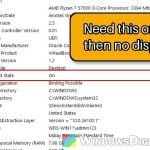
- Look at “Manufacturer Version” under “TPM Manufacturer Information“.
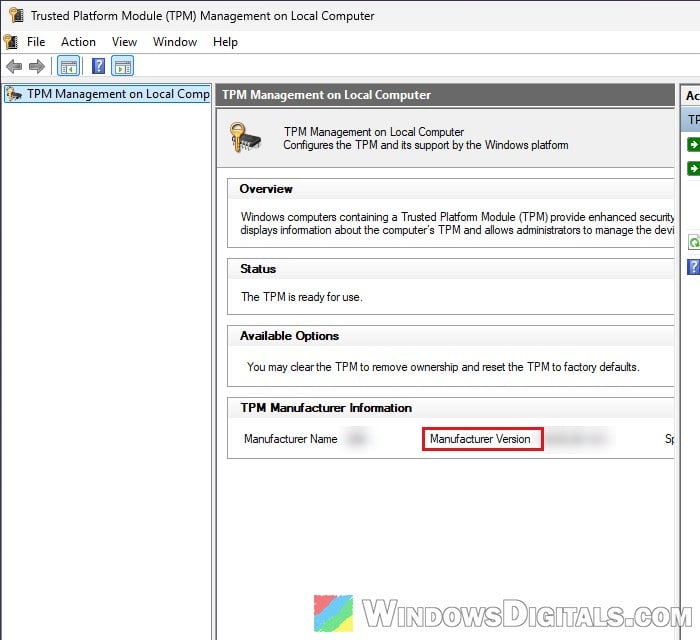
- Compare it with the versions above:
- AMD and the version looks like 3.x.0.x (the third number is 0): you need newer TPM firmware (see the BIOS update section below). Versions like 3.x.2.x or 6.x.x.x are fine.
- INTC and the version starts with 302.12 or 303.12: your board may need a firmware update (same section).
- Anything else: your TPM firmware isn’t the likely problem. Try resetting Windows’ TPM keys in the next section. (If your CPU is below the minimum above, skip to the section about a separate TPM module instead.)
Pro tip: Can’t find TPM 2.0 and Secure Boot options in BIOS
If the version is fine, reset Windows’ TPM keys
If your TPM version isn’t one of the ones above but the message won’t go away, resetting the TPM keys Windows has saved can help. It has worked for quite a few players, though not for everyone.
This deletes a registry key, and changing the registry incorrectly can cause problems, so at least create a system restore point first. Also turn off BitLocker or device encryption, or at least have the recovery key ready. If in doubt, get someone who knows to help you instead.
Here’s how to do it:
- Search for “cmd” in the Start menu, right-click “Command Prompt” and select “Run as administrator“.
- Run the following command:
reg delete "HKLM\SYSTEM\CurrentControlSet\Services\TPM\WMI\Endorsement" /f
- Open “Windows PowerShell” as administrator the same way.
- Run the following command:
Disable-TpmAutoProvisioning -OnlyForNextRestart
- Restart your PC.
- After the restart, open PowerShell as administrator again.
- Type the following commands one by one, and press Enter after each:
Initialize-Tpm
Enable-TpmAutoProvisioning
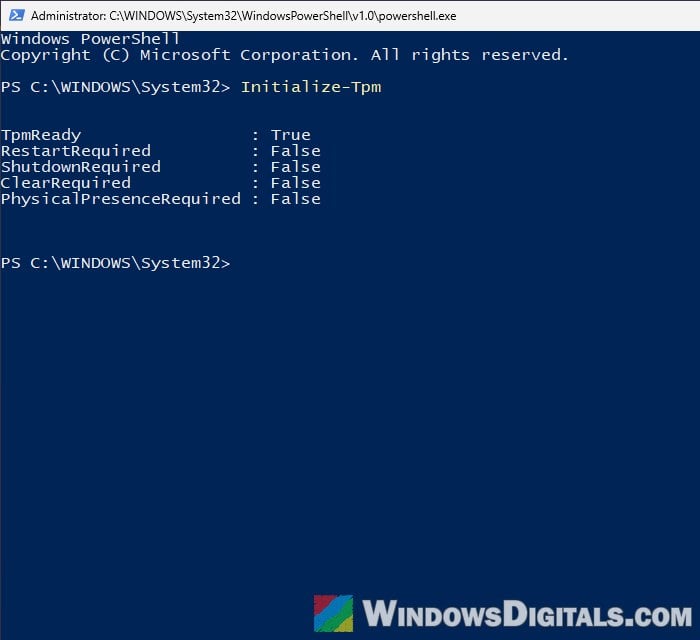
- Restart the PC again.
Then run the Secure Attestation Wizard again and see if it passes.
Might be useful: Modern Warfare 4 (MW4) Low FPS on PC, Even on Low Settings
Update the BIOS to get the newer TPM firmware
The TPM firmware comes with your motherboard’s BIOS, so the proper fix is a BIOS update that includes the newer version. Check again even if you think you have the latest, since some makers do update older boards.
Be warned: A BIOS update can brick your motherboard if the power cuts out or you flash the wrong file. Only use the file for your exact model, keep the PC plugged in, and if you’re not sure what you’re doing, it’s better to just get someone to help you instead.
Here’s what you should do:
- Go to the maker’s support page for your exact motherboard model and revision (or your laptop or prebuilt PC’s model) and look at the BIOS list. The updates that matter usually mention TPM firmware, security or game compatibility in their notes.
- If your drive is encrypted, have your BitLocker recovery key ready, since a firmware change can make BitLocker ask for it.
- Flash the new BIOS following the maker’s instructions, then boot back into Windows.
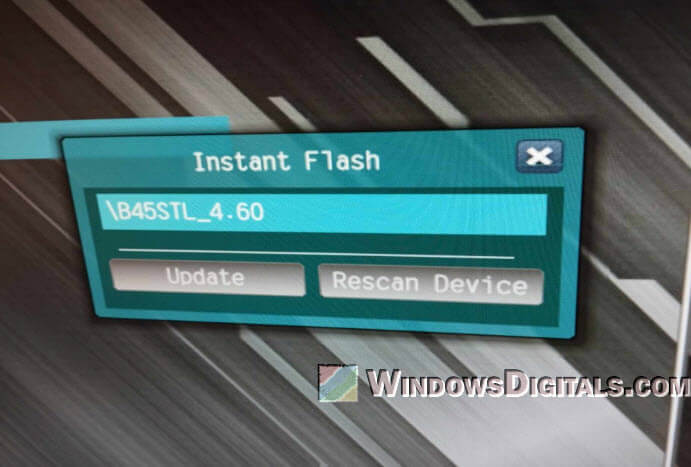
- Open tpm.msc again and check that the “Manufacturer Version” changed (for example, from 3.92.0.5 to a 3.x.2.x version).
- If it now says “The TPM is not ready for use“, click “Prepare the TPM…” in the “Actions” pane on the right and restart when it asks.
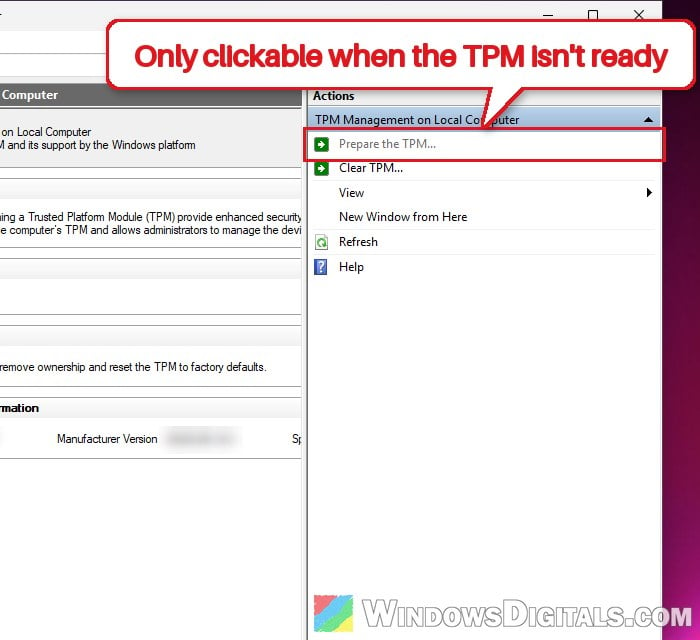
Then run the Secure Attestation Wizard again (or launch the game) and see if the message is gone.
Related concern: BitLocker Recovery Key Not in Your Microsoft Account, What to do?
No newer BIOS? Ask the maker and report it
If your board’s maker never released a BIOS with the fixed TPM firmware, nothing you change in Windows will update it. AMD and Activision both say to contact your motherboard or PC maker’s support and ask whether a firmware update is coming for your model.
Activision tells Lenovo owners to open a ticket on Lenovo’s support site. Some makers do respond: one Corsair prebuilt owner got a fixed BIOS the day after asking, though HP Omen owners say HP hasn’t released one.
You can also fill in Activision’s TPM report at https://support.activision.com/articles/tpm-report. Activision says the reports help it work with hardware makers on BIOS updates.
Use a separate TPM 2.0 module (if your board has a TPM header)
Activision accepts a discrete TPM chip as well as the CPU’s built-in one. So if your motherboard has a TPM header, a small plug-in TPM 2.0 module can get you past the check without new firmware. On boards stuck with an old AMD fTPM version, a module like this has gotten the game working again.
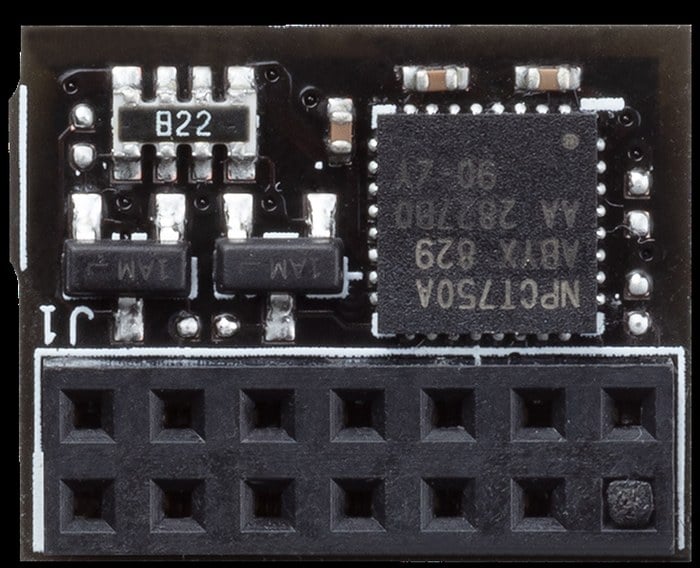
Get a module made for your board’s header (the pin layout differs between makers, so check the manual), plug it in with the PC off, then select the discrete TPM in the BIOS instead of AMD fTPM or Intel PTT.
Please note that switching TPMs makes BitLocker ask for its recovery key and you’ll have to set up your Windows Hello PIN again.
When nothing else works
If your board has no TPM header and its maker won’t release an update, the only way left is new hardware. On AMD, swapping an older Ryzen for a newer one on the same board (if its BIOS supports it), such as a Ryzen 7 2700 for a Ryzen 5 5600, has fixed it. On older Intel systems, it usually means a new motherboard and CPU.