If your PC suddenly starts on the blue BitLocker recovery screen and asks for a 48-digit recovery key, but your Microsoft account’s recovery key page shows no key, or none with a matching ID, the key may still exist somewhere else. This guide will show you every place it could be and what you can do if it’s really gone.
Also see: BitLocker Keeps Asking for the Recovery Key at Every Startup
Page Contents
Why isn’t the key in your Microsoft account?
On many Windows 11 and 10 PCs, device encryption turns on by itself when you sign in with a Microsoft account or a work or school account, and the recovery key is saved to whichever account was signed in at the time. That isn’t always the account you’re using today. Some common reasons:
- Someone else set up the PC: a family member, a previous owner, a shop or a technician signed in with their own Microsoft account.
- You used another account back then: an old email, a second Microsoft account, or a work or school account.
- The key is there, just not where you looked: keys for all your devices sit on one page, and the right one can be listed under a different device name.
- BitLocker was turned on by hand, and the key was printed or saved to a file or USB drive instead.
Nobody can recreate a lost key, so check each place below before you give up.
Write down the recovery key ID first
First, note the recovery key ID shown on the blue screen. There can be several keys saved in an account, and only the one whose key ID matches will work for your drive. The first 8 digits are enough to tell them apart.
If your PC runs Windows 11 version 24H2 or later, also look for a hint of the Microsoft account on the same screen. It shows part of the email address the key was saved to, which tells you exactly which account to check. The screen may also say where else the key went, such as a printout or a text file.
Check the whole list in your Microsoft account
Even if your PC doesn’t show up in your account’s device list, its recovery key can still be saved there. Here’s how to check every key in the account:
- On another PC or your phone, open
https://aka.ms/myrecoverykeyand sign in with your Microsoft account. - Look through the whole list, all the way to the bottom. Keys for every device on the account are shown on this one page, and a newer key can sit at the very end.
- Compare the key ID of each entry with the recovery key ID on your PC’s screen, not the device name.
- When you find the matching key ID, type its 48-digit recovery key on the BitLocker screen.
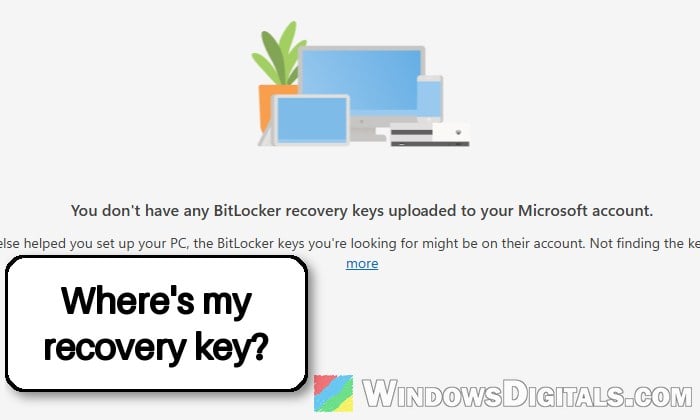
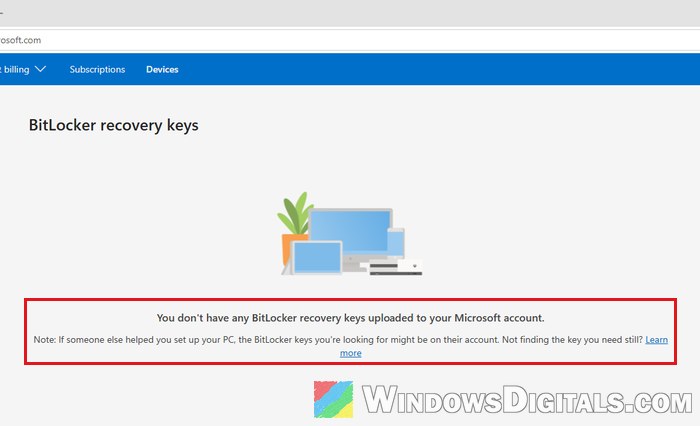
If the page says “You don’t have any BitLocker recovery keys uploaded to your Microsoft account“, the key was never saved to this account, so move on to the sections below.
Sign in with any other Microsoft account that might have it
If the key isn’t in your own account, think about who set up the PC or turned on encryption. Microsoft says that if someone else did it, the key might be stored in that person’s Microsoft account. Some places to try:
- An old or second Microsoft account you’ve used, such as an old Outlook or Hotmail address.
- The account of a family member who set the PC up for you.
- The previous owner’s account, if you bought the PC used.
- The account of the shop or technician who prepared the PC.
Each of them needs to sign in at the same https://aka.ms/myrecoverykey page and look for your key ID. If your recovery screen shows the account hint, start with the account that matches it.
Check your work or school account
If you’ve ever signed in to the PC with a work or school account (a Microsoft 365 account from your job or university, for example), the key may have been saved there instead. Here’s how to check:
- Open
https://aka.ms/aadrecoverykeyand sign in with the work or school account.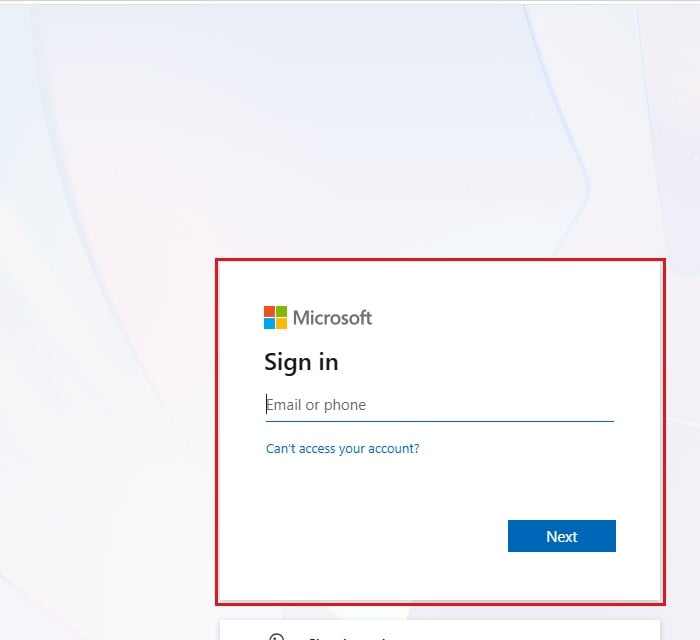
- Select Devices.
- Expand your PC in the list and select View BitLocker Keys.
- Find the key whose ID matches the one on your screen.
You might need to ask the organization’s IT support to get the key for you, especially if the PC is managed by your company or school.
Might be useful: Can’t Remove School or Work Email from Windows 11 or 10
Look for a printout, a USB drive or a saved file
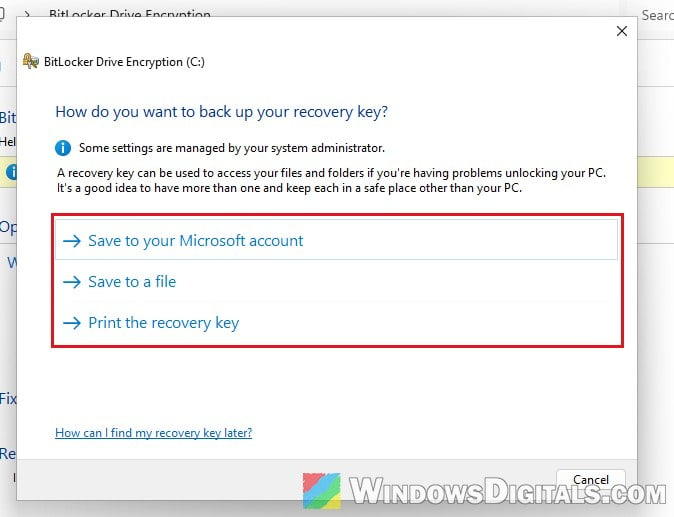
When BitLocker is turned on by hand, Windows asks how to back up the key: save it to a Microsoft account, save it to a USB flash drive, save it to a file, or print it. If that’s how your PC was set up, the key might be:
- On a printed page kept with the PC’s paperwork.
- On a USB flash drive used at the time, as a text file.
- In a file saved on another PC, an external drive or a network folder, or in your cloud storage.
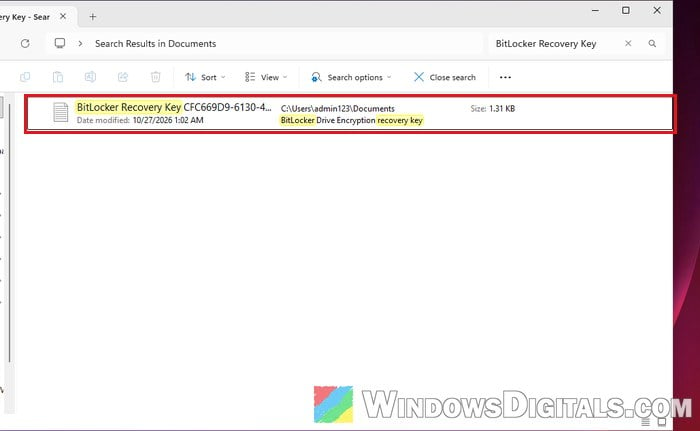
On another PC, search File Explorer and your cloud storage for BitLocker Recovery Key. The text file shows the key ID and the 48-digit key, so you can check it against your screen.
Did you close the Microsoft account?
If the key was in a Microsoft account you closed, you may still be able to get it back. When you close an account, Microsoft keeps it for 30 or 60 days (you choose which when closing it) before it’s deleted for good. During that time, you can reopen it by signing in at https://account.microsoft.com and entering the security code Microsoft sends you. Then check the recovery key page as above.
Once that period has passed, the account can’t be reopened, and the keys stored in it are gone with it.
Related concern: Lost Minecraft After Microsoft Account Was Deleted, What to do?
What if the key isn’t anywhere?
The bad news is that there’s no supported way to open a BitLocker drive without its recovery key. Microsoft Support can’t retrieve or recreate it, and Dell, for one, says it doesn’t store BitLocker keys either.
Be warned: Both options below erase everything on the encrypted drive. Only do this once you’re sure the key is gone.
- Reset the PC from the Windows recovery options. This reinstalls Windows and removes your files. See: How to Reset Windows 11/10 to Factory Default.
- Clean install Windows from a USB drive made on another PC, deleting the old partitions during setup.
Files synced to OneDrive or another cloud service are still there after the reset, so check what you have online first.
Once you’re back in, back up the key
Whether you found the key or had to reset, save a copy now so this doesn’t happen again. On Windows 11 or 10 Home, device encryption saves the key to the Microsoft account you sign in with, so open https://aka.ms/myrecoverykey and make sure it’s listed there. On Windows 11 or 10 Pro, follow the steps below:
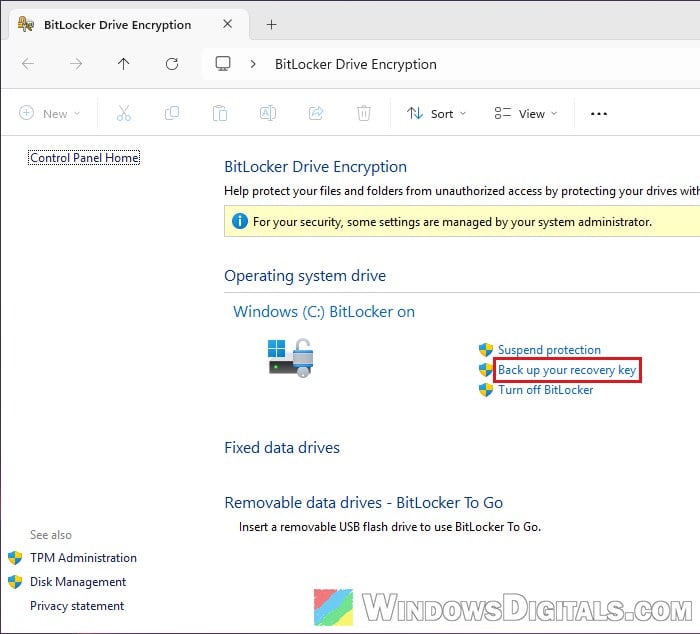
- Click Start, type “BitLocker” and select Manage BitLocker.
- Select Back up your recovery key next to the drive.
- Choose where to save it: Save to your Microsoft account, Save to a file or Print the recovery key. Some drives also offer Save to a USB flash drive.
- Select Finish when it’s done.
Keep at least two copies, and never keep the only one on the encrypted PC.