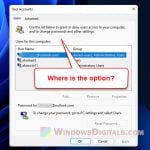
If you’re signing in to Outlook.com, Hotmail or any other Microsoft service with the right password and the page says “Password sign-in isn’t available. Try another method.” in red under the password box, your account usually isn’t broken. It looks like Microsoft is refusing password-only sign-in for a while, but other ways in still work. This guide will explain why it happens, how to get into your account right now, and how to stop it from coming back.
Also see: “We Couldn’t Find an Account With That Username” but Email Is Already in Use
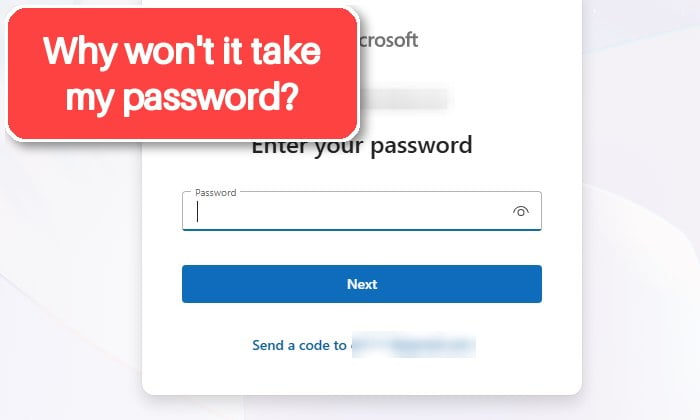
It often shows up together with, or right after, another message: “You’ve tried to sign in too many times with an incorrect account or password.” You can get that one even without typing your password wrong.
Page Contents
Why won’t Microsoft let you sign in with your password?
Microsoft hasn’t really explained this exact message, but it behaves like a temporary block on password sign-in for your account, or for the browser or network you’re signing in from. Some common reasons are:
- Someone else is trying passwords on your account. Microsoft says the “too many times” error can happen when someone else is trying to sign in with your email. Attackers often try common passwords on lots of accounts at once (password spraying), and Microsoft seems to stop accepting the password alone for a while when that happens.
- Your browser or network looks unusual to Microsoft. It sometimes hits only one browser, often Chrome, while Firefox, Brave or a private window work fine. Other times every account in the same house gets it at once.
- Your account is set to passwordless. If “Passwordless account” was turned on, your account no longer has a password, so password sign-in can’t work at all.
Microsoft has also been moving away from passwords for a while: since May 2025, new Microsoft accounts don’t even get one. Many people on Reddit and Microsoft’s forums have reported this message since spring 2026, and it often goes away by itself after a few hours or days, only to come back later.
Linked issue: “Microsoft Account Problem” Notification in Windows 10/11
Sign in with another method for now
The quickest way past the message is to do what it says. Other methods you’ve set up usually still work, even when the password doesn’t.
- Under the password box, click the other method Microsoft offers, such as Send a code to your recovery email. With more methods set up, you may see Other ways to sign in instead.
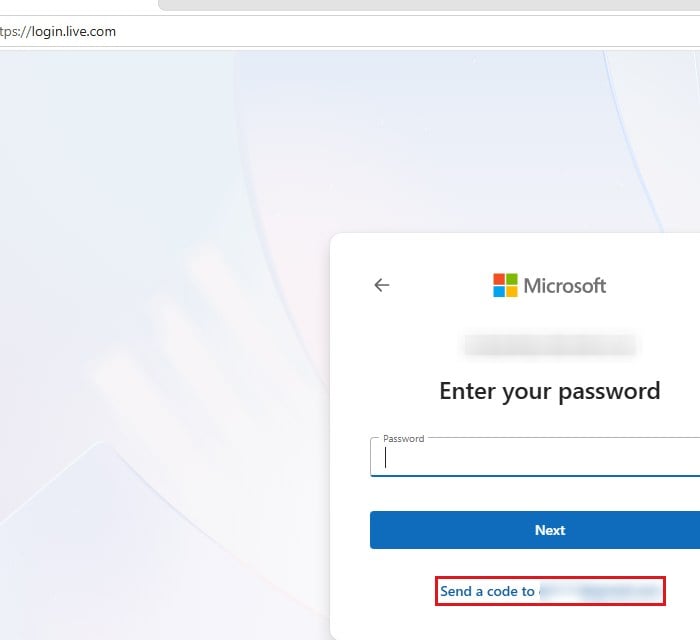
- Pick a method you can use: a code sent to your recovery email or phone number, an approval in the Microsoft Authenticator app, or Face, fingerprint, PIN, or security key if you’ve saved a passkey.
- Enter the code or approve the request, and you’re in.
If you can’t use any other method (your recovery email or phone is out of date), try the next two sections.
Try a private window or another browser
If the message only shows up in one browser, the problem can be in that browser’s saved cookies and sign-in data, not your account. A private window starts without any of that.
- Open a private window in your browser: Ctrl + Shift + N opens an InPrivate window in Microsoft Edge and an Incognito window in Google Chrome.
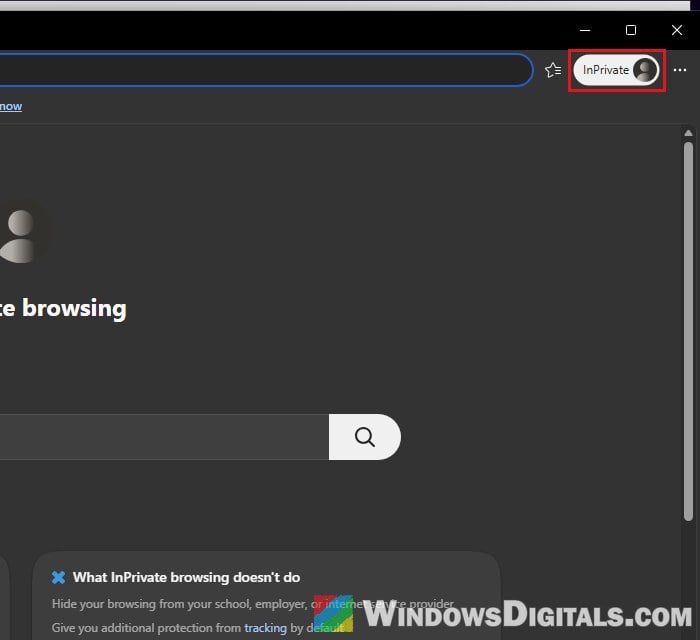
- Go to
https://outlook.live.com/and sign in with your password. - If it works there, clear your browser’s cookies and cache (for all time) so the normal window starts fresh too.
Another browser, like Firefox, can work too. If you get the same message in a private window and on another device, the block is on your account or network, so move on.
Related guide: How to Clear Cookies in Windows 11
Stop retrying and give it some time
Trying the password again and again can keep the block going for longer. Stop trying it for at least 24 hours, and use another method if you need to get in. Sometimes the block lasts up to a week.
While you wait, you can also try a different network, like switching your phone from Wi-Fi to mobile data, since some of these blocks are tied to the network you’re on.
Check that “Passwordless account” is turned off
If you want to keep using a password, make sure your account hasn’t been switched to passwordless. When it is, the account has no password at all, so only other methods can sign you in.
- Sign in to your Microsoft account (with another method if you have to), and go to
https://account.live.com/proofs/manage/additional. This opens your account’s Security page. - Scroll down to Additional security and find Passwordless account.
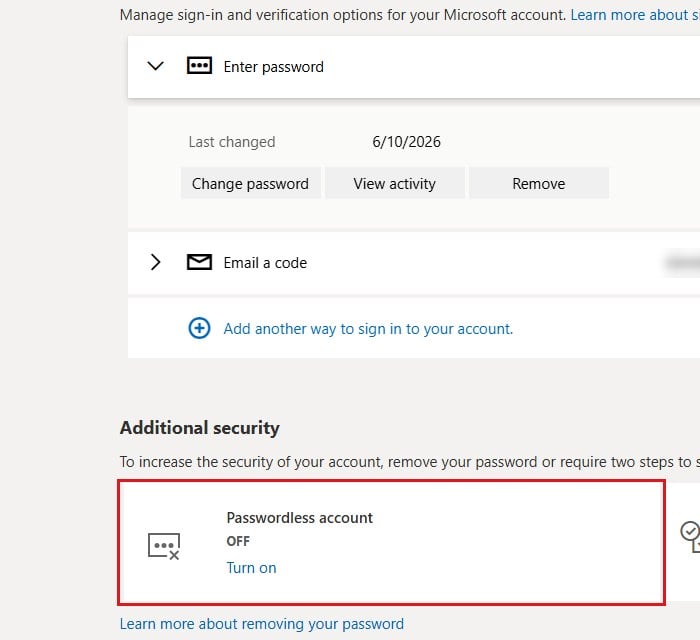
- If it shows Turn off, passwordless is on. Click Turn off, then Next, and follow the steps to add a password back to your account.
- If it shows Turn on, passwordless is already off, and this isn’t your problem.
If you turned it off and added a password, sign out and try your password again, once the block from the previous section has had time to clear.
Please note that switching passwordless off doesn’t always stop the message for good. For some people it came back later anyway.
Run Microsoft’s Sign-in Helper
Microsoft’s own advice when your password has stopped working, or you keep getting the “too many times” error, is to run the Sign-in Helper. It checks your account for problems on Microsoft’s side.
- Open a private window and go to
https://go.microsoft.com/fwlink/?linkid=2214157. - Under “Choose how you normally sign in, then enter your details“, select With an email address.
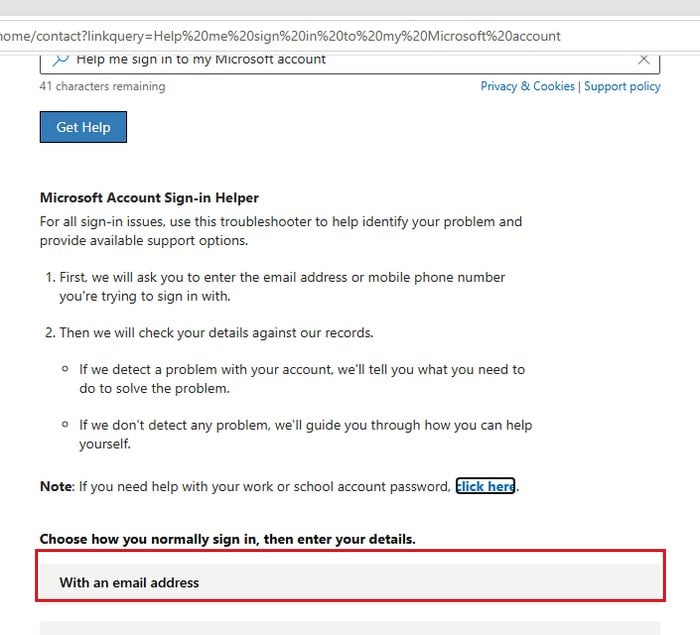
- Enter your email address and follow what the tool tells you.
If it finds a problem, such as unusual activity, follow its steps.
Add a passkey so this stops bothering you
If the message keeps coming back, stop depending on the password. A passkey lets you sign in with Windows Hello (your face, fingerprint or PIN) instead, and it works even while password sign-in is blocked.
While you’re at it, check that your recovery email and phone number are up to date, and turn on two-step verification.
To add a passkey on your Windows PC, follow the steps below:
- Go to
https://account.live.com/proofs/manageand sign in. - Under Ways to prove who you are, click Add another way to sign in to your account.
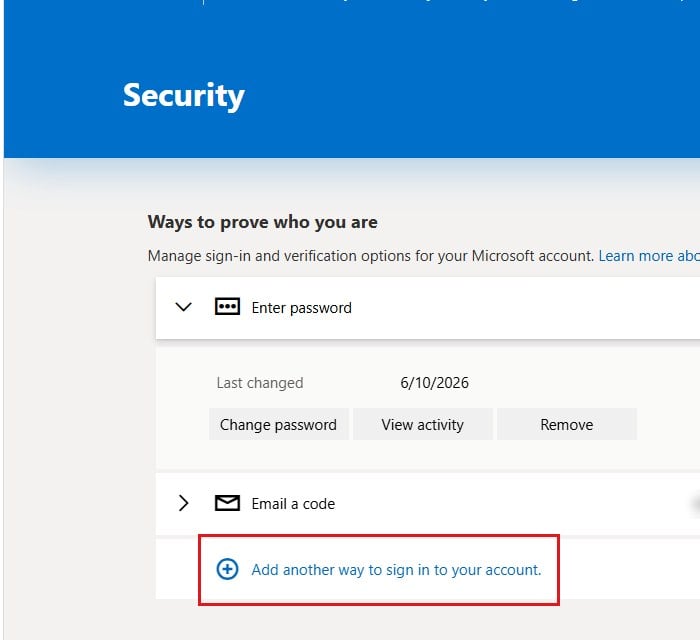
- In the Add a new way to sign in or verify box, select Face, fingerprint, PIN, or security key.
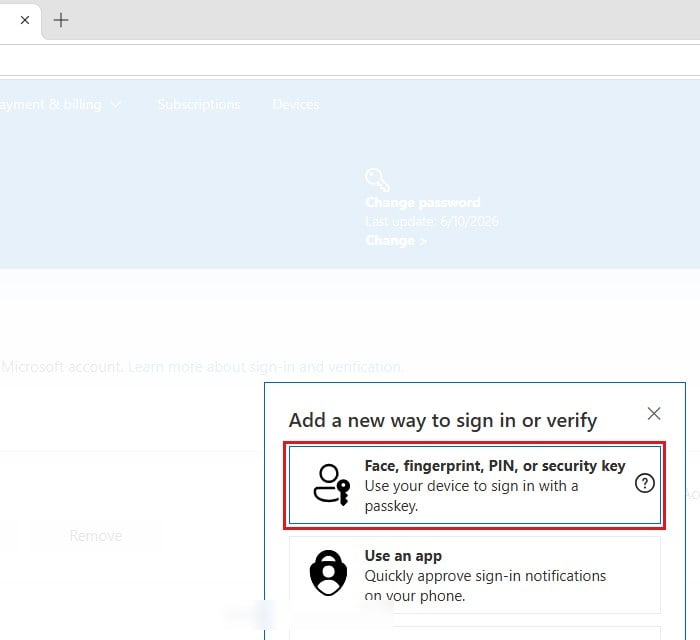
- Follow Windows’ prompt, confirm with your face, fingerprint or PIN (Windows Hello), and save the passkey.
Next time, choose Face, fingerprint, PIN, or security key on the sign-in page.
Pro tip: Invalid 2FA Code from Google or Microsoft Authenticator
What if the Windows sign-in screen has no password option?
Some people also find that Windows itself stops offering a password. If your PC’s sign-in screen only offers a PIN or Windows Hello for your Microsoft account, a Windows setting is most likely hiding the password option.
- Sign in with your PIN, face or fingerprint.
- Open Settings > Accounts > Sign-in options.
- Under Additional settings, turn off “For improved security, only allow Windows Hello sign-in for Microsoft accounts on this device (recommended)“. In Windows 10, it’s called “Require Windows Hello sign-in for Microsoft accounts“.
The Password option should then show up on the sign-in screen again. If you can’t sign in to Windows at all, with neither your PIN nor your password, see the guides below instead.
Related problem: “The dictionary attack mitigation is triggered” Windows Hello PIN Error
Might be useful: Can’t Login to Windows 10/11 After Windows Update