If Windows Hello won’t accept your PIN on your Windows 11 or 10 PC and shows “The dictionary attack mitigation is triggered and the provided authorization was ignored by the provider“, often together with “You’ve entered an incorrect PIN too many times“, it means your PIN has been temporarily locked by the security chip in your PC. This guide will explain why it happens and how to get back in, whether it’s on the sign-in screen or in an app asking for Windows Hello.
Also see: MSConfig “Something happened and your PIN isn’t available”
Page Contents
Why does Windows say “dictionary attack mitigation is triggered”?
Your Windows Hello PIN is protected by the TPM (Trusted Platform Module), a security chip in your PC. To stop anyone from guessing a PIN over and over, the TPM counts wrong attempts. Once there are too many, it locks itself for a while and ignores any PIN you enter, even the right one. That’s what “dictionary attack mitigation” means.
According to Microsoft, on PCs with TPM 2.0:
- The TPM locks after 32 failed attempts.
- It forgets one failed attempt every 10 minutes, and a locked TPM leaves the locked state after 10 minutes.
- A correct PIN doesn’t reset the count.
- Windows makes the TPM forget failed attempts while the PC is running or asleep. When the PC is fully shut down or hibernating, the count may not go down at all.
This is likely why some people wait for hours and are still locked out: if the PC was shut down for most of that time, the TPM had little chance to forget anything.
A very common trigger is typing your Microsoft account password into the PIN box. The Windows Hello PIN is a separate code, so every password typed there counts as a wrong PIN. That’s exactly what happened in a recent Microsoft Q&A case, where the Minecraft Launcher asked for Windows Hello and the user kept entering their account password.
If you’re signed in (for example with your password, see below) and want to check the TPM’s lockout status yourself, here’s how:
- Open Command Prompt as administrator.
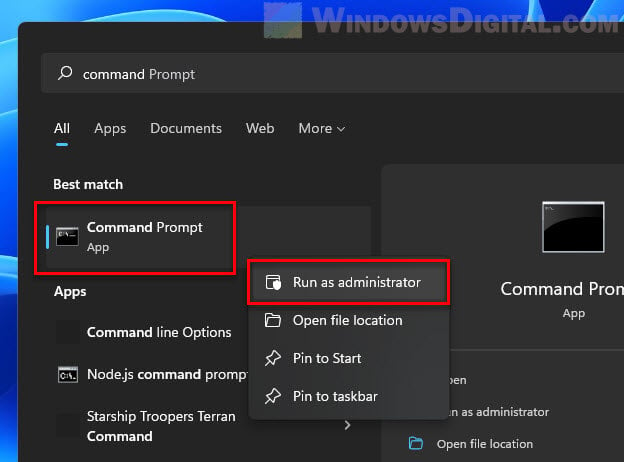
- Run the following command:
powershell -NoProfile -Command Get-Tpm
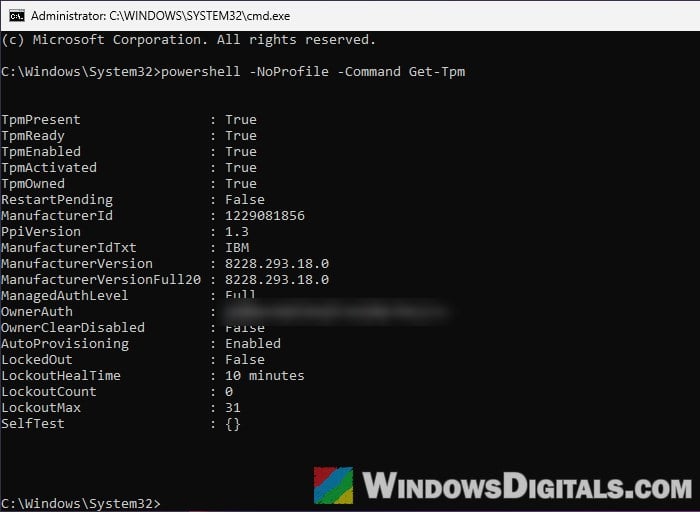
In the results, look at these lines:
- LockedOut: True means the TPM is locked right now.
- LockoutCount: how many failed attempts the TPM currently remembers.
- LockoutMax: the limit of failed attempts it allows.
- LockoutHealTime: how long it takes to forget one failed attempt (usually 10 minutes).
Suggested read: Windows 11 Hello Fingerprint This option is currently unavailable
Leave your PC on for a while, then use the correct PIN
The simplest fix is to let the TPM forget the failed attempts. Since it doesn’t do that while the PC is shut down, keep the PC on. Here’s what you should do:
- Stay on the sign-in screen (or the desktop, if you’re signed in with a password) and leave the PC on for at least 10 minutes. Don’t shut it down or let it hibernate.
- If you want, restart the PC instead of shutting it down. In the Q&A case above, the PIN worked right after a restart.
- When you try again, enter your Windows Hello PIN, not your Microsoft account password.
Keep in mind that when the lockout ends, the TPM still remembers most of the failed attempts, so a single wrong PIN can lock it again. Only try once you’re sure you’re typing the PIN, not your password.
Sign in with your password instead
In most cases, you can still sign in with your account password while the PIN is locked:
- On the sign-in screen, select Sign-in options.
- Choose the password option.
- Enter your Microsoft account password (or your local account password) and sign in.
Once you’re in, reset or remove the PIN as shown below.
Might be useful: How to Remove PIN Login From Windows 10/11 Startup
Reset your PIN with “I forgot my PIN”
If you’re not sure what your PIN is anymore, reset it instead of guessing. Microsoft’s own support page covers this, and it’s the answer that was accepted in the Q&A thread. This works for PCs signed in with a Microsoft account.
On the sign-in screen, select “I forgot my PIN” if it’s shown and follow the prompts. You’ll be asked for your Microsoft account password.
If you’re already signed in, follow the steps below (the paths are for Windows 11):
- Open Settings > Accounts > Sign-in options.
- Click PIN (Windows Hello) to expand it.
- Click “I forgot my PIN“, confirm with the password of the account you use to sign in to Windows, and set a new PIN.
If you’re not sure which account that is, go to Settings > Accounts > Your info to see the account linked to Windows. Then try the app or the sign-in screen again with the new PIN.
Remove the PIN and set it up again
If “I forgot my PIN” doesn’t work for you, remove the PIN completely and add a new one:
- Go to Settings > Accounts > Sign-in options and expand PIN (Windows Hello).
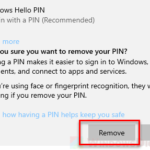
- Click Remove and follow the prompts.
- Restart your PC.
- Go back to Sign-in options, expand PIN (Windows Hello) again and click Set up to create a new PIN.
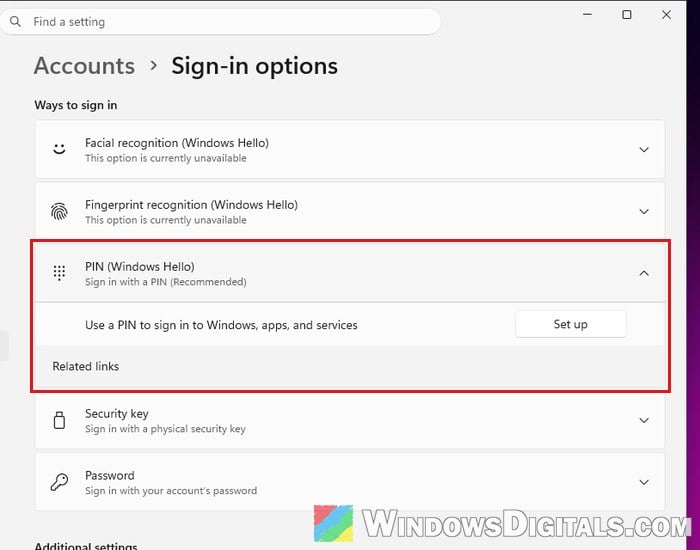
Then open the app that asked for Windows Hello (or lock your PC) and use the new PIN to check that it works.
Clear the TPM as a last resort
If the lockout never clears and nothing above helps, you can clear the TPM. Windows then sets it up again from scratch, which should also clear the lockout. In an older Microsoft Q&A thread with the same error, resetting the TPM and then the PIN was the accepted answer.
Be warned: Clearing the TPM deletes every key stored in it, together with the data those keys protect, such as your sign-in PIN and virtual smart cards. If you use BitLocker or anything else that relies on the TPM, make sure you have your recovery key or another way back in before you go ahead. Don’t do this on a work or school PC unless your IT department tells you to. If you’re not sure, it’s better to wait out the lockout instead.
Microsoft also says to always clear the TPM from Windows, not from the BIOS or UEFI settings. Here’s how to do it:
- Open Windows Security and select Device security.
- Select Security processor details.
- Select Security processor troubleshooting.
- Under “Please let us know why you are clearing your TPM“, pick a reason from the Select drop-down. The Clear TPM button stays grayed out until you do.
- Select Clear TPM and follow the prompts.
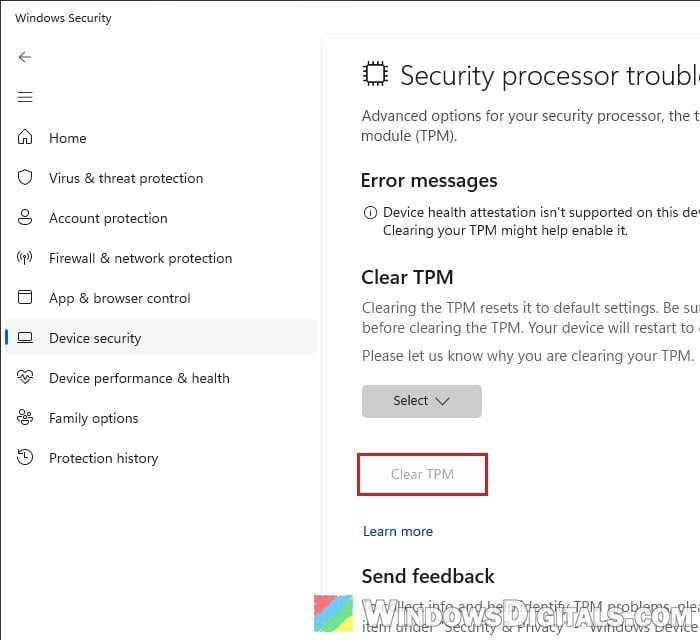
- Restart when asked. During the restart, you might have to press a key to confirm.
After Windows starts again, it prepares the TPM automatically. Sign in with your password, then set up a new PIN in Settings > Accounts > Sign-in options.