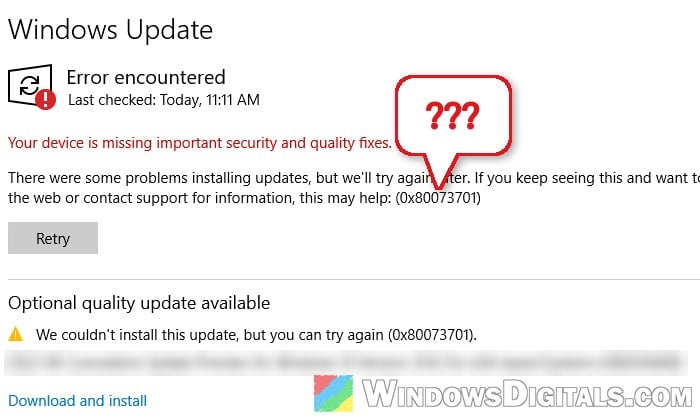
If your Windows 10 PC is enrolled in Extended Security Updates (ESU) and the October 2026 security update KB5126657 keeps failing in Windows Update with “There were some problems installing updates, but we’ll try again later” and error 0x80073701 (sometimes after sitting at 100% or another percentage for a while), the problem is on your PC, not with your ESU enrollment. This guide will show you what the error means and how to get the update installed.
Also see: “Your device is missing important security and quality fixes” Even With Windows 10 ESU
Page Contents
What does error 0x80073701 mean?
Error 0x80073701 means that a file Windows needs to install the update is missing from the component store (the C:\Windows\WinSxS folder, where Windows keeps the pieces it uses to install updates). According to Microsoft, it usually means a component was left partially installed. Often that’s an earlier update that wasn’t fully removed.
It has nothing to do with ESU. If Windows Update says your PC is enrolled and offers you KB5126657, your enrollment is fine; it’s only the install that fails. It’s also not new: the same error stopped the February and March 2026 ESU updates on some PCs.
KB5126657 brings Windows 10 22H2 to build 19045.7807. Before you start, restart your PC once and click Check for updates again in Settings > Update & Security > Windows Update, just to rule out a one-off failure. If it fails again with the same code, go through the fixes below in order.
Linked issue: Windows Update Error 0x80073712 “Some update files are missing or have problems”
Repair the component store with DISM and SFC
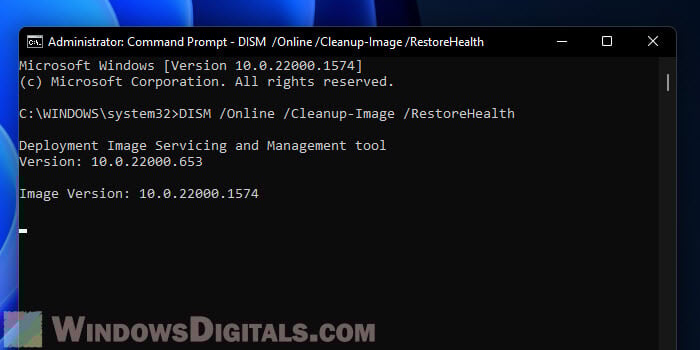
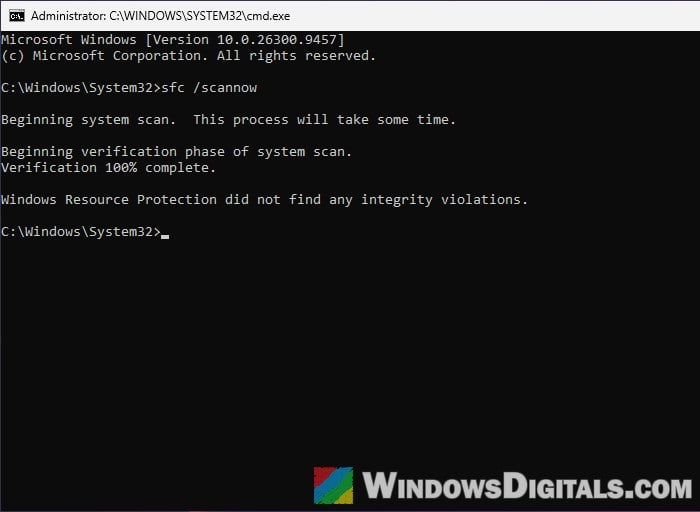
DISM is Windows’ own tool for checking and repairing the component store, and it’s what Microsoft recommends for this exact error. SFC then checks and repairs your system files.
To be honest, these two don’t always get rid of 0x80073701, because they can’t bring back a piece that an earlier update left half-installed. But they’re quick and safe, so they’re worth running first.
Here’s what you should do:
- Click Start, type “cmd“, right-click Command Prompt and select Run as administrator, then click Yes.
- Type the following command and press Enter:
DISM.exe /Online /Cleanup-Image /RestoreHealth
- When it’s done, type the following command and press Enter:
sfc /scannow
- Restart your PC, then go to Settings > Update & Security > Windows Update and click Check for updates.
If DISM itself fails with an error instead of finishing, see DISM Error 0x800f0915 “The repair content could not be found anywhere” before moving on.
Might be useful: Can I cancel “SFC /scannow” while it’s running?
Clean up the component store
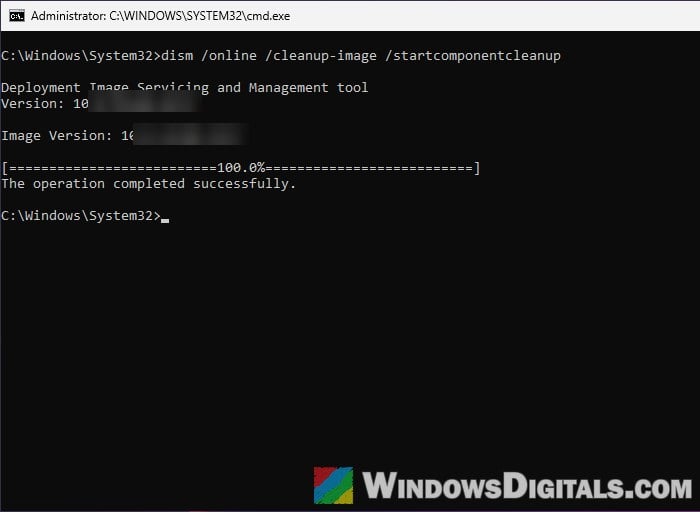
Microsoft’s own support article for 0x80073701 suggests a different DISM command: StartComponentCleanup. It tidies up the component store by deleting the previous versions of components that newer updates have already replaced. Windows does this by itself in the background, but only after 30 days, while the command does it right away.
Follow the steps below:
- Open Command Prompt as administrator, the same way as above.
- Type the following command and press Enter:
dism /online /cleanup-image /startcomponentcleanup
- Wait for it to finish, then restart your PC.
- Check for updates again in Windows Update.
Install KB5126657 manually from the Microsoft Update Catalog
Instead of letting Windows Update install it, you can download the full update package from Microsoft and run it yourself. It doesn’t always work (sometimes the .msu fails with the same 0x80073701 too), but it’s worth one try before the repair install below.
Here’s how to do it:
- Go to
https://www.catalog.update.microsoft.com/and search for “KB5126657“. If the page stays blank, refresh it. - Find the line for Windows 10 Version 22H2 for x64-based Systems (most PCs). Pick the x86 line if you have 32-bit Windows 10, or an ARM64 line only if your PC has an ARM processor.
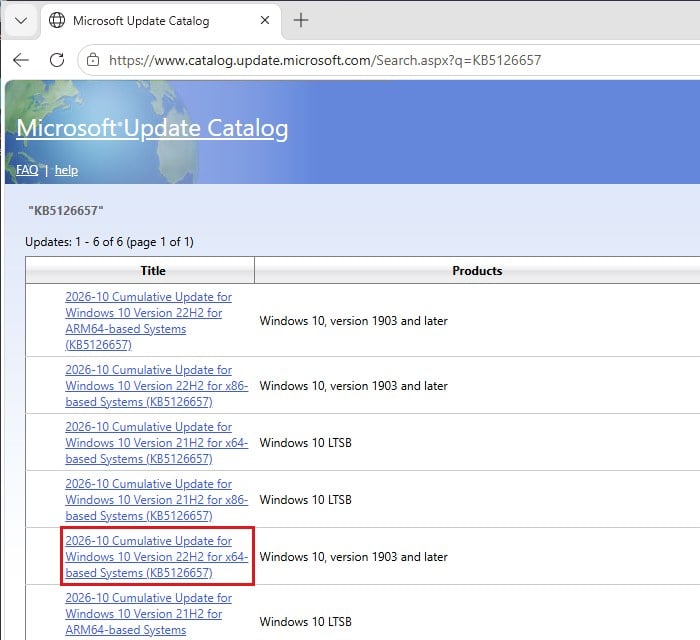
- Click Download on that line.
- In the window that opens, click the .msu file link to download it.
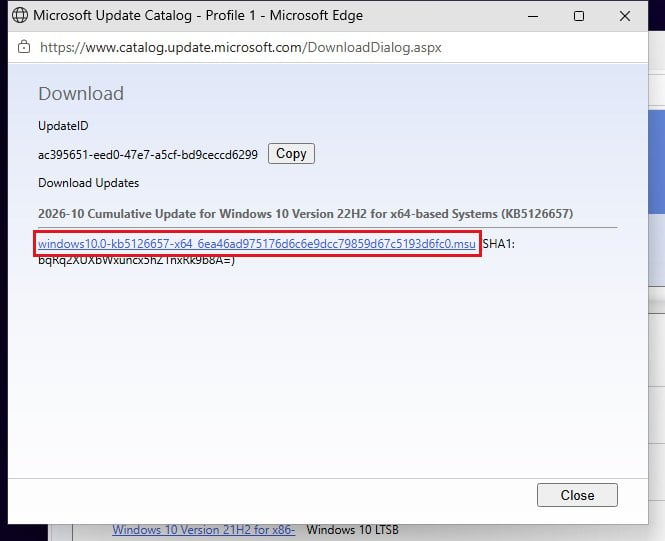
- Double-click the downloaded .msu file, click Yes if asked, and follow the prompts to install the update.
- Restart your PC when it’s finished.
To check that it worked, press Win + R, type winver and press Enter. With KB5126657 installed, it shows OS build 19045.7807.
Do a repair install with the Media Creation Tool
If the update still fails, the missing piece is probably one DISM can’t bring back. A repair install (also called an in-place upgrade) reinstalls Windows 10 over itself from Microsoft’s own setup files, which replaces the missing pieces. Your files, apps and settings are kept, and it’s the fix most likely to get rid of 0x80073701 when nothing else does.
It takes a while and restarts your PC several times. Back up anything important first, just in case, and unplug devices you don’t need (USB drives, printers). If you use a third-party antivirus, turning it off for the repair can help.
Follow the steps below:
- Go to
https://www.microsoft.com/software-download/windows10. - Under “Create Windows 10 installation media“, click Download Now to get the Media Creation Tool.
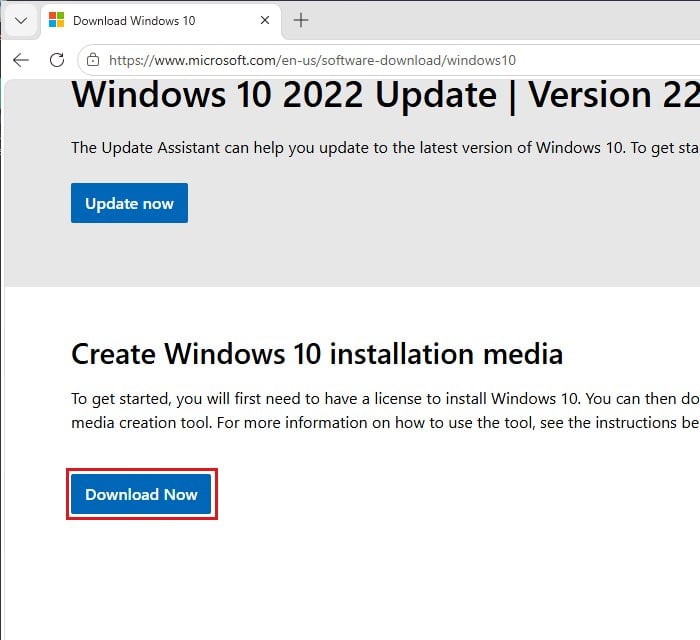
- Run the downloaded file and accept the license terms.
- Select “Upgrade this PC now” and continue.
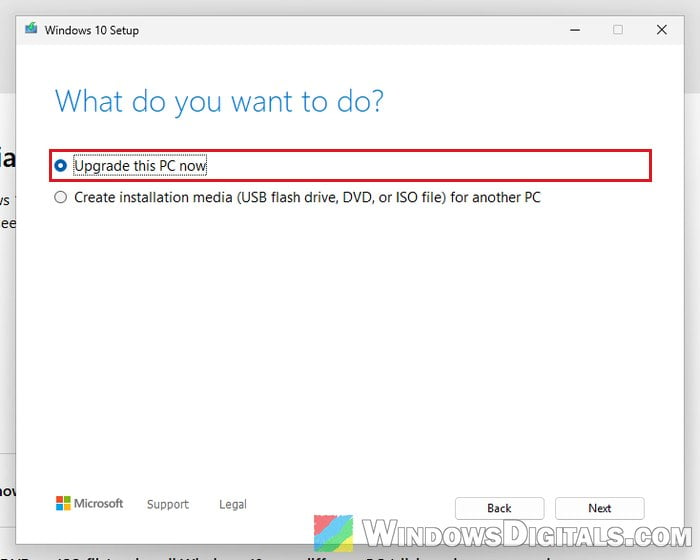
- Follow the prompts, and make sure “Keep personal files and apps” is selected before you start the installation.
- Let it finish. Don’t turn off the PC while it restarts.
When you’re back on the desktop, go to Settings > Update & Security > Windows Update and click Check for updates to try KB5126657 again. With the missing pieces replaced, it should install this time.
Will a repair install remove your ESU enrollment?
No, a repair install keeps your ESU enrollment, so don’t unenroll before it. Afterwards, the Windows Update page should still say “Your PC is enrolled to get Extended Security Updates“. Only use Enroll now if that line is gone and the link shows instead.
If Windows Update shows the red “Your device is missing important security and quality fixes” message after the repair even though the update installed, it’s a known stale-status issue: see “Your device is missing important security and quality fixes” Even With Windows 10 ESU.
Related problem: Configuring Update For Windows 10 Stuck At 57 Percent
Other things you can try
If nothing above worked, here are a few other things you can try:
- The Windows Update troubleshooter: Settings > Update & Security > Troubleshoot > Additional troubleshooters > Windows Update. It rarely fixes component store errors, but it takes a minute. If it won’t run, see Windows Update Troubleshooter Not Working Windows 10/11.
- Reset this PC and keep your personal files, as a last resort. Unlike a repair install, it removes your installed apps and settings, so back up first.
- Upgrade to Windows 11 if your PC supports it. The consumer ESU program only runs until October 12, 2027 anyway, so you’ll have to move at some point.