If you heard a loud pop or bang from inside your PC and it shut off and won’t turn on anymore (no lights, no fans, sometimes with smoke, a burning smell or a tripped breaker), it’s scary, but in most cases it’s only the power supply that died. This guide will explain what most likely failed and what you should check, in the right order, before trying to power it on again.
Also see: Buzzing Sound From PC (PSU) During High Load
Page Contents
What was that loud pop?
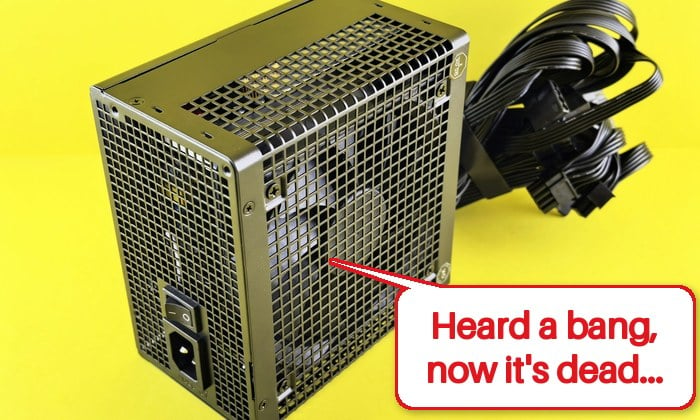
In most cases, the pop came from the power supply unit (PSU). When a capacitor or another part inside it fails, it often goes with a sharp bang, smoke or a burnt smell, and the PC goes dark at once. It’s by far the most common answer to this problem on Reddit, and several people got their PC running again with a new PSU.
Less often, the pop comes from somewhere else:
- A capacitor on the graphics card or motherboard blowing.
- A short circuit, for example from a loose screw stuck under the motherboard.
- Accessories, such as LED strips.
The good news is that a decent PSU usually takes only itself out. Its built-in protections (such as over-voltage and short-circuit protection) are there to stop damage from reaching your other parts. That’s not a guarantee, though. Cheap PSUs especially can take the motherboard, CPU or graphics card down with them.
Unplug it and stop pressing the power button
Before anything else, switch off the PSU and pull the power cord out of the wall. It’s tempting to keep pressing the power button, but every new attempt can damage more parts.
Here’s what you should do:
- Turn off the power switch on the back of the power supply.
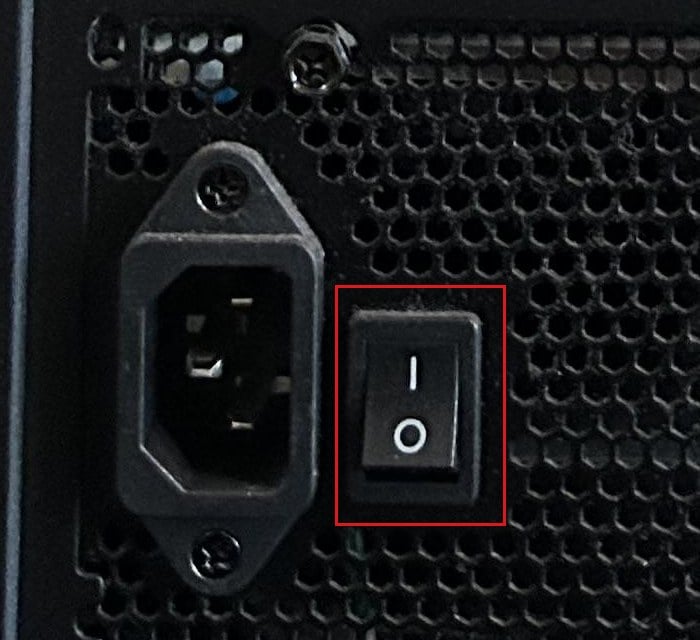
- Unplug the power cord from the wall or power strip.
- Leave the PC unplugged while you go through the checks below.
Check the outlet and power cord
A pop can trip a breaker or blow a fuse in your home, and that alone can leave the PC with no power. So start with the basics, without plugging the PC back in:
- Check whether other devices on the same outlet or circuit still work.
- Look at your breaker panel or fuse box for a tripped breaker or blown fuse.
- Check the power cord for any visible damage.
If a breaker tripped, reset it, but leave the PC unplugged for now.
Find out where the smell or damage is
With the PC still unplugged, take off the side panel and use your nose and a flashlight. Here’s what to look for:
- Smell the back of the PSU (its fan grille) and compare it with the case fans. Where the burnt smell is strongest is usually where the problem is.
- Look for burn marks, scorched spots, and bulging or burst capacitors (the small cylinders) on the motherboard and graphics card.
- Check under and around the PSU for anything that fell out of it, such as grey or white fluff or bits of foil. Those are the insides of a burst capacitor.
- Look for loose screws or anything metal lying on the motherboard.
If the smell is only at the PSU and everything else looks clean, the PSU is likely all that failed.
If there was no smoke or burning smell at all, plug the PC straight into another wall outlet (no power strip), switch the PSU on and press the power button once. If it still shows no sign of life, unplug it again and move on.
Never open the power supply
Whatever you find, DO NOT open the PSU itself. Corsair’s manual warns that high voltages are present inside and there are no user-serviceable parts. Its capacitors can hold a dangerous charge even when unplugged, and opening it voids the warranty. If it’s failed, replace the whole thing.
Test the power supply (only if there was no smoke or smell)
If there was smoke or a burning smell from the PSU, skip this test and just replace it. Don’t power on a PSU that has already burned.
To confirm the PSU is dead before buying a new one, Corsair describes a simple paperclip test. It only shows whether the PSU switches on, not that it’s healthy (a PSU tester or multimeter checks the voltages).
Warning: Jumping the wrong pins can hurt you and damage the PSU. If you’re not sure what you’re doing, take the PC to a repair shop instead.
Here’s how:
- Switch off the PSU.
- Unplug every cable from the PSU except the AC power cord and the 24-pin motherboard cable, and disconnect the 24-pin cable from the motherboard.
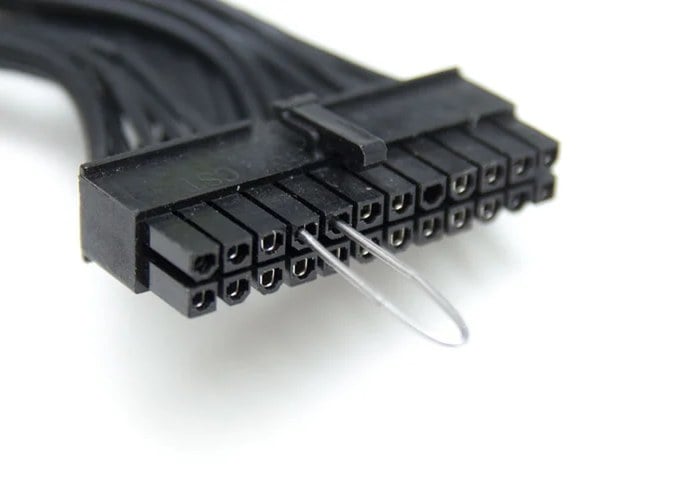
- Bend a paperclip (or use a PSU jumper) and insert its ends into pin 16 and pin 17 of the 24-pin connector. With the connector’s clip facing up, these are the 4th and 5th pins from the left.
- Plug the power cord back into the wall.
- Turn the PSU switch on and see if its fan spins. On PSUs with a zero-RPM fan mode, it may only spin for a moment.
- Switch the PSU off and unplug it before removing the paperclip.
If the fan doesn’t move at all, the PSU is most likely dead.
Replace the power supply
In most cases, a new (or known-good) PSU is the fix, and it also tells you whether anything else was damaged. Keep these in mind:
- Use only the cables that came with the new PSU. If your PSU is modular (the cables unplug from it), never reuse the old PSU’s cables. According to Corsair, PSU-side wiring isn’t standard, even between models of the same brand. Mixing them can damage your parts.
- Prebuilt PCs (Dell, HP and so on) sometimes use a non-standard PSU, so you may need one made for that exact model.
- Check the warranty first. Corsair’s PSU warranties, for example, run from 3 to 10 years depending on the model, so contact the maker before buying a new one.
Pro tip: How to Check Power Supply Wattage on Windows 11/10 PC
Still won’t boot with a new power supply?
If the new PSU powers on (fans spin, lights come on) but the PC still won’t start, the failure may have taken another part with it. ASUS recommends testing with a minimum setup:
- Unplug the PC and remove everything that isn’t needed to start: USB devices, extra drives and expansion cards.
- Leave only the CPU, its cooler, one memory stick, the power supply and the graphics card connected.
- Make sure the 24-pin and the CPU power (8-pin or 4-pin) cables are firmly plugged into the motherboard.
- Clear the CMOS to reset the BIOS settings.
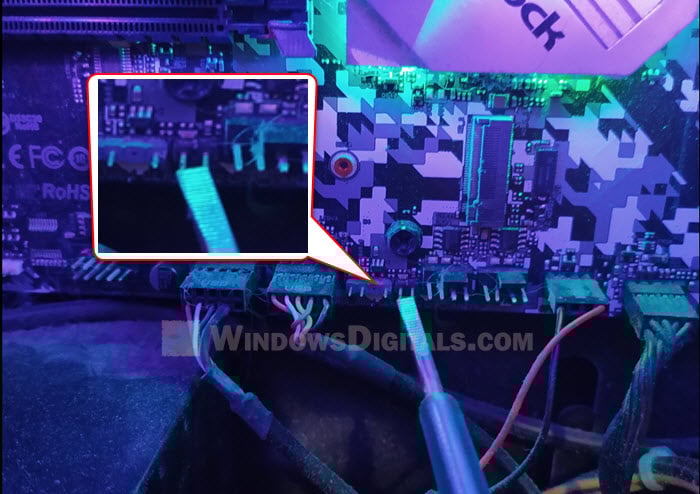
- Plug the PC back in and press the power button.
- Look at the motherboard’s debug LEDs (if it has them). They light up for the part that stops the PC from starting, such as the CPU, memory or graphics card. Check your motherboard’s manual for what each one means.
If the debug light points to the motherboard, CPU or graphics card even with the minimum setup, that part was most likely damaged. If it’s still under warranty, contact its maker.
Related guide: How to Clear CMOS without Removing Battery or Jumper Cap
What if the PC still works after the pop?
Sometimes the PC keeps running after the pop. Still, shut it down, unplug it and go through the same checks above. If the pop or a burnt smell came from the PSU, replace it anyway. Once something has blown inside a PSU, it’s not worth trusting it with the rest of your PC.
Linked issue: The system has rebooted without cleanly shutting down first