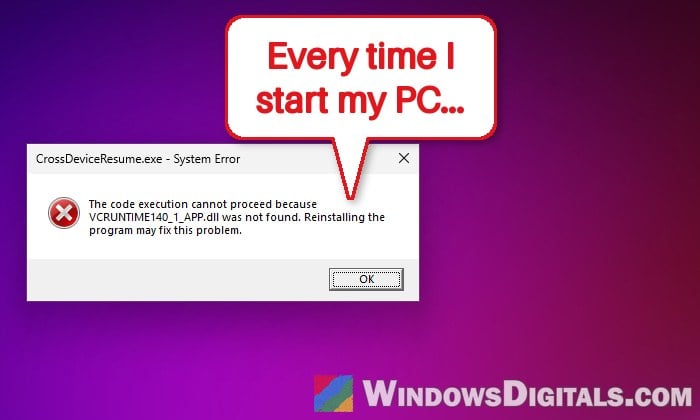
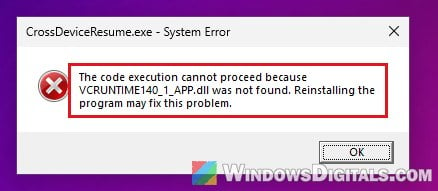
If you’re seeing a “CrossDeviceResume.exe – System Error” pop-up that says “The code execution cannot proceed because VCRUNTIME140_1_APP.dll was not found. Reinstalling the program may fix this problem.” every time you start or sign in to Windows 11, sometimes along with a missing taskbar or a Start menu that won’t open, this guide will explain what’s broken and show you how to fix it.
Also see: What is “Mobile devices” (CrossDeviceService.exe)?
Page Contents
What is CrossDeviceResume.exe, and why can’t it find this DLL?
CrossDeviceResume.exe is a real Windows file, not a virus. It’s the process behind the Resume feature, which lets you pick up something you were doing on a linked Android phone (a Spotify song, a WhatsApp chat, a document) on your PC. It lives in C:\Windows\SystemApps\MicrosoftWindows.Client.CBS_cw5n1h2txyewy\, which is part of the built-in Windows client package.
The DLL it complains about is the odd part. Files ending in _APP.dll (VCRUNTIME140_1_APP.dll, VCRUNTIME140_APP.dll, MSVCP140_APP.dll) are the C++ runtime that Store-style apps use. Windows keeps them in a framework package called Microsoft.VCLibs.140.00, which is installed and updated through the Microsoft Store. The regular Visual C++ Redistributable that you download from Microsoft doesn’t install them, which is why reinstalling it usually changes nothing for this error.
So when this error shows up, either the Windows client package that CrossDeviceResume.exe belongs to or the VCLibs runtime it relies on is damaged or no longer registered. That’s usually after an update that went wrong, a “debloat” tool that removed built-in apps, a repair that got interrupted, or a problem with the drive. Some people see a “Bad Image” version of the same error naming the same DLL, and the fixes are the same.
A couple of things not to do: don’t delete CrossDeviceResume.exe, since you’ll just get a “Windows cannot find” error at every startup instead, and don’t download VCRUNTIME140_1_APP.dll from a DLL download site. The real file only comes from Microsoft’s own package.
Linked issue: VCRUNTIME140_1.dll Not Found in Windows 11 or 10
If the taskbar is gone, start from Task Manager
When this error comes with a broken desktop, the taskbar and Start menu can be missing, which makes the fixes below hard to reach. Task Manager still works, and it can start both Windows Explorer and an admin PowerShell window for you. Here’s how:
- Press Ctrl + Shift + Esc to open Task Manager.
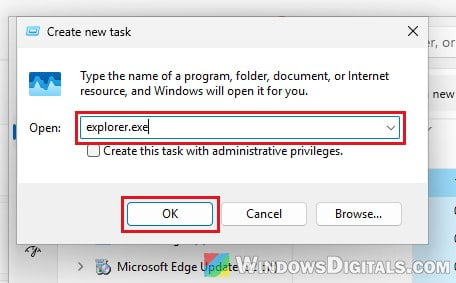
- Click Run new task at the top, type “explorer.exe” and click OK to bring the taskbar back.
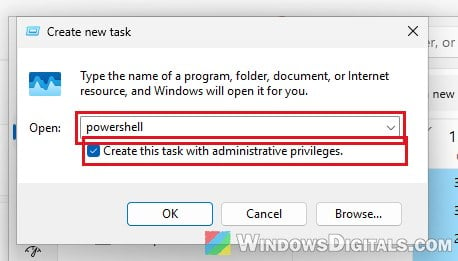
- To open PowerShell as administrator for the next fixes, click Run new task again, type “powershell“, tick “Create this task with administrative privileges.” and click OK.
Restarting Explorer alone usually won’t stop the error from coming back, so keep going with the fixes below.
Related problem: Windows 11 Taskbar is Frozen (How to Fix)
Run DISM and SFC to repair the system files
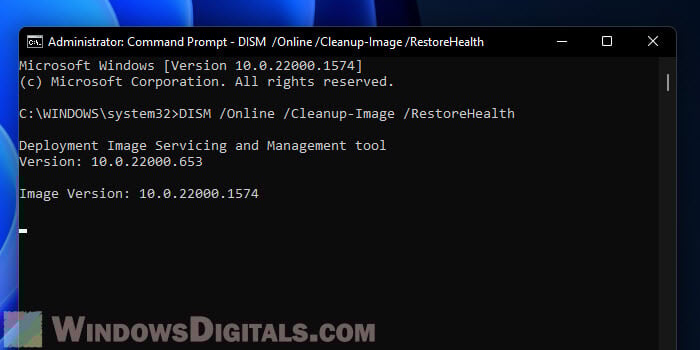
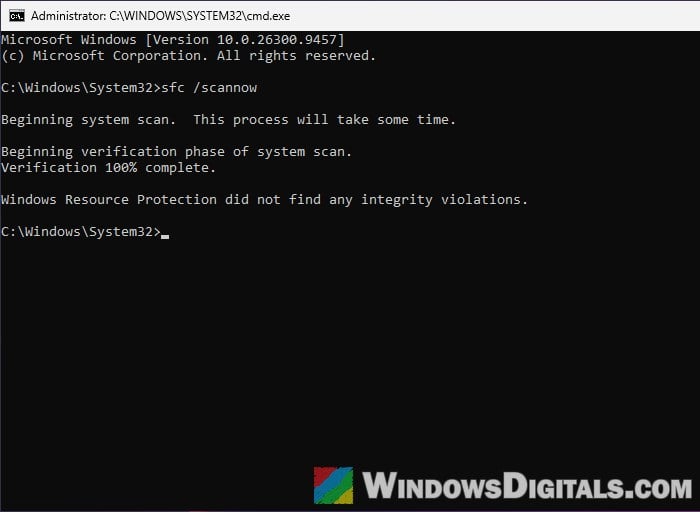
Since CrossDeviceResume.exe is part of Windows itself, the first real fix is Windows’ own repair tools. DISM repairs the Windows image that the system files are restored from, and SFC then checks the system files and replaces any damaged ones, CrossDeviceResume.exe included. Here’s what to do:
- Open Command Prompt or PowerShell as administrator (from the Start menu, or from Task Manager as shown above).
- Run the following command and wait for it to finish:
DISM /Online /Cleanup-Image /RestoreHealth
- Then run:
sfc /scannow
- Restart your PC when both are done, then sign in and see if the CrossDeviceResume.exe pop-up still shows up.
If SFC says it found corrupt files but couldn’t fix some of them, run both commands once more and restart. If DISM says “the repair content could not be found anywhere”, skip ahead to the repair install near the end.
Pro tip: How to Run SFC Scannow Command At Boot in Windows 10/11
Re-register the Windows client package
If the files are there but Windows has lost track of the package they belong to, re-registering it can bring it back without reinstalling anything. This command re-registers MicrosoftWindows.Client.CBS, the built-in package that CrossDeviceResume.exe comes with. To re-register it, follow the steps below:
- Open PowerShell as administrator. Without admin rights, the command fails with “Access is denied”.
- Copy and paste the following command and press Enter:
Get-AppxPackage -allusers MicrosoftWindows.Client.CBS | Foreach {Add-AppxPackage -DisableDevelopmentMode -Register "$($_.InstallLocation)\AppXManifest.xml"}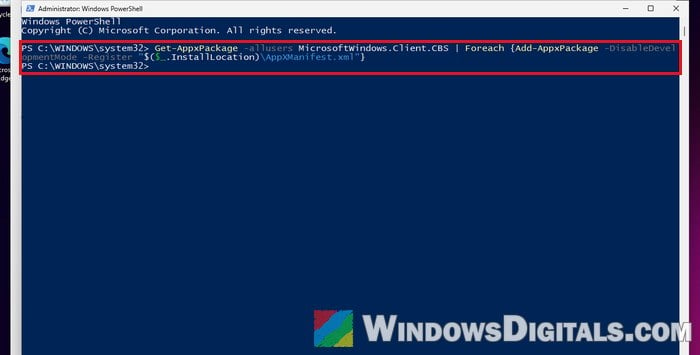
- When it finishes without any red text, restart your PC and check again.
This only works if the package’s files are still on the PC. If they’re missing, only a repair install (further below) puts them back.
Re-register the C++ runtime (VCLibs) package
If the Windows package is fine, the problem may be the runtime itself. You can check whether Microsoft.VCLibs.140.00 is installed and healthy, and re-register it the same way.
- In PowerShell as administrator, run:
Get-AppxPackage -allusers Microsoft.VCLibs.140.00 | Select-Object Name, Version, Architecture, Status
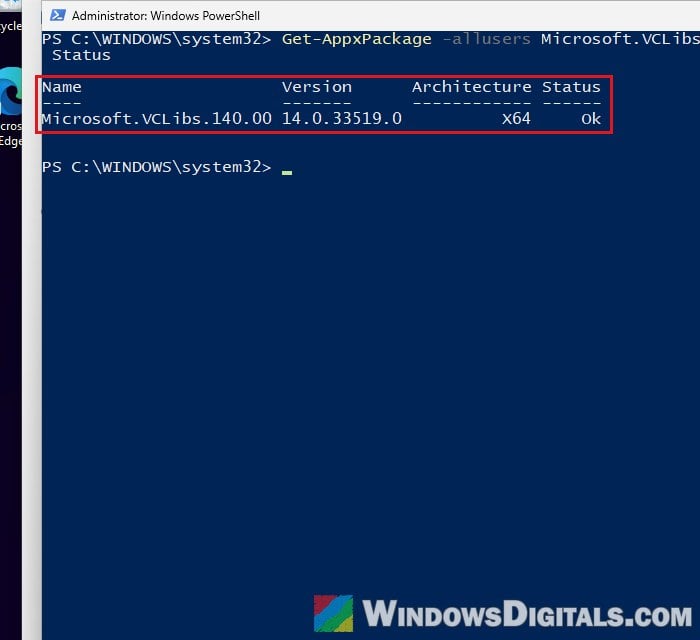 On a working PC, you’ll see at least one Microsoft.VCLibs.140.00 line with the status Ok. If nothing is listed, or the status is something else, the runtime is missing or damaged.
- Save your work and close your apps first, then run:
Get-AppxPackage -allusers Microsoft.VCLibs.140.00 | Foreach {Add-AppxPackage -DisableDevelopmentMode -ForceApplicationShutdown -Register "$($_.InstallLocation)\AppXManifest.xml"}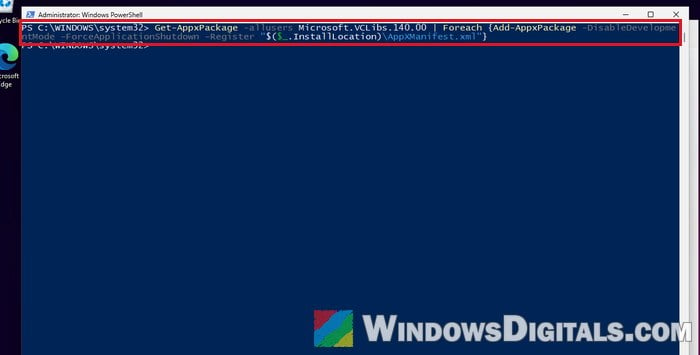 The
The -ForceApplicationShutdownpart is needed because Widgets and other built-in apps keep using the runtime. Without it, the command fails with error 0x80073D02 (“resources it modifies are currently in use”). It closes those apps for you, so anything open in them will close too. - Next, open Microsoft Store, click the Downloads icon at the bottom left, and click Check for updates, then Update all. The Store updates these runtime packages along with built-in parts like Cross Device Experience Host and Phone Link.
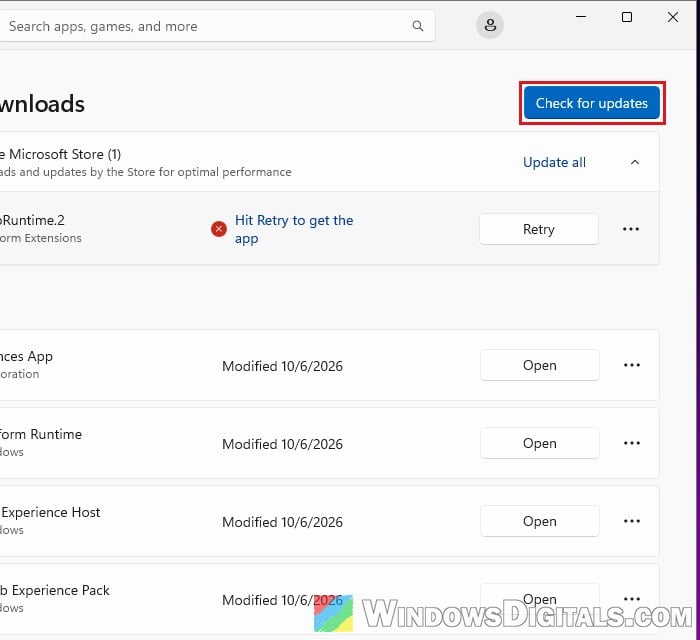
- Restart your PC and check whether the error still appears when you sign in.
Might be useful: Microsoft Store “Error encountered – One of the update services is not running properly”
Turn off Resume if you don’t use it
If you never use your phone with your PC this way, you can switch off the Resume feature. It doesn’t repair anything, but it may stop the process the error comes from, and it only takes a few seconds to try.
- Open Settings > Apps > Resume.
- Turn off the Resume switch.
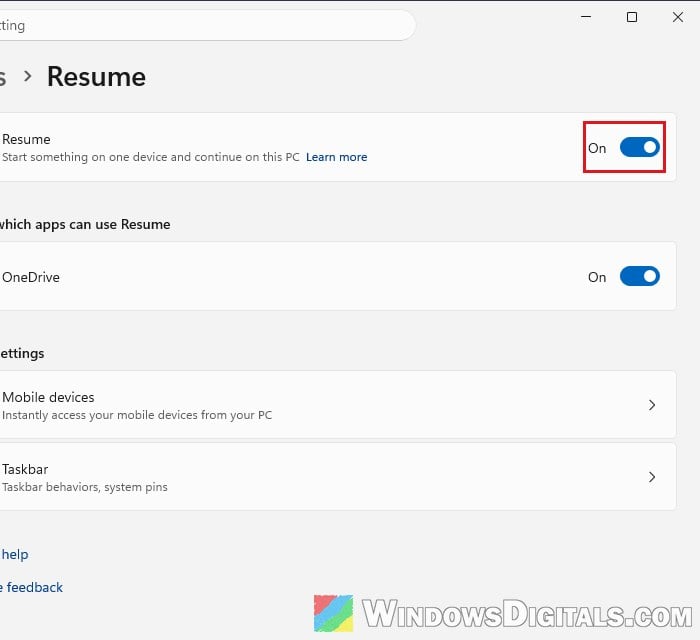
Restart and see if the pop-up still appears. If it does, a repair install is the last fix to try.
Reinstall Windows without losing your files (repair install)
When none of the above helps, or DISM can’t find the repair files, a repair install puts Windows’ own files back, including the client package CrossDeviceResume.exe belongs to. It keeps your apps, files and settings, according to Microsoft, but it’s still a good idea to back up anything important first. Here’s how to start it:
- Open Settings > System > Recovery.
- Next to “Fix problems using Windows Update“, click Reinstall now.
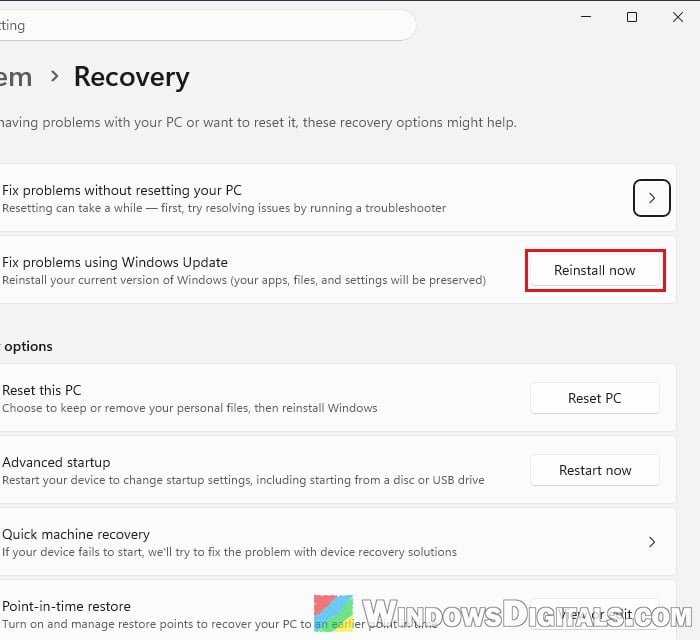
- Follow the prompts and let it finish.
You can also do this with a Windows 11 ISO: mount it, run setup.exe and choose “Keep personal files and apps“. Run it from inside the Windows you want to repair, though. Booting from a USB drive instead only offers a clean install, which wipes your apps.
Related guide: “Reinstall your current version of Windows” Message
What if the corruption keeps coming back?
If this error or other broken system files keep coming back after you’ve fixed them, your drive might be failing. Check its health with a tool like CrystalDiskInfo (from https://crystalmark.info/), and if it shows a warning, back up your files and replace the drive instead of reinstalling Windows on it again. If your PC or drive is still under warranty, contact the manufacturer.