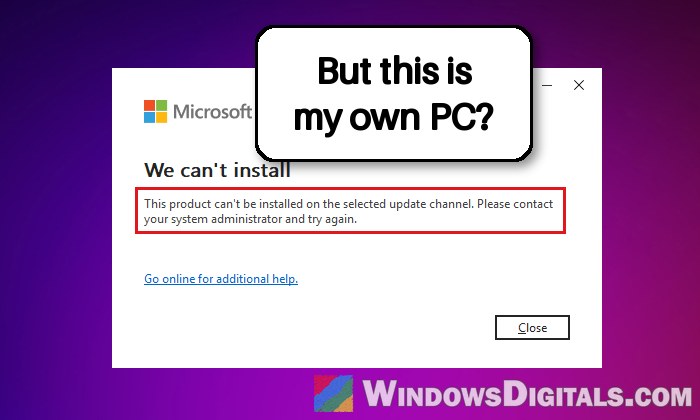
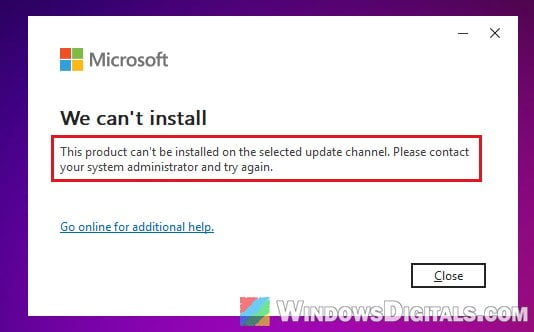
If you’re trying to install Microsoft 365 (or Office) and the setup stops at “We can’t install” with “This product can’t be installed on the selected update channel. Please contact your system administrator and try again.” (some versions say “cannot”), even though it’s your own personal PC and there’s no system administrator to contact, this guide will explain what’s blocking the install and how to get rid of it.
Also see: How to Activate Microsoft Office 2021 or 2019 by Phone
Page Contents
Why does Microsoft 365 say it can’t be installed on the selected update channel?
Every Office installation gets its updates from an update channel. Microsoft 365 has its own update channels, while volume license copies of Office are tied to a separate one. For example, the volume license version of Office Professional Plus 2019 can only use a channel called PerpetualVL2019. According to Microsoft, all Office products on the same computer must use the same update channel, and Microsoft 365 can’t be installed alongside a volume license version of Office.
The tricky part is that the channel can be forced by a policy in the registry. Some older Office installations, and work or school setups, leave behind a key that tells every Office installer which channel to use, and uninstalling the old Office doesn’t always remove it. That’s why many people see this error on a PC that had Office 2019 (or another older or work copy) before, even after the old version is gone and Microsoft’s own uninstall tool says there’s no Office left on the PC.
In most cases, it comes down to one of these:
- A leftover “OfficeUpdate” policy key in the registry that points the installer to a channel Microsoft 365 can’t use. This is the most common reason.
- The old Office isn’t fully removed yet, especially a volume license copy (Office Professional Plus 2019, Office LTSC and so on).
- The PC is managed by a work or school, and the organization sets the update channel.
Delete the leftover “OfficeUpdate” key in the registry
If this is a work or school PC, don’t delete anything yet. See the “Is it a work or school PC?” section below first.
This is the fix that has worked for most people on Microsoft’s forums. The Update Channel policy for Office lives in a registry key called OfficeUpdate, and when an old installation leaves it behind, every new Office installer is told to use a channel it doesn’t support. Deleting that key removes the forced channel, so Microsoft 365 can install on its normal one.
Incorrectly changing the registry can cause serious problems in Windows, so please at least create a system restore point first. If you’re not sure what you’re doing, it’s better to get someone who knows to help you instead. Here’s what you should do:
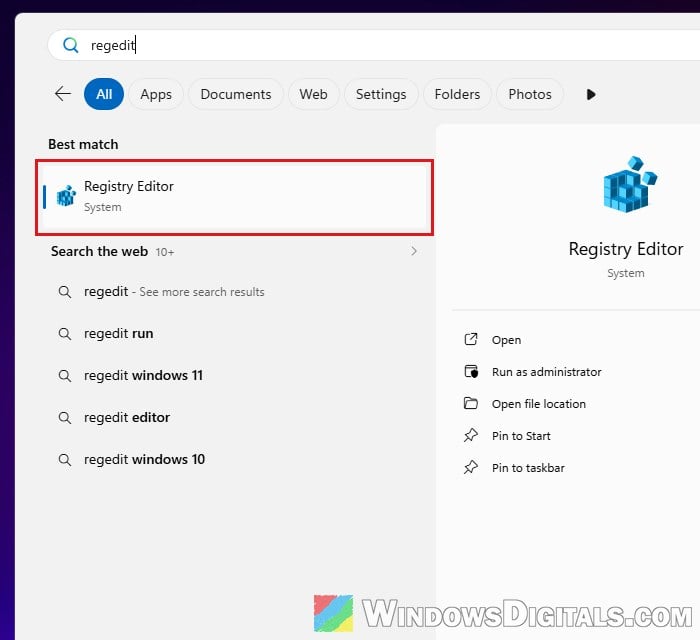
- Click the Start button, type “regedit“, and select Registry Editor. Click Yes when Windows asks for permission.
- If you don’t see an address bar at the top, click View and turn on Address Bar. Then copy and paste the following path into the address bar and press Enter:
HKEY_LOCAL_MACHINE\SOFTWARE\Policies\Microsoft\Office\16.0\Common\OfficeUpdate
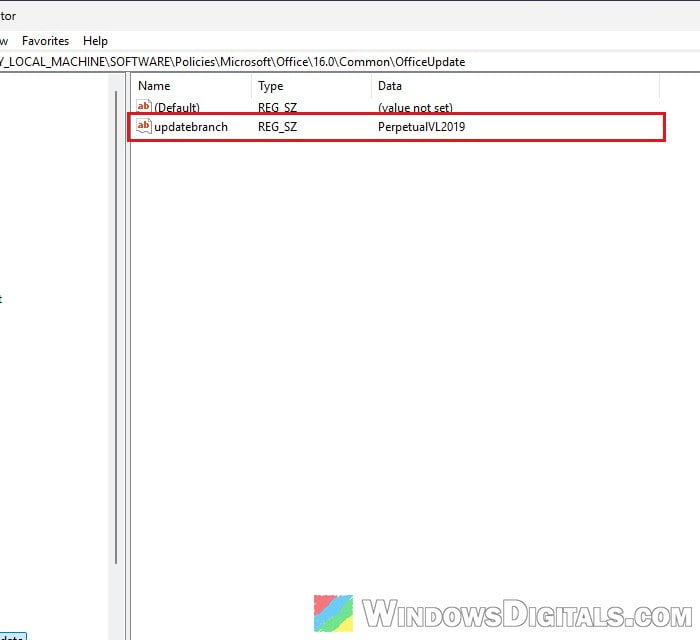 On the right, you’ll usually see a value such as updatebranch, which is the channel the policy forces. If the address bar stops at Common (or earlier) and there’s no OfficeUpdate key, this isn’t your problem, so skip to “Make sure the old Office is really gone” below.
- Optionally, right-click the OfficeUpdate key and select Export to save a backup copy of it.
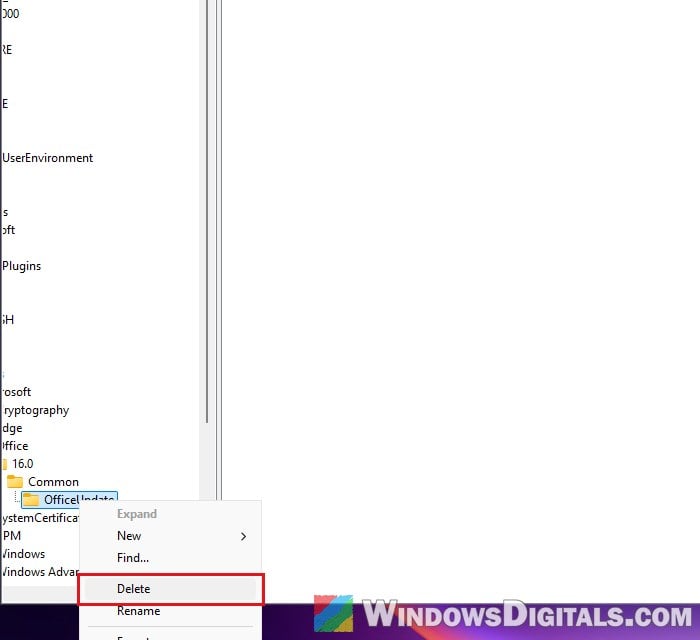
- Right-click the OfficeUpdate key in the left pane and select Delete, then click Yes to confirm.
- Close Registry Editor and restart your PC (a restart, not a shutdown).
- Run the Microsoft 365 installer again.
The installer should now go past the point where it showed the error and start downloading Office.
Or delete it with a command
If you’d rather not click through Registry Editor, you can do the same thing with two commands. The first one shows what the policy contains, and the second one deletes the key:
- Click Start, type “cmd“, right-click Command Prompt and select Run as administrator.
- Run the following commands one by one, and press Enter after each:
reg query "HKLM\SOFTWARE\Policies\Microsoft\Office\16.0\Common\OfficeUpdate"
reg delete "HKLM\SOFTWARE\Policies\Microsoft\Office\16.0\Common\OfficeUpdate" /f
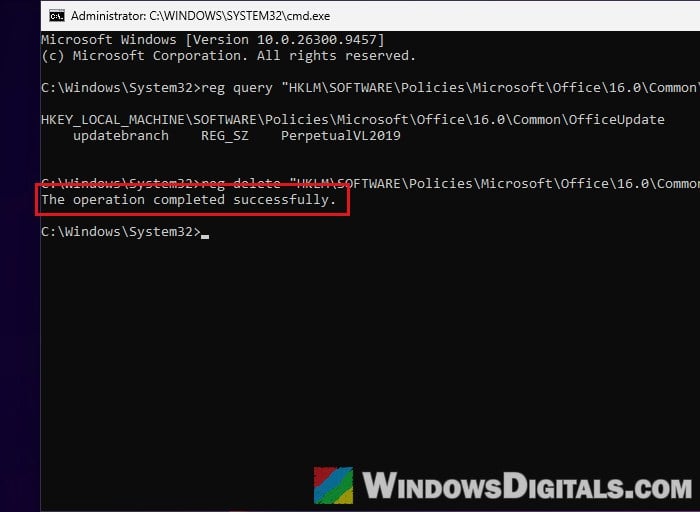
- When you see “The operation completed successfully.“, restart the PC, the same as above.
Linked issue: Windows Registry Key “Access is Denied” Error
Make sure the old Office is really gone
If there was no OfficeUpdate key, or the error came back, check whether an older Office is still on the PC. Microsoft 365 won’t install next to a volume license copy, although setup then usually shows a different message naming the product to uninstall.
- Open Settings > Apps > Installed apps, and scroll to (or search for) “Office” to see what’s still there.
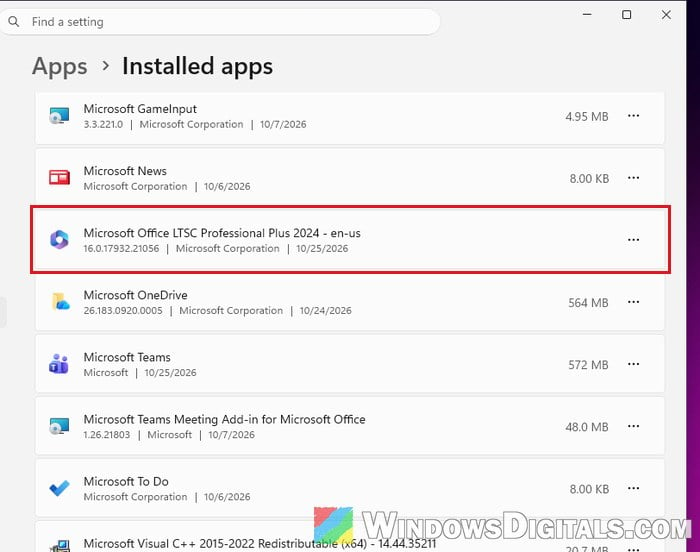 You can also open Word or Excel (if it still opens) and go to File > Account. A volume license copy shows a name like “Microsoft Office Professional Plus 2019” there.
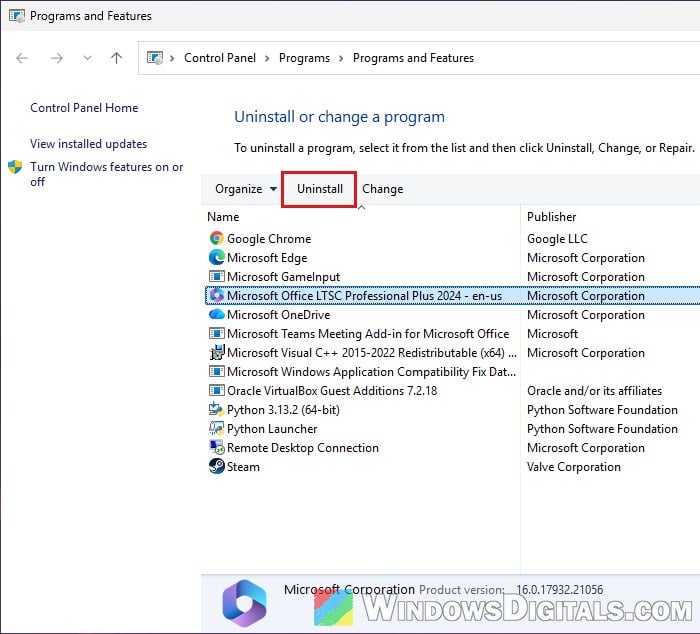
- To remove it, open Control Panel > Programs > Programs and Features, select the Office product, and click Uninstall.
- If the normal uninstall fails or leaves pieces behind, use Microsoft’s uninstall troubleshooter instead. Go to
https://aka.ms/SaRA-officeUninstallFromPC, click Open when your browser asks to open Get Help, and follow the prompts.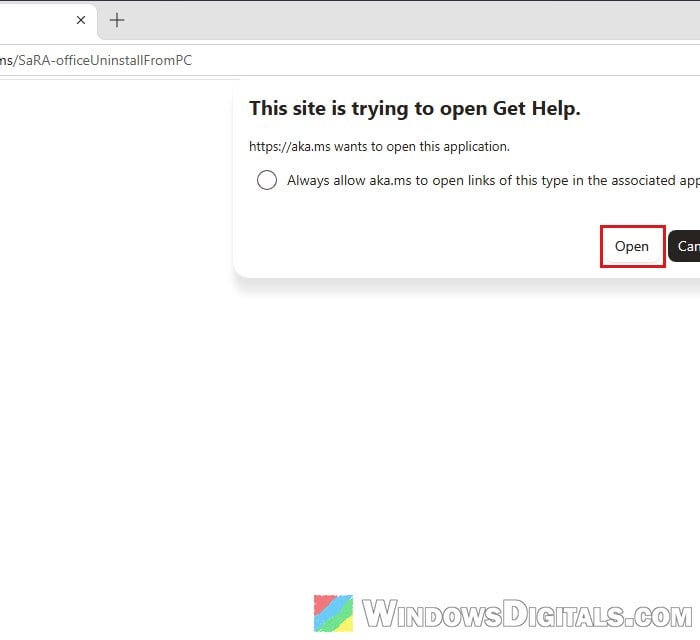 Note: Microsoft says this tool can remove Microsoft 365, Office 2021, 2019 and 2016, but it can’t uninstall Office 2024 yet.
- Restart the PC when it asks you to.
After the old Office is gone, check the registry again for the OfficeUpdate key from the previous section, since the uninstall doesn’t always remove it, and then try installing Microsoft 365 again.
Clear the other update channel settings (only if needed)
Office can also take its channel from a couple of other places in the registry. If the error is still there after the steps above, and the old Office is already uninstalled, check these two keys in Registry Editor the same way:
HKEY_LOCAL_MACHINE\SOFTWARE\Microsoft\Office\ClickToRun\Configuration: this holds the update settings of an installed Click-to-Run Office. If no Office is installed anymore, this key is just a leftover, so delete Configuration if it’s there.HKEY_LOCAL_MACHINE\SOFTWARE\Policies\Microsoft\cloud\office\16.0\Common\officeupdate: this is where a cloud-managed update policy is kept, and Microsoft says it takes priority over the normal policy. Delete the officeupdate key under it if it exists.
Only do this on your own personal PC, and restart again before you retry the install.
Is it a work or school PC? Ask IT instead
If the PC belongs to (or was once set up by) your company or school, the update channel is most likely set by the organization’s own policies. In that case, the “contact your system administrator” part of the message is meant literally. Even if you delete the registry key, the organization’s policy will usually just put it back.
To check, go to Settings > Accounts > Access work or school and see if a work or school account or organization is connected.
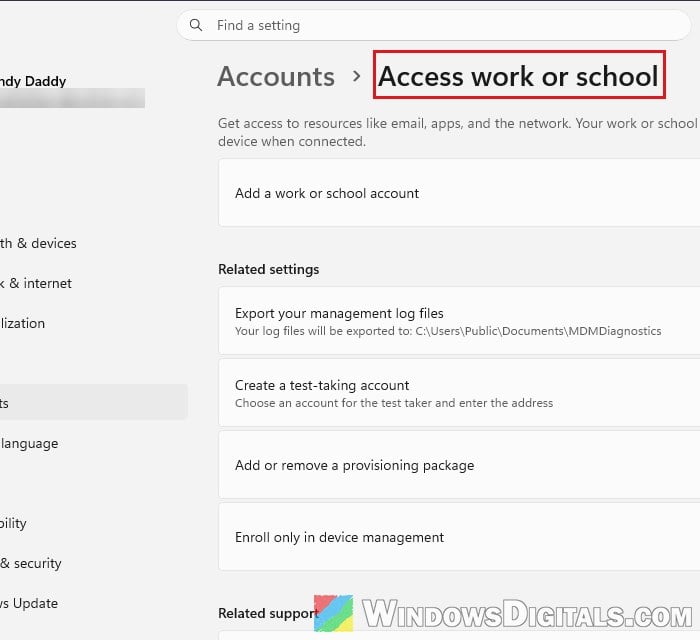
If it is, ask your IT department to install Microsoft 365 for you or change the update channel.
Related guide: Can’t Remove School or Work Email from Windows 11 or 10
Download the installer from your Microsoft 365 account
Once the leftover policy and the old Office are gone, use a fresh installer from your own account, not an old setup file. Go to https://m365.cloud.microsoft/apps, sign in with the Microsoft account that has your Microsoft 365 subscription, select Install apps, and then Install. Run the file it downloads, and Microsoft 365 should install on its normal update channel this time.