If you (or someone in your family) opened an email that looked like a DocuSign document, a Social Security statement or a party invitation, ran the file it offered, and now ScreenConnect is on your Windows 11 or 10 PC, assume that a stranger can control your computer remotely. This guide will show you how to cut them off, fully uninstall ScreenConnect (even when it refuses to go), and protect your accounts.
Similar scamming tactic: “Windows locked due to unusual activity” Scam
Page Contents
Why is ScreenConnect on your PC?
ScreenConnect is a real remote support tool made by ConnectWise, used by IT departments to fix PCs remotely. Scammers use it too, because it’s legitimate, signed software that many antivirus programs don’t treat as a threat.
The email (often sent from a real friend’s hacked account) links to a file that pretends to be a document viewer or an invitation, with names like “RSVP.exe”. Running it quietly installs the ScreenConnect client, and from then on the scammer can see your screen, move your mouse, type, open files and run programs whenever the PC is online.
Signs of a connection include the mouse moving on its own, or a full-screen “Windows update” or blue screen that appears out of nowhere while they work behind it. Many of these copies run silently, with no icon near the clock and sometimes no entry in your installed apps. Victims on Reddit describe what usually follows: bank transfers, card charges and gift card orders made from their accounts, and their email used to send the scam on.
Pro tip: How to Find a Keylogger on Your Computer
Disconnect the PC from the internet first
The scammer can only control your PC while it’s online, so take it offline first and keep it that way until you’ve finished the steps below. Here’s how:
- Click the network icon at the bottom-right corner of the taskbar.
- Click the “Wi-Fi” button to turn it off.
- If the PC uses a network cable, unplug it.
Uninstall ScreenConnect Client from Settings
Microsoft’s own advice after a scam is to uninstall any app the scammers asked you to install. When ScreenConnect shows up as a normal app, this is the quickest way:
- Open Settings and go to Apps > Installed apps.
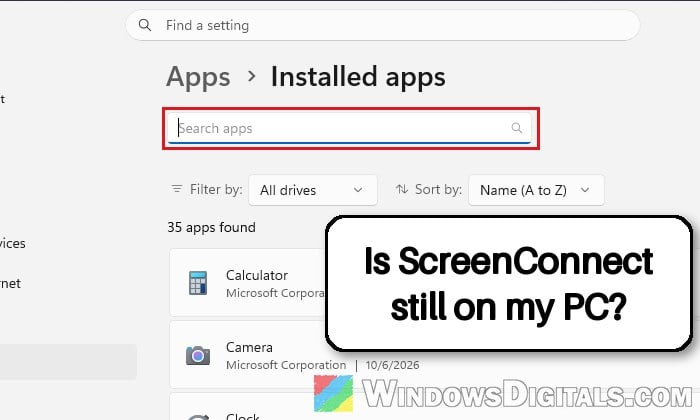
- Type “ScreenConnect” in the search box. It usually shows up as “ScreenConnect Client” followed by a string of letters and numbers in brackets.
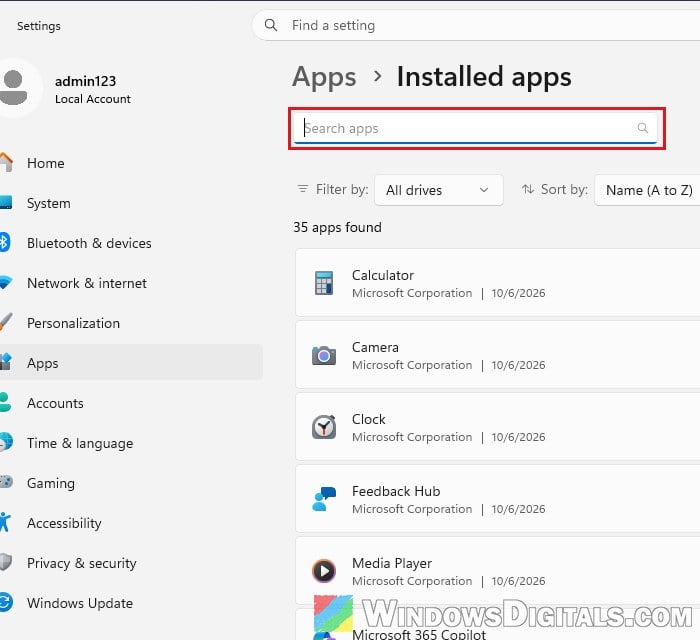
- Click the three-dot button next to it, select “Uninstall” and confirm.
- Uninstall every ScreenConnect entry you didn’t knowingly get from your employer or a trusted computer shop.
- Restart your PC.
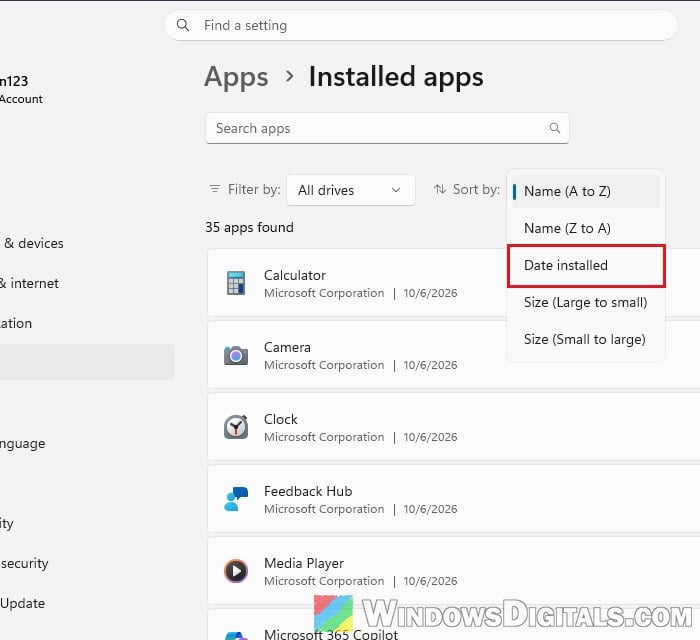
Also sort the list by “Date installed” (the “Sort by” menu) to see what else arrived that day. Scammers sometimes add a second remote tool, such as AnyDesk or TeamViewer, as a backup.
Might be useful: How to Disable Startup Programs in Windows 11
Stop and delete the ScreenConnect service
If ScreenConnect isn’t in the list or won’t uninstall, remove its background service directly. Its name looks like “ScreenConnect Client (cae8a7eb97fb2c95)“, where the part in brackets is different on every PC. Follow the steps below:
- Open the Start menu, type “services” and open Services.
- Find the service whose name starts with “ScreenConnect Client“, right-click it and select “Properties“.
- Click “Stop“, set “Startup type” to “Disabled“, and note down the full service name at the top. Click “OK“.
- Open Command Prompt as administrator.
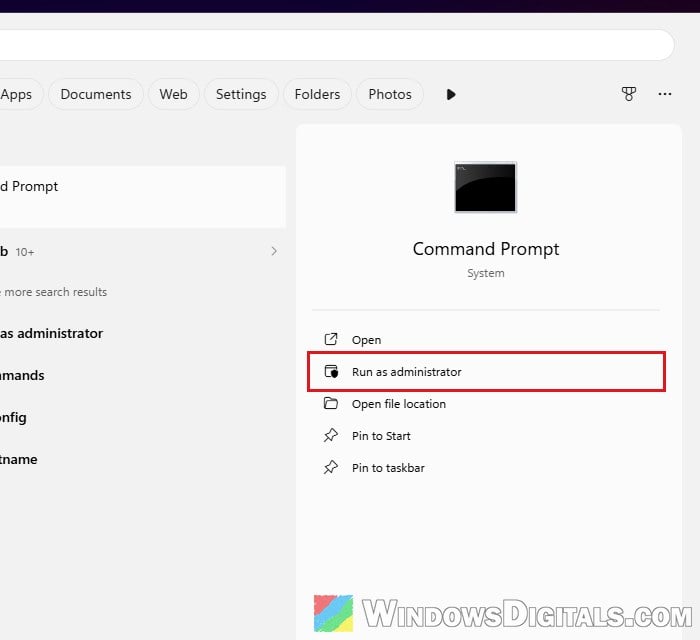
- Run the following command, using the exact service name you noted (keep the quotes):
sc delete "ScreenConnect Client (cae8a7eb97fb2c95)"
- Restart your PC.
After the restart, open Services again and check that nothing named “ScreenConnect Client” is left. For more on this command, see: How to Delete a Service in Windows 11 or 10 Using CMD.
Remove ScreenConnect from the registry, then delete its folder
Even with the service gone, the ScreenConnect folder often won’t delete. That’s because ScreenConnect registers one of its files (ScreenConnect.WindowsAuthenticationPackage.dll) as a sign-in component that Windows loads at every startup, which keeps it locked.
Be warned: Do these steps in this exact order. Deleting that file while the registry entry still points to it can leave Windows stuck in an Automatic Repair loop. Wrong registry changes can also do serious damage, so please at least create a system restore point first. If you’re not sure what you’re doing, it’s better to get someone who knows to help you instead.
Here’s how to do it:
- Open Registry Editor as administrator.
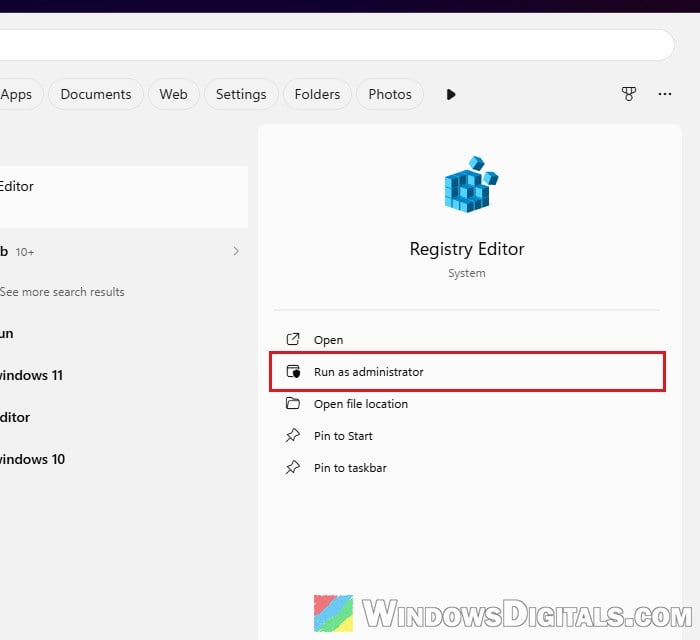
- Paste the following path into the address bar and press Enter:
HKEY_LOCAL_MACHINE\SYSTEM\CurrentControlSet\Control\Lsa
- Right-click the Lsa key on the left and select “Export” to save a backup of it.
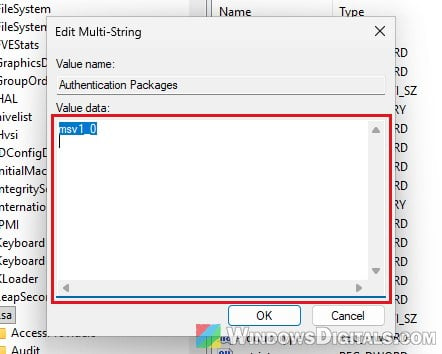
- Double-click the “Authentication Packages” value on the right.
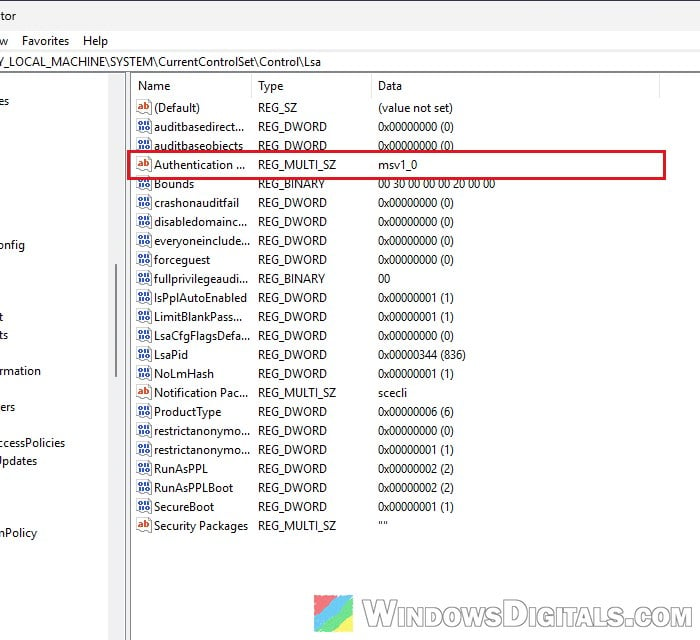
- Delete only the line that mentions ScreenConnect.WindowsAuthenticationPackage, and leave everything else as it is (on most home PCs, only “msv1_0” should remain). Click “OK“.
- Restart your PC.
- Open File Explorer, go to
C:\Program Files (x86), and delete the folder named “ScreenConnect Client (…)“. On some PCs it’s inC:\Program Filesinstead.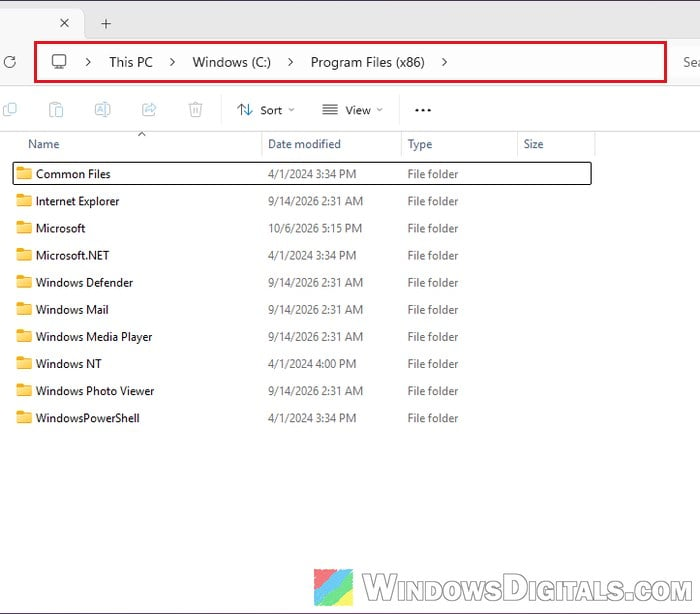
To be thorough, open Registry Editor again, press Ctrl + F and search for “ScreenConnect“. Only delete keys that clearly belong to it.
Related guide: How to Remove Virus Using CMD in Windows 11 or 10
Scan your PC for anything else they left
Don’t expect your antivirus to find ScreenConnect itself (an offline scan can come back clean while it’s still running). The scan is for whatever else the scammer may have added. Follow these steps:
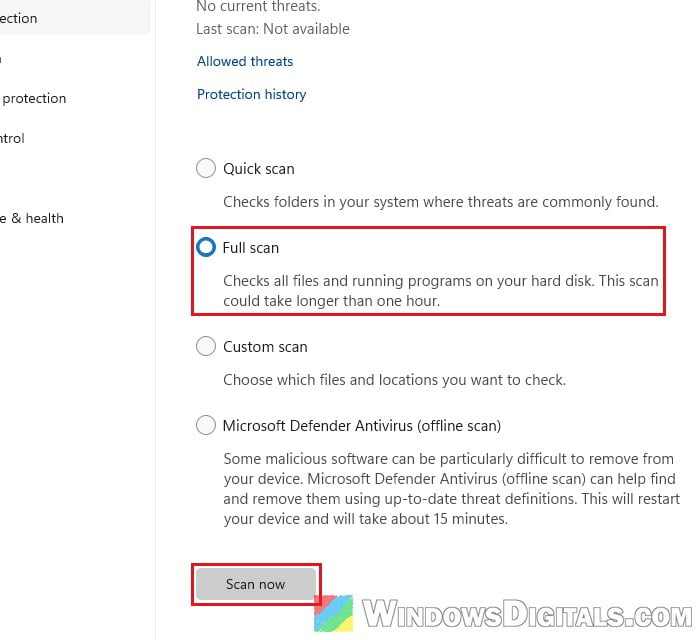
- Open Windows Security and go to “Virus & threat protection“.
- Click “Scan options“, select “Full scan” and click “Scan now“.
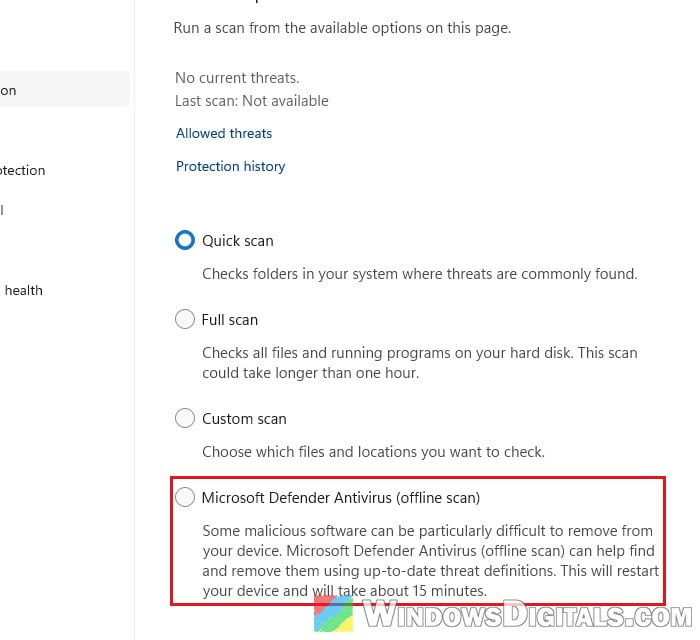
- When it’s done, come back to “Scan options“, select “Microsoft Defender Antivirus (offline scan)” and click “Scan now“. Save your work first, as the PC will restart to run it.
A second opinion from the free Malwarebytes is a good idea too, as it flags ScreenConnect as risky (download it on another PC and copy it over, or reconnect once ScreenConnect is gone).
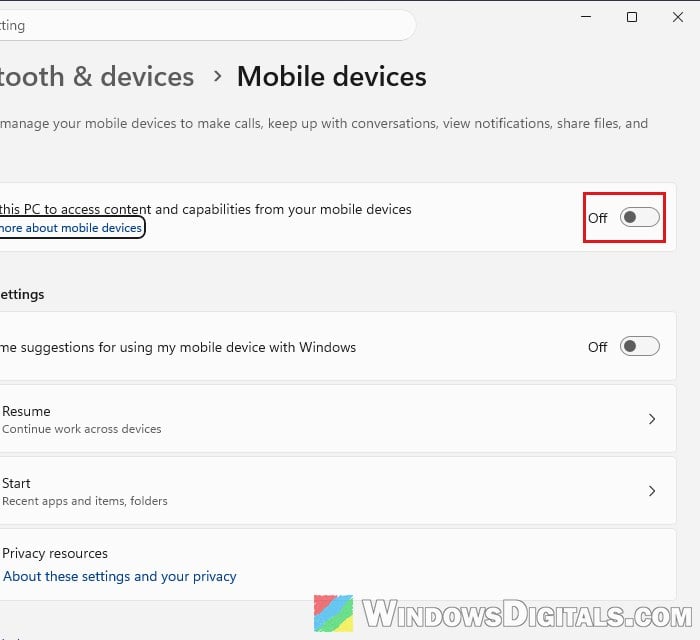
If the scammer asked you to set up Phone Link (some do, to read the sign-in codes texted to your phone), cut the link: go to Settings > Bluetooth & devices > Mobile devices and turn off “Allow this PC to access content and capabilities from your mobile devices“. If a phone is listed under “Manage devices“, remove it there too.
Related concern: Virus and Threat Protection Missing in Windows 11
Change your passwords and call your bank
Removing ScreenConnect doesn’t undo what the scammer already saw. Treat anything you were signed in to on that PC (email, banking, Amazon, your Microsoft account) as exposed, and do these from a different device:
- Change your email password first, because anyone in your email can reset the passwords of everything else. Then banking, shopping, Microsoft account and any reused passwords.
- Turn on two-factor authentication wherever it’s offered.
- Call your bank and credit card company, ask them to reverse any charges you didn’t make, and watch for new transactions.
- Check your email for forwarding rules or connected apps you didn’t add, and warn your contacts.
- Report it at
ReportFraud.ftc.gov(if you’re in the US) and to Microsoft atwww.microsoft.com/reportascam. ConnectWise takes abuse reports athttps://www.screenconnect.com/report-abuse.
Reset Windows if you’re not sure it’s all gone
If the scammer was connected for hours or days, you can’t be sure nothing else was left. Microsoft suggests considering a reset when scammers have had access, and most IT people who handle these cases just wipe the PC. Back up your personal files first (and scan them), then reset Windows.
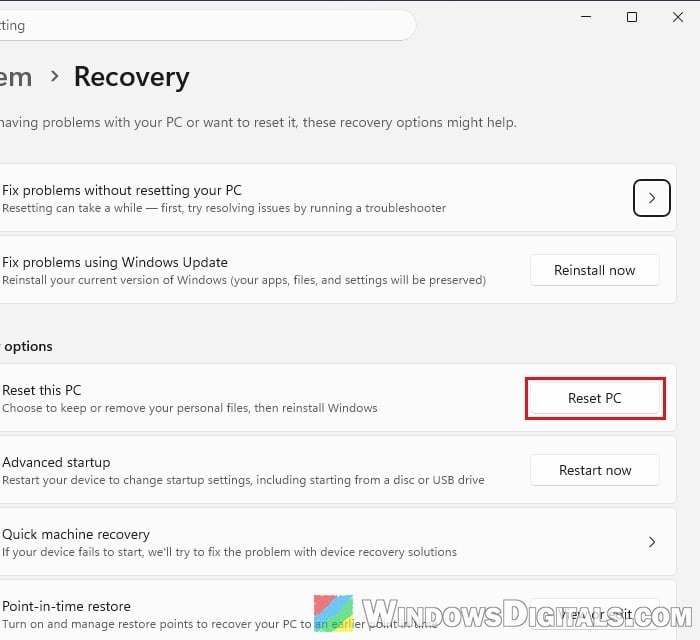
For detailed instructions, read: How to Reset Windows 11/10 to Factory Default.