If unrelated apps and games keep crashing with exception code 0xc0000005 (access violation) on your Intel 13th or 14th Gen PC, even though SFC, DISM and memory tests come back clean, the processor itself is a very possible suspect. This guide will show you how to tell if it’s the CPU and what to do about it.
Also see: “Application Error” Won’t Go Away on Windows 11
Page Contents
Why do Intel 13th and 14th Gen CPUs cause these crashes?
Exception code 0xc0000005 means a program tried to read or write memory it shouldn’t. Normally that points at a bug in the app or a bad driver. But when it happens in your browser, Steam, a game and even Windows tools, each with a different faulting module, the common factor is the hardware running all of them.
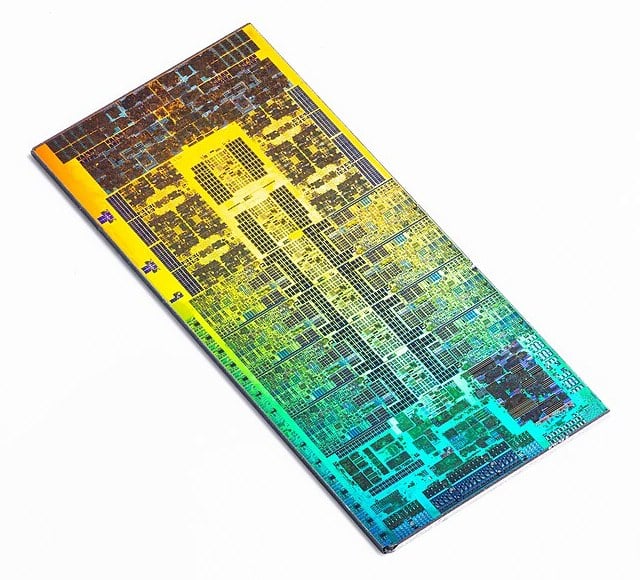
Intel has confirmed a problem with its 13th and 14th Gen desktop processors called Vmin Shift Instability. According to Intel, a clock circuit inside the CPU cores ages faster under too much voltage and heat, so over time the chip needs more voltage than it gets to run correctly. The extra voltage came from:
- Motherboard power settings that went beyond Intel’s own limits.
- Bugs in the CPU’s microcode that asked for high voltages, even at idle.
Intel fixed the microcode bugs with updates (0x125, 0x129, 0x12B and later 0x12F) that come with a BIOS update. The bad news is that the update can’t repair a chip that’s already unstable. RAD Game Tools, whose code crashes on these chips in many Unreal Engine games, calls it irreversible physical wear. A chip that already crashes needs to be replaced.
Please note that Intel says its 13th and 14th Gen mobile processors, including the HX chips in gaming laptops, aren’t affected by Vmin Shift. Laptops with an i9-14900HX can still show the same crash pattern, but the fix goes through the laptop maker (see the laptop section below).
Pro tip: Windows 11/10 “Whea_Uncorrectable_Error” BSOD
Check whether the CPU is really behind the crashes
A single game crashing with 0xc0000005 is usually that game’s problem. Before you blame the CPU, check that the crashes follow the pattern above:
- Press Win + R, type
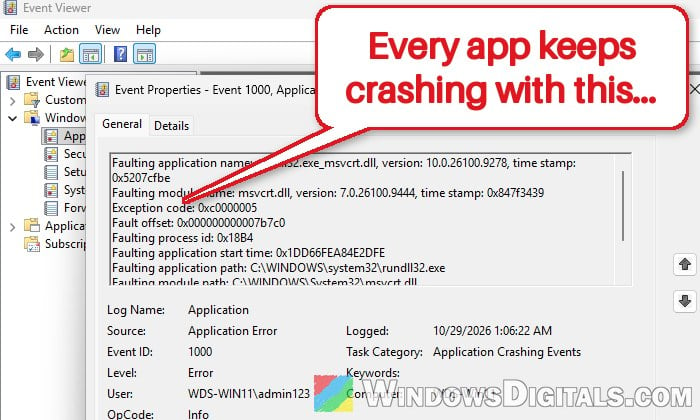
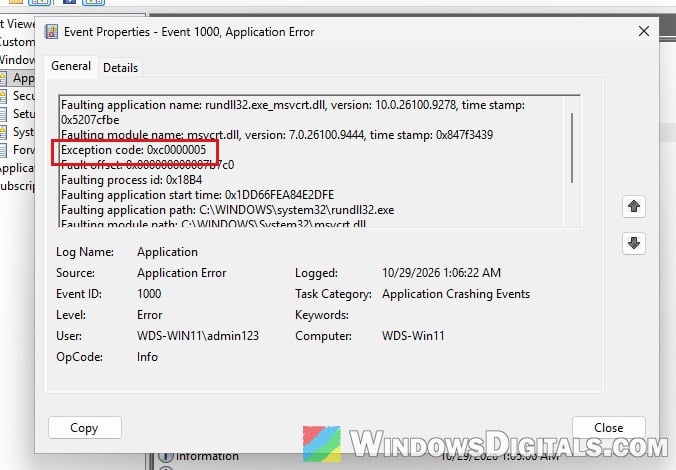
eventvwr.mscand press Enter to open Event Viewer. - Go to “Windows Logs” > “Application” and double-click an “Application Error” event from around a crash. Check the “Exception code” and the faulting module. If the faulting module changes from crash to crash, that’s the pattern of an unstable CPU.
- Open “Windows Logs” > “System” and look for “WHEA-Logger” events, which are hardware errors reported by the processor. If they keep naming the same APIC ID, the same CPU core keeps failing.
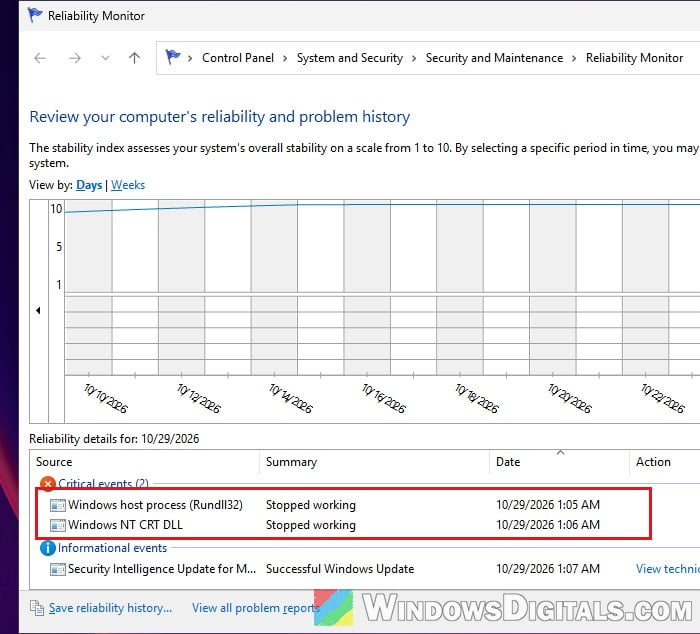
- For an overview, search for “reliability” in the Start menu and open “View reliability history“. It lists every app that stopped working, by day.
Also check the “Processor” line in “Settings” > “System” > “About“. A desktop chip ends with K, KF, KS, F or no letter (i9-14900K, i7-13700F), while laptop chips end with HX or H.
Update the BIOS to get Intel’s microcode fix
This is Intel’s own recommendation and the most important step for desktop users. The microcode stops the voltage problem from doing more damage, and on a chip that isn’t badly worn yet, a BIOS update alone can stop the crashes. The only way to get it is a BIOS update from your motherboard or PC maker.
Here’s how to do it:
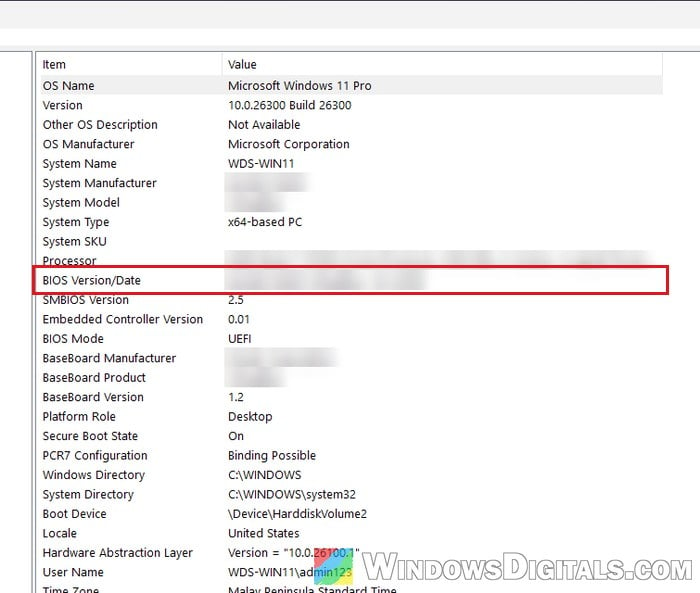
- Press Win + R, type
msinfo32and press Enter. - In “System Summary“, note your “BIOS Version/Date“.
- Open the BIOS downloads on the support page for your exact motherboard (for a prebuilt PC or laptop, the PC maker’s page). Intel also points to its Product Compatibility Tool at
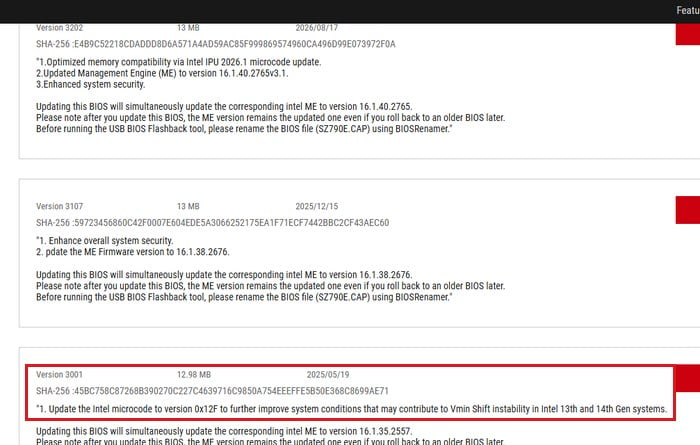
https://compatibleproducts.intel.com/. - Install the latest version if it’s newer than yours, following the maker’s own instructions. Intel’s fix came in the versions whose notes mention microcode 0x12B or 0x12F, and later ones keep it.
Be warned: A BIOS update can be a risky process. If the power goes out halfway, it can brick your motherboard. Keep a laptop plugged in, don’t touch the PC while it flashes, and if you’re not sure what you’re doing, it’s better to get someone to help you instead.
Related concern: Windows 11 Not Activated After BIOS Update
Use Intel Default Settings in the BIOS
On desktops, Intel also recommends the Intel Default Settings profile, which keeps the motherboard’s power limits within Intel’s own guidance. Board power settings that went beyond those limits were one of the causes Intel found.
On ASUS boards with the updated BIOS, Intel Default Settings are already the factory default, so loading the BIOS defaults after the update is enough.
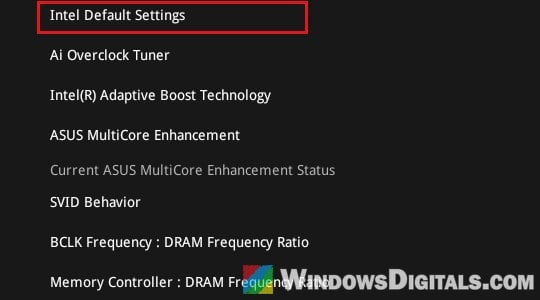
On other boards, select it yourself; its name and place differ by maker. Once it’s set, don’t turn the board’s own auto-overclock or unlimited power options back on.
Might be useful: How to Clear CMOS without Removing Battery or Jumper Cap
Lower the P-core ratio as a temporary workaround
If your CPU still crashes after the BIOS update, it has likely already degraded. Several users on Reddit and Intel’s forums kept these chips stable by slightly lowering the maximum speed of the performance cores.
In the BIOS, find the P-core ratio setting (often called “Performance Core Ratio” or “P-Core Ratio”) and lower it by one or two steps, for example from 57x to 56x, a bit more if the crashes continue. The PC loses a little speed, but the chip no longer runs at the clocks where it fails.
Please be warned that this only hides the problem. A degraded chip can get worse, so treat it as a way to keep using the PC until it’s replaced.
Test the CPU with Intel Processor Diagnostic Tool
Intel’s own diagnostic tool checks every core, the frequency and the CPU’s features, and runs a stress test, ending with PASS or FAIL. A failed test also helps a warranty request.
- Download the Intel Processor Diagnostic Tool from Intel’s download page at
https://www.intel.com/content/www/us/en/download/15951/intel-processor-diagnostic-tool.html, unzip it and install it.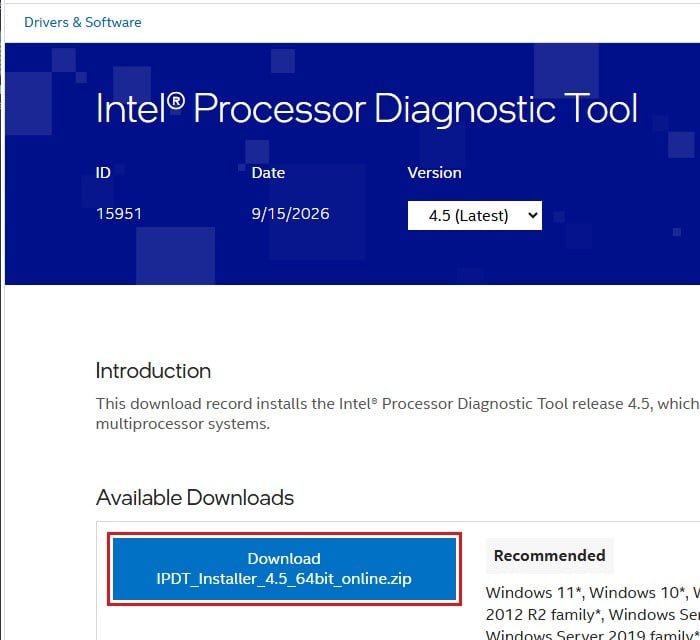
- Run it and let it finish all the tests.
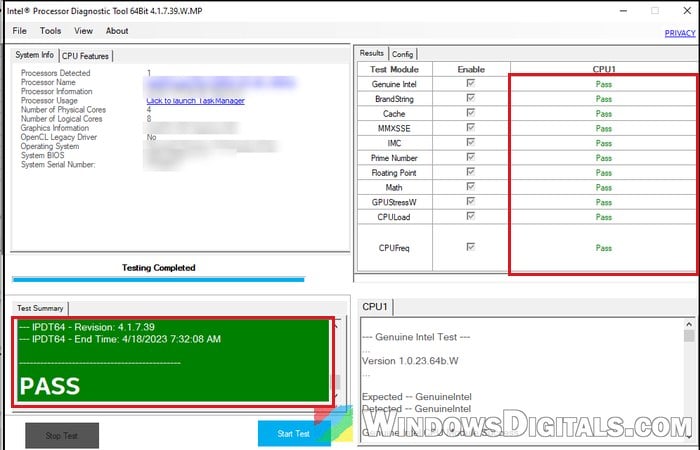
- Save the results from the “File” menu for a warranty request.
A PASS doesn’t fully clear the CPU, though: many of these chips pass stress tests and still crash in games.
If it’s a laptop with an HX processor
Intel Default Settings and Intel’s extended warranty are for desktop chips only. On a laptop, install the latest BIOS from the laptop maker’s support page, since it can carry newer Intel microcode too. If the crashes continue after that and a clean Windows install, with WHEA-Logger errors in Event Viewer, it’s very likely a hardware fault. If the laptop is still under warranty, have the manufacturer repair it.
Get the CPU replaced under warranty
If the chip is already unstable, a replacement is the only real fix. Intel extended the warranty on the affected 13th and 14th Gen desktop processors by two years, up to five years from the date of purchase. It covers the Core i9 and Core i7 desktop chips and the i5-13600K, 13600KF, 14600K and 14600KF, boxed and tray.
- If you bought the CPU on its own: contact Intel Customer Support for a warranty replacement.
- If it came in a prebuilt PC: contact the PC maker’s support team, as Intel suggests.
Have the serial and batch number from the CPU’s box label, your BIOS version, the errors and stop codes you’ve seen, and your test results ready, and describe the symptoms plainly. Once the new chip is in, keep the board on the updated BIOS and Intel Default Settings.