When you install Roblox, or right after Roblox Studio finishes an update, you might see Windows Security suddenly report “Trojan:Win32/Vundo.gen!D“, sometimes more than once, even though you got Roblox from its official website. Others see a Vundo trojan show up in the results of the Malicious Software Removal Tool right after a Windows update. For the Roblox files, it looks like a false alarm, but the name isn’t always harmless, so it’s worth checking. This guide will explain what Vundo is, how to tell a false alarm from a real infection, and what to do in either case on Windows 11 or 10.
Also see: Trojan:Win32/Yomal!rfn on Epic Games or Firefox Installer
What is Trojan:Win32/Vundo.gen!D?
It’s a detection name used by Microsoft Defender for the Vundo malware family, also known as Virtumonde. According to Microsoft, Vundo shows pop-up ads that have nothing to do with what you’re doing, can download and run other files, and usually gets in as a browser add-on that installs itself without asking. It also tries to hide from security software, and Microsoft says an alert from your antivirus may be the only sign you’ll notice.
Vundo is also very old: Microsoft’s own entry for it dates back to early 2009. The part after the ! is only an internal marker, according to Microsoft.
Why is it showing up on Roblox files now?
Since early November 2026, people have been reporting Defender flagging the Roblox installer and Roblox Studio files with this name, for one of them every time Studio finished updating. In one case, VirusTotal and Malwarebytes found nothing in the Roblox installer, and in another, a Microsoft Defender Offline scan found nothing else on the PC. Roblox itself says on its help site that Roblox is free of malware and that antivirus alerts about it are usually false positives. There’s no word from Microsoft or Roblox about this detection yet, though, so treat it as likely a false alarm, not a confirmed one.
What if the Malicious Software Removal Tool found it?
The Malicious Software Removal Tool (MSRT) is a small Microsoft scanner that comes with Windows Update once a month and looks for specific, widespread malware. In November 2026, a couple of people saw it ask for permission and then report a Vundo trojan as removed or “partially removed“, one of them right after that month’s security update. For one of them, a follow-up scan with another tool then flagged an unofficial game launcher installed on the PC. So don’t brush off an MSRT result.
Related concern: Trojan:Win32/Wacatac.H!ml: What You Need to Know
First, see which file was detected
What you do next depends on which file was caught. If it’s inside your Roblox folder or it’s the Roblox installer you just downloaded, read on. If it’s something else, skip to the last section. Here’s how to check:
- Open Windows Security from the Start menu and go to Virus & threat protection.
- Click Protection history.
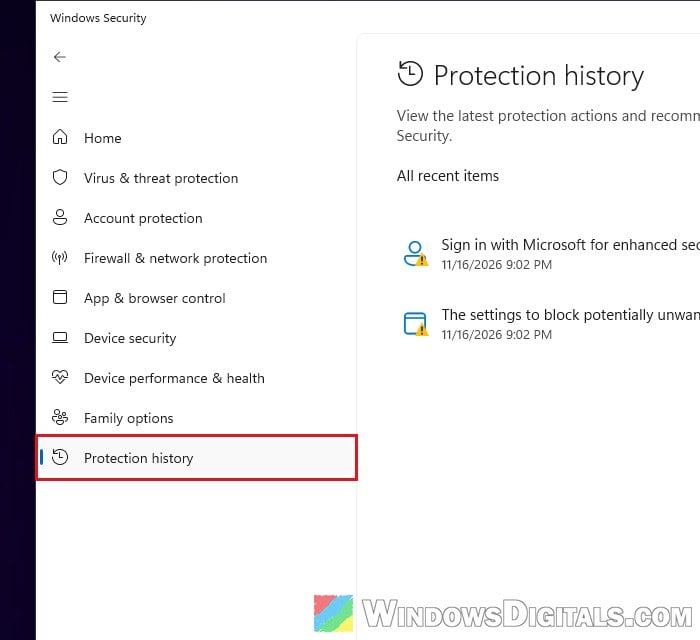
- Click the entry that names Trojan:Win32/Vundo.gen!D to expand it.
- Look at the path under Affected items to see which file it was and where it sits. For one person, it was
RobloxPlayerInstaller.exeinside aRobloxfolder in the user’sAppData\Local\Tempfolder. - If it says the threat was quarantined, you can leave it there, or open Actions and choose Remove.
There’s no point choosing Restore, since Microsoft notes that a restored file just gets detected again. If you’re not sure, keep it in quarantine.
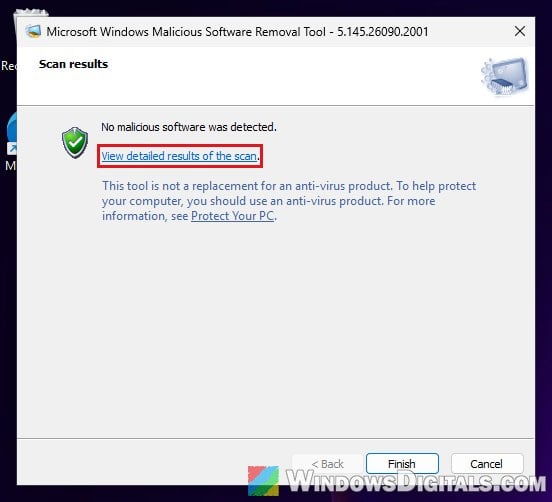
If the MSRT found it, its results window has a “View detailed results of the scan” link that lists what it found and whether it was removed. The tool also keeps a log at %windir%\debug\mrt.log, which you can open with Notepad.
Might be useful: Can’t Clear Protection History in Windows 11/10 Defender
Update Defender and reinstall Roblox from its official website
Roblox’s own advice for antivirus alerts is to update your antivirus first, since newer definitions can stop a wrong detection. Here’s what you should do:
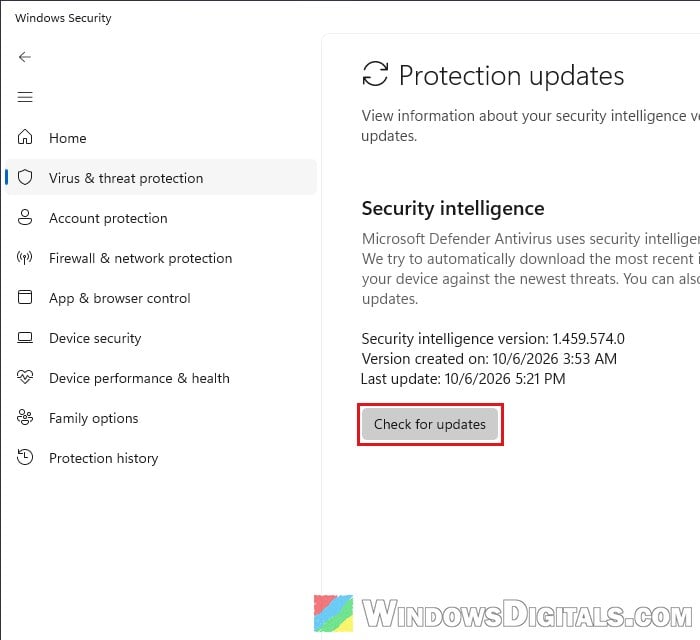
- In Windows Security, go to Virus & threat protection > Protection updates.
- Click Check for updates and wait for it to finish.
- Uninstall Roblox or Roblox Studio.
- Download it again from Roblox’s own website,
https://www.roblox.com/, never from another download site.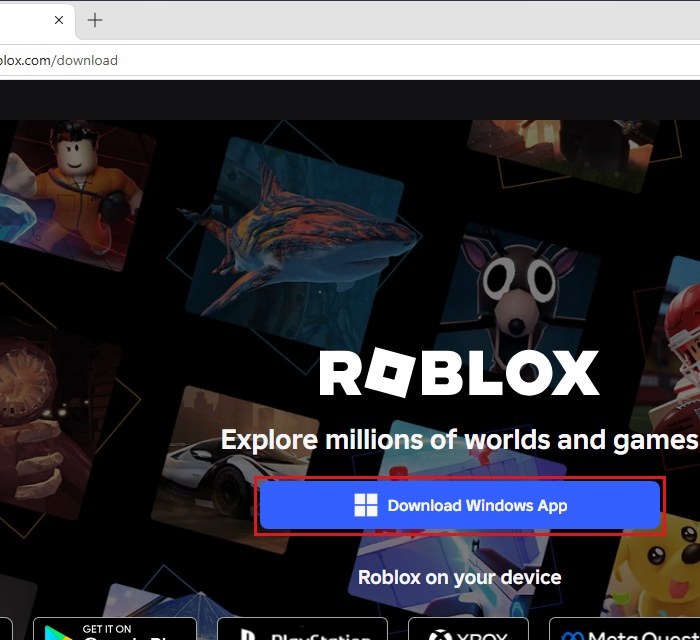
- Run a Quick scan or Full scan from Virus & threat protection > Scan options.
If the new copy installs and Defender stays quiet, you’re done. If it gets flagged again even with the latest definitions, the detection is most likely still wrong on Microsoft’s side.
Get a second opinion on the file
If Defender flags the new copy too, have another scanner look at it. Use the fresh installer you just downloaded from roblox.com for this, since you may not be able to get a quarantined copy back out to upload. If Defender removed that copy too, there’s nothing left to upload, so just check for updates again later. You can upload it to https://www.virustotal.com/ to see what dozens of other antivirus engines think of it, or run a free scan with Malwarebytes. The Microsoft Safety Scanner also detects Vundo (each download of it only works for 10 days).
If only Defender flags the file and every other engine says it’s clean, that fits a false positive. If several well-known engines flag it as well, treat it as real (see the last section).
Report it to Microsoft as a false positive
If you’re sure the file came from Roblox’s official website, send it to Microsoft. Microsoft checks the file and, if the detection is wrong, fixes it for everyone. Roblox also suggests reporting false positives to your antivirus maker.
- Go to
https://www.microsoft.com/en-us/wdsi/filesubmissionand select Home customer. If it asks you to sign in, you can click Skip.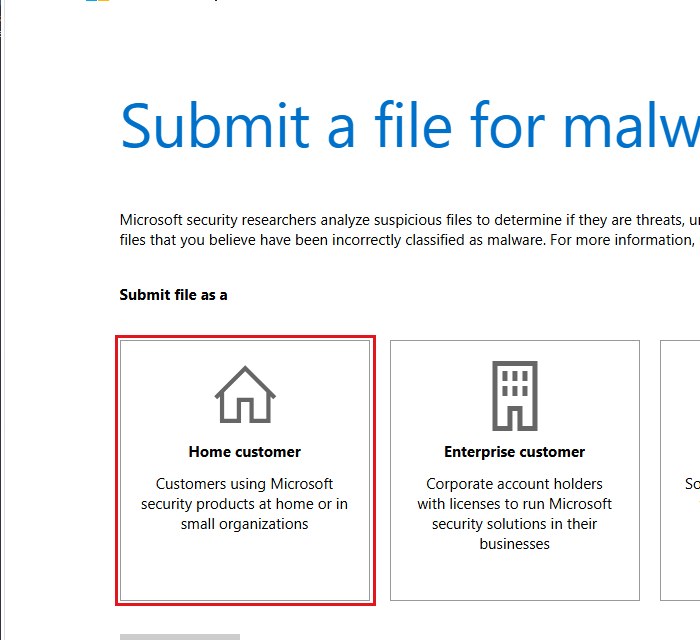
- Upload the fresh Roblox installer you downloaded (up to 50 MB).
- Select “Incorrectly detected as malware/malicious“.
- Enter Trojan:Win32/Vundo.gen!D as the detection name and submit it.
Don’t add an exclusion in Windows Security just to make the alert go away, since Defender then stops checking that file or folder at all.
Linked issue: Defender Asks to Restart to Remove Threats, but They’re Still There on Windows 11
When it’s not a false alarm
Treat the detection as real if the file isn’t a Roblox file, if the Roblox installer didn’t come from roblox.com, if other scanners agree with Defender, or if the MSRT found it. Since Vundo usually gets in as a browser add-on, and in one case came with an unofficial game launcher, start there:
- Go through your installed apps and uninstall anything you don’t recognize or got from an unofficial site, such as unofficial game launchers.
- Check each browser’s extensions and remove any you didn’t add yourself.
Then run a full scan, followed by a Microsoft Defender Offline scan. Microsoft recommends a full scan for Vundo, since other malware may still be hiding after it’s removed. This also finishes the job when the MSRT only “partially removed” the threat.
- In Windows Security, go to Virus & threat protection and click Scan options.
- Select Full scan and click Scan now. When it’s done, open Scan options again.
- Select “Microsoft Defender Antivirus (offline scan)” and click Scan now.
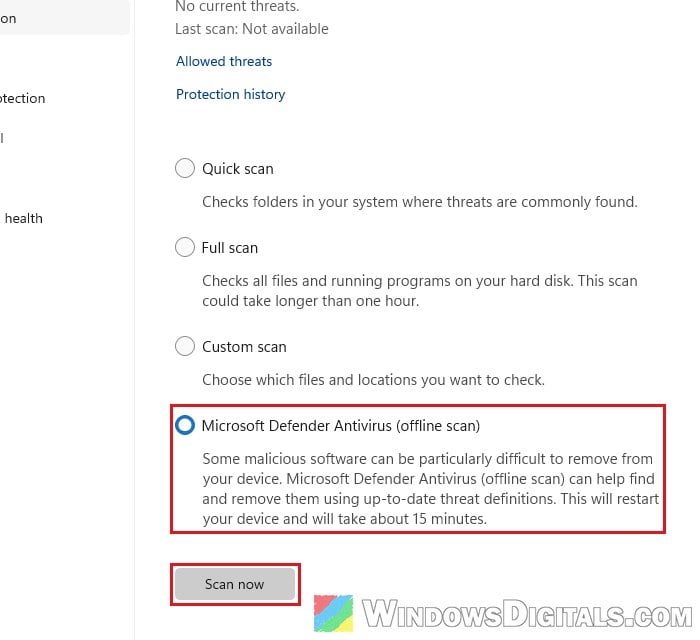
The offline scan restarts your PC and takes about 15 minutes. Afterwards, use your phone or another computer to change the passwords of your email, bank and other important accounts. If Defender keeps finding threats even after all of this, back up your files and reset or reinstall Windows, which is the surest way to get a clean PC.