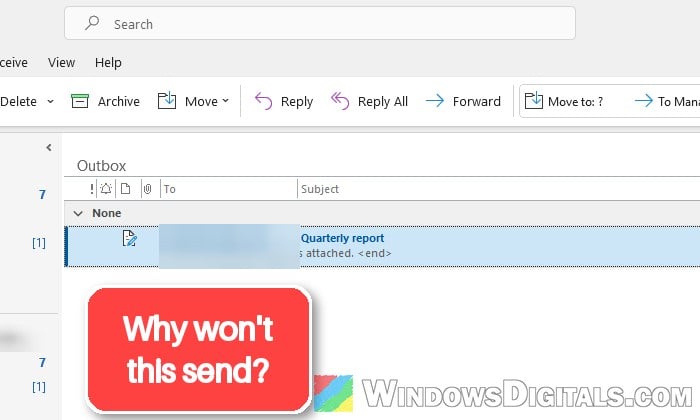
An email you send in classic Outlook normally sits in the Outbox for a moment and then moves to Sent Items, but sometimes it just stays there, and every new email you write piles up in the Outbox behind it while incoming mail may still arrive as usual. This guide will explain why Outlook stops sending and how to get those emails moving again.
Also see: Classic Outlook Folders Not Syncing and Missing Emails
Make sure Outlook isn’t working offline
The simplest reason is that Outlook can’t reach your mail server, so it holds everything in the Outbox. Look at the status bar at the bottom of the Outlook window. If it says “Working Offline“, “Disconnected” or “Trying to connect…“, nothing will leave the Outbox until Outlook is connected again.
Check the “Work Offline” button first:
- Click the “Send / Receive” tab on the ribbon.
- Look at the “Work Offline” button. If it’s highlighted, Outlook is offline. Click it once to go back online.
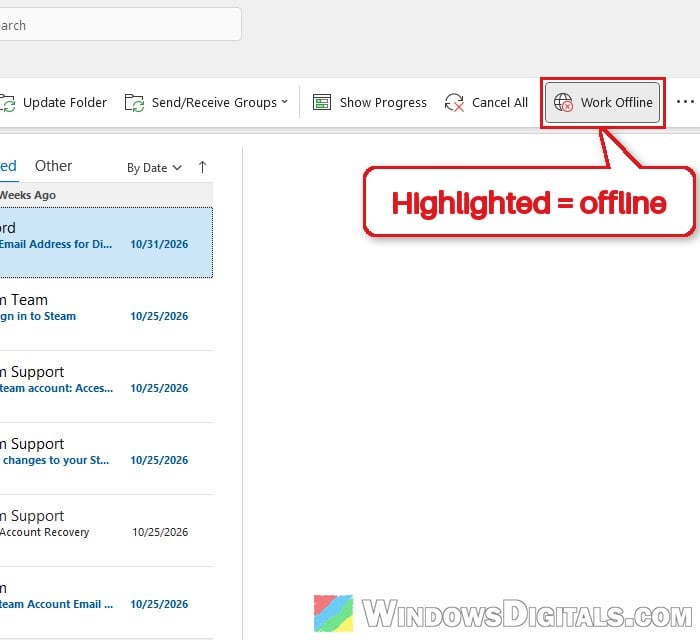
- Click “Send All” on the same tab.
If it still says “Disconnected”, try loading microsoft.com in a browser. If it doesn’t load, it’s your internet connection.
Check whether your email provider is having problems
Sign in to the same account on the web (Outlook.com, Gmail or your internet provider’s webmail) and send a test email from there. If it won’t send from the web either, the problem is with the mail service, not your PC.
During an outage at Microsoft or your email provider, emails just sit in the Outbox until it’s over. If so, leave the Outbox alone and don’t delete or edit the waiting emails. Outlook sends them by itself once the service is back, though you might have to sign in again.
Might be useful: Classic Outlook Keeps Switching Back to the New Outlook
Remove the email that’s blocking the Outbox
According to Microsoft, the most likely reason an email gets stuck is a large attachment. Email providers cap how big a message can be, and one email over that limit can block every email queued behind it. Microsoft suggests removing any attachment over 20 MB and sending a smaller file or a link instead.
First, look in “Sent Items” to see whether the email already went out. If it did, just delete the copy in the Outbox. Otherwise, follow the steps below:
- On the “Send / Receive” tab, click “Work Offline” so Outlook stops trying to send.
- Open the “Outbox” folder in the folder pane.
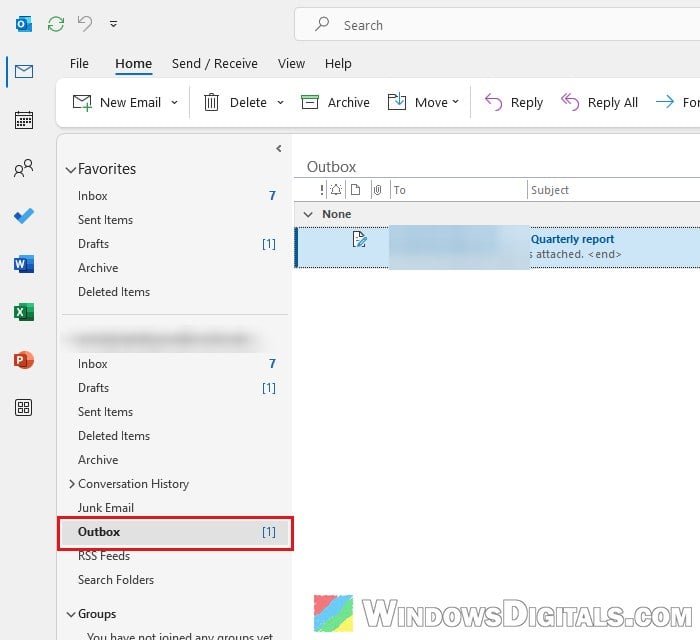
- Starting with the oldest email, select it and press Delete to get rid of it, or drag it to “Drafts“, open it, select the attachment and press Delete.
- If Outlook says it’s still sending the email, close Outlook. If it won’t close, open Task Manager with Ctrl + Shift + Esc, select Outlook in the list and click “End task“. Reopen Outlook and repeat steps 2 and 3.
- Click “Work Offline” again to go back online. If you moved the email to Drafts, attach a smaller file or a link, then send it.
Then see whether the rest of the Outbox goes out.
Turn on “Send immediately when connected”
If your emails only leave the Outbox when you press F9 or click “Send/Receive All Folders“, Outlook might be set to not send right away:
- Click File > Options, then select “Advanced“.
- In the “Send and receive” section, tick “Send immediately when connected” (it’s on by default).
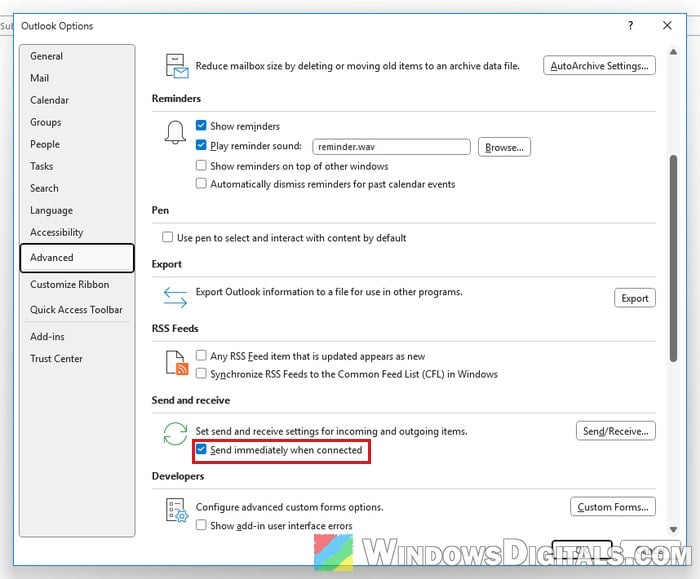
- Click “OK“.
Write a test email and see whether it leaves the Outbox without pressing F9. If the option is grayed out, a policy controls it.
Update your password or sign in again
If you recently changed your email password on the provider’s website, classic Outlook may still be using the old one, so update it in Outlook too.
For Gmail (and Yahoo) accounts, Outlook keeps its sign-in in Windows Credential Manager, and an old one there can stop the account from sending or syncing. Removing it makes Outlook ask you to sign in again (Microsoft says the account stays):
- Close Outlook.
- Search for “Credential Manager” in the Start menu, open it and click “Windows Credentials“.
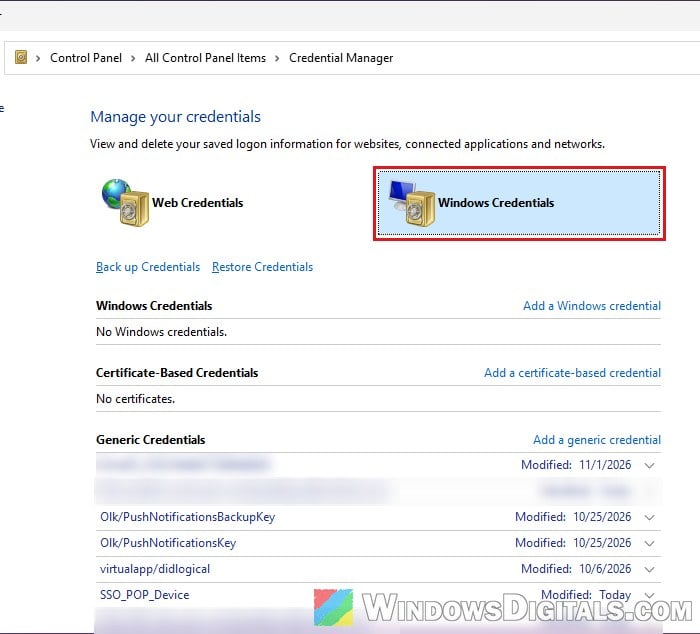
- Under Generic Credentials, look for entries that start with MicrosoftOffice16_Data:OAUTH2. Expand each one; the Gmail ones have tp_google_imap_Oauth2 in their full name (Yahoo: tp_yahoo_imap_Oauth2).
- Click “Remove” on each matching entry. There are usually two or four per account.
- Open Outlook and sign in to the account in the window that pops up. If it doesn’t sync right away, restart Outlook once more.
If that’s not enough, remove Outlook’s access in your Google account (Security > Microsoft apps & services), then remove the credentials again and sign in once more. Doing both is what got sending working again for some Gmail users, though for a few it only lasted a while.
Related problem: How to Fix 0x80004005 Error Code in Windows 11/10
Start Outlook in safe mode to rule out add-ins
An add-in that crashes can stop Outlook from sending, and antivirus and PDF add-ins are common ones. Emails that only go out after you end Outlook in Task Manager can be a sign of this. Safe mode starts Outlook without add-ins:
- Close Outlook.
- Press Win + R, type
outlook.exe /safe, and press Enter.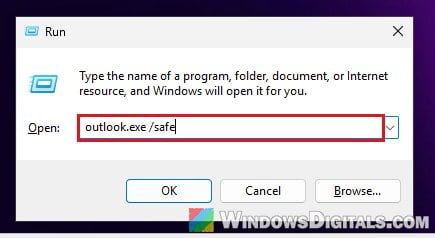
- Try to send an email.
If it sends, find the add-in:
- Restart Outlook normally and go to File > Options > Add-ins.
- Choose “COM Add-ins” next to “Manage” and click “Go“.
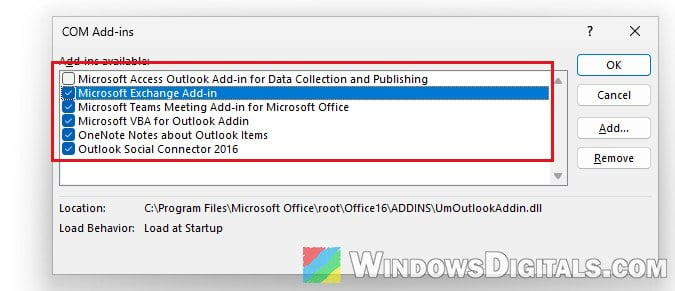
- Untick all the add-ins, click “OK” and restart Outlook.
- Turn them back on one at a time until sending breaks again, and leave that one off.
Check your antivirus and outgoing server settings
Some antivirus programs scan outgoing email, which can block sending. Turn off your antivirus’s email scanning (sometimes called a mail shield) for a moment, send a test, then turn it back on.
If your account is IMAP or POP (from your internet provider or your own domain) and you can receive but not send, the outgoing (SMTP) server settings are a likely suspect. Compare the outgoing server, port, encryption and sign-in setting in Outlook with what your provider lists on its help page.
Repair the account or create a new Outlook profile
A damaged Outlook profile, which holds your accounts and their settings, can break sending too. Repairing the account is the gentler option:
- Click File > Account Settings > Account Settings.
- Select the account that won’t send and click “Repair“.
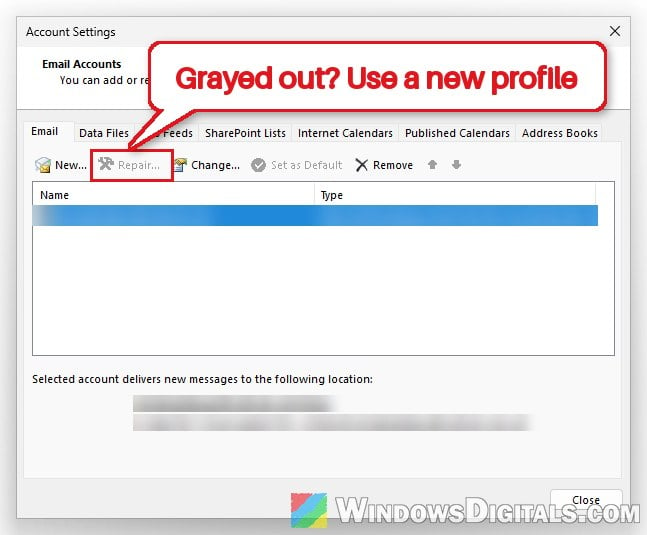
If that doesn’t help, or “Repair” is grayed out for your account, create a new profile (the old one stays):
- Close Outlook and open “Mail (Microsoft Outlook)” in the Control Panel (set “View by” to “Large icons” if you can’t see it).
- Click “Show Profiles“, then “Add“, and name the new profile.
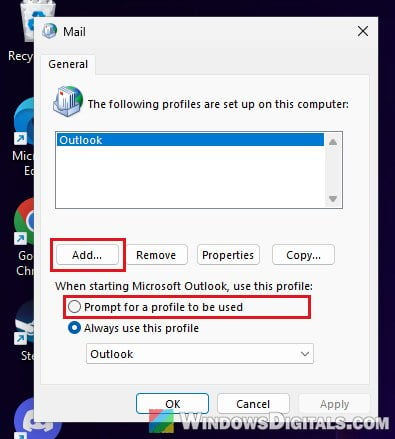
- Add your email account in the wizard that follows.
- Select “Prompt for a profile to be used“, open Outlook, pick the new profile and send a test email.
If it sends, use the new profile from now on.
Related guide: Microsoft 365 Outlook 1001 Error “Something went wrong”
Repair Office
A damaged Office install can also stop Outlook from sending, so as a last step, repair Office itself:
- Open Settings > Apps > Installed apps.
- Click the three dots next to your Microsoft 365 or Microsoft Office entry and select “Modify“. Click “Yes” if User Account Control asks.
- Choose “Quick Repair” and click “Repair“.
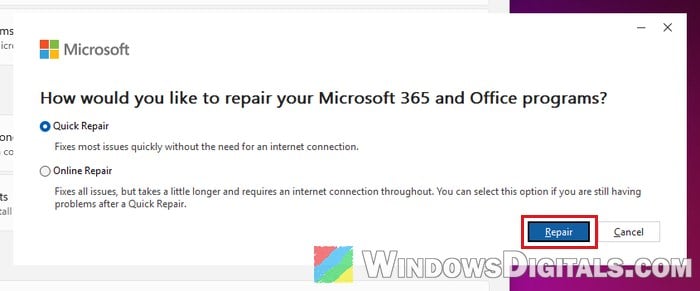
- If that doesn’t help, run it again with “Online Repair“, which takes longer (Microsoft says up to about half an hour) and needs the internet.
Once it’s done, open Outlook and see whether the Outbox empties by itself.