If you’ve just set up Outlook on a new computer and it only shows your recent emails, while everything older than a few months or a year seems to be gone, don’t panic just yet. Often, the older emails are still on the server, and Outlook just isn’t showing them. This guide will show you why it happens and how to get all your older emails back in Outlook.
Also see: Outlook Email Shows Up in Search but Not in the Inbox, Why?
Why does Outlook only show recent emails on a new PC?
It usually comes down to one of these, depending on which Outlook you use and what kind of email account you have:
- Classic Outlook only downloads part of your mailbox. With an Outlook.com, Hotmail, Microsoft 365 or work account, classic Outlook keeps a copy of your mail on the PC, but only for a set time. On most computers that’s the last 12 months (only 1 or 3 months on PCs with a small drive). Anything older stays on the server and isn’t shown in your folders.
- The older emails were only ever on your old PC. With a POP account, Outlook downloads the mail into a data file (
.pst) on the computer, and the server may not keep a copy. The same goes for mail you moved into a local data file on the old PC. The new PC then has nothing older to download. - In the new Outlook, the older mail is usually just hidden by a filter, the search scope or the Focused and Other tabs. With a Gmail or Yahoo account, it may also still be syncing.
The quickest way to find out which one you’re dealing with is to check your mailbox on the web.
Check if the older emails are still on the server
Sign in to your email on its website: outlook.com for an Outlook.com or Hotmail account, or your email provider’s (or workplace’s) own webmail for anything else. Then open your Inbox and other folders and scroll back.
- If the older emails are there, they’re safe. Outlook on your new PC just isn’t showing them, so carry on with the next sections.
- If they’re missing on the web too, they were most likely stored only on your old computer (or deleted on the server). Skip to the section about importing the old data file.
Set “Download email for the past” to All in classic Outlook
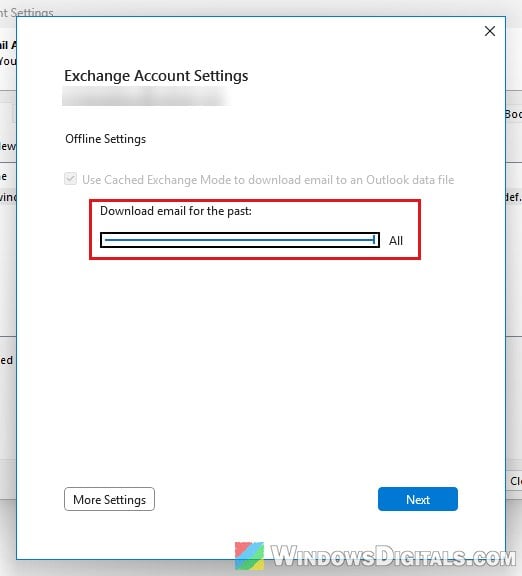
If you use classic Outlook with an Outlook.com, Hotmail, Microsoft 365 or work account, this is the usual fix. According to Microsoft, it’s expected behavior: classic Outlook only syncs the amount of mail set by the Download email for the past setting (called Mail to keep offline in older versions), and the default on most PCs is 12 months. Setting it to All makes Outlook download your whole mailbox.
Here’s how to change it:
- In classic Outlook, click File.
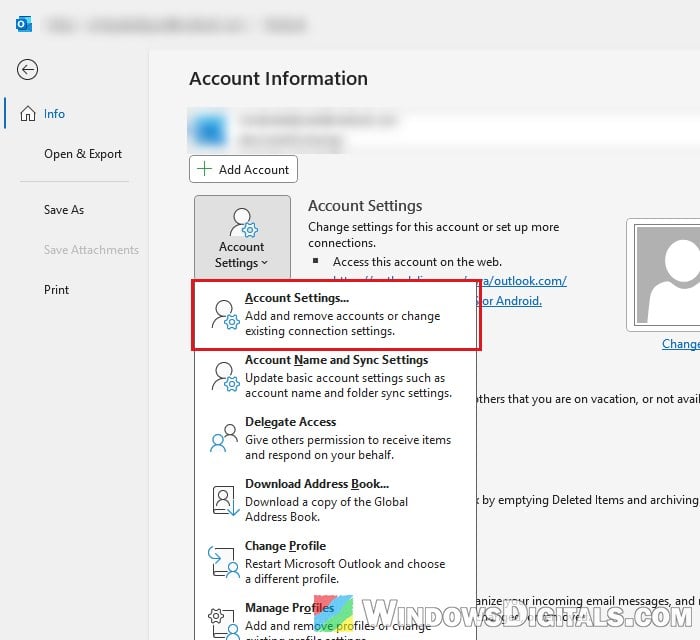
- Select Account Settings, then Account Settings again.
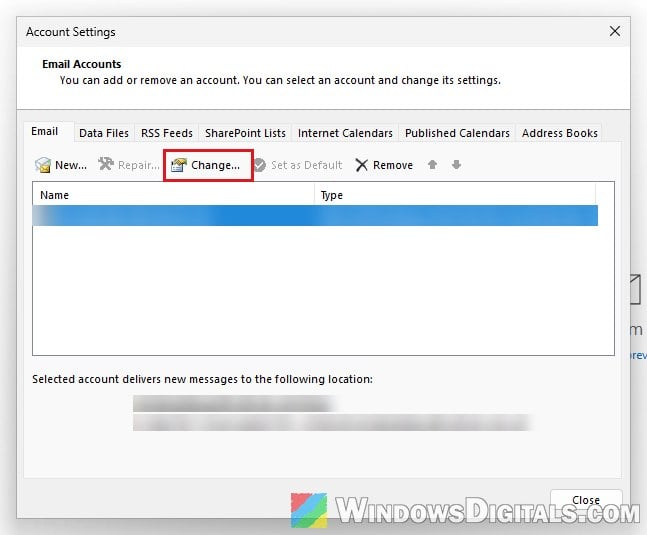
- On the Email tab, select your email account and click Change.
- Drag the “Download email for the past” slider all the way to the right, to All.
- Click Next, then Done, and close the Account Settings window.
- Restart Outlook.
Leave Outlook open and connected to the internet for a while afterwards, then scroll down your Inbox to check that the older emails are coming in. With a big mailbox, it can take some time to download years of email, and the data file on your PC will grow bigger.
Please note that on a work or school PC, your IT department may control this setting, so you may need to ask them to change it.
Just want to see an old email once?
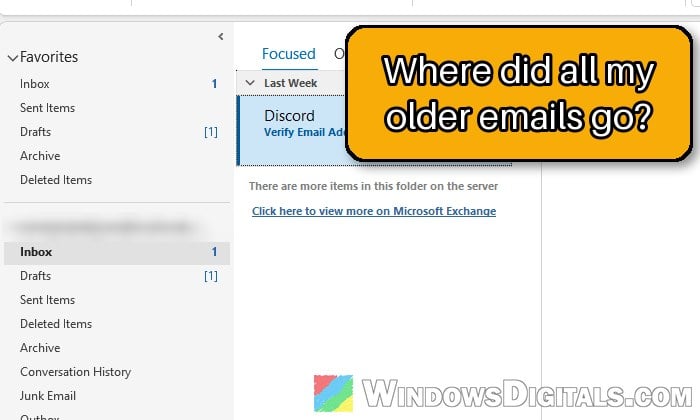
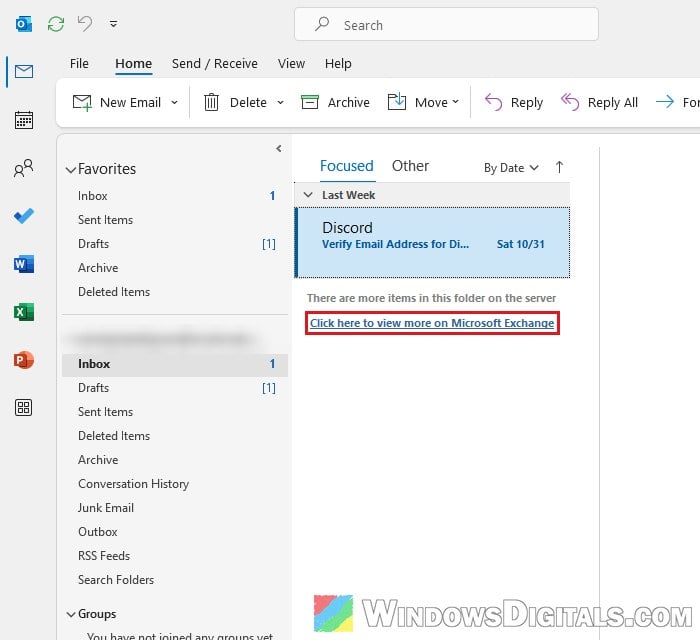
If you’d rather not download your whole mailbox, there’s a quicker way to reach older emails. Scroll to the bottom of the folder, where classic Outlook shows “There are more items in this folder on the server“, and click “Click here to view more on Microsoft Exchange“. Outlook then loads the older emails in that folder straight from the server.
The same goes for searching: when the results end with “Showing recent results…“, click More to include older emails from the server.
Import the data file from your old PC
If the older emails aren’t on the web either, they’re most likely in a .pst data file on your old computer. This is normal with POP accounts, which download the mail to the PC. Microsoft says you can move that file to a new computer and keep everything in it.
Note: This doesn’t work with the .ost files used by Outlook.com, Microsoft 365 and Exchange accounts. Those can’t be moved to another computer, but you don’t need them anyway, since that mail is kept on the server.
First, find the .pst file on the old PC. By default it’s in C:\Users\<your username>\Documents\Outlook Files. If it isn’t there, search File Explorer for *.pst. In classic Outlook on the old PC, you can also go to File > Account Settings > Account Settings and open the Data Files tab to see where each file is.
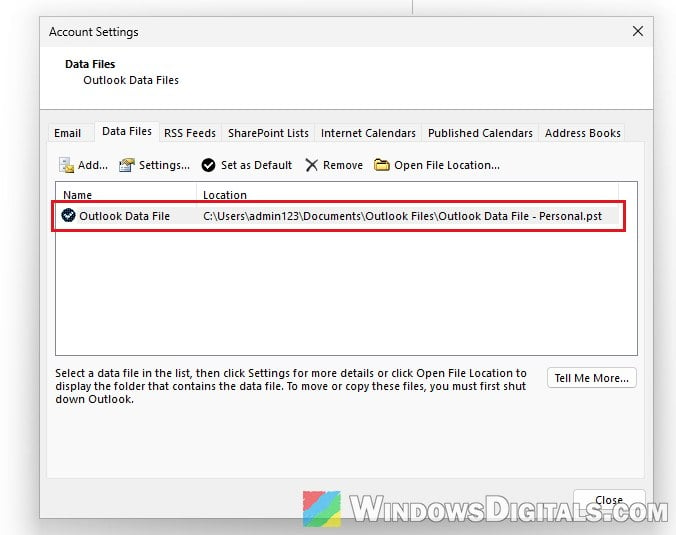
Before copying it, close Outlook on the old PC, since the file can’t be copied while Outlook is open. Then copy it to the new computer with a USB drive or OneDrive, and import it in classic Outlook:
- Click File, then Open & Export, and select Import/Export.
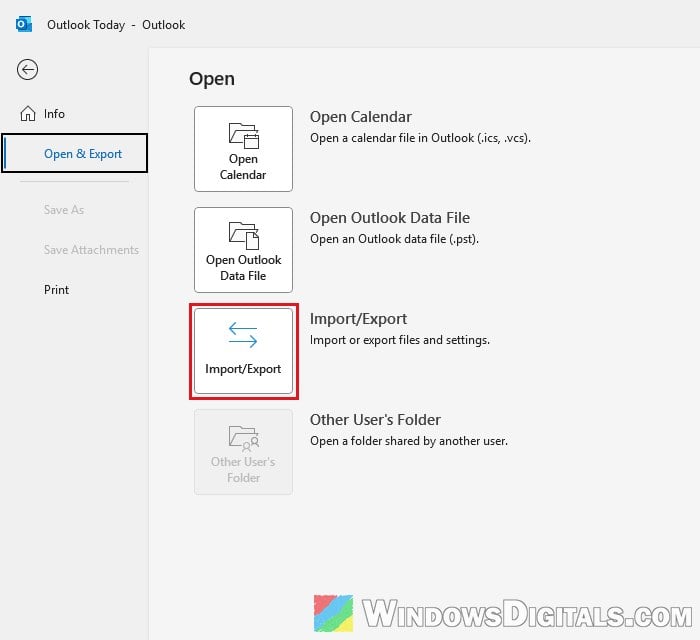
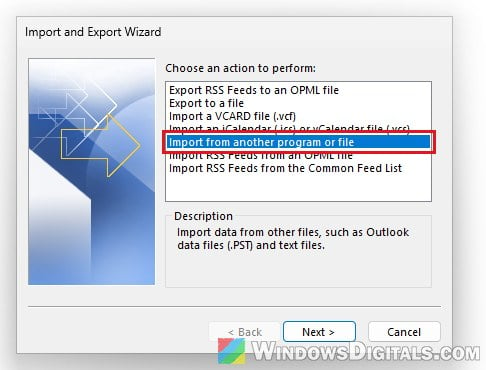
- Choose “Import from another program or file” and click Next.
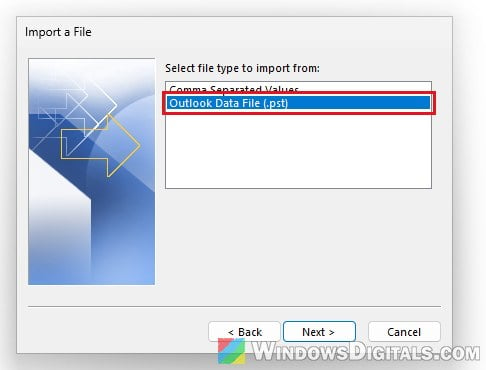
- Select “Outlook Data File (.pst)” and click Next.
- Click Browse, pick the .pst file you copied over, choose what to do with duplicates, and click Next.
- If the file has a password, enter it.
- Choose where to import the emails (your mailbox, or the folder you’re in), then click Finish.
Once the import finishes, your old folders and emails should show up in Outlook.
In the new Outlook, go to Settings > Data files > Import, select Get started under Outlook Data File (.pst), then Select file, and follow the steps. Be aware that the new Outlook can only open .pst files when classic Outlook is installed on the PC as well and you have a Microsoft 365 subscription. Without the subscription, do the import in classic Outlook instead.
Related concern: Recover Permanently Deleted Emails in Windows 11 Mail App
Using the new Outlook? Check these instead
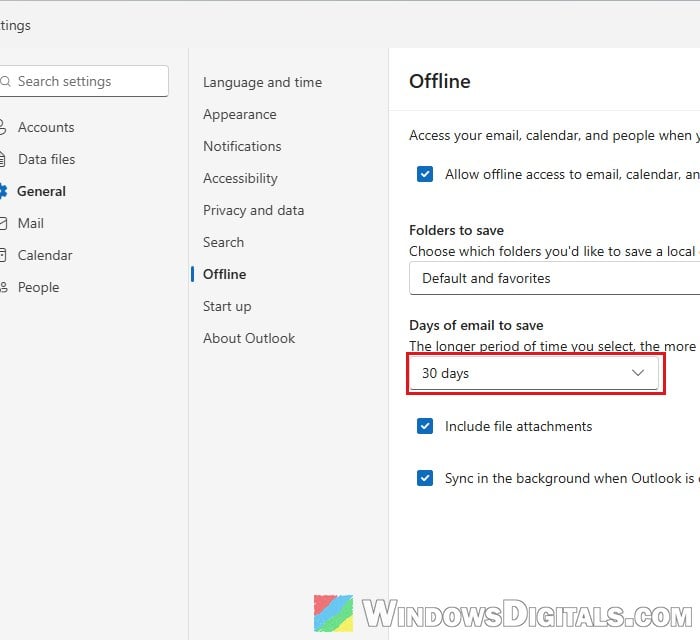
The new Outlook is what comes with Windows 11 now, so on a new PC there’s a good chance you’re using it. It also keeps only a limited amount of email on the PC, which you can see under Settings > General > Offline > Days of email to save. But that’s only for reading mail without an internet connection. When you’re online, older emails come straight from the server, so raising this number won’t bring missing emails back.
Linked issue: Classic Outlook Keeps Switching Back to the New Outlook, What to do?
If older emails don’t show up in the new Outlook while you’re online, it’s usually one of these:
- A filter is on. Click the Filter button above the message list and make sure it’s set to All.
- The email is in the Other tab. If your Inbox is split into Focused and Other, check the Other tab too.
- Search is only looking in one folder. When searching, set the scope next to the search box to All folders.
- A Gmail or Yahoo account is still syncing. The new Outlook copies these accounts through the Microsoft Cloud, so older emails can take a while to appear. Leave the app open and connected. If they never catch up, removing the account and adding it again can sometimes get the sync going.