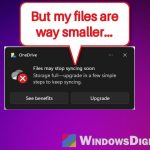
If OneDrive keeps pausing every time you open a game on your Windows 11 PC, and resuming it only works for a few seconds before it pauses again, even though you’ve already turned off the metered network and battery saver settings, this guide will show you what’s actually causing it and how to stop it.
Also see: OneDrive Not Syncing or Uploading Files in Windows 11 (Sync Paused)
Why does OneDrive keep pausing when a game is open?
Since around mid-October 2026, a lot of people have noticed OneDrive pausing itself whenever a game is running. Roblox, Steam games, World of Warcraft and even Microsoft Solitaire have all been named. Some see it as soon as they open Edge, Chrome or Firefox (it resumes when they minimize the browser), or right after Windows starts.
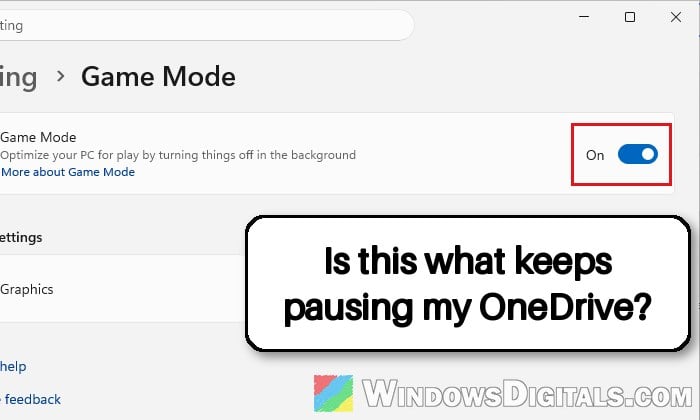
Microsoft hasn’t said anything about it yet, but users have found it’s tied to Game Mode in Windows. Turning Game Mode off stops the pausing, and turning it back on brings it right back. Here’s what seems to be going on:
- Game Mode kicks in by itself when Windows detects a game, and it holds back background work so the game gets more of your PC’s resources. With recent OneDrive builds, OneDrive syncing gets paused along with it.
- Windows can treat a normal app as a game. That’s why a browser or even the Settings app can set it off, not just real games.
- The usual fixes won’t help. Turning off the metered network and battery saver options, resetting, reinstalling or relinking OneDrive doesn’t stop it, because none of those are the cause here.
So the fix is either to turn Game Mode off, or to stop Windows treating the wrong app as a game.
Suggested read: How to Stop Game Saves and Mods Syncing to OneDrive on Windows 11
Turn off Game Mode in Windows 11
This is the fix that has worked for most people on Microsoft’s forums. With Game Mode off, Windows no longer holds back background apps while a game (or a browser it thinks is a game) is open, so OneDrive keeps syncing.
To turn off Game Mode, follow the steps below:
- Press Win + I to open Settings.
- Select Gaming on the left.
- Click Game Mode.
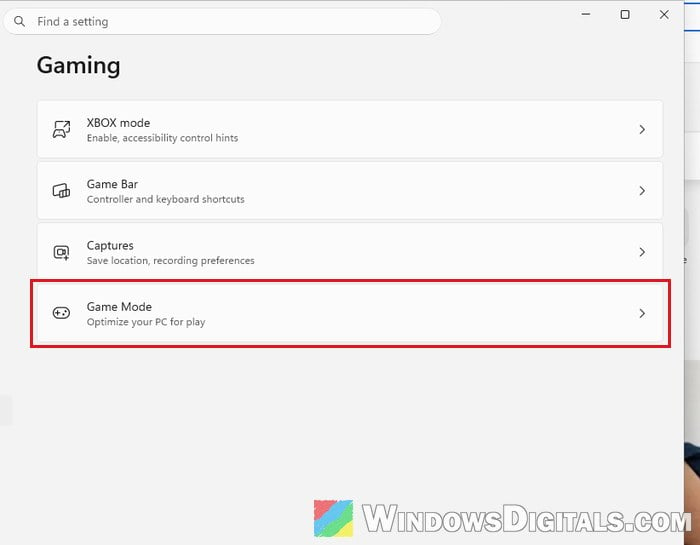
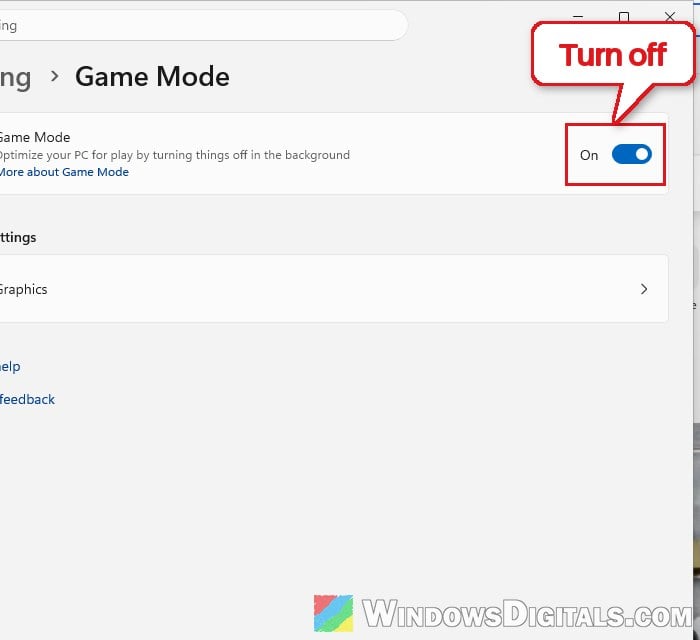
- Turn off the Game Mode toggle.
- Click the OneDrive cloud icon in the notification area of your taskbar.
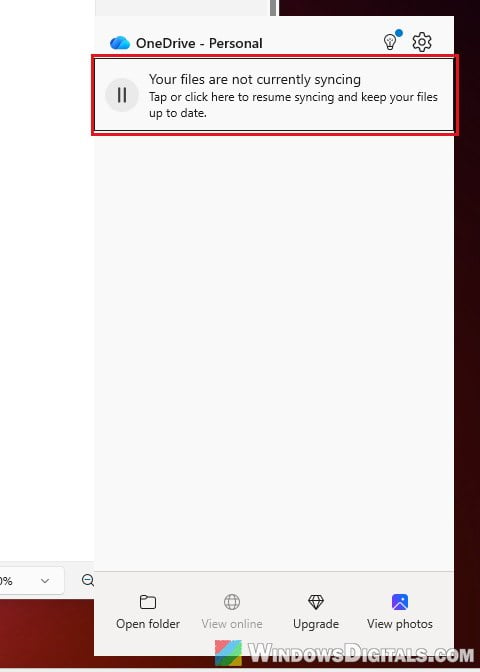
- If it still shows that syncing is paused, click the pause message at the top (or click the gear icon and select Resume syncing). OneDrive might not resume by itself after it gets paused this way.
Then open your game again and leave it running for a few minutes. The cloud icon should stay on syncing or up to date instead of paused.
Related guide: Disable Notifications and Enable Game Mode in Windows 11/10
Will turning off Game Mode make my games run worse?
It might, a little. Game Mode holds back background tasks, like Windows Update and its notifications, while you play, so with it off, those can run during a game too. If your game does feel less smooth afterwards, you can turn Game Mode back on later to see if a newer OneDrive update has fixed the pausing (more on that below).
Stop Windows treating your browser or app as a game
If OneDrive only pauses when a certain app that isn’t a game is open, like your browser, Windows has probably marked that app as a game. You can remove that mark from the Xbox Game Bar and keep Game Mode on for your real games. Here’s how to do it:
- Open the app that makes OneDrive pause, and keep it as the active window.
- Press Win + G to open the Xbox Game Bar.
- Click the gear icon on the bar at the top to open the Game Bar settings.
- Click More settings.
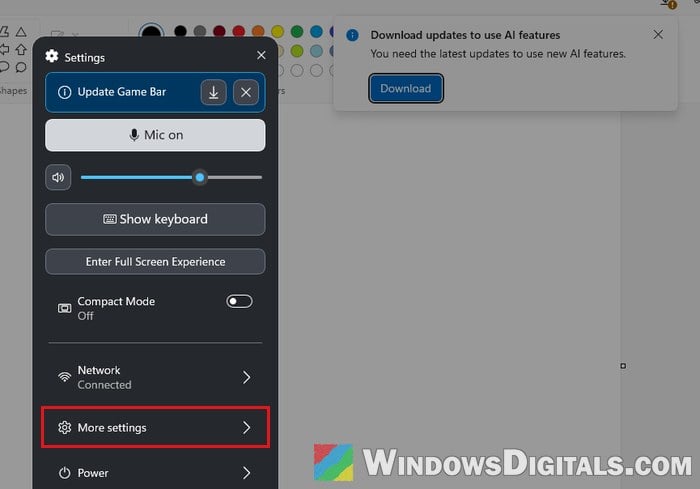
- Select General.
- Turn off “Remember this is a game“. The name of the app you’re changing is shown right under it.
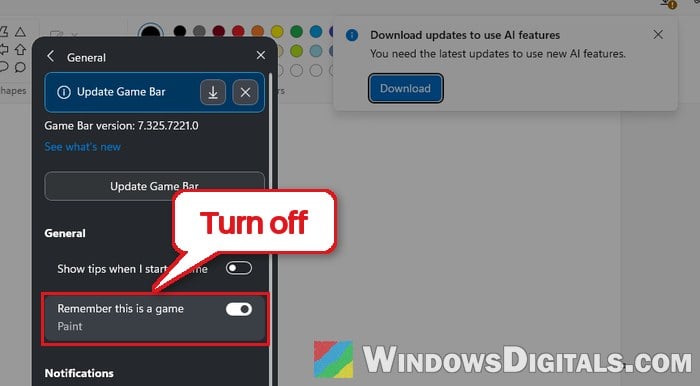
If OneDrive is still paused, resume it once from the cloud icon as shown above. Then open that app again and check that the OneDrive icon stays on syncing instead of paused.
If you don’t see the “Remember this is a game” option at all, the Game Bar already recognizes the app as a game, so you can’t change it here. That’s usually the case with real games, so for those you’ll still need to turn off Game Mode as shown above.
Might be useful: How to Remove Xbox Game Bar From Windows 11
Check your OneDrive version and wait for a fix
The pausing started for most people in mid to late October 2026, and when users name a OneDrive build, it’s usually one ending in .0007 (such as 26.189.0928.0007 and 26.195.1006.0007), although Microsoft’s release notes don’t mention anything about it. Since OneDrive updates itself, a later build might fix it without you doing anything.
To see which version you have:
- Click the OneDrive cloud icon in the notification area, then go to the gear icon > Settings.
- Select About on the left. Your version is shown next to OneDrive version.
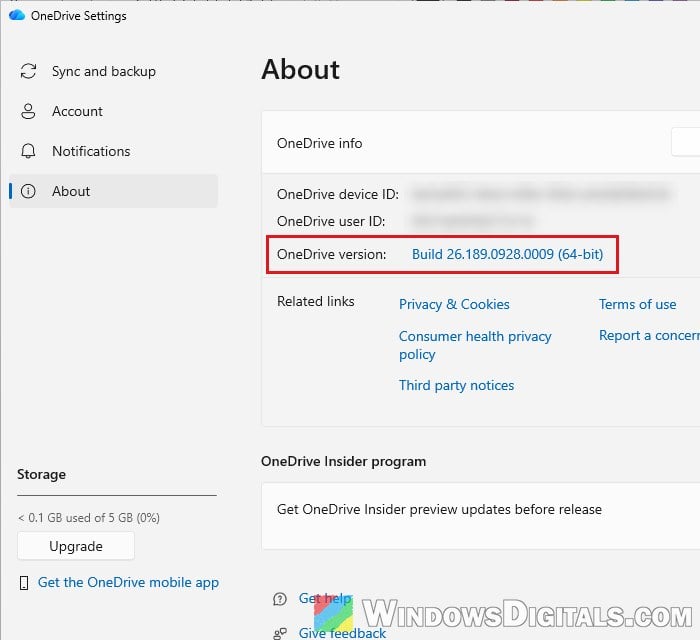
If you’re on one of those builds, keep Game Mode off for now. Every once in a while, turn it back on and run a game for a few minutes. If OneDrive no longer pauses, the bug has been fixed and you can leave Game Mode on.