If the Photos app window drifts slowly behind your mouse when you drag it by the title bar, moving at about half the speed in a curve with a second cursor stuck to it, even though every other window moves normally, this guide explains what’s going on and what you can do about it for now.
Also see: Window stutters when moved around (Windows 11)
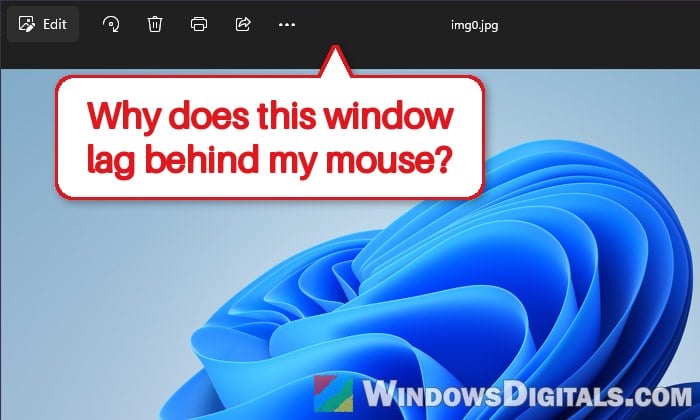
Why does only the Photos window lag when you drag it?
This problem started out of nowhere around the last week of October 2026. Many people on Reddit reported it within days of each other, mostly on Windows 10, with NVIDIA and AMD graphics, and some of them with two monitors. The window keeps gliding after you stop moving the mouse until it finally catches up, a bit like it has inertia.
Because it hit so many PCs at the same time, and only the Photos app, the most likely reason is a recent update to the Photos app itself. Photos is updated through the Microsoft Store on both Windows 10 and 11 (even on Windows 10 PCs that no longer get Windows updates), so Windows 11 PCs can get it too. Opening the same pictures in Paint, for example, doesn’t show the problem. Microsoft hasn’t said anything about it yet, though, so this is still only the likely explanation.
Before you spend time on the usual fixes, you should know what people have already tried without any luck:
- Repair and Reset for Photos in Settings
- Reinstalling the Photos app with PowerShell
- Updating the graphics driver
- Plugging the mouse into another USB port
None of these made a difference, and Event Viewer doesn’t show any error either. So until Microsoft fixes the app, the sections below are workarounds rather than a real fix.
Linked issue: Windows 11/10 Photos App Not Working or Crashing (Fix)
Check the Microsoft Store for a Photos update
When Microsoft fixes a bug like this, the fix will come as an update to the Photos app in the Microsoft Store, not through Windows Update. It’s worth checking now and then. Here’s how:
- Open the Microsoft Store.
- Click the Downloads icon (a cloud with a down arrow) at the bottom left, just above Library.
- Click Check for updates at the top right.
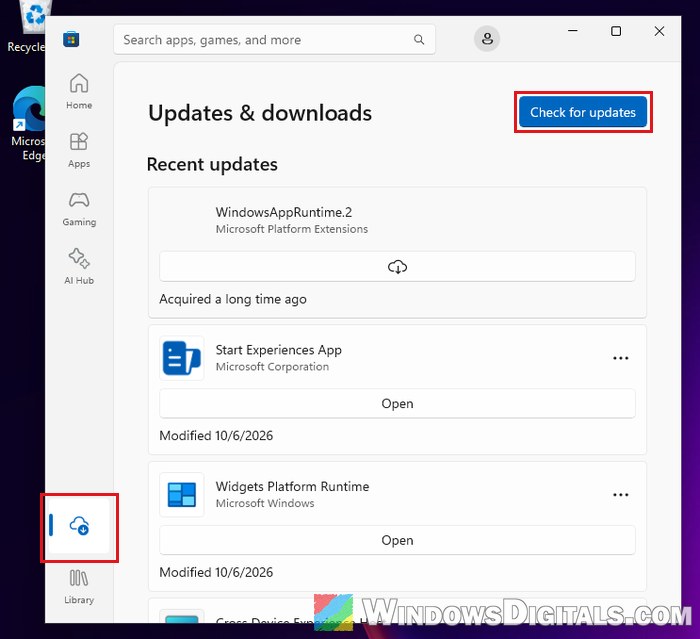
- If Photos is in the list, let it update, or click Update all.
After the update, close Photos completely, open a picture again and try dragging the window. If it still trails behind, try the workarounds below.
Move the Photos window with the keyboard instead
If you mostly drag the Photos window to put it on your other monitor or to one side of the screen, the keyboard can do that without a drag at all. Click the Photos window once so it’s active, then use these shortcuts:
- Win + Shift +
Left arroworRight arrow: move the window to the monitor on the left or right. - Win +
Left arroworRight arrow: snap the window to the left or right side of the screen. - Win +
Up arrow: maximize the window.
These are built-in Windows shortcuts, so they work the same on Windows 11 and 10. The window jumps straight to its new spot instead of being dragged there. Try moving Photos to your other monitor this way and check that it lands without any drift.
Might be useful: Resolution Changes When Moving Window to 2nd Monitor
Turn off “Show window contents while dragging”
Windows normally moves the whole window along with your mouse while you drag it. One setting changes this, so only an outline of the window follows your mouse and the window jumps to the new spot when you let go. When we tried it with the current Photos app, that’s exactly what happened, so the window has nothing to trail behind.
It isn’t a confirmed fix for this bug, and it applies to every window, not just Photos, but it’s quick to try and easy to undo. To turn it off, follow the steps below:
- Press Win + R to open the Run dialog box.
- Type
SystemPropertiesPerformanceand press Enter. - On the Visual Effects tab, uncheck “Show window contents while dragging“.
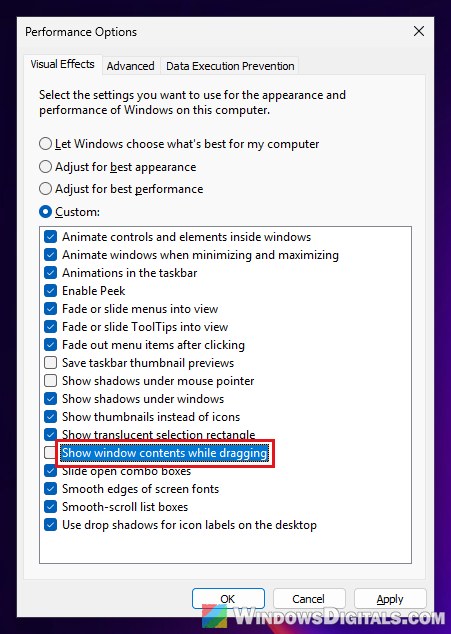
- Click OK.
Now drag the Photos window again. You should see an outline move with your mouse instead of the window.
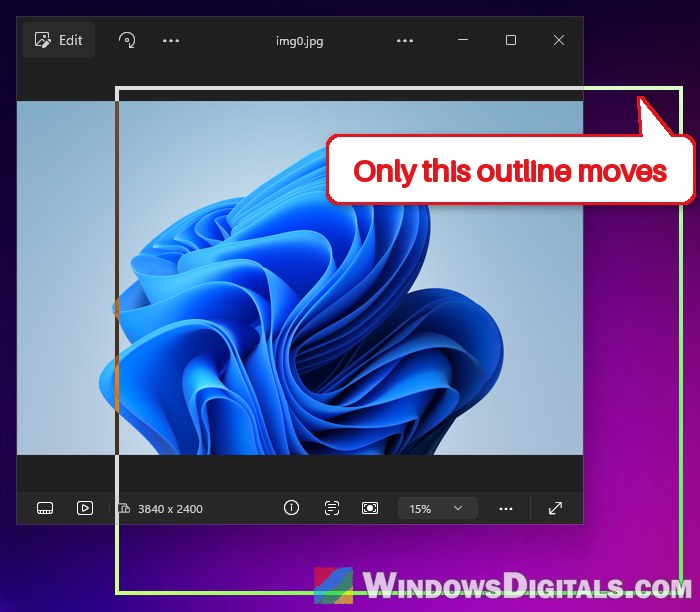
If you don’t like the outline or want the usual dragging back, go back to the same tab and check “Show window contents while dragging” again.
Open your pictures in another app for now
If none of the above helps and the drift really bothers you, the simplest way around it is to view your pictures in another app. Paint doesn’t have the lag, and some people have switched to another viewer like ImageGlass instead. For a few good free options, see 3 Free Photo Viewer Apps for Windows 11/10.
You can send a picture to another app straight from Photos. With a picture open in Photos, click the three-dot (Open with) button at the top right, next to the minimize button, then click Choose another app and pick another app for that picture.
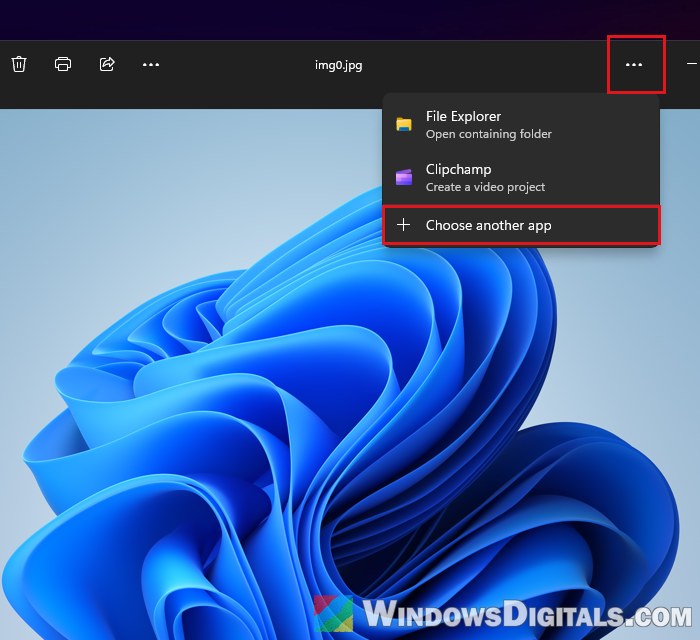
You can also right-click a picture in File Explorer, choose Open with and pick another app. If you’d rather have pictures open in another viewer every time, change the default app for those file types, and switch it back to Photos once the fix arrives.