If you’re using classic Outlook on Windows 11 or 10 with a regular POP or IMAP email account (not a Microsoft 365 or Exchange work account), and you want to add a name and email address to the address book on your PC rather than to some cloud contact list, it’s not that obvious where to do it. This guide will show you the different ways to add a contact in classic Outlook, and what to check if the contact still doesn’t show up in the address book.
Also see: Classic Outlook Keeps Switching Back to the New Outlook, What to do?
Where does classic Outlook keep your address book?
Classic Outlook doesn’t have a separate “address book file” for you to edit. The names you see when you open the address book come from the Contacts folder in your Outlook data file, the same folder you see under People. So adding someone to the address book really just means saving a contact into that folder.
With a POP account, that folder sits in your .pst data file. With an IMAP account, Outlook keeps contacts, calendar and tasks in folders marked “(This computer only)“. That’s because POP and IMAP only sync email, so these contacts stay on that one PC and aren’t backed up anywhere else. If you use POP, keep a copy of your .pst file before you reinstall Windows or switch PCs. If you use IMAP, you need to export your contacts to a .pst file first, or they won’t come with you.
Suggested read: Deleting or Hiding Default Folders in Outlook
How to add a contact in classic Outlook
There are three ways to do this, and they all save the contact in the same Contacts folder. Pick whichever is easiest for you.
Create a new contact from People
If you’re adding someone new by hand, this is the way to go. Here’s how to do it:
- Click the People icon in the navigation bar on the left side of Outlook.
- Under My Contacts, select the Contacts folder of your Outlook data file.
- Click New Contact on the Home tab.
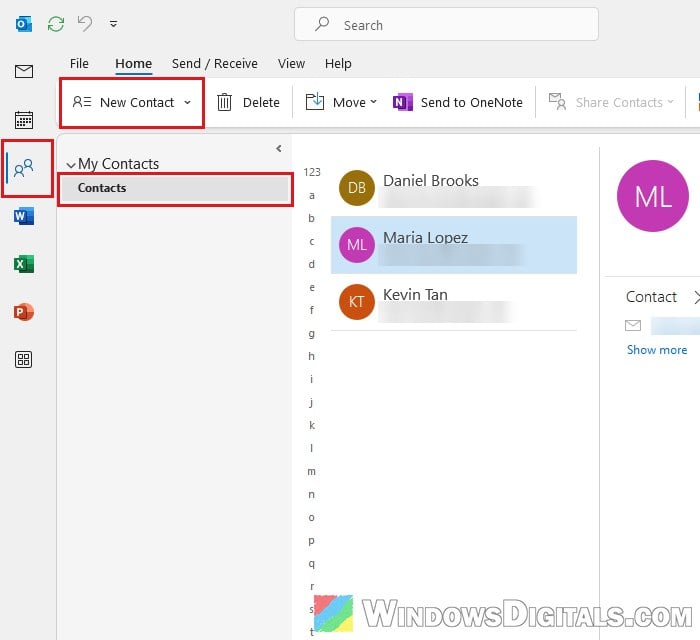
- Type the person’s name in Full Name and their email address in Email. You can also fill in a phone number, company or anything else you want to keep.
- Click Save & Close. If you want to add another person right after, click Save & New instead.
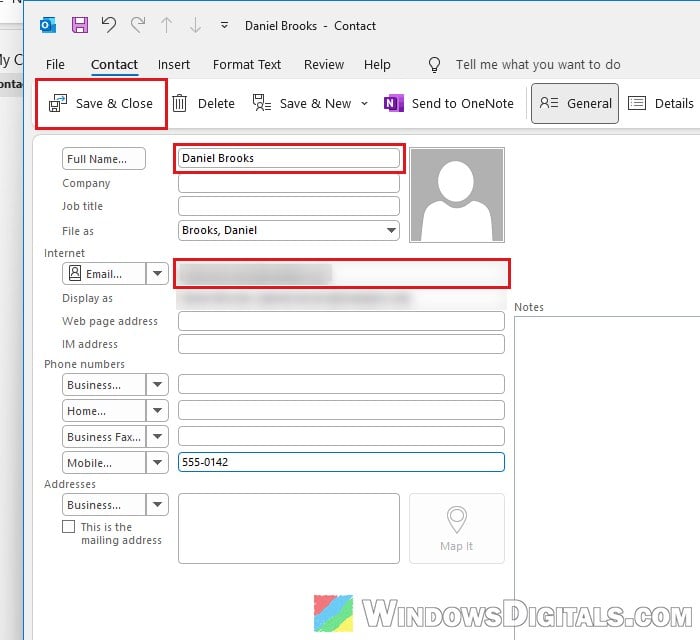
The contact now shows up in your People list, and also in the address book when you write an email.
Pro tip: How to Move Outlook Navigation Pane to Bottom (From Left)
Add the sender of an email you received
If the person has already emailed you, you don’t need to type anything. Outlook can copy their name and address straight from the message. Follow the steps below:
- Open the email you got from that person.
- Right-click the person’s name on the From line (or on the To or Cc line).
- Select Add to Outlook Contacts.
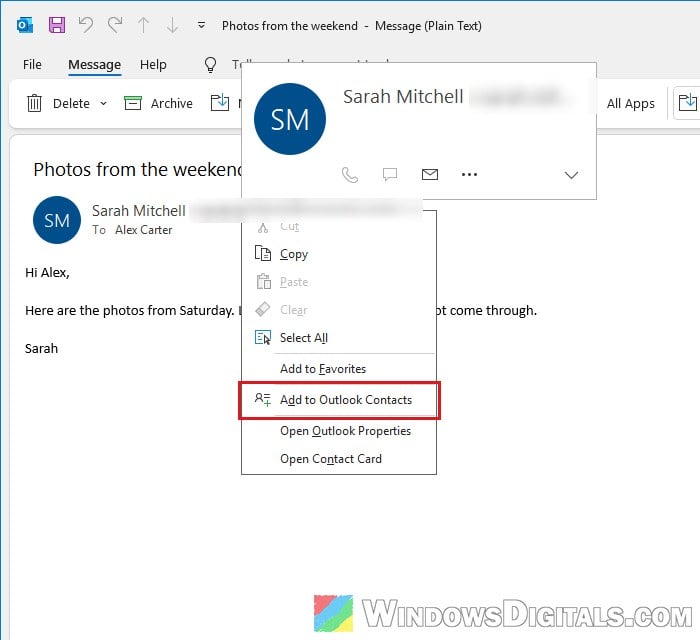
- A contact window opens with the name and email already filled in. Add anything else you want, then click Save & Close.
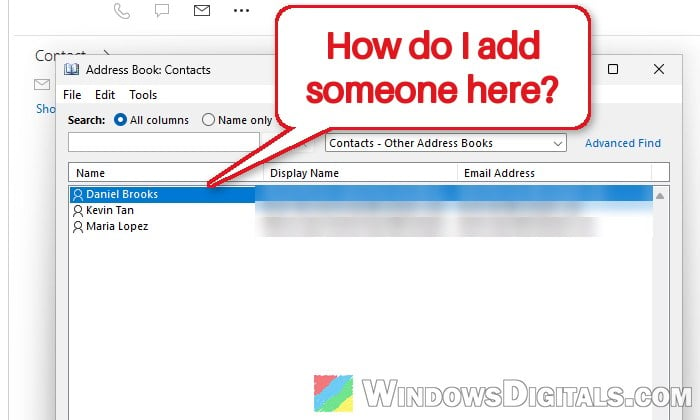
Add a new entry from the Address Book window
You can also add someone while you have the address book open. Here’s how:
- On the Home tab, click Address Book. With the simplified ribbon, it’s the small book icon next to the Search People box; with the classic ribbon, it’s in the Find group.
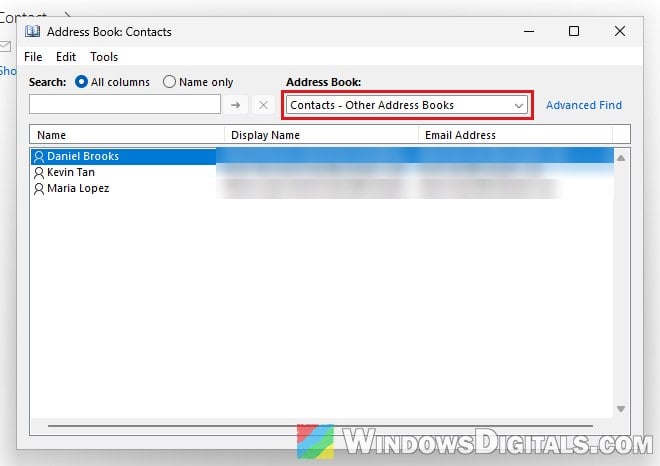
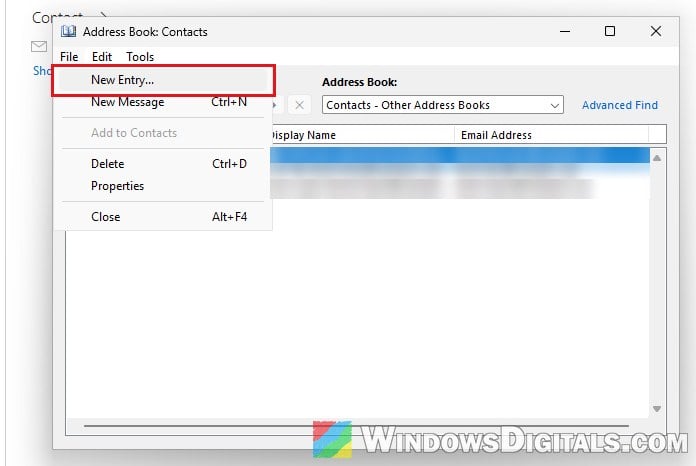
- In the Address Book window, click File > New Entry.
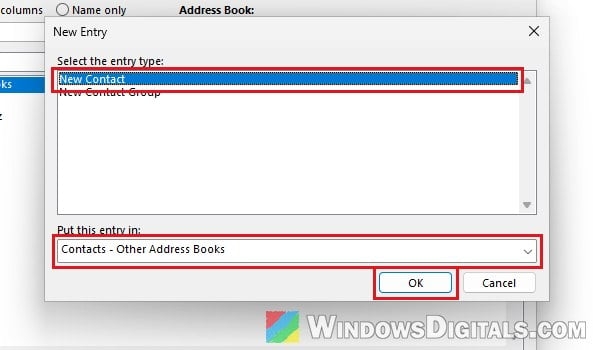
- Select New Contact, make sure Put this entry in is set to your Contacts folder (it can show as Contacts – Other Address Books), and click OK.
- Fill in the name and email in the contact window that opens, then click Save & Close.
What if the contact doesn’t show up in the address book?
If you can see your contacts under People but the address book is empty (or the Contacts list isn’t there at all), the Contacts folder is probably not set to show as an address book. It’s just one checkbox in the folder’s properties, and it’s a common reason the address book seems to have vanished. Here’s how to turn it on:
- Go to People, then right-click your Contacts folder under My Contacts and select Properties.
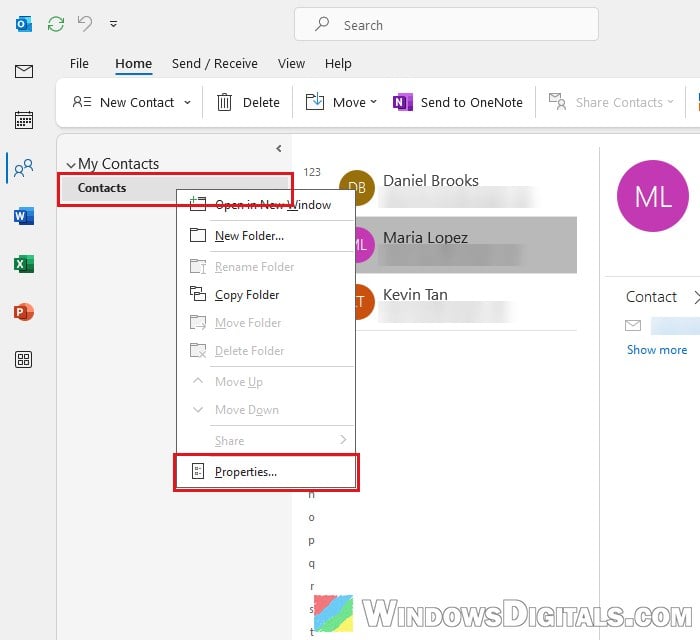
- Go to the Outlook Address Book tab.
- Tick “Show this folder as an email Address Book” and click OK.
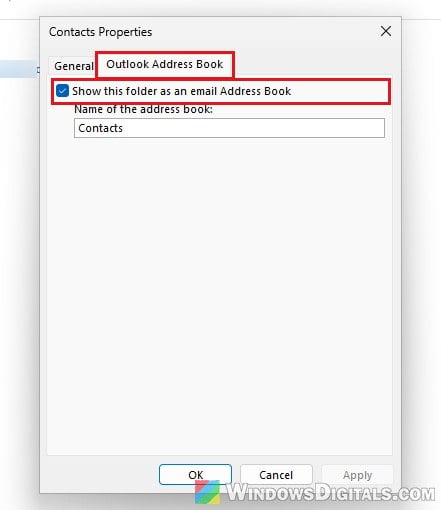
The same applies to any extra contacts folder you create. Only folders with this box ticked appear in the Address Book drop-down.
Make the address book open on your contacts
If the address book opens on another list (like Outlook Address Book) and you have to switch to Contacts every time, you can tell Outlook which list to show first:
- Open the Address Book from the Home tab.
- Click Tools > Options.
- Under “When opening the address book, show this address list first“, choose Contacts, then click OK.
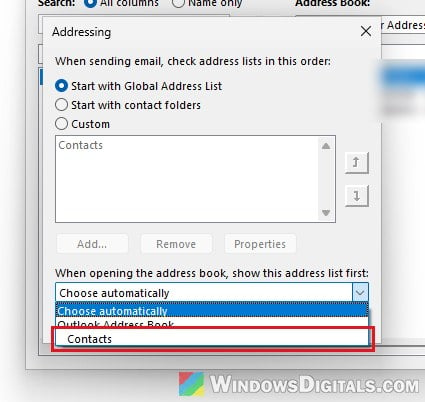
If the Outlook Address Book itself is missing
Sometimes the Outlook Address Book is gone from your profile altogether, so there’s no Contacts list to pick at all. According to Microsoft, you can add an address book back from File > Account Settings > Account Settings > Address Books tab > New, then choose Additional Address Books and follow the prompts. Exit and restart classic Outlook afterwards so it picks up the change.
Pick a saved contact when writing an email
Once the contact is saved, here’s how to pick it from the address book when you write an email:
- Click New Email.
- Click the To button next to the recipient box.
- Make sure Address Book is set to your Contacts, double-click the person’s name so it’s added to To, then click OK.
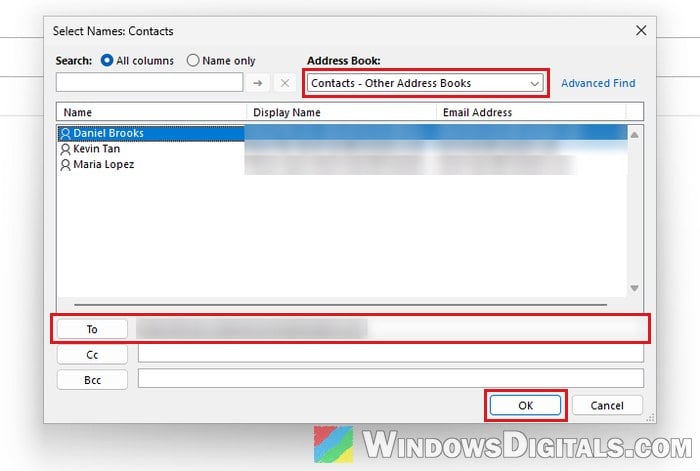
The name now shows in the To box of your email, and Outlook sends it to the address saved in the contact.