If you’ve updated Cyberpunk 2077 to version 2.5 and now the game opens to a black screen, freezes, and crashes back to the desktop a couple of minutes later on your AMD Radeon card, it’s a fairly common problem since the update. This guide will explain what seems to be causing it and show you what you can do about it.
Also see: AMD Driver Timeout Freezes the Screen but Audio Keeps Playing
Why does Cyberpunk 2077 launch to a black screen on AMD?
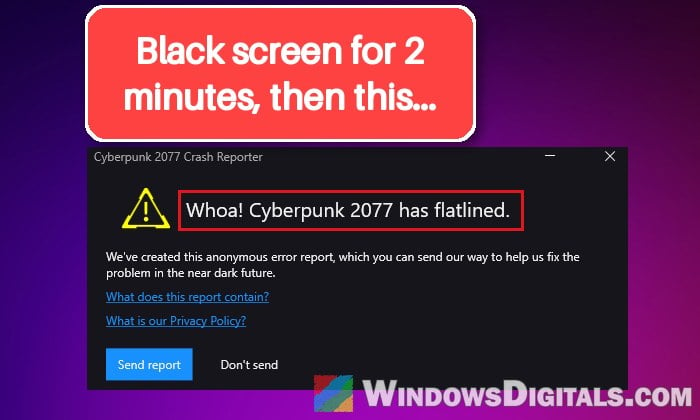
CD Projekt Red released update 2.5 on October 22, 2026, and many people also installed AMD Adrenalin 26.10.1 the same day (the game now asks for a newer driver). Since then, owners of cards like the RX 9060 XT, RX 9070 XT and RX 6700 XT get a black screen where the menu should be, sometimes a sluggish mouse cursor, and then a freeze.
After about two minutes, the game crashes to the desktop, sometimes with crash windows from both AMD Software and CD Projekt Red. The game’s crash log shows a watchdog timeout of 120 seconds, which means it gave up after hanging that long. Reliability Monitor may also list LiveKernelEvent 1b8 or 193 errors.
Neither CD Projekt Red nor AMD has explained the black screen yet, but the reports point at three things:
- HDR: the game’s HDR settings after 2.5. Turning HDR off is the fix reported most often.
- Frame generation: some players only crash with frame generation on. AMD also lists a separate known crash in Cyberpunk 2077 on some RX 9000 cards with frame generation on.
- The driver itself: going back to the driver from before 26.10.1 fixed it for several users.
So start with HDR.
Turn off HDR, then start the game
With HDR switched off, the game starts in normal (SDR) mode, and for many players that’s enough to get rid of the black screen.
To turn off HDR in Windows 11:
- Open Settings and go to System > Display.
- Under “Brightness & color“, select “HDR“.
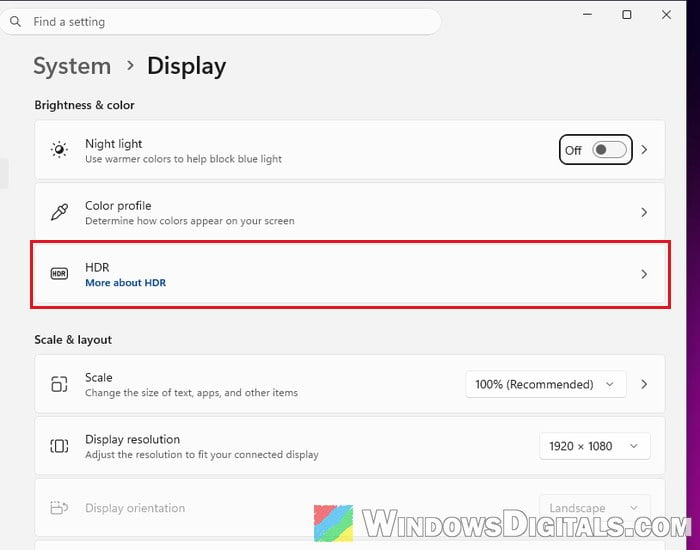
- Switch “Use HDR” off. You can also press Win + Alt + B to turn HDR on or off.
- Launch Cyberpunk 2077 again.
If the game now reaches the menu, leave HDR off in its own settings as well.
Reset the game’s settings file
If turning off Windows HDR isn’t enough, reset the game’s own settings. Cyberpunk 2077 keeps your in-game settings in a file called UserSettings.json. When you rename or delete it, the game makes a new one with default settings, which also turns off frame generation.
Here’s how to do it:
- Close the game completely.
- Press Win + R to open the Run dialog box.
- Type
%LOCALAPPDATA%\CD Projekt Red\Cyberpunk 2077and press Enter.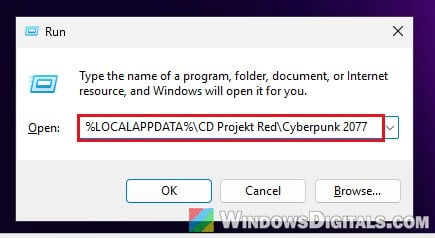
- Rename
UserSettings.jsonto something likeUserSettings.old(or delete it if you don’t mind setting everything again). - Start the game.
If it loads now, set your options again one at a time, and leave HDR for last. If the black screen comes back when HDR goes on, play with HDR off for now.
Fix the HDR brightness value
There’s a second file for HDR, HDRUserSettings.json. If the picture is pitch black or much too dark with HDR on, its maxBrightness value may be set to 0, which tells the game your screen has no brightness at all.
Here’s how to check it:
- Close the game.
- Press Win + R, type
%USERPROFILE%\Saved Games\CD Projekt Red\Cyberpunk 2077and press Enter. - Make a copy of
HDRUserSettings.jsonsomewhere safe. - Open the file in Notepad and find the
maxBrightnessline. - If it says 0, change it to your monitor’s peak brightness in nits (or just a positive value).
- Save the file and launch the game, then set HDR properly in the game’s own settings.
Deleting the file also works, and the game’s own HDR settings have an option to restore the defaults.
Turn off frame generation
Frame generation is the next thing to rule out, since some players only get the black screen and crash with it on. AMD has listed an intermittent crash or driver timeout in Cyberpunk 2077 as a known issue in both Adrenalin 26.10.1 and 26.10.2. It happens on some RX 9000 series cards when FSR Upscaling, Radeon Anti-Lag and in-game frame generation are enabled together during video playback on a second display, so it’s not quite the same as the black screen at launch. AMD’s own workaround is to turn off frame generation in the game.
If the game reaches the menu, open its settings and turn off frame generation. If it doesn’t get that far, the settings reset above already turned it off, so leave it off.
Linked issue: Steam Crashing on Launch with an AMD Radeon Graphics Card
Update to Adrenalin 26.10.2 or clean install the driver
AMD released Adrenalin 26.10.2 as an optional driver on October 30, 2026. It fixes several crashes and driver timeouts, including crashes when switching apps with FSR Frame Generation on RX 9000 cards. It doesn’t list the Cyberpunk black screen as fixed, but if you’re on 26.10.1, it’s the first driver change to try.
Do a clean install rather than installing over the old driver. CD Projekt Red’s own support pages recommend the latest graphics driver and a clean install for crashes on launch.
Here’s how to do it:
- Go to
https://www.amd.com/en/support/download/drivers.htmland find the driver for your graphics card.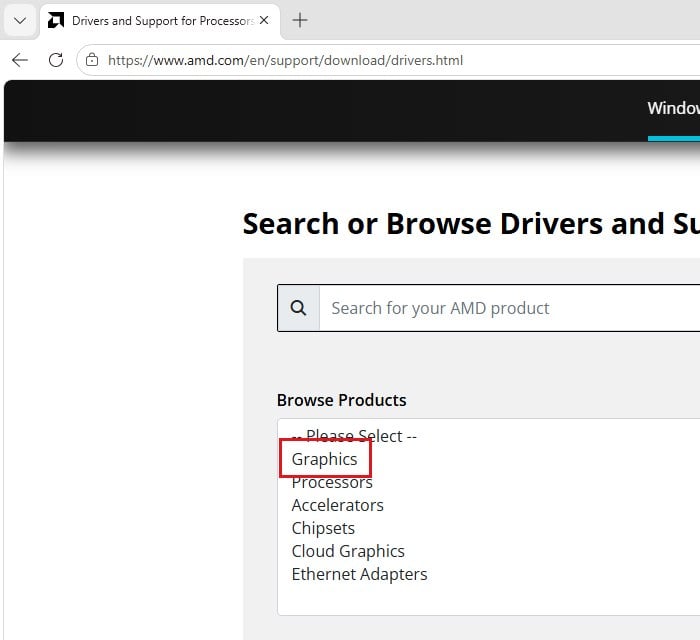
- Download and run the installer.
- When the installer gives you the option, choose “Factory Reset” to wipe the current driver and its settings before installing.
- Restart your PC and try the game again.
For a deeper clean, you can also remove the driver with Display Driver Uninstaller (DDU) in Safe Mode first, then install the new one.
Please note that if you’re playing on a laptop with only integrated Radeon graphics, AMD’s 26.10.1 driver may not be offered for your chip at all. Laptops like these usually need the laptop maker’s own drivers, so check its support page instead.
Pro tip: How to Update Graphics Driver in Windows 11
Roll back to the AMD driver you had before 26.10.1
If the black screen started right after updating to 26.10.1, going back to your older driver can fix it. Update 2.5 has run normally on 26.8.1 and 26.6.1, and 26.9.2 is a common choice for 26.10.1 crashes in general. It doesn’t work for everyone, though.
To roll back, download the older version from AMD’s website, then remove the current driver (with DDU in Safe Mode, or the installer’s Factory Reset option) and install the older one. Do it with your PC disconnected from the internet, so Windows Update doesn’t sneak a different AMD driver in.
When you start the game afterwards, it may tell you to update your graphics driver. Some players could just close that message and keep playing on the older driver.
Related concern: AMD Software Warning: Graphics Driver Replaced?
Other things to check
These are the usual checks for a game that won’t start:
- Verify the game files. In Steam, right-click the game, select “Properties“, go to “Installed Files” and click “Verify integrity of game files“. GOG Galaxy and the Epic Games Launcher have their own verify option.
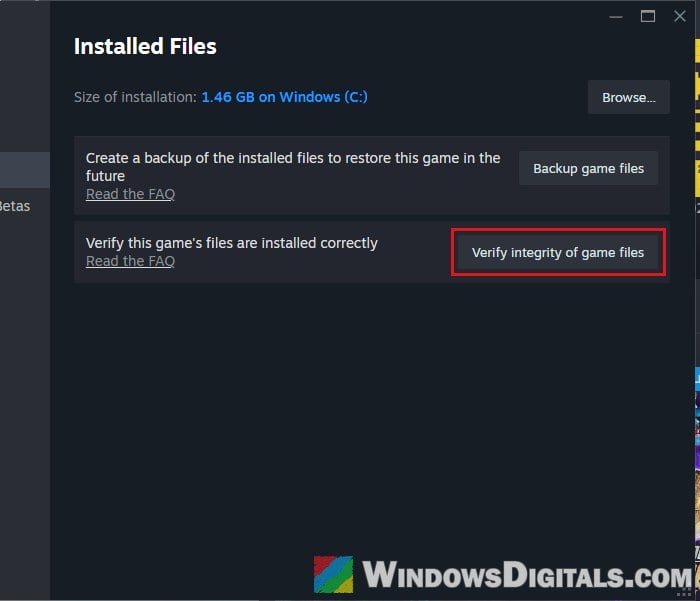
- Remove your mods. Update 2.5 broke many older mods, so take them out before testing.
- Close overlays, such as Discord’s, while you test.
If none of this helps, a game hotfix or a newer AMD driver is the most likely way out, so keep both up to date.