If your monitor suddenly goes black in the middle of a game and your graphics card’s fans spin up to 100% while the PC keeps running (you can still hear the game or Discord) until you force a restart, it’s a common problem with RTX 5070 Ti and 5080 cards. This guide will show you what’s usually behind it and how to fix it on Windows 11 or 10.
Also see: LiveKernelEvent 141 or VIDEO_TDR_FAILURE Crashes on NVIDIA GPU
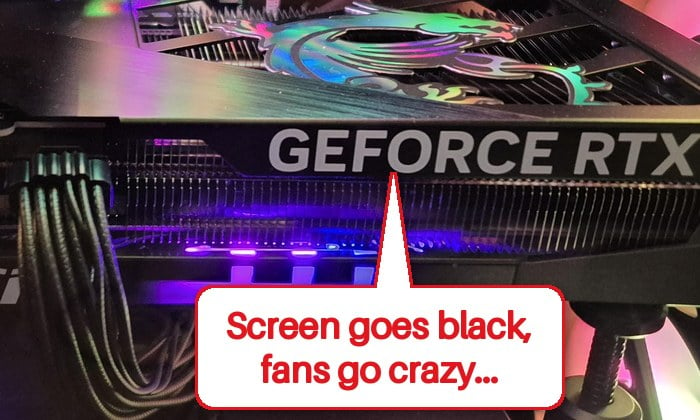
Why does the screen go black with the fans at 100%?
It’s the graphics card itself that stops working, not the whole PC. Windows keeps running, which is why the sound goes on, and if you have a second monitor plugged into the motherboard, it can keep working. Unlike short black screens where the driver recovers, the card doesn’t come back on its own. Reliability Monitor often shows a “Hardware error” with LiveKernelEvent 141 or 1b8 from that moment.
There isn’t one single cause, but these are the most common ones:
- The 12V-2×6 (12VHPWR) power cable isn’t plugged in all the way, or the cable itself is failing.
- A driver version that doesn’t get along with your setup.
- Short power spikes from the card that the power supply can’t handle.
- The card’s slot running at PCIe Gen 5, which some boards don’t handle well with RTX 50 cards.
- A heavy card sagging in its slot.
- A faulty graphics card.
RTX 30 and 40 cards can do this as well, and apart from the PCIe Gen 5 fix, the steps below apply to them too. Start with the power cable.
Linked issue: nvlddmkm Event ID 153 After NVIDIA Driver 621.01, What to do?
Push the power cable all the way in (or replace it)
This is the fix that has worked for most people on Reddit. The RTX 5070 Ti and 5080 cards that come up in these reports take their power through a 12V-2×6 connector (or the older 12VHPWR one). Besides the main power pins, it has a few small sense pins, and a plug that sits even slightly loose can make the card lose power for a moment. That can be enough to black out the screen while the fans spin up.
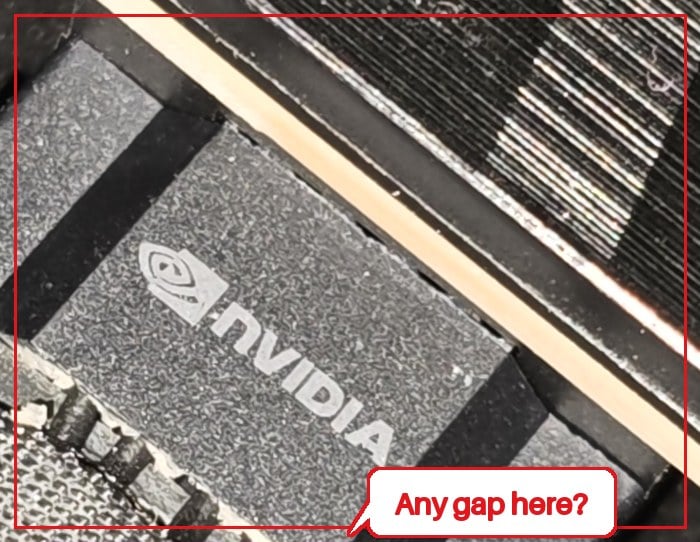
Here’s what you should check, with the PC turned off and unplugged from the wall:
- Push the power plug firmly into the graphics card until there’s no gap and the latch clicks in.
- Do the same on the power supply end, where a plug that barely clicked in can cause it too.
- If your card uses 8-pin plugs instead, use a separate cable from the power supply for each one, not one cable with a second plug hanging off it.
If the black screens keep coming back, try another cable, ideally the native one that came with your power supply rather than an adapter. A new cable has fixed it for several people.
Might be useful: GPU 100% Usage When Idle or Gaming (Good or Bad)
Clean install an older NVIDIA driver
If it started after a driver update, the driver might be the trigger. Wiping the driver completely and installing an older version that was stable before has stopped the black screens on several PCs.
If you’re on driver 621.01, update to the 621.12 hotfix or newer first. NVIDIA confirmed that 621.01 can make video freeze or go black on some RTX 50 cards, and 621.12 fixes that.
To do a clean install of another driver:
- Go to NVIDIA’s driver page,
https://www.nvidia.com/en-us/geforce/drivers/. Under Manual Driver Search, choose your card and Windows version, click Find, and download the driver you want to use before you start.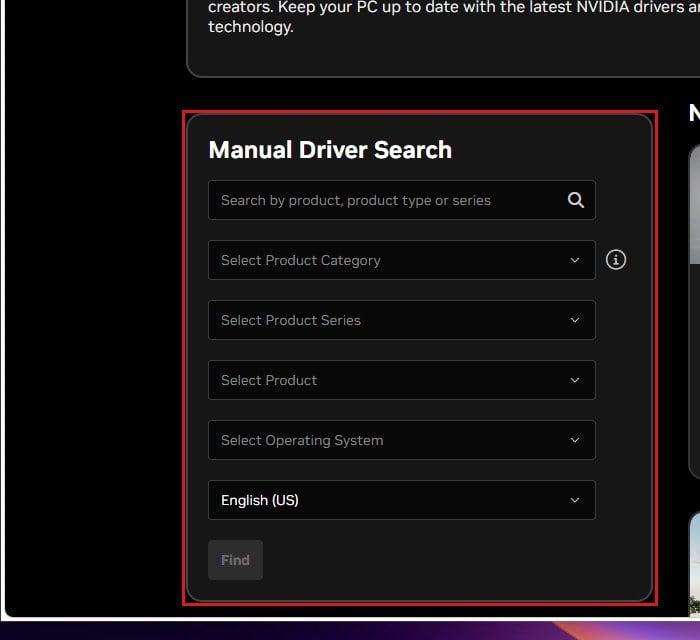
- Download Display Driver Uninstaller (DDU) from its maker’s page,
https://www.wagnardsoft.com/display-driver-uninstaller-DDU-. - Disconnect from the internet, so Windows Update doesn’t install its own driver.
- Restart into Safe Mode, which DDU recommends.
- Run Display Driver Uninstaller, choose GPU as the device type and NVIDIA as the device, and click “Clean and restart (Highly recommended)“.
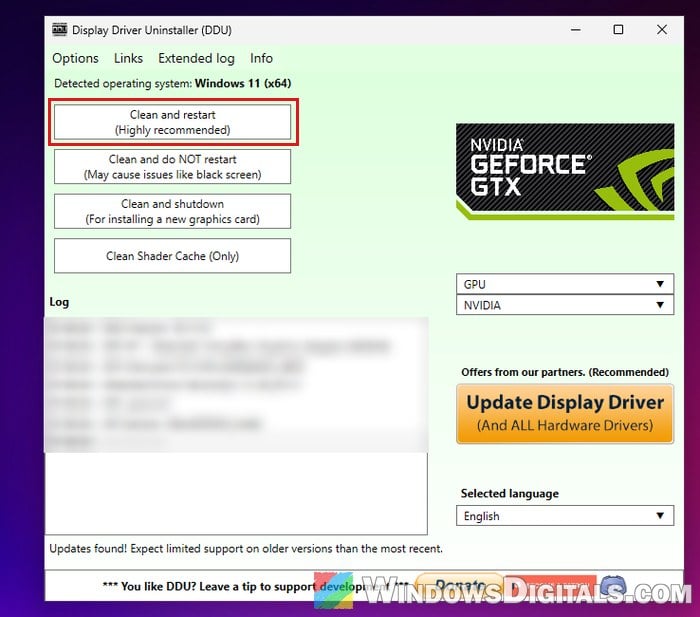
- After the restart, run the NVIDIA installer you downloaded, choose Custom (Advanced) and tick “Perform a clean installation“.
- Reconnect to the internet.
Then play the game that used to crash for a while and see if the screen stays on. Please note that this doesn’t stop it for everyone. If it comes back on a driver that used to be fine, the cause is most likely somewhere else.
Related guide: How to Update Graphics Driver in Windows 11
Lower the card’s power target
Graphics cards pull short spikes of power under load. If your power supply or cable can’t keep up, the card drops out. Letting the card use less power makes those spikes smaller. A lower power limit or a mild undervolt has stopped it on some RTX 5080s, one of them on an 850 W power supply.
In the NVIDIA App, open System in the left menu, go to the Performance tab, and lower the power target (around 80% to start with). MSI Afterburner can do the same, and a mild undervolt works too.
You’ll lose a little performance, but if the black screens stop, your power supply or its cable is the likely cause.
Set the graphics card slot to PCIe Gen 4
RTX 50 cards run on PCIe 5.0, which needs a cleaner signal between the card and the motherboard than PCIe 4.0. When the series came out, black screens on some boards were common, and setting the slot to Gen 4 kept them away for many owners.
Be warned: Changing the wrong BIOS setting can stop your PC from booting. If you’re not sure what you’re doing, get someone who knows the BIOS to help you.
- Restart your PC and press the BIOS key while it starts (usually Delete or F2).
- Find the link speed setting of the graphics card slot. Its name and place differ between brands. On some ASUS boards, for example, it’s PCIEX16(G5) Link Speed under Advanced > System Agent (SA) Configuration > PCI Express Configuration (press F7 for Advanced Mode first). Check your motherboard’s manual if you can’t find it.

- Change it from Auto to Gen4.
- Save your changes and exit.
Play for a while and see if the black screens still happen.
While you’re at it, check your motherboard maker’s support page for a newer BIOS, and your card maker’s page for a newer VBIOS. NVIDIA confirmed that a VBIOS update from card makers fixed black screens on some RTX 50 cards. Be careful with these: a failed BIOS or VBIOS update can leave the board or card unusable, so never turn the PC off during one.
Support the card so it doesn’t sag
Big graphics cards can slowly bend down at the end, which strains the slot and the power plug so the contact comes and goes. Propping the card up has stopped the black screens for some, though not always for good.
Get a cheap GPU support bracket and make sure the card sits level.
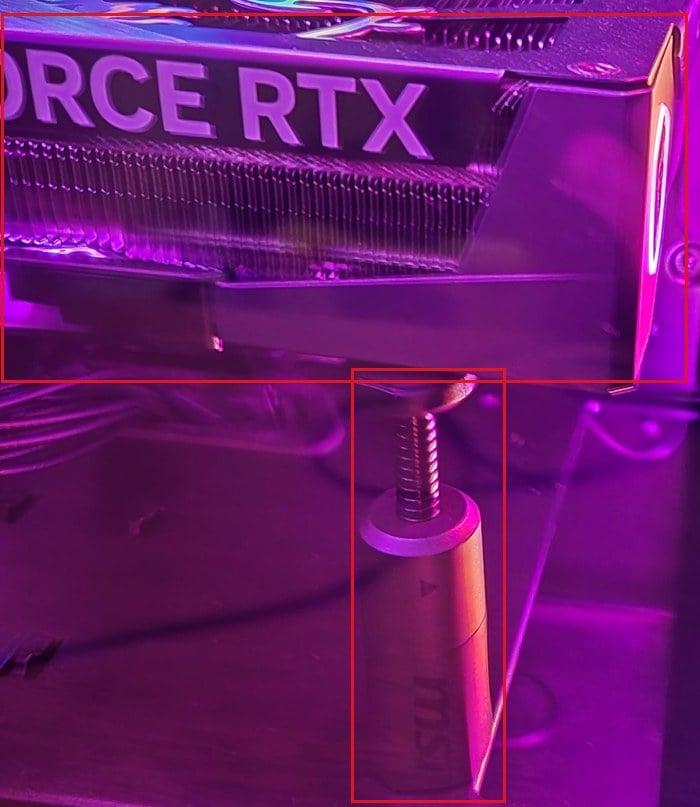
Maybe the graphics card itself
If another cable, another driver and the BIOS settings didn’t help, and especially if it now happens more often or even at idle, the card itself likely has a fault.
If you can, test the card in another PC, or another card in yours. If the problem follows the card, ask its maker or the store for a warranty replacement. Don’t open the card yourself, as that can void the warranty. When you report it, mention the black screens with the fans at 100% and any LiveKernelEvent 141 or 1b8 entries.