If you click Sign in in Microsoft Store, pick your account, and the sign-in window just flashes and disappears without signing you in, even though the same Microsoft account works fine in your browser, this guide will show you why it happens and how to fix it.
Also see: Microsoft Store Opens Then Closes Immediately in Windows 11
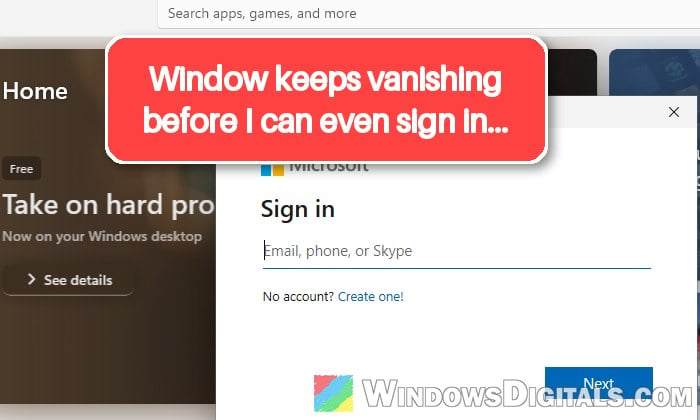
Why won’t Microsoft Store sign you in?
The window that asks for your account doesn’t belong to the Store. It’s part of Windows’ own sign-in components, the same ones the Xbox app, the Minecraft Launcher and “Add a Microsoft account” in Settings use. That’s why, in most cases, all of these fail together while your account still works on the web. Common reasons are:
- The clock or time zone is off, so Microsoft’s servers refuse the sign-in.
- Less often, the Store’s own cache or app data is damaged.
- The saved data of Windows’ sign-in window, or a service it needs, is broken.
- Something is wrong with your Windows user profile itself.
Before you change anything, make sure the problem isn’t on Microsoft’s end. If the Store, the Xbox app and Xbox games all stopped signing in at the same time for other people too, it’s likely an outage, and it usually sorts itself out within a few hours.
Make sure the date, time and time zone are right
Sign-in tokens are tied to the time, so when your PC’s clock or time zone is wrong, Microsoft can refuse the sign-in even though your password is correct. This is the quickest thing to rule out. Here’s how:
- Press Win + I to open Settings and go to Time & language > Date & time.
- Turn on “Set time automatically” and “Set time zone automatically“. If the time zone switch is grayed out, pick your time zone from the Time zone list right below it instead.
- Under Additional settings, click Sync now.
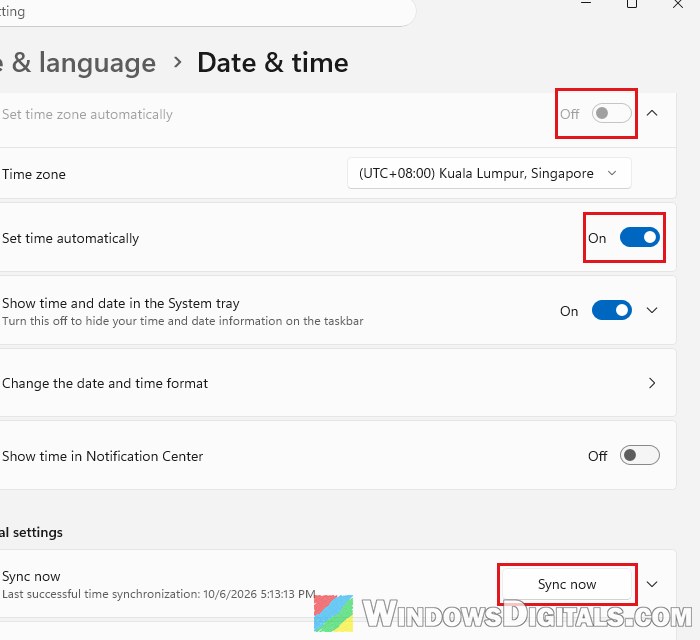
Close the Store completely, open it again and try to sign in.
Pro tip: Sync Time or Change NTP Server in Windows 11 using CMD
Clear the Microsoft Store cache
Microsoft’s own wsreset tool clears the Store’s cache. It doesn’t fix this for everyone, but it only takes a few seconds:
- Press Win + R, type
wsreset.exeand click OK.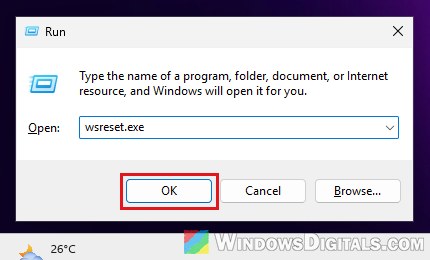
- A blank Command Prompt window opens. After about ten seconds it closes, and the Store opens by itself.
Try signing in again from the Store that just opened.
Repair or reset Microsoft Store (and the Xbox app)
If the cache wasn’t it, Windows can repair the Store’s app files, and if that’s not enough, reset the app to how it was when freshly installed. If the Xbox app won’t sign in either, do the same for it. Follow the steps below:
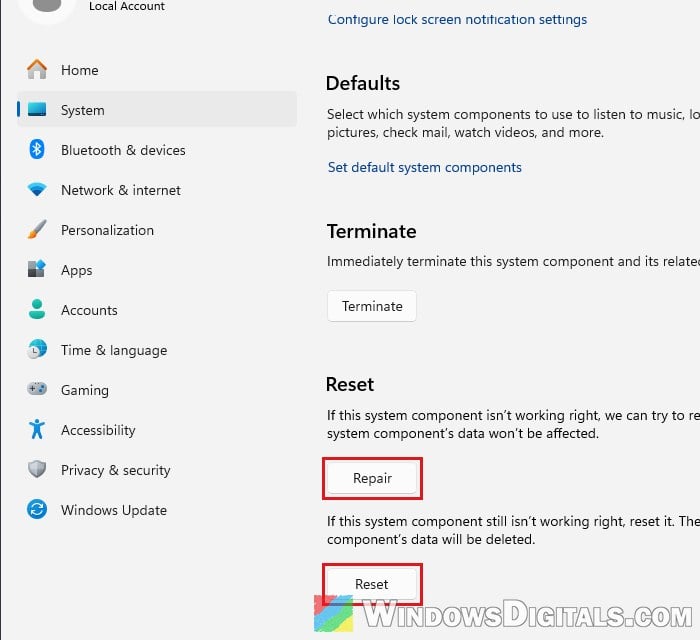
- Press Win + I and go to System > System components.
- Find Microsoft Store, click the … next to it and select Advanced options.
- Click Repair first, then try to sign in again.
- If it still fails, come back and click Reset. This deletes the Store’s app data, which is fine here since it isn’t signed in.
- For the Xbox app, go to Settings > Apps > Installed apps, click the … next to Xbox, select Advanced options, and do the same.
Rename the sign-in window’s data folder
The sign-in window that pops up and vanishes is run by a Windows component called Cloud Experience Host. It keeps its own data in your user profile, and when that data is damaged, the window can close right after you pick your account. Renaming the folder makes Windows create a fresh one. It’s worth a try when the quicker fixes above didn’t help:
- Restart your PC first, and don’t open the Store or anything else that asks you to sign in. Once the sign-in window has been opened, Windows may keep the folder in use, and it can’t be renamed.
- Press Win + R, type
%localappdata%\Packagesand press Enter. - Find the folder named
Microsoft.Windows.CloudExperienceHost_cw5n1h2txyewy.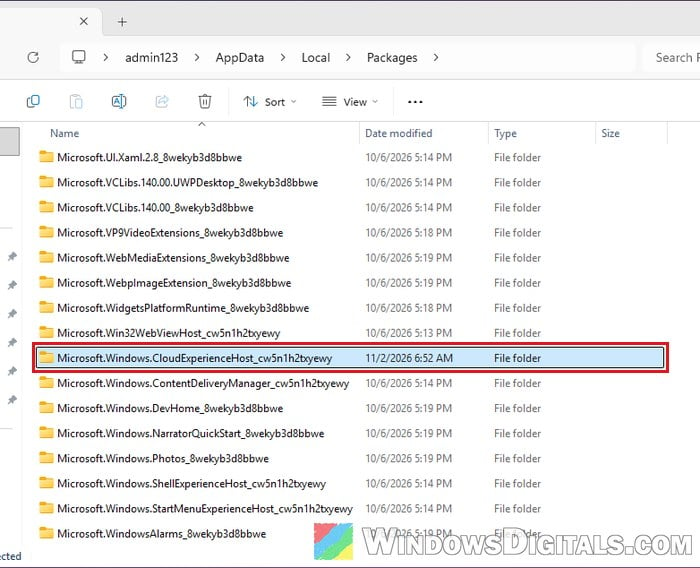
- Right-click it, choose Rename, and add
.oldto the end of its name, so it becomesMicrosoft.Windows.CloudExperienceHost_cw5n1h2txyewy.old. If a “Folder In Use” message shows up, click Cancel, restart again and rename it before opening anything else. - Restart your PC.
Open the Store and try to sign in.
Check the “Microsoft Account Sign-in Assistant” service
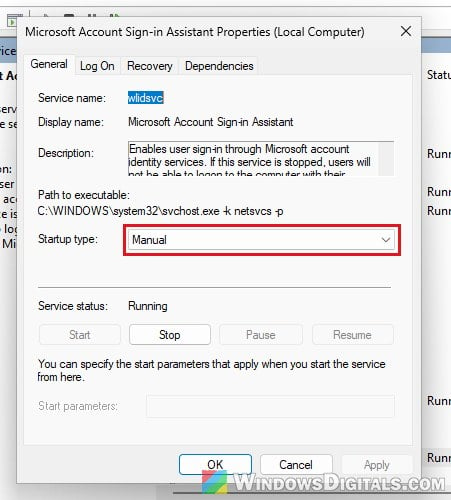
Windows uses a background service called Microsoft Account Sign-in Assistant for Microsoft account sign-ins in apps. If it’s disabled or can’t start, sign-ins in apps like the Store can fail while the web still works. To check it:
- Press Win + R, type
services.mscand press Enter. - Double-click Microsoft Account Sign-in Assistant.
- If “Startup type” says Disabled, change it to Manual, click Apply, then click Start.
- Click OK.
Its normal setting is Manual, which means Windows starts it by itself when an app needs it, so there’s no need to set it to Automatic. If you had to change it, open the Store and try to sign in again.
Related problem: “Microsoft Account Problem” Notification in Windows 10/11
Remove the saved Xbox sign-in entries
If the Xbox app won’t sign in either, old Xbox sign-in data saved in Windows can get in the way. Removing it makes the apps start fresh:
- Click Start, type “Credential Manager” and open it.
- Select Windows Credentials.
- Under Generic Credentials, look for entries that start with XblDeviceKey or Xbl.
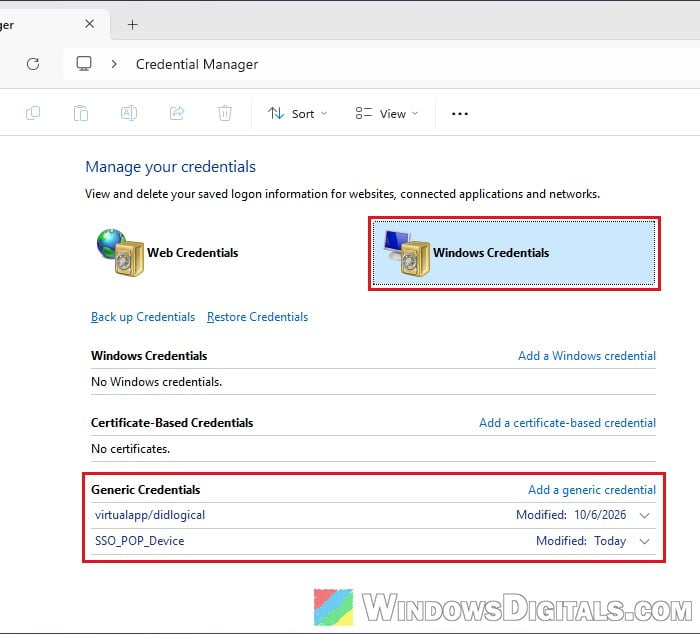
- Click each one to expand it and select Remove.
- Restart your PC and try to sign in again.
If there are no Xbl entries, there’s nothing to remove, and you can move on.
Install pending Windows updates
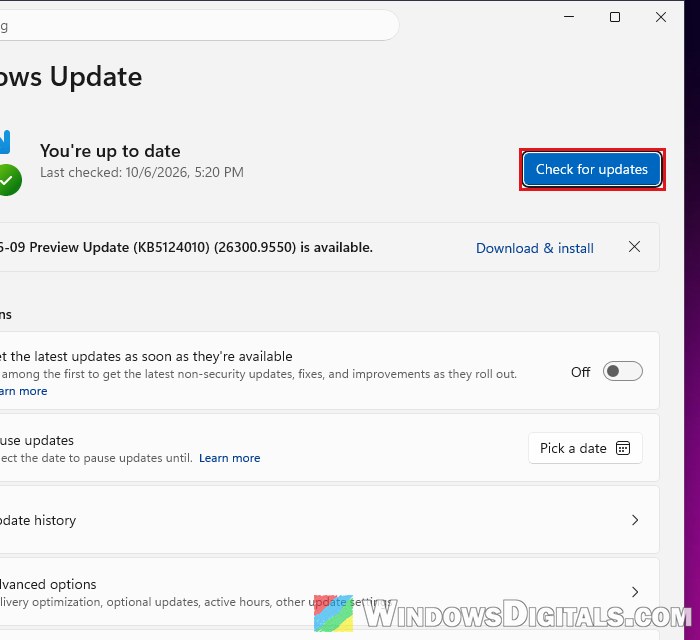
Microsoft fixes problems like this through Windows Update, so a pending update can be what finally solves it, even when the problem has been there for months. Go to Settings > Windows Update, click Check for updates, install everything that’s offered and restart, then try signing in again.
Try signing in from a new user account
If none of this helps, the problem is very likely in your Windows user profile. A few users on Reddit found that a new user account signed in to the Store without any trouble, while their own account still couldn’t. To test it:
- Press Win + I and go to Accounts > Other Users.
- Next to “Add other user“, click Add account.
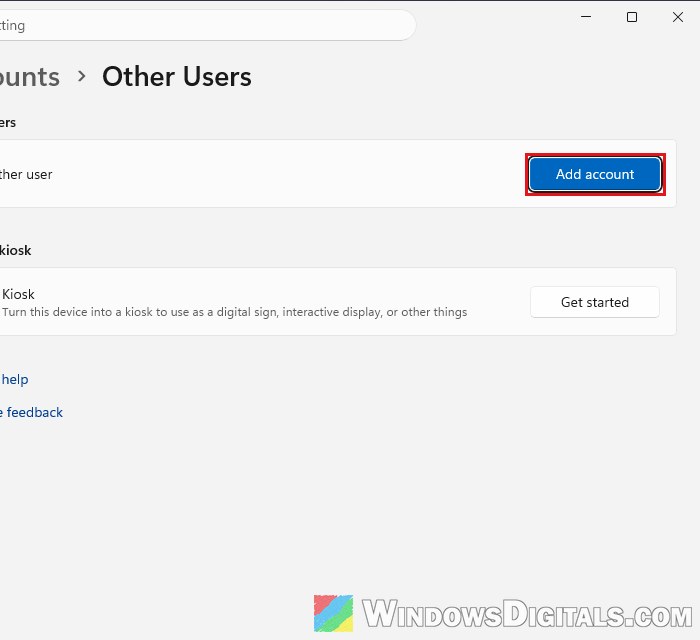
- Follow the prompts to add a local account.
- Sign out, sign in to the new account, open the Store and sign in with your Microsoft account.
If it works there, moving your files to the new account is usually quicker than trying to repair the old profile. If it fails in the new account too, the problem is in Windows itself, and the last fix below is the one to try.
Might be useful: How to Login Windows 11 Without Microsoft Account
Reinstall Windows with “Reinstall now”
As a last resort, you can reinstall Windows 11 over itself. It replaces Windows’ own files, including the broken sign-in parts, but keeps your personal files and installed apps. It’s still a good idea to back up anything important first.
- Press Win + I and go to System > Recovery.
- Next to “Fix problems using Windows Update“, click Reinstall now and follow the prompts.
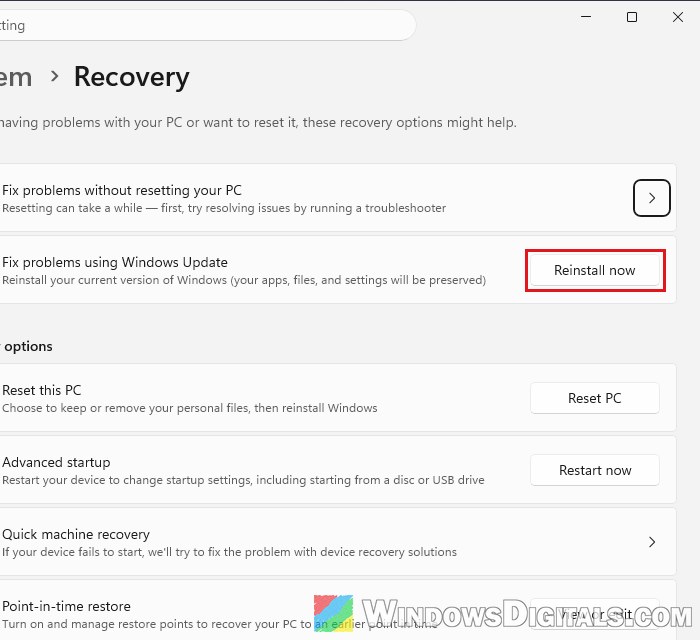
It downloads the current version of Windows and can take a while, so keep your PC plugged in. When it’s done, open the Store and sign in.