If you open OneDrive on your Windows 11 PC and notice it’s signed in with a different email than the Microsoft account you actually use (or the one you bought your storage on), your files are syncing to the wrong OneDrive, and any storage you paid for won’t show up. This guide will show you how to check which account OneDrive is using and how to switch it to the right one without losing any files.
Also see: How to Reset or Reinstall OneDrive in Windows 11
Why is OneDrive using a different account?
OneDrive on a PC can only sync one personal Microsoft account at a time. You can add as many work or school accounts as you like next to it, but not a second personal one. So if another personal account got there first, OneDrive keeps using it, and there’s no option to simply add yours beside it.
That other account usually comes from one of these:
- Someone else set up the PC, such as a family member or a repair shop that upgraded it, and signed in to OneDrive with their own email.
- An older account saved in Windows, like a school or work account you haven’t used in years, which Microsoft apps keep offering when they sign in.
- You have two Microsoft accounts and bought Microsoft 365 or extra storage on one, while OneDrive was set up with the other.
In each case, the fix starts the same way: unlink that account from OneDrive and sign in again with yours.
Check which account OneDrive is signed in with
Before changing anything, check which account OneDrive is actually using. Here’s how:
- Click the OneDrive cloud icon in the notification area of the taskbar (click the small arrow first if you don’t see it).
- Click the Help & Settings (gear) icon, then select Settings.
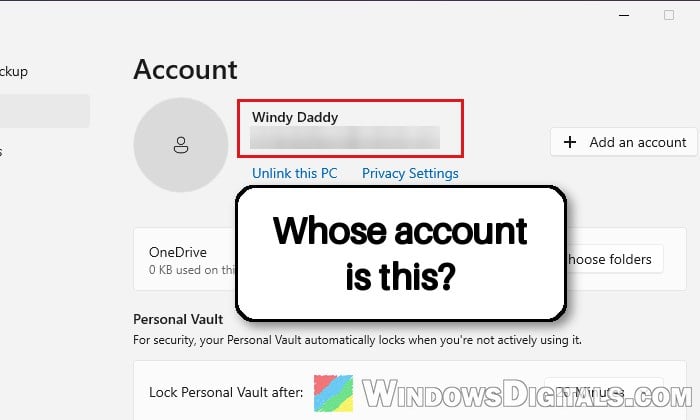
- Go to the Account tab. The name and email address at the top are the account OneDrive is syncing with, and Storage at the bottom left shows how much space that account has.
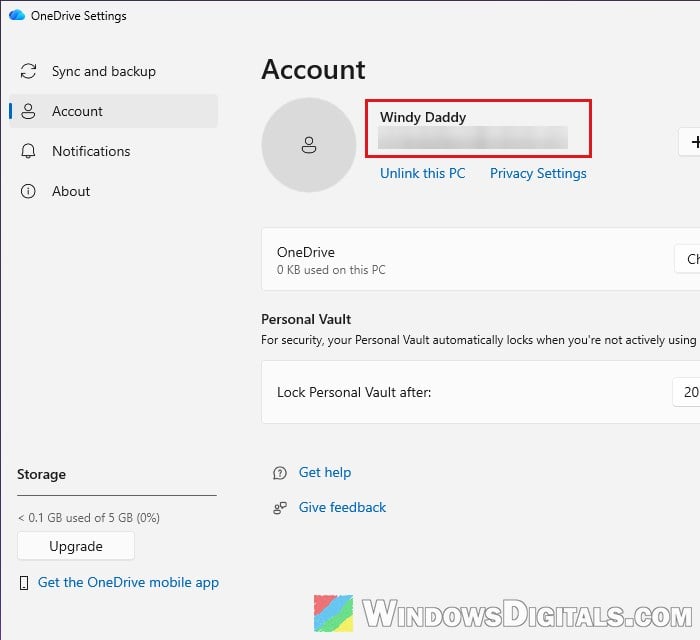
If the email or the storage size isn’t what you expect (for example, 5 GB when you pay for 1 TB), OneDrive is on the wrong account.
Related concern: How to Remove Microsoft Account From Windows 11/10
Unlink this PC and sign in with the right account
Unlinking only disconnects OneDrive on this PC from the account. According to Microsoft, no data is lost when you do this: the files stay in that account’s cloud storage (you can still reach them on OneDrive.com), and the local OneDrive folder simply stops syncing for a moment. To switch accounts, follow the steps below:
- Open OneDrive’s Settings again and go to the Account tab.
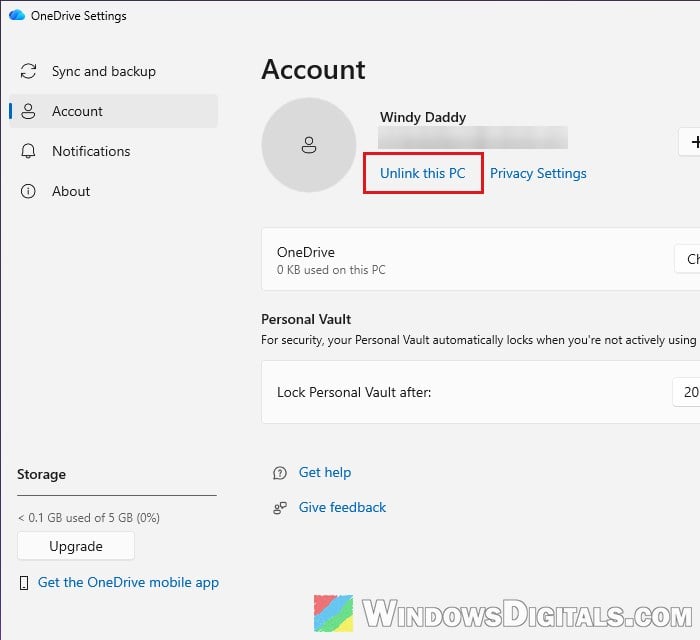
- Click Unlink this PC.
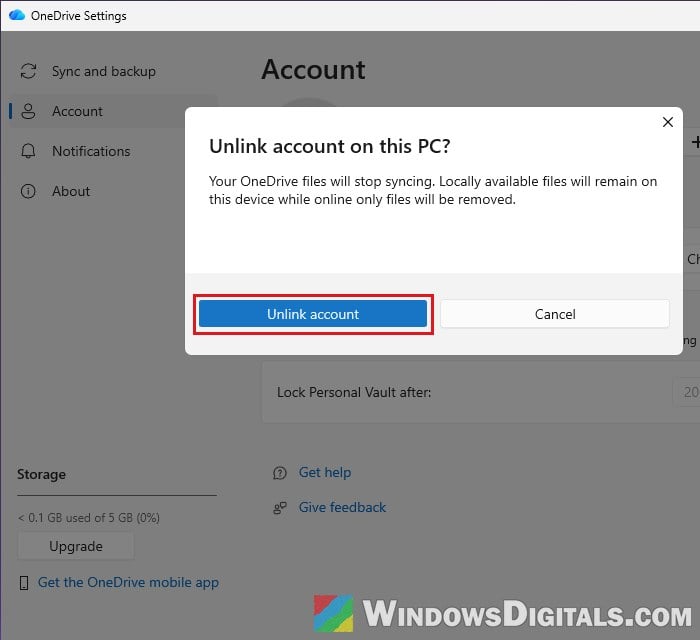
- When it asks “Unlink account on this PC?“, click Unlink account. Files you’ve only kept online disappear from the PC’s folder, but they’re still in the cloud.
- OneDrive’s sign-in window should open by itself. If it doesn’t, press the Win key, type “OneDrive” and open it.
- Enter the email of the account you want to use and sign in.
- If OneDrive says a OneDrive folder already exists on this PC, it lets you either Use this folder or Choose new folder. Keep in mind that the existing folder still holds the files from the other account, so pick a new folder if you don’t want those files uploaded to your own account.
- Let OneDrive finish setting up. It brings your files back as online-only placeholders first, so it doesn’t fill up your drive.
Open the Account tab once more and check that it now shows your email and the right amount of storage.
Wrong email keeps coming back?
Microsoft’s own unlink steps also include deleting a small OneDrive settings file, which is worth doing if the old email shows up again when you sign in:
- Unlink the PC as shown above, and close the sign-in window if it opens.
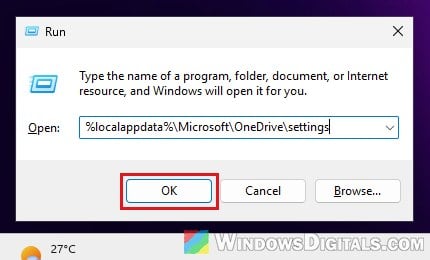
- Press Win + R to open the Run dialog box.
- Copy and paste the following path, then press Enter:
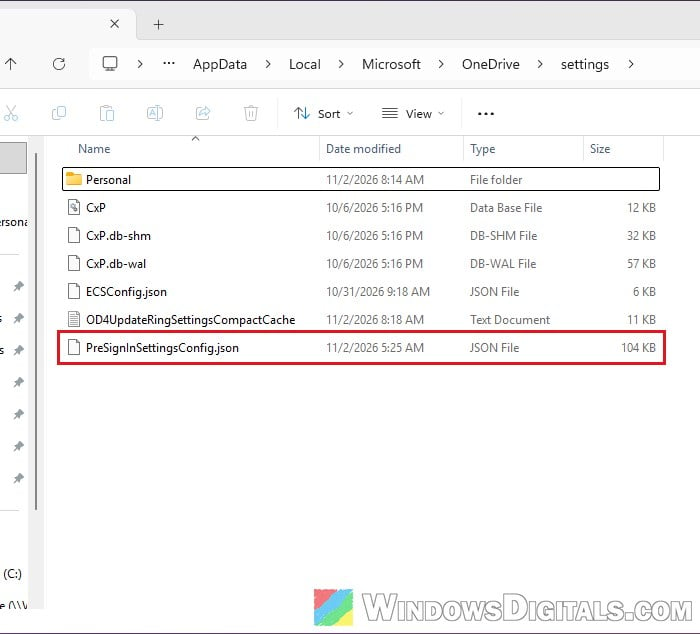
%localappdata%\Microsoft\OneDrive\settings
- Delete the file named PreSignInSettingsConfig.json.
- Open OneDrive from the Start menu and sign in with the right account.
Remove the other account from Windows
Even after unlinking, Windows itself may still have the other account saved, and apps like OneDrive and Office can pick it up again. Removing it from Windows stops that.
- Open Settings (Win + I) and go to Accounts > Email & accounts (on the newest Windows 11 builds, this page is called Your accounts).
- In the list of accounts used by apps (called “Add or manage accounts used by apps in Windows” on newer builds), look for an account that isn’t yours, or one you no longer use, and click it to expand it.
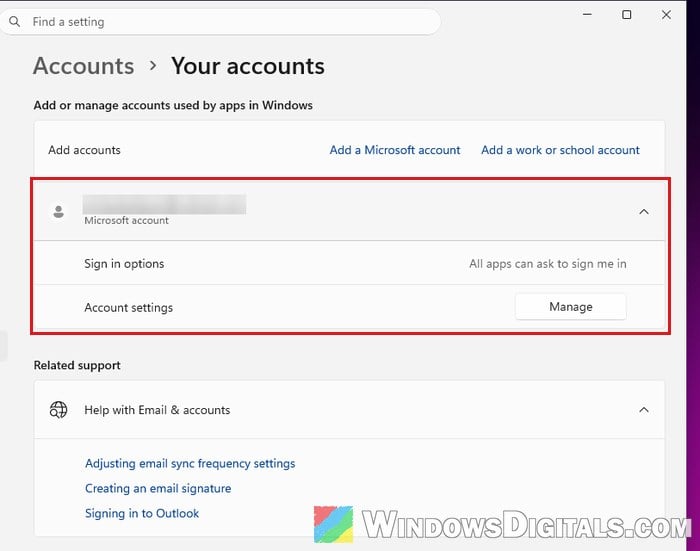
- If Windows shows a Remove option for it, use it. If you only see Manage, there’s no way to remove it here, so use Credential Manager below for that account instead.
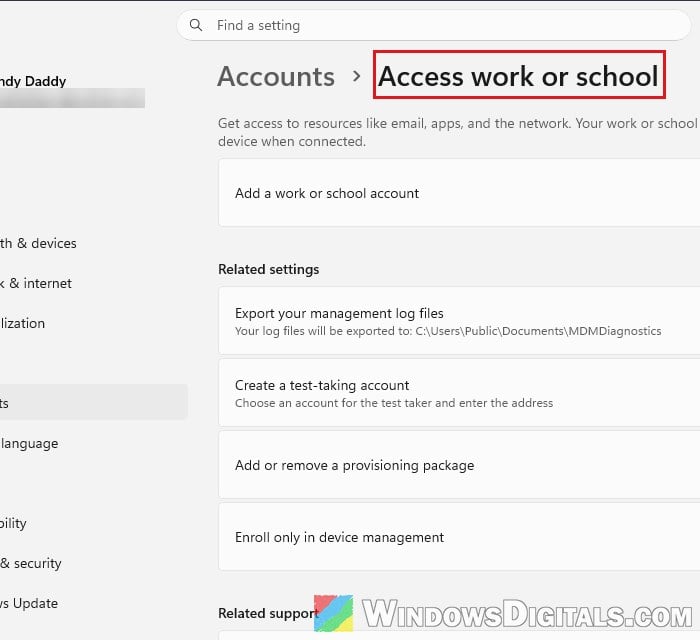
- For an old school or work account, go to Accounts > Access work or school instead, expand the account, click Disconnect and confirm with Yes.
- Sign in to OneDrive again.
If a school or work account refuses to go away, see: Can’t Remove School or Work Email from Windows 11 or 10.
Clear the old account’s saved passwords
Windows also keeps sign-in details for Microsoft accounts in Credential Manager. If OneDrive still picks up the old account, removing its saved entries there can help.
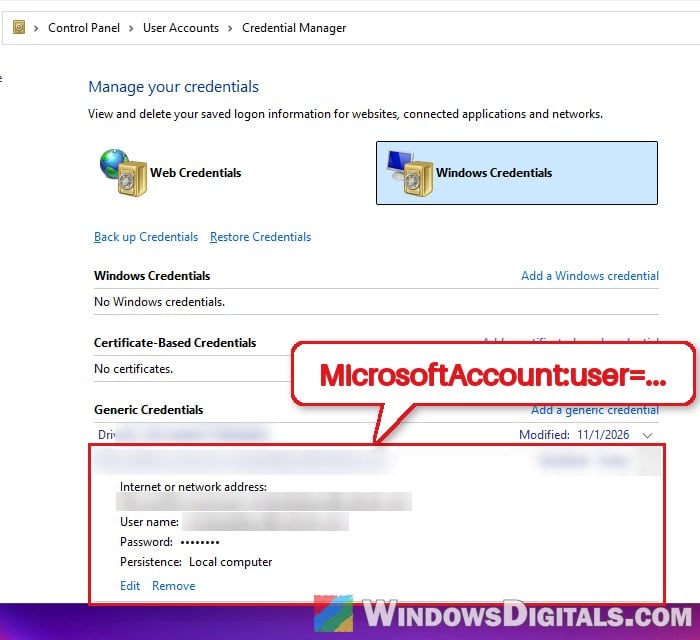
- Open the Start menu, type “Credential Manager” and open it.
- Select Windows Credentials.
- Under Generic Credentials, look for entries with the old account’s email in their name, such as MicrosoftAccount:user= followed by that email. Click each one to expand it and click Remove.
Then sign in to OneDrive with your own account once more.
Linked issue: Work or school account problem keeps popping up Windows 11
Need both a work and a personal OneDrive?
If the “wrong” account is actually your work or school OneDrive and you want your personal one as well, you don’t need to unlink anything. OneDrive can sync a personal account and work or school accounts side by side.
- Open OneDrive’s Settings and go to the Account tab.
- Click Add an account and sign in with the other account.
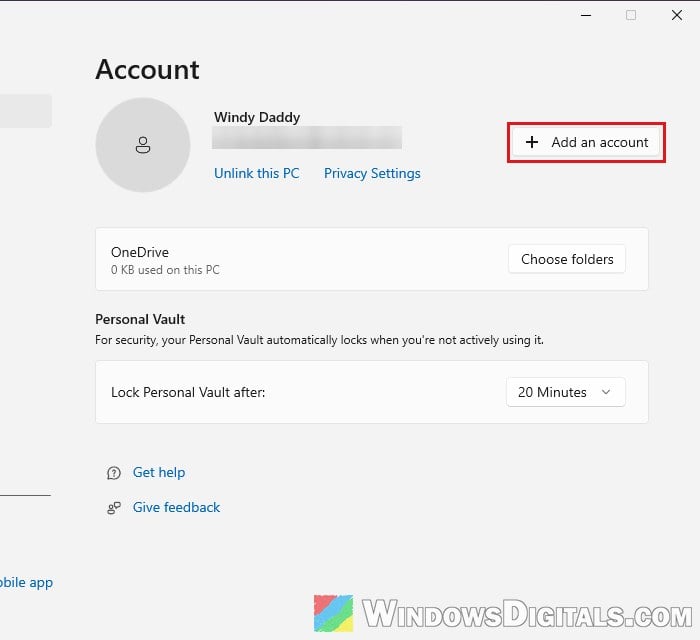
The one thing it can’t do is hold two personal accounts at once. If both are personal accounts, unlink one first as shown above.
What if Windows itself is signed in with the wrong account?
Sometimes the problem isn’t only OneDrive: the Windows user account on the PC is tied to someone else’s Microsoft account, so OneDrive keeps signing in with it. In that case, you can switch Windows to a local account first, restart, then switch back to a Microsoft account using your own email, and restart again. Both options are under Settings > Accounts > Your info. It’s the slowest option here, so only use it for this case. For more on changing the account Windows uses, see: How to Change Administrator Email on Windows 11.
Once Windows is on your own account, unlink and sign in to OneDrive again as shown above. If you’d rather keep a local account on the PC, you can still use OneDrive with your own account, since OneDrive’s sign-in doesn’t have to match the one Windows uses.
Bought Microsoft 365 on the wrong account?
If the subscription itself went to the wrong account, you may be able to get a refund from Microsoft within 30 days of the purchase (or before the first renewal), and then buy it again on the account you use for OneDrive.