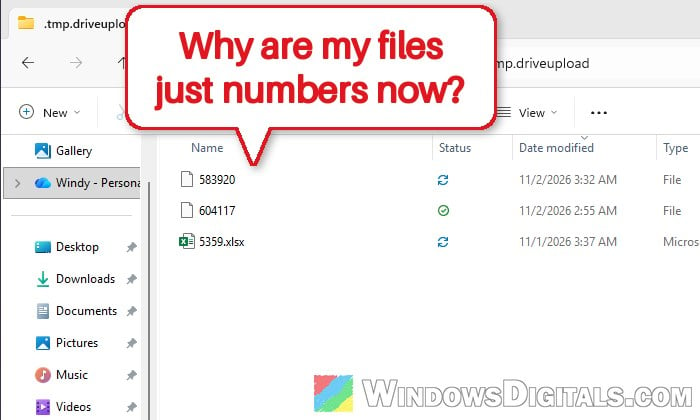
If you’re working on a Word, Excel or PowerPoint file saved in OneDrive and it suddenly gets renamed to a string of numbers (like 583920 or 5359.xlsx) while the original file disappears from the folder, it’s usually because two cloud apps are syncing the same folder at the same time, most often Google Drive and OneDrive. This guide will show you how to get your file back first, and then how to stop it from happening again.
Also see: How to Reset or Reinstall OneDrive in Windows 11
Why do Word and Excel files turn into numbers?
If another program grabs the file while Office is saving it, the save can end up as a numbered temporary file and the original gets removed. Some common reasons are:
- Google Drive for desktop and OneDrive syncing the same folder. This is the most common cause. The numbered files end up in a hidden folder called .tmp.driveupload, which is Google Drive’s own temporary upload folder. It’s usually because Google Drive was set to back up Documents or the whole OneDrive folder.
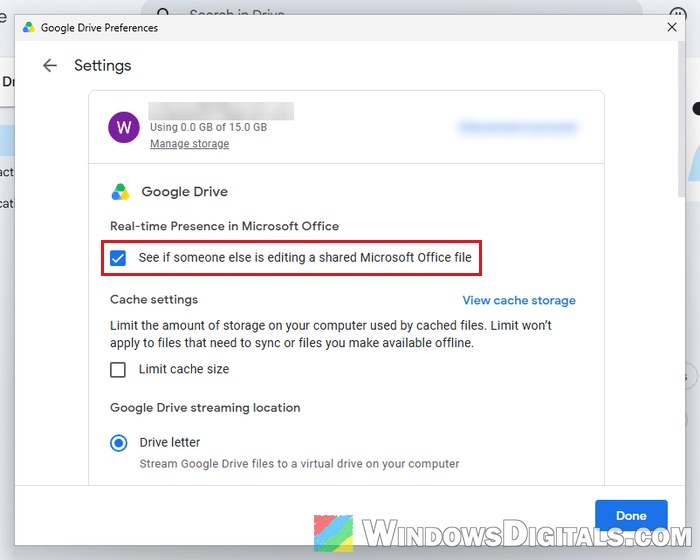
- Google Drive watching Office files while they’re open. Google Drive has a Microsoft Office feature, on by default, that keeps an eye on Word, Excel and PowerPoint files to show who else is editing them. That’s why it’s mostly Office files that get hit.
- Antivirus or backup software that opens files while they’re being saved, including leftovers of one you uninstalled long ago.
Lots of people have reported this on Microsoft’s forums, and for many of them, stopping the two sync apps from overlapping fixed it. Before changing anything, though, rescue your file.
Get your file back from the “.tmp.driveupload” folder
The numbered file is usually your latest save, so don’t delete it. Copy it somewhere safe before you restart the PC, because the temporary folder can empty itself once syncing settles.
Here’s how to find and recover it:
- Open File Explorer (Win + E) and go to the folder you were working in, or the top of your OneDrive folder.
- Click View > Show > File name extensions, then open View > Show again and click Hidden items, so both are ticked.
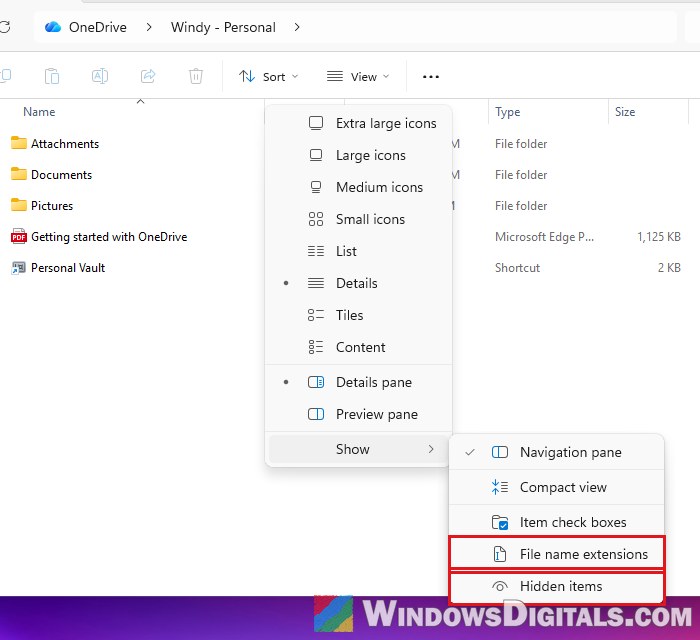
- Look for a faded folder named .tmp.driveupload and open it. You can also paste its path into the address bar and press Enter:
%UserProfile%\OneDrive\.tmp.driveupload
If it isn’t there, try the same at the top of your Documents folder (
%UserProfile%\Documents\.tmp.driveupload) or whichever folder Google Drive syncs. - Sort by Date modified so the newest file is on top.
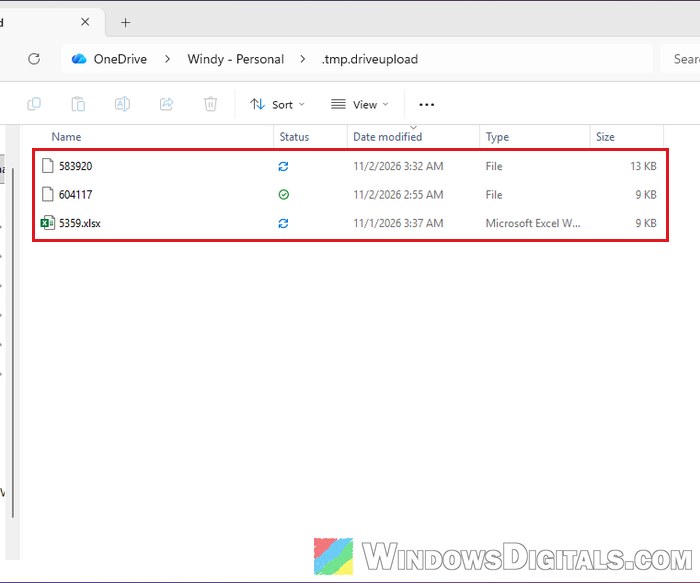
- Copy the newest file to a folder no sync app watches (such as a new folder on your C: drive) and work on that copy.
- If the copy has no extension, rename it and add
.docx(Word) or.xlsx(Excel) to the end of its name, then open it. - In Word or Excel, click File and choose Save As (it’s called Save a Copy for a file in OneDrive), then save it with its proper name in a folder you’ll remember.
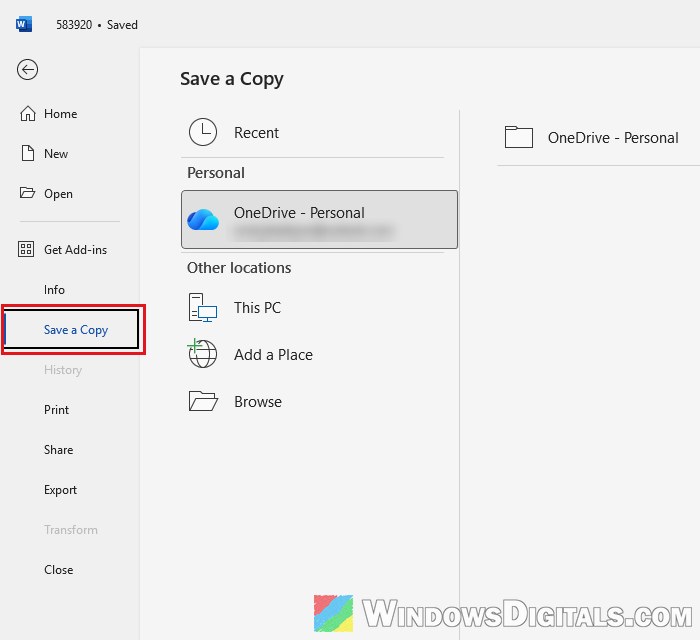
If the folder is empty, check the Recycle bin on the OneDrive website, and open the file’s Version history there to bring back an earlier version.
Pro tip: How to Show Hidden File Name Extensions in Windows 10 File Explorer
Stop Google Drive and OneDrive from syncing the same folder
In most cases this happens because two sync apps work on the same file, so keep each folder in one sync app only. You don’t have to give up Google Drive. Start with the lightest change below and go further only if it keeps happening.
Turn off Google Drive’s Microsoft Office setting
According to Google, this setting lets Drive for desktop show whether someone else is editing a shared Office file, and it’s on by default. If you don’t share Office files through Google Drive, you won’t miss it.
- Click the Google Drive icon in the system tray (bottom-right of the taskbar; it may be behind the
^arrow). In the Drive window that opens, click the gear icon and choose Preferences. - In the Google Drive Preferences window, click the gear icon at the top right to open its Settings.
- Under Real-time Presence in Microsoft Office, untick “See if someone else is editing a shared Microsoft Office file” and click Save (the Done button turns into Save once you untick it).
Stop Google Drive from syncing your OneDrive or Documents folder
If Google Drive is backing up a folder that’s also inside OneDrive, take it out of Google Drive so only OneDrive handles it.
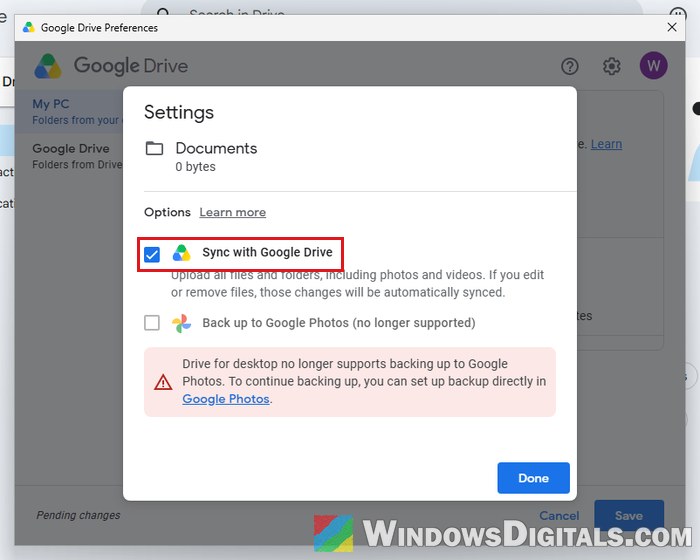
- Open Google Drive’s Preferences again and stay on My PC (folders from your computer).
- Click the folder that OneDrive also syncs (often Documents or the OneDrive folder itself).
- Untick Sync with Google Drive and click Done, then click Save at the bottom of the Preferences window.
Check what OneDrive backs up too
OneDrive can back up your Desktop, Documents and Pictures folders by itself.
- Click the OneDrive icon in the system tray, then the Help & Settings (gear) icon > Settings.
- On the Sync and backup page, click Manage backup to see which folders OneDrive backs up.
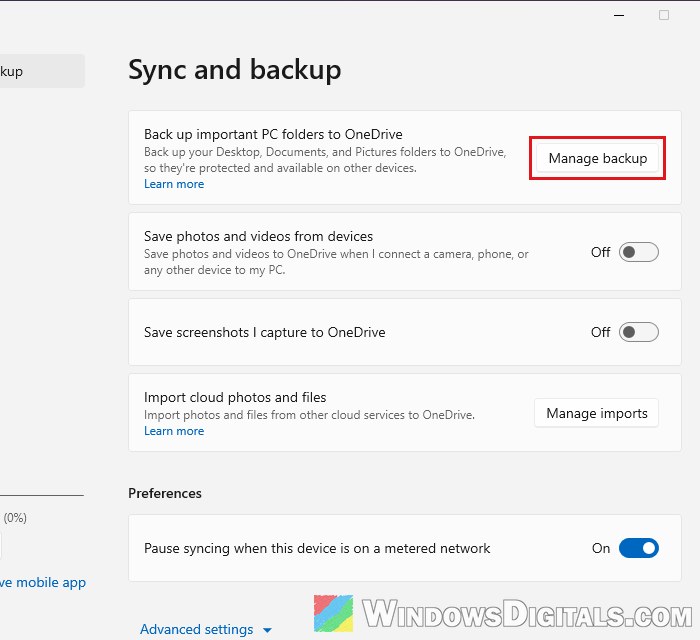
If Documents or Desktop is backed up here and Google Drive also syncs it, take it out of Google Drive as shown in the section above.
Uninstall Google Drive if you don’t need it
If you only installed Google Drive for desktop for a one-off job, just remove it.
- Open Settings > Apps > Installed apps and search for “Google Drive“.
- Click the … button next to it and select Uninstall (in grid view, the Uninstall link is right on its card).
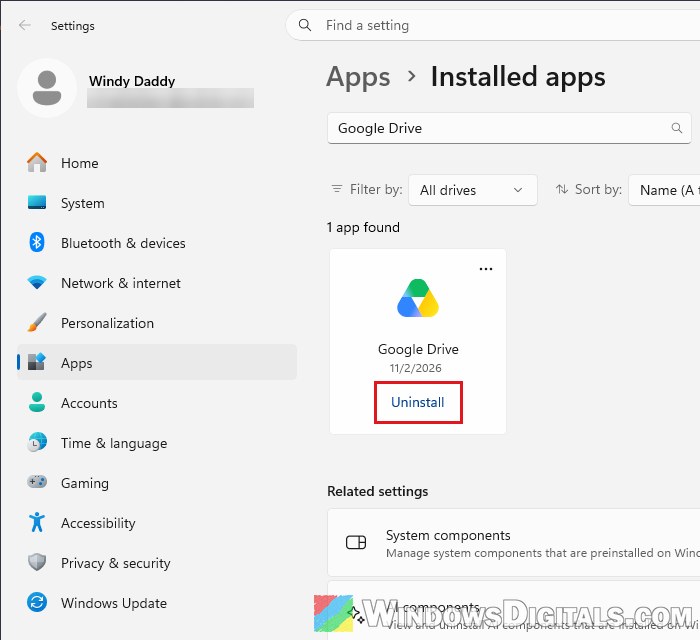
After any of these changes, open a file from the folder, edit it for a while, and check that its name stays the same.
Might be useful: How to Disable or Remove OneDrive From Windows 11
Remove leftovers of antivirus or backup tools
If you don’t use Google Drive at all, look for anything else that touches your files in the background. In one case it was Avast: months after it was uninstalled, its leftovers (its browser included) were enough to cause this, and the problem only stopped once every piece was gone.
Go through Settings > Apps > Installed apps and uninstall anything left from an antivirus or backup program you no longer use. If you still use a third-party antivirus, add the folder you keep your documents in to its exclusions so it doesn’t scan files while Office is saving them.
Related concern: McAfee Asks for a Password to Uninstall, Why?
Update and repair Office
It’s less likely, but a broken Office install can also mess up saving, and a repair only takes a few minutes. Make sure Office is up to date first. If the problem continues, repair Office:
- Open Settings > Apps > Installed apps and search for “Office” (or “Microsoft 365“).
- Click the … button next to your Microsoft Office or Microsoft 365 entry and select Modify. Click Yes if Windows asks for permission.
- Choose Quick Repair and click Repair.
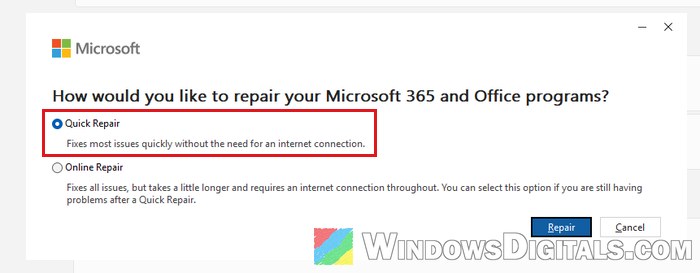
If Quick Repair doesn’t help, run the same steps again and choose Online Repair, which takes longer and needs an internet connection.
Work in a local folder until it’s fixed
If you can’t change your sync apps right away, edit important files in a folder no sync app watches, such as a new folder on your C: drive, and move them into OneDrive only when you’re done. You can also turn AutoSave off for the file you’re working on, although that alone didn’t stop the renaming for everyone. Either way, use Save a Copy or Save As every now and then, so you won’t lose much work if it happens again.