If a narrow bar suddenly appeared on the left side of Google search results in Chrome, with a small Google logo, a couple of icons and a gear at the bottom, and it now sits on top of the results and cuts off the text whenever the window isn’t maximized, you’re not the only one. This guide will explain what this sidebar is and show you how to hide it, or at least stop it from getting in the way.
Also see: How to Permanently Lock SafeSearch on Google in Chrome
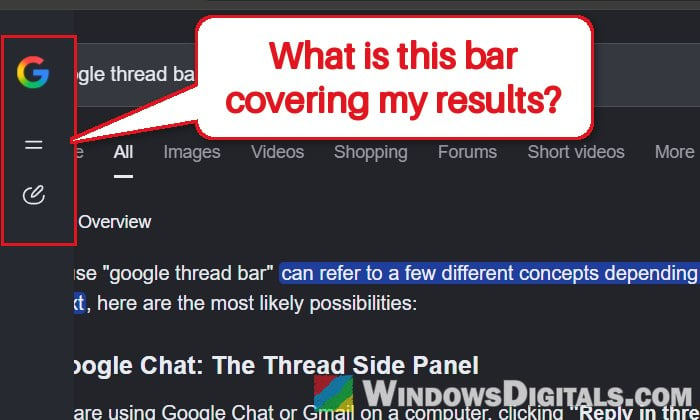
What is this new sidebar on Google search?
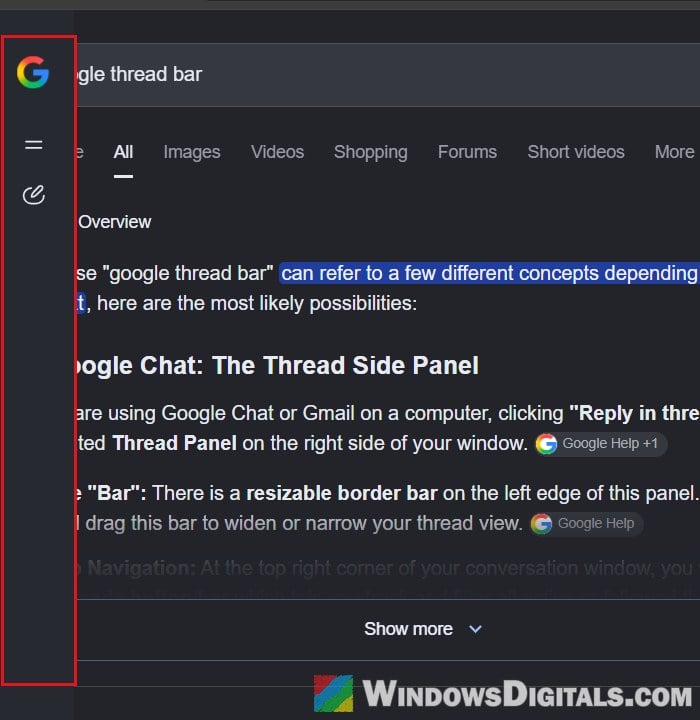
The bar is Google’s AI Mode sidebar. It used to show only when you switched to AI Mode, but Google is now testing it on the normal search results page as well. It holds the Google logo, a menu button, a button to start a new AI Mode chat, your past AI Mode chats and a settings icon at the bottom. Google started testing it in mid-October 2026, a lot more people noticed it at the end of the month, and since it’s a test, some people have it while others don’t.
On a wide window, the bar just takes up a strip on the left. But in a smaller window, or when you put Chrome side by side with another app, it covers the start of every line of the results, the search box and the tabs.
Before you try anything, here’s what you should know:
- It’s part of Google’s website, not Chrome. Resetting Chrome or changing its settings won’t remove it.
- Clicking “All” doesn’t make it go away, and neither does signing out of your Google account. Signed out, the bar still shows, just with a “You’re signed out” message in it.
- Google doesn’t offer a setting to turn it off or collapse it, at least not yet.
So the only ways around it for now are to give the results more room, or to hide the bar with an extension.
Might be useful: Chrome or Firefox keeps opening new tabs on its own, virus?
Make the window wider or zoom out (quick workaround)
The bar only gets in the way when the page is too narrow for it. If you maximize the Chrome window (double-click its title bar), the results move clear of the bar. If you need Chrome to stay smaller, for example side by side with another app, zooming out a little gives the results enough room again. Going down to around 90% may already be enough, depending on how narrow the window is.
- Click the three-dot menu at the top right of Chrome.
- In the “Zoom” row, click the “–” button once or twice until the results aren’t cut off anymore.
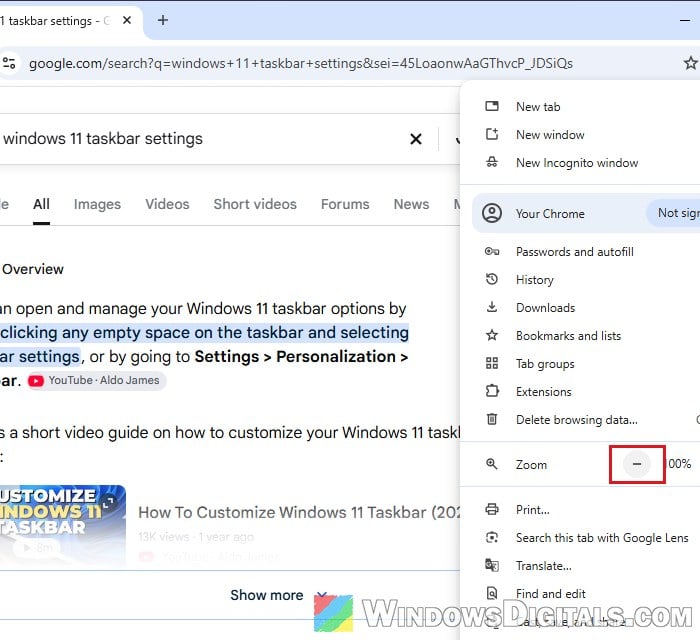
You can also press Ctrl + - to zoom out, and Ctrl + 0 to go back to 100%. This doesn’t remove the bar, but it does make the results readable again.
Hide the sidebar with uBlock Origin Lite
To actually get rid of the bar, you can use an ad blocker’s element picker, which hides any part of a page you click on. uBlock Origin Lite is the version of uBlock Origin on the Chrome Web Store, and its “Create a custom filter” tool hides an element permanently, so it stays hidden each time you search.
Here’s how to do it:
- Open the uBlock Origin Lite page on the Chrome Web Store:
https://chromewebstore.google.com/detail/ublock-origin-lite/ddkjiahejlhfcafbddmgiahcphecmpfh. Make sure it’s offered by Raymond Hill (gorhill), then click “Add to Chrome“.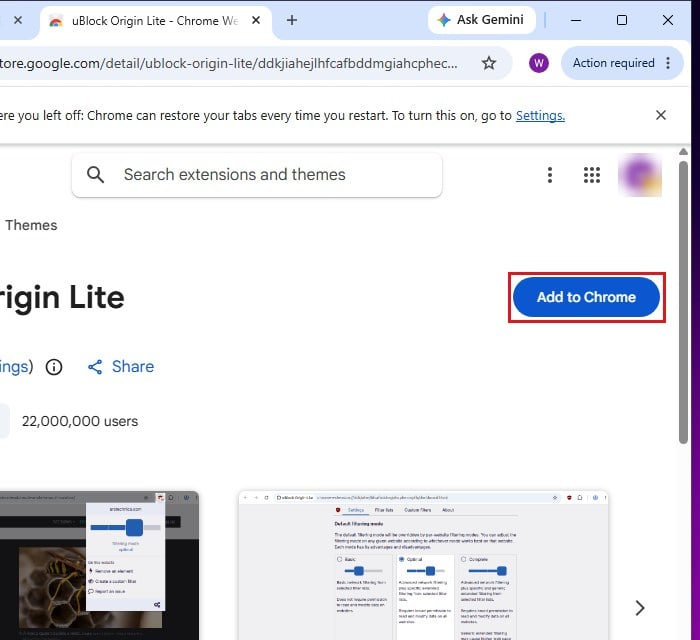
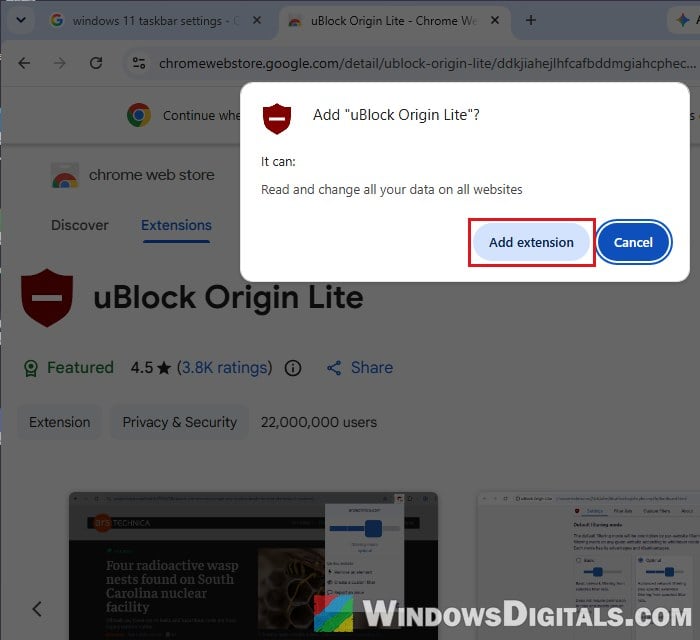
- In the pop-up that asks to add “uBlock Origin Lite”, click “Add extension“.
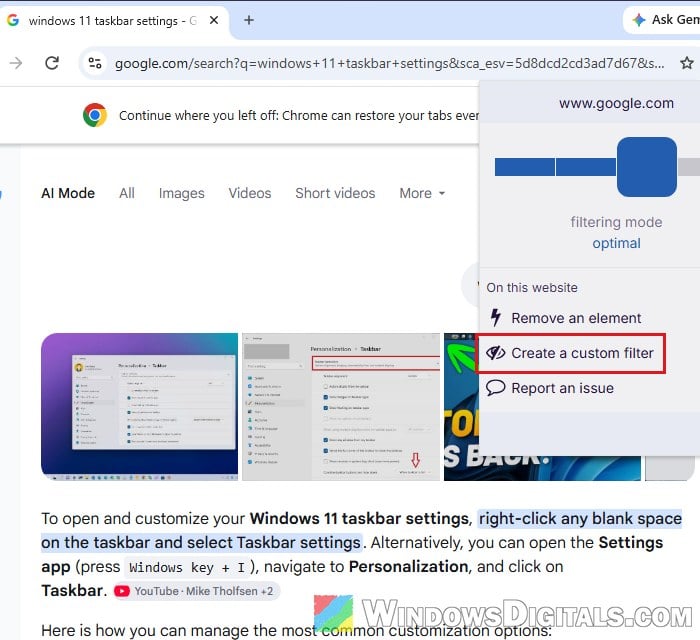
- Go to a Google search page where the sidebar shows, and click the uBlock Origin Lite icon (a red shield) on the toolbar. If you don’t see it, click the “Extensions” (puzzle piece) button first. Then select “Create a custom filter“.
- The page dims. Click on the sidebar. It gets a red outline and a small dialog opens at the bottom right.
- Click “Create” in that dialog.
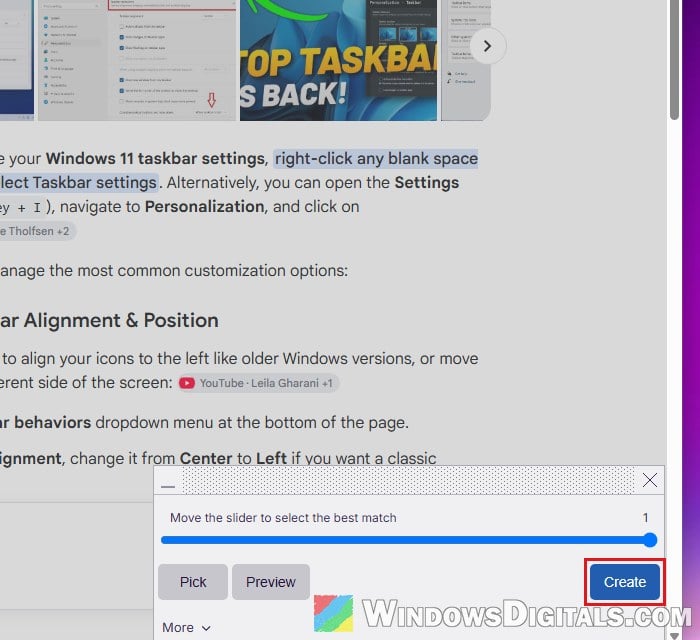
- Reload the page with F5.
If the bar (or part of it) is still there after the reload, just repeat steps 3 to 6 on what’s left. When we tested this, the first filter only caught a button inside the bar, and it took a second one to hide the whole thing.
Please note that hiding the bar also hides your AI Mode chat list on AI Mode pages, since it’s the same bar. And because the filter relies on how Google’s page is built, the bar might come back after Google changes its page. If that happens, simply pick it again.
Related concern: Is “AdBlock Next” Popup and Extension Safe or a Virus?
How to undo it
If you want the sidebar back, open uBlock Origin Lite’s dashboard. The quickest way is to copy and paste the following address into Chrome’s address bar and press Enter:
chrome-extension://ddkjiahejlhfcafbddmgiahcphecmpfh/dashboard.html
Go to the “Custom filters” tab. You’ll see “www.google.com” with the filters you created listed under it, each with a trash icon next to it. Click the trash icon next to a filter to delete it, and do the same for the other one.
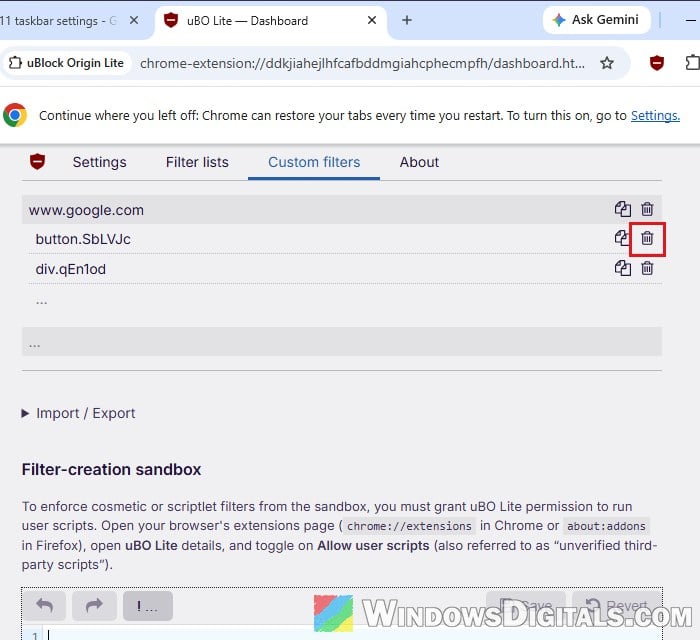
Removing uBlock Origin Lite from Chrome also removes its filters, so the bar comes back as it was.
Using a different browser?
The bar can show up in Edge, Brave and other browsers too, and the same trick works there. uBlock Origin Lite is also available for Edge from the Edge Add-ons store, and in Brave you can right-click the bar and use its built-in option to block the element (again, you may need to do it twice). If you’d rather not use an ad blocker at all, an extension like “Click to Remove Element” can hide it the same way.