If you’ve opened Task Manager and found a bunch of Steam Client WebHelper processes sitting on 1 GB of memory or more, and they come straight back every time you end them, this guide explains what Steam Client WebHelper (steamwebhelper.exe) actually is, how much memory is normal for it, and what you can do when it uses far more than it should.
Also see: Why is My Memory Usage So High When Nothing is Running?
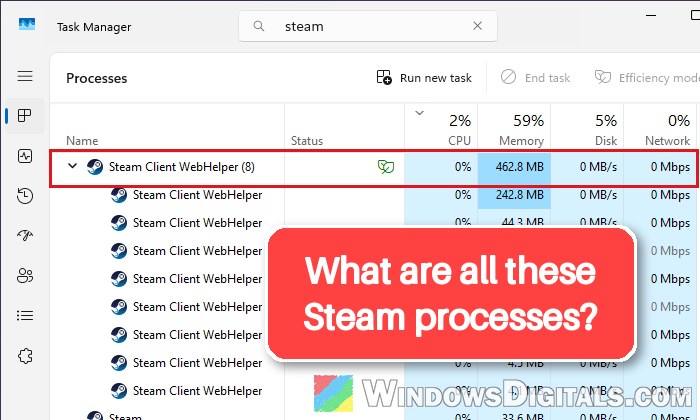
What is Steam Client WebHelper (steamwebhelper.exe)?
Steam Client WebHelper is the web browser built into Steam. Most of what you see in the Steam client, like the Store, your Library, the Community pages, friends and chat, and the web parts of the in-game overlay, is actually made of web pages. Steam draws them with its own copy of Chromium (the same engine behind Chrome and Edge), and steamwebhelper.exe is that browser running.
That’s also why you see several Steam Client WebHelper processes instead of one. Like any Chromium browser, it splits its work into separate processes for different pages and parts of the app. Chrome and Edge show the same kind of list in Task Manager.
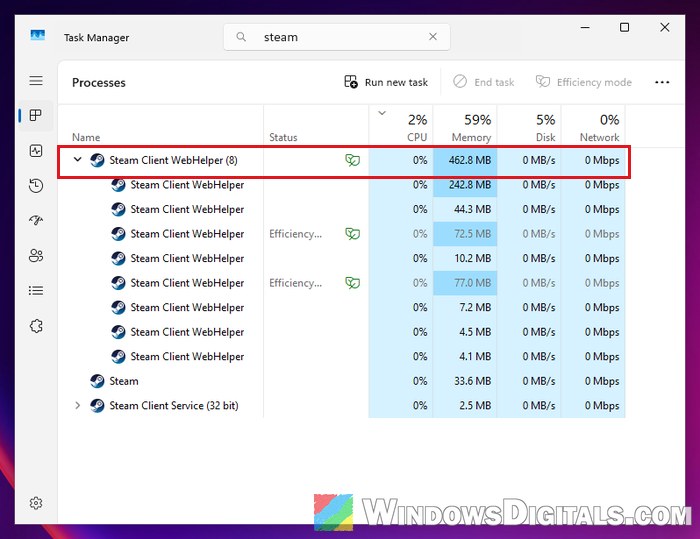
Why does it come back after you end it?
When you end a Steam Client WebHelper process in Task Manager, Steam thinks it has crashed and simply starts a new one, because the client can’t show anything without it. So ending it only works for a few seconds.
Suggested read: “Synchronizing Steam Cloud” is Taking Forever
Can Steam Client WebHelper be a virus?
No, steamwebhelper.exe is a normal part of Steam, and it only runs while Steam is running. If you see it even when you haven’t opened Steam, Steam is most likely still running in the system tray (closing the Steam window only hides it) or it starts with Windows on its own.
If you want to make sure the file is the real one, here’s how to check:
- Open Task Manager with Ctrl + Shift + Esc.
- Right-click one of the Steam Client WebHelper processes and select Open file location.
- File Explorer should open Steam’s own folder,
C:\Program Files (x86)\Steam\bin\cef\cef.win64on a default install, with steamwebhelper selected.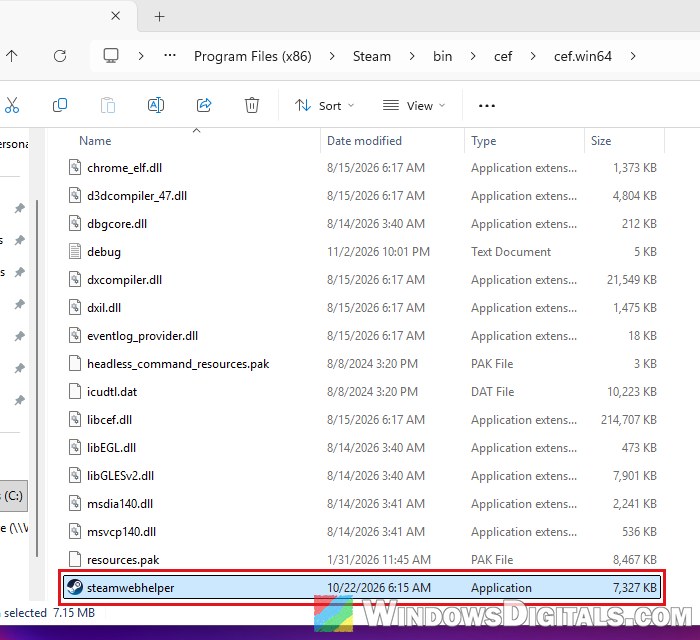
If the file is somewhere else entirely, scan it with Windows Security or your antivirus.
Might be useful: How to Scan an .exe File for Viruses to Check If It’s Safe
How much memory is normal for it?
Somewhere around 500 to 800 MB across all the WebHelper processes is what most people report, even with the Store open. It goes up while Steam is downloading or updating games, or when you have pages open in the overlay browser. Valve has been trimming this down too (a May 2025 client update reduced its memory use when launching games and switching to and from Big Picture Mode).
Also, memory a browser holds isn’t always memory it actually needs, and Windows can take some of it back when other apps need it.
What’s not normal is when it keeps growing to 3 or 4 GB while Steam sits idle, or uses 10% to 30% of your CPU with nothing happening. That’s when the steps below help.
Restart Steam properly
WebHelper’s memory tends to creep up the longer Steam stays open, and a proper restart clears it. Closing the window with the X doesn’t count, since Steam keeps running in the tray.
- In Steam, click the Steam menu at the top left.
- Select Exit, and wait a few seconds for Steam to close completely.
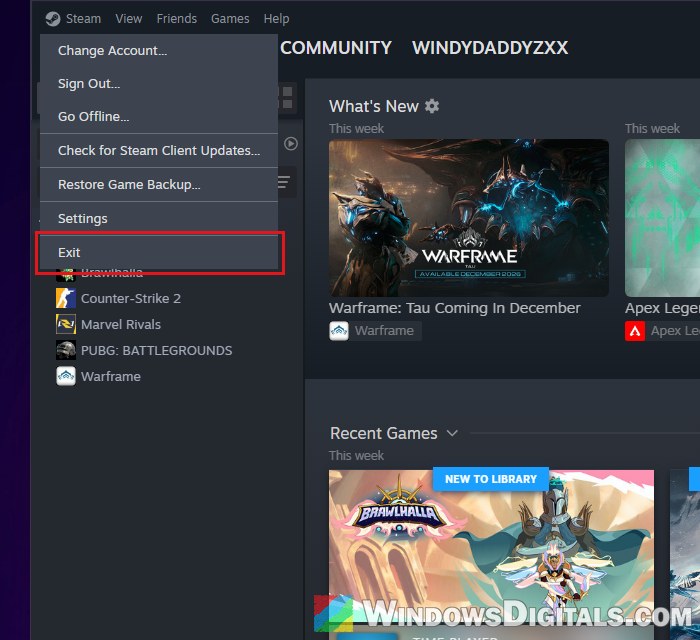
- Open Steam again.
Once Steam is back up, check Task Manager to see whether the memory use has dropped back down.
Stop Steam from starting with Windows
If Steam starts with Windows, the WebHelper is there all the time too. If you only play now and then, the easiest fix is to not have Steam running when you’re not using it. With Steam fully closed, the WebHelper uses nothing at all.
- In Steam, click the Steam menu and select Settings.
- Go to Interface.
- Turn off “Run Steam when my computer starts“.
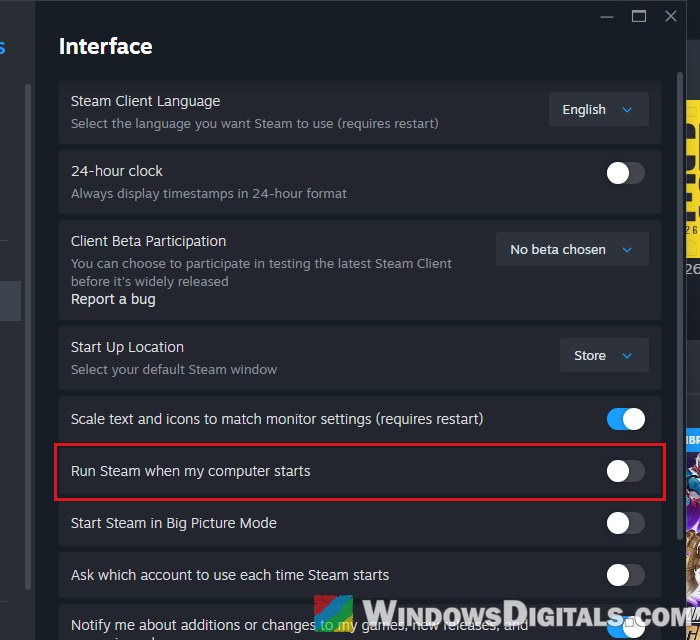
You can also turn it off from Windows itself in Settings > Apps > Startup, by switching off Steam in the list. After your next restart, Task Manager shouldn’t show any Steam processes until you open Steam yourself.
Pro tip: How to Disable Startup Programs in Windows 11
Remove the news post on your Library home
In September 2026, a lot of Steam users suddenly saw the WebHelper using far more CPU and memory than usual while Steam sat idle. The cause most of them found was a single game update post in the “What’s New” row on the Library’s home page (a Warframe update post at the time). Removing that one post made the CPU and memory use drop right away. Another news post could do the same thing, so it’s worth checking when the spike starts out of nowhere.
A quick test first: click any game in your Library so you’re on its page instead of the home page. If the CPU and memory use drop there, the home page is the problem. If so, here’s how to remove the post:
- In Steam, click LIBRARY to go to your Library home.
- In the What’s New row at the top, right-click the post you suspect (usually one for a game that just got an update).
- Select Remove This Update, then watch Task Manager.
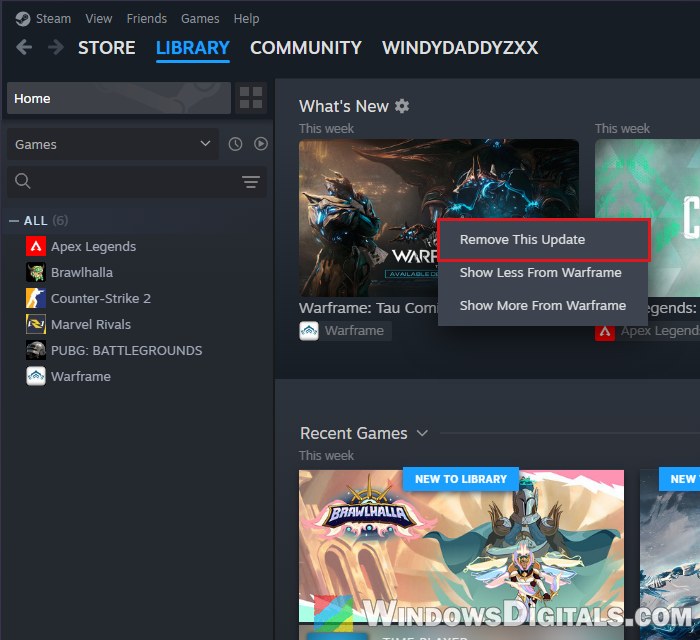
- To see fewer posts from that game from now on, choose Show Less From (game name) in the same menu.
If nothing changes, move on.
Turn on Steam’s low performance settings
Steam has a few settings meant for slower PCs that cut down what its Library loads in the background, which can lower what the WebHelper uses.
- In Steam, click the Steam menu at the top left and select Settings.
- Go to Library.
- Turn on “Low Bandwidth Mode“, “Low Performance Mode” and “Disable Community Content“.
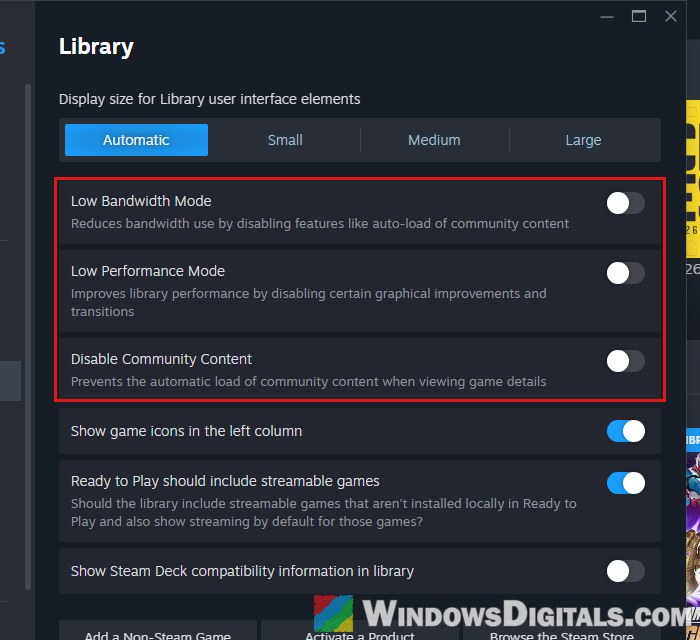
- Exit Steam from the Steam menu and open it again.
Then check Task Manager again to see if the WebHelper processes are using less memory than before.
Related guide: How to Limit CPU Usage of a Process in Windows 11
Switch Steam to Small Mode
If you mostly use Steam just to launch your games, Small Mode turns the client into a simple list of your games without the Store and Community pages. It can bring Steam’s memory and CPU use from a few gigabytes back down to normal, though it doesn’t make a difference for everyone.
- In Steam, click View at the top.
- Select Small Mode.
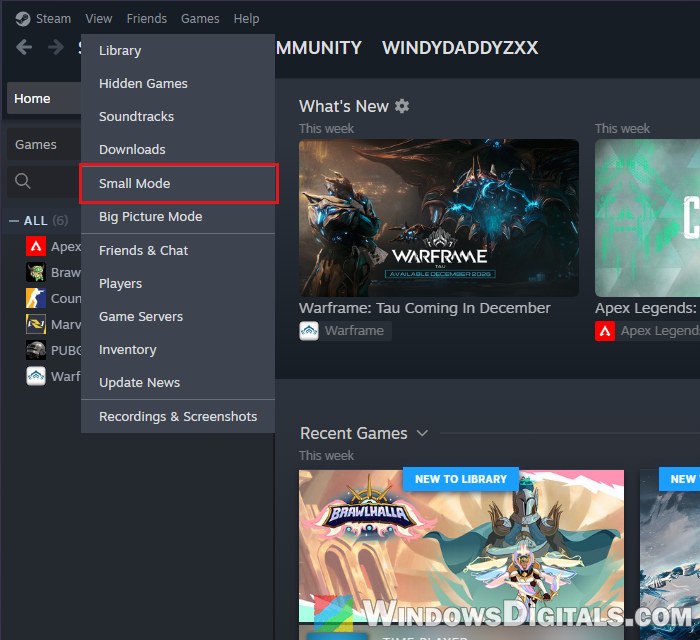
Open Task Manager and see if the WebHelper processes have dropped. To get the full client back, switch back from the same View menu.
Can you disable Steam Client WebHelper completely?
Not really. Since the WebHelper draws almost everything in the Steam client, Steam needs it to work. Its old -no-browser launch option, which started the client without it, was removed back in 2023. There are third-party tools that keep killing it every second or two, and some people rename steamwebhelper.exe so Steam can’t start it, but both break the Store, the overlay and other parts of Steam. I wouldn’t recommend either.
If the WebHelper is always far above those normal numbers even after all of this, reinstalling Steam is the last thing worth trying.