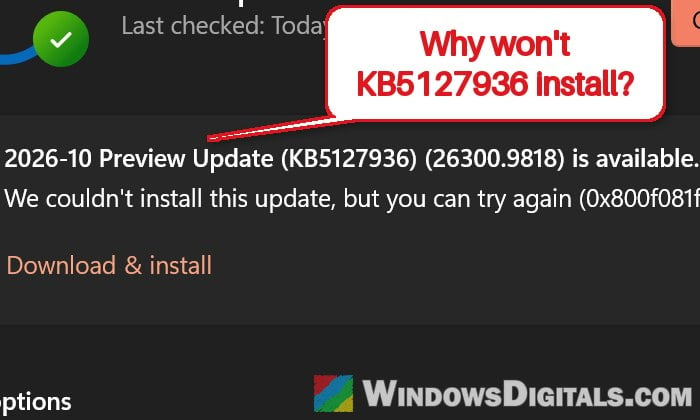
If Windows Update says it “couldn’t install” the 2026-10 Preview Update (KB5127936) on your Windows 11 PC, with error 0x800f081f, or it gets stuck at a low percentage and then fails with 0x800f0920 or 0x80071a2d, you’re not the only one. This guide will explain what these errors mean, whether you even need this update, and how to get it installed if you want it.
Also see: Windows 11 Update Fails With Error 0x80070306 (KB5127648)
What is KB5127936, and do you need it?
KB5127936 is the optional preview update Microsoft released on October 28, 2026 for Windows 11 version 26H2 (build 26300.9818) and 25H2 (build 26200.9818). It brings new features and fixes, such as the customizable right-click menu in File Explorer, but no security fixes.
So you don’t actually need it right now. Preview updates come out near the end of each month as an early look at the next required update. If you don’t install KB5127936, its changes will come to your PC anyway with the November 10, 2026 security update, which is only days away. Microsoft doesn’t list a known install problem for this update either, so there’s no official fix for it yet.
What do 0x800f081f, 0x800f0920 and 0x80071a2d mean?
The three codes point to different things:
- 0x800f081f: Windows couldn’t find files it needs to install the update. According to Microsoft, this usually means some of the files Windows keeps for installing updates are damaged.
- 0x800f0920: the install took so long that Windows thought it had stopped responding and canceled it. Microsoft’s fix for it is giving the PC more resources, so it’s more likely on a slow or busy PC.
- 0x80071a2d: Windows applies an update as one batch of changes (a “transaction”), and by the time it tried to finish, that batch was no longer active. It can show up after an earlier attempt failed or was cut off halfway, for example when a laptop’s battery runs out during the update.
Related problem: Windows Update Error 0x80073712 “Some update files are missing or have problems”
Skip it and wait for the November update
Since KB5127936 is optional, the simplest fix is to not install it at all. This is also what most people on Reddit and Microsoft’s forums suggest when a preview update keeps failing. Nothing breaks if you skip it, and the next required update will bring you the same changes.
Just make sure Windows won’t try to install preview updates by itself:
- Press Win + I and select Windows Update.
- Turn off “Get the latest updates as soon as they’re available“.
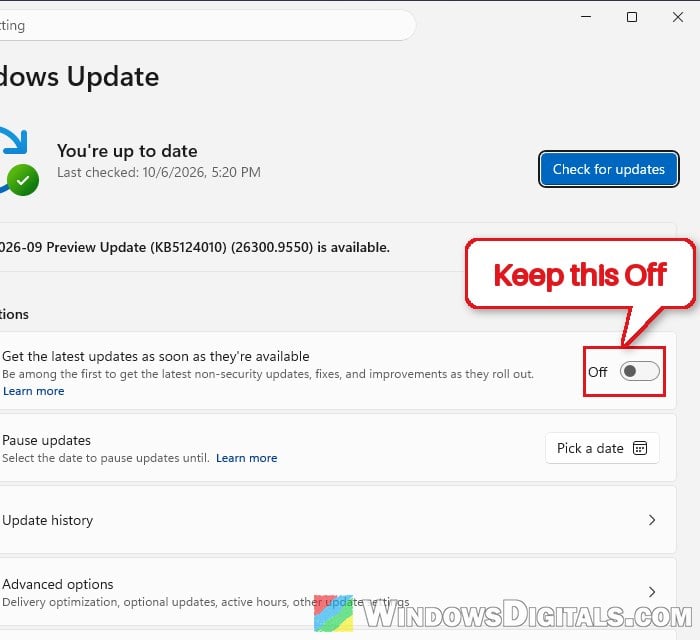
With this off, the preview update stays on the Windows Update page but won’t install unless you click it. If the November update also fails with one of these errors, use the fixes below on it instead.
Plug in, restart and try once more
If you saw 0x800f0920 or 0x80071a2d, give the update a fair chance before trying the bigger fixes. These two can come from an install that ran out of time or got cut off, so it’s worth one clean retry.
Here’s what you should do:
- If you’re on a laptop, plug in the charger and leave it plugged in until the update is done.
- Close any apps you don’t need, especially games and anything that’s downloading.
- Restart your PC.
- Go to Settings > Windows Update, and select Download & install under the KB5127936 update.
Then leave the PC alone until it asks you to restart. If it fails again with the same code, move on to the next fix.
Repair update files with DISM and SFC
For 0x800f081f, these two commands are what Microsoft itself suggests. DISM repairs the files Windows uses to install updates, and SFC then checks the system files themselves. They’re safe to run and usually don’t take long.
Follow the steps below:
- Click Start, type “cmd“, and select Run as administrator for Command Prompt, then click Yes.
- Type the following command and press Enter:
DISM.exe /Online /Cleanup-Image /RestoreHealth
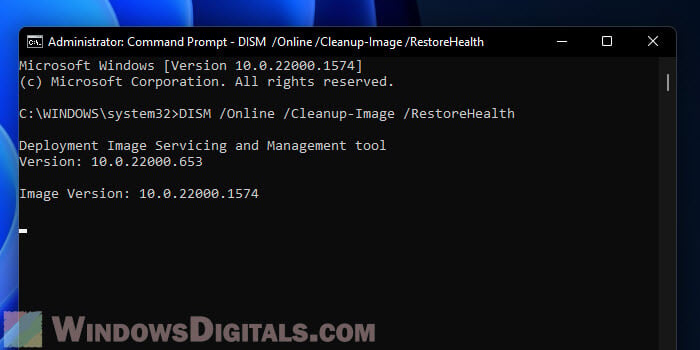 If DISM itself fails with an error, see: DISM Error 0x800f0915 “The repair content could not be found anywhere”.
- When it’s done, type the following command and press Enter:
sfc /scannow
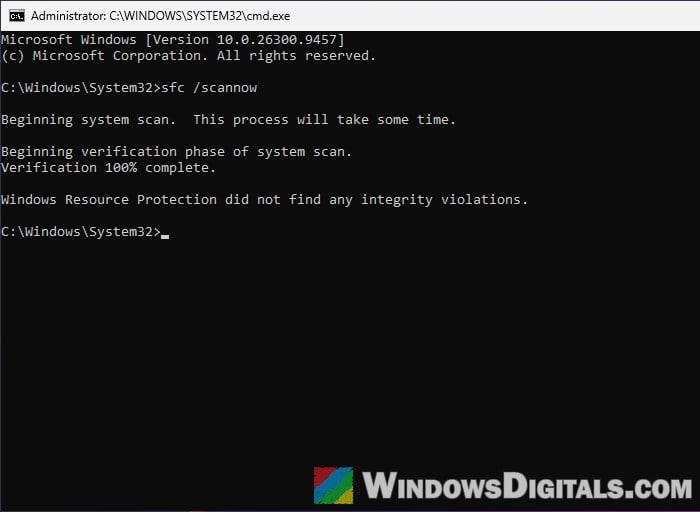
- Restart your PC, then try installing KB5127936 again.
Pro tip: Can I cancel “SFC /scannow” while it’s running?
Install KB5127936 manually from the Microsoft Update Catalog
You can also download the update straight from Microsoft and install it by hand instead of through Windows Update. It’s a big download (about 5 GB for x64 PCs), and since it uses the same installer, it can still fail the same way. Still, it’s worth a try before the repair install below.
Please note that according to Microsoft, another update, KB5043080, has to be installed first. The Catalog lists both files together for KB5127936, so download them into the same folder and install the kb5043080 file first.
Here’s how to do it:
- Go to
https://www.catalog.update.microsoft.com/and search for “KB5127936“. If the page stays blank, refresh it. - Find the line for your version of Windows 11, such as “2026-10 Cumulative Update Preview for Windows 11, version 26H2 for x64-based Systems (KB5127936) (26300.9818)“. For 25H2, the line ends in (26200.9818) instead.
- Pick x64 for most PCs, and arm64 only for ARM-based laptops.
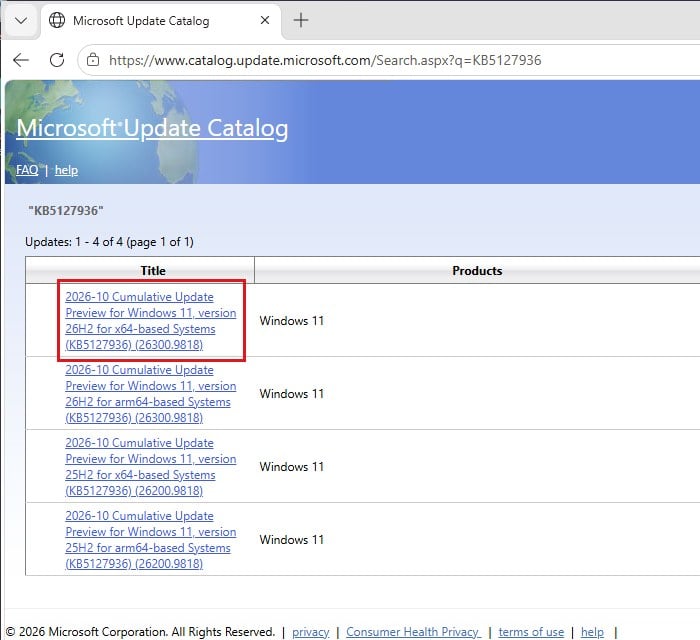
- Click Download on that line.
- In the window that opens, click both .msu files (one for kb5127936 and one for kb5043080) to download them, and save them into the same folder.
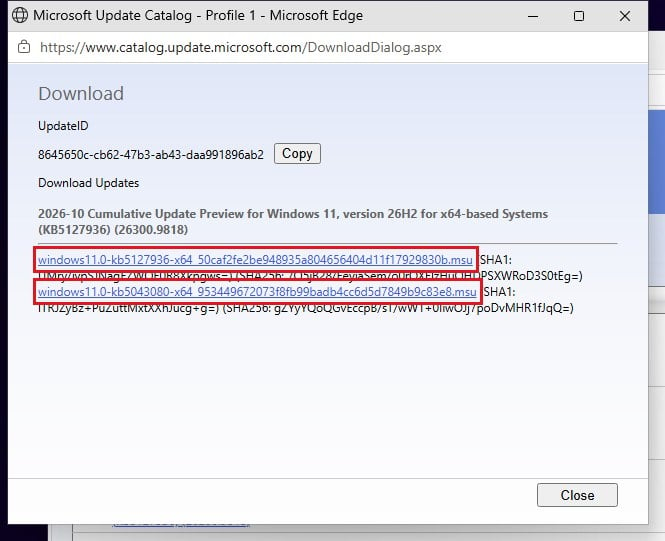
- Double-click the windows11.0-kb5043080 file first and let it install, then do the same with the windows11.0-kb5127936 file.
Restart your PC when it’s done, then go to Settings > Windows Update to see if KB5127936 is still offered.
Linked issue: Windows 11 Update Keeps Failing With Error 0x800f0991
Use “Fix problems using Windows Update”
If nothing above worked, Windows 11 can reinstall your current version of Windows through Windows Update, which replaces damaged system files along the way. It keeps your apps, files and settings. It can take a while, so keep your PC plugged in and connected to the internet until it’s done.
Here’s what you should do:
- Press Win + I and go to System > Recovery.
- Under “Fix problems using Windows Update“, click Reinstall now.
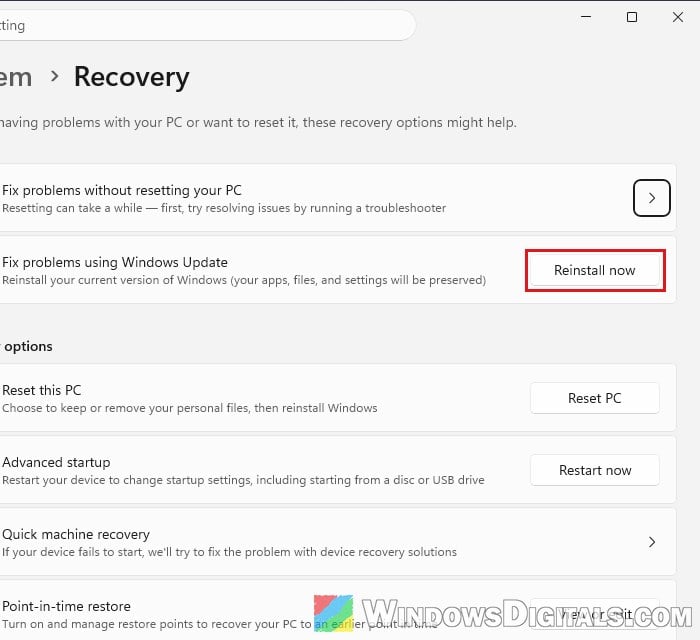
- Click OK and let Windows download and install the files, then restart when it asks you to.
- Go back to Settings > Windows Update and check for updates again.
Microsoft says this option isn’t shown on PCs managed by a work or school organization, or where certain update policies are set.
Learn more: “Reinstall your current version of Windows” Message
What if your PC keeps restarting after the update?
If the update did install but left your PC restarting over and over, you can remove KB5127936 without starting Windows.
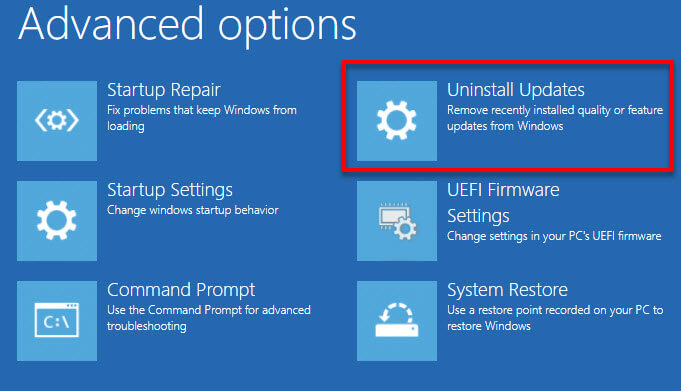
When Windows fails to start correctly several times, it opens the blue Windows Recovery Environment by itself. If it doesn’t, turn the PC on, hold the power button to shut it down as soon as the Windows logo shows up, and do this three times; it should open on the third restart. From there, go to Troubleshoot > Advanced options > Uninstall Updates, and select Uninstall latest quality update.
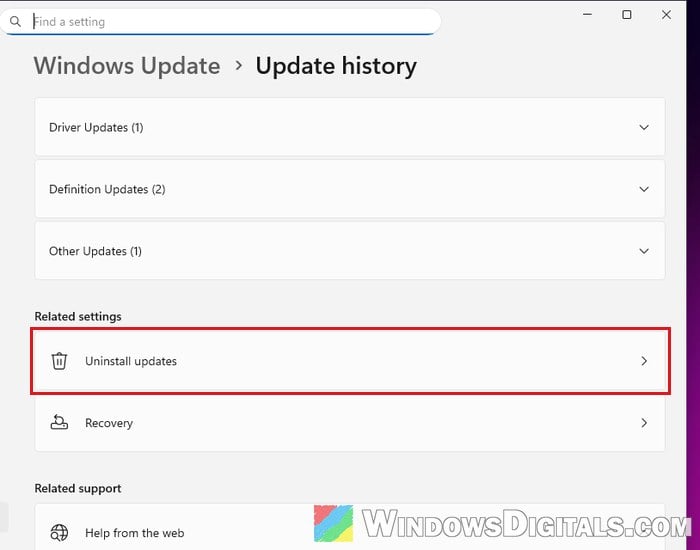
If Windows still starts normally and you just want the update gone, go to Settings > Windows Update > Update history, select Uninstall updates under Related settings, and click Uninstall next to the update.
Once it’s removed, keep “Get the latest updates as soon as they’re available” turned off and wait for the November update instead.