If you’re trying to join a Discord server and you’re stuck on the rules screen, where the “Agree and Finish” button stays greyed out and there’s no checkbox to tick, you can’t get into the server at all. Since late October 2026, quite a few people have run into this, mostly in the Discord app on their phone. This guide will show you why the button won’t light up and how to get past it, including finishing the join from your PC.
Also see: Discord Age Verification Not Working (Face Scan Fails or No Method Available)
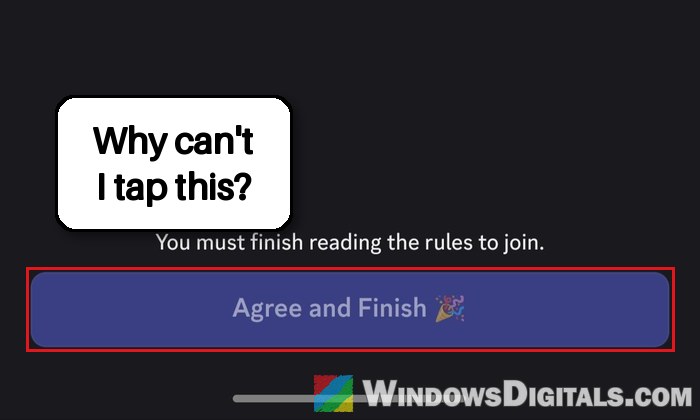
Why is “Agree and Finish” greyed out?
The screen you’re stuck on is Discord’s Rules Screening. Servers that use it make every new member agree to their rules before they can talk, react or message other members, so you have to get through it before you’re really in.
There’s no official explanation for the greyed-out button yet. What users have worked out is that the phone app seems to wait for you to scroll to the end of the rules before it lets you tap the button. When the rules fit on your screen, or the list won’t scroll at all, the button never turns on. Some people think a recent update of the mobile app broke it, but that hasn’t been confirmed.
So the fixes below are mostly about making that scroll happen, or doing the step somewhere it works.
Scroll all the way down the rules first
Even if it looks like there’s nothing to scroll, swipe up and down on the list of rules a few times, all the way to the bottom. It doesn’t work for everyone, but sometimes that’s enough for Agree and Finish to light up, and you can then tap it and join.
If it stays greyed out no matter how much you scroll, or the list doesn’t move at all, try the next fix.
Turn your phone sideways and scroll again
If the rules list won’t move, turning the phone sideways often gets it scrolling. When you rotate the phone to landscape, the rules take up more room than the screen has, so the list can finally be scrolled, which seems to be what the app is waiting for. Here’s what to do:
- Leave the rules screen open.
- Make sure your phone’s screen rotation isn’t locked, then turn the phone sideways.
- Scroll down to the end of the rules.
- Tap Agree and Finish once it lights up.
You can turn the phone back upright once you’re in the server.
Might be useful: Discord Won’t Connect to Voice Channel (Fix)
Finish joining from Discord on your PC
Since the problem shows up in the phone app, a good way around it is to join the server from your Windows PC instead, with the Discord desktop app or Discord in your web browser. The PC app doesn’t seem to have this problem, so the join usually goes through there.
To join the server with the Discord app on Windows 11 or 10, follow the steps below:
- Copy the server’s invite link (from the website, message or post where you found it).
- Open Discord on your PC and sign in with the same account you use on your phone.
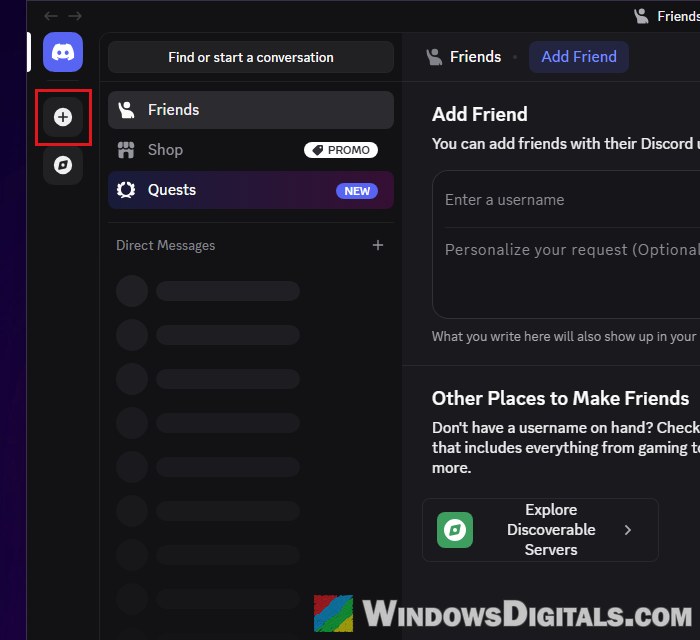
- Click the + (Add a Server) button below your servers in the server list on the left.
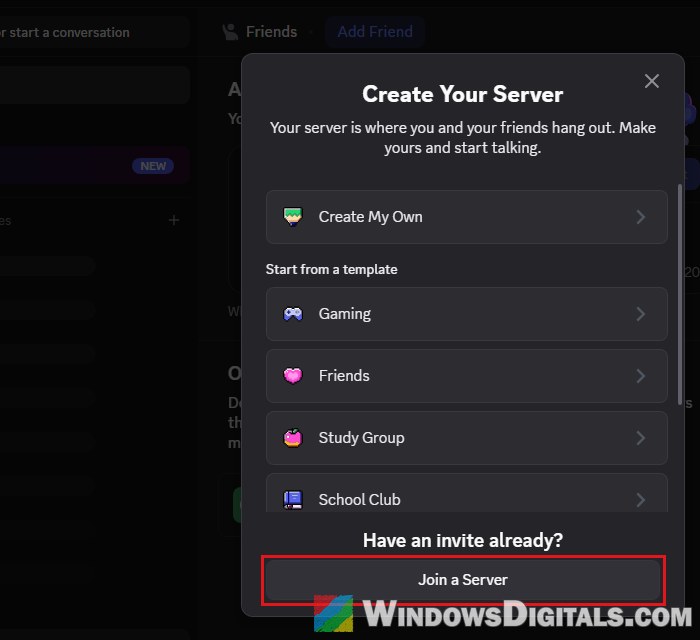
- In the “Create Your Server” window, click Join a Server at the bottom (under “Have an invite already?”).
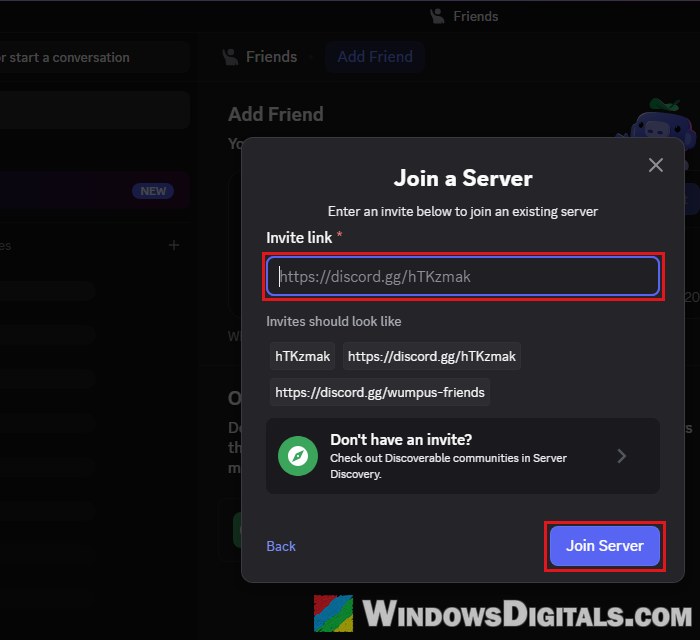
- Paste the invite link into the Invite link box and click Join Server.
- When the server’s rules show up, read through them, agree, and finish joining.
If you’d rather not install the app, you can open the invite link in your web browser on the PC and sign in to Discord there instead.
Suggested read: Discord Stream Keeps Freezing: How to Fix it
Quit Discord completely and try again later
If none of the above worked, close Discord fully and come back to it a bit later. Sometimes the button simply works when you try again.
- On your phone: close the Discord app from your recent apps (don’t just switch away from it), and update it from the App Store or Google Play if there’s an update waiting.
- On your PC: closing Discord’s window only hides it in the system tray. To quit it, click the up arrow at the bottom right of the taskbar to show the hidden icons, then right-click the Discord icon and select Quit Discord.
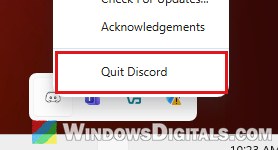
When you open Discord on the PC again, it checks for updates by itself before it starts, so you’ll be on the latest version. Then open the server’s invite link again and see if the rules screen lets you through.