If your PC acts as if a key is being held down by itself, such as Ctrl (pressing T opens a new tab, scrolling zooms in and out), the Windows key, or F3 or an arrow key firing over and over, and it doesn’t stop even when you unplug the keyboard, this guide will show you how to find what’s actually sending that key and how to fix it.
Also see: Caps Lock Stuck on Windows 11 (How to Fix)
Why does Windows think a key is held down?
If the problem continues with the keyboard unplugged, or with a completely different keyboard, the keyboard is very likely not the problem. Windows accepts key presses from more than just your keyboard, and something else is telling it that the key is still down. Some common reasons are:
- Another input device sending the key: a wireless mouse receiver that’s acting up, a mouse with side buttons set to shortcuts like Ctrl + C, a game controller with a stuck button or stick, or a drawing tablet with something resting on one of its shortcut buttons.
- Software that sends or remaps keys: macro tools, AutoHotkey scripts and keyboard or mouse utilities can leave a key “pressed” when they send a shortcut.
- The laptop’s own keyboard: on a laptop, plugging in an external keyboard doesn’t switch the built-in one off, so a faulty built-in keyboard can keep sending a key.
- Sticky Keys or Filter Keys: rarely the cause when a key acts stuck like this, but they’re quick to rule out.
It often goes away for a while after sleep or a restart and then comes back, because whatever is sending the key starts doing it again.
Linked issue: Keyboard Key Only Works When Shift is Held Down, Why?
Find out which key is stuck with the On-Screen Keyboard
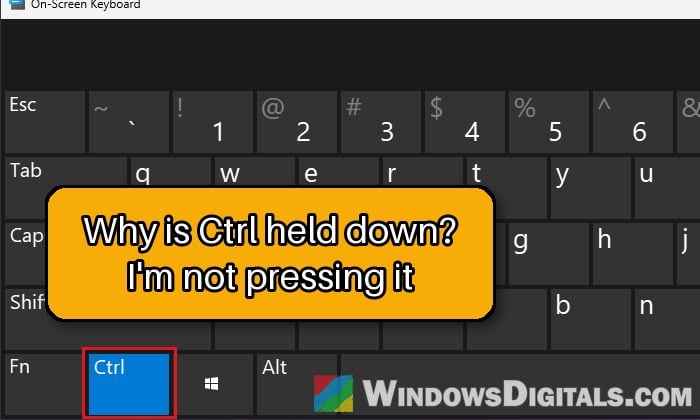
Before unplugging anything, open the On-Screen Keyboard. A key that Windows thinks is being held down shows as pressed (highlighted) on it, so you can see exactly which key is stuck and watch it release when you find the cause. Since a stuck Ctrl or Windows key can make shortcuts misbehave, it’s easier to open it with the mouse:
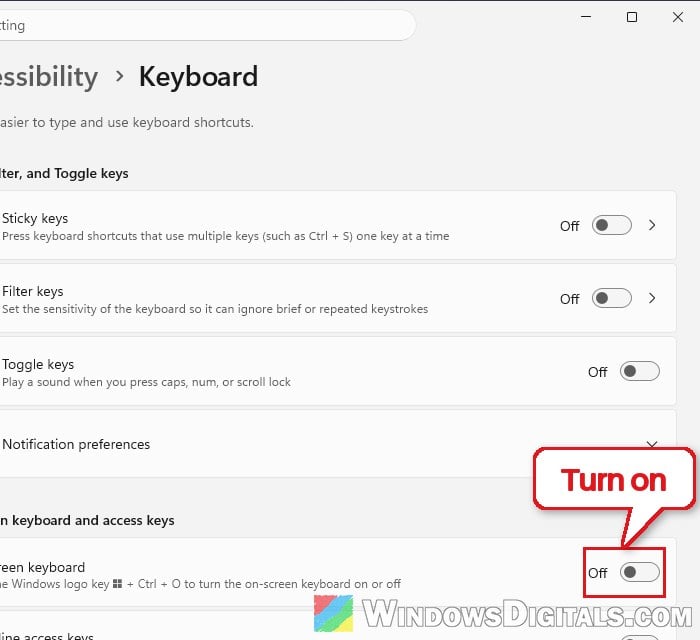
- Open Settings and go to Accessibility > Keyboard.
- Turn on the “On-screen keyboard” switch.
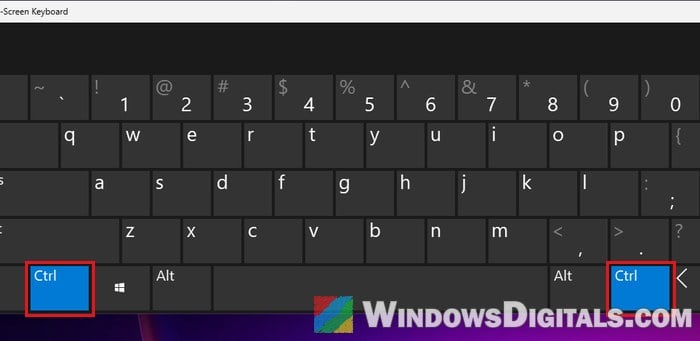
- Look at the keyboard that appears. The key Windows thinks you’re holding down is highlighted, even though nobody is pressing it. For Ctrl, both the left and right Ctrl keys light up.
You can also open it with Win + Ctrl + O. Keep it open on the side of the screen while you go through the next fixes. It’s a good test, but not a guarantee, as in some cases the stuck key doesn’t show on it.
Release the key for now
To get control back while you troubleshoot, press and release the stuck key a few times. For Ctrl, Shift and Alt, do it with both the left and the right one. This doesn’t always work. Putting the PC to sleep and waking it up, or restarting it, also clears it for a while. If a device or app keeps sending the key, it will get stuck again, so don’t stop here.
Unplug your other input devices one at a time
This is the cause that comes up most often in reports of this problem. Unplug your USB devices one at a time (the wireless mouse receiver, game controllers, drawing tablets, extra keyboards, USB hubs and dongles) and watch the On-Screen Keyboard. When you unplug the device that’s sending the key, the highlighted key should release.
For wireless and Bluetooth devices, turn them off, or check what’s connected in Settings > Bluetooth & devices > Devices.
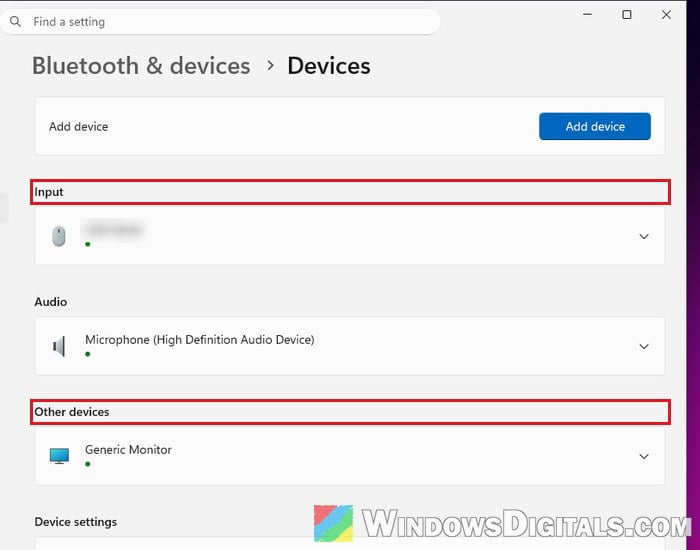
Also look around the room. A controller dropped on the couch with its stick pushed, or something resting on a tablet’s shortcut button, is enough to cause this.
Once you know which device it is:
- A mouse or tablet with programmable buttons: open its software and check what the buttons are set to. Buttons set to Ctrl shortcuts are a common suspect.
- A wireless mouse or receiver that’s acting up: try another USB port. If it keeps doing it, the receiver or the mouse itself might be faulty and need replacing.
If you’re not sure which device it was, unplug everything, restart the PC, and then plug each device into a different USB port than before.
Pro tip: Use Wireless Controller as Mouse/Keyboard in Windows 11
Close macro and key remapping apps
Apps that send keys for you, like AutoHotkey scripts, macro tools and mouse or keyboard utilities, can leave a modifier key down when a shortcut doesn’t finish cleanly. Close them one at a time from the system tray and see if the key on the On-Screen Keyboard releases.
- Click the arrow on the right side of the taskbar to show the hidden icons.
- Right-click the app’s icon and choose its exit or quit option (for AutoHotkey, right-click the green “H” icon and select “Exit“).
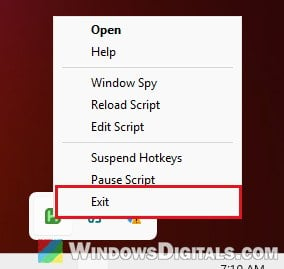
To see what else starts with Windows:
- Right-click the Start button and select “Task Manager“.
- Go to “Startup apps“. Tablet, mouse and macro tools often show up here.
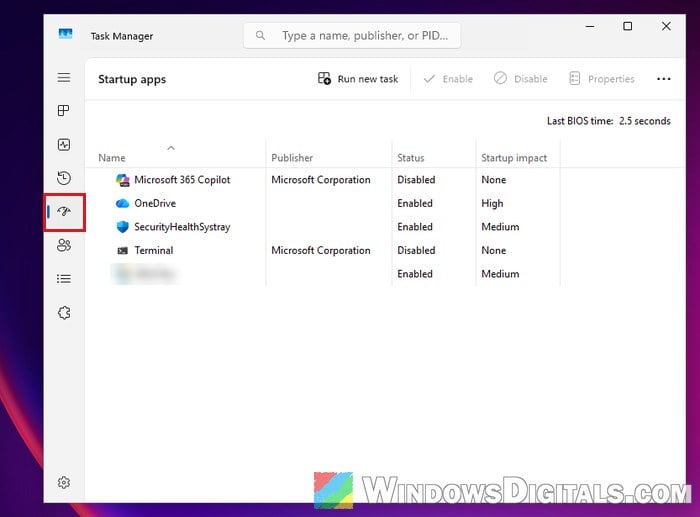
- Select a tool you suspect and click “Disable“.
Restart the PC and check whether the key on the On-Screen Keyboard is still highlighted.
If you write your own AutoHotkey scripts and Ctrl keeps getting stuck, change the script’s “menu mask key”. AutoHotkey uses the left Ctrl key for it by default, and its own documentation says that can have unwanted side effects. It suggests changing it to a key that does nothing, like vkE8. Add this line near the top of the script (AutoHotkey v2):
A_MenuMaskKey := "vkE8"
For an AutoHotkey v1 script, use #MenuMaskKey vkE8 instead.
Related guide: Starting an AutoHotkey Script on Windows 11/10 Startup
Turn off Sticky Keys and Filter Keys
These two accessibility features change how Windows handles modifier keys and held keys. They’re rarely behind this problem (many people who have it already have them off), but it only takes a few seconds to check.
- Open Settings and go to Accessibility > Keyboard.
- Make sure “Sticky keys” and “Filter keys” are both turned off.
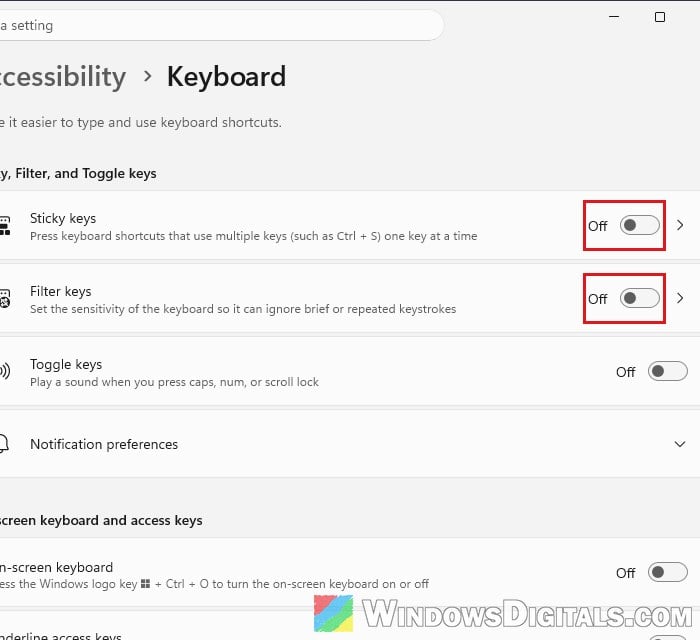
If either one was on, turn it off and see if the key still acts stuck.
On a laptop, test the built-in keyboard
If you’re on a laptop and the problem stays with an external keyboard plugged in, the built-in keyboard can still be the one sending the key. To test it, temporarily remove it in Device Manager (it comes back by itself the next time you restart) and use only the external keyboard.
- Plug in an external keyboard (or keep it plugged in).
- Right-click the Start button and select “Device Manager“.
- Expand “Keyboards“.
- Right-click your laptop’s keyboard (usually “Standard PS/2 Keyboard“) and select “Uninstall device“.
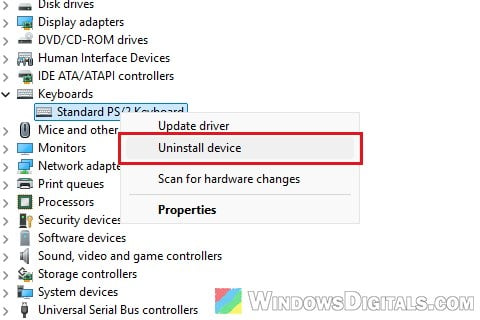
- Confirm the uninstall.
- Use the PC with only the external keyboard for a while.
If the stuck key stops, the laptop’s keyboard is the problem, and it will need to be repaired or replaced. If your laptop is still under warranty, contact the manufacturer.
Could it be the USB ports or motherboard?
It’s not common, but if any keyboard you plug into that PC starts typing on its own, whatever port you use, or your USB devices keep disconnecting and reconnecting, the problem might be the PC’s USB ports or the motherboard itself. Try other USB ports, and if nothing changes, get the PC checked by a repair shop or the manufacturer.