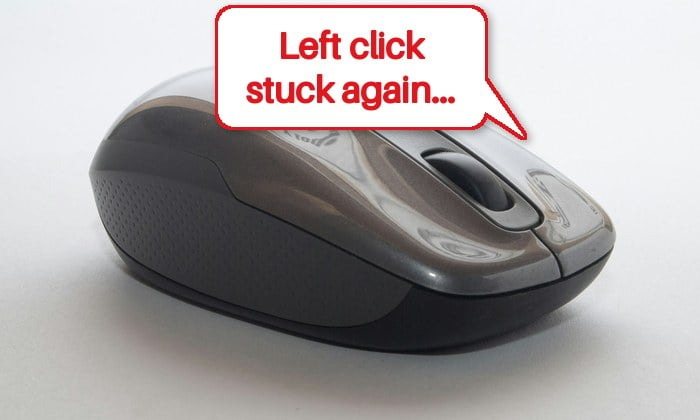
If your wireless mouse’s left button acts as if it’s still being held down after you let go, dragging windows and selecting text on its own, and then stops clicking at all until you switch the mouse off and on, this guide will show you what usually causes it, how to release the stuck click right away, and how to find out whether the mouse itself is failing.
Also see: Logitech Mouse Double Clicking on Single Click (Fix)
Page Contents
Why does the left click get stuck on a wireless mouse?
When the click is stuck, the cursor usually still moves, and right-click often still works. But the whole PC can start acting strangely: menus don’t highlight when you hover over them, some apps won’t open, and on a laptop even the touchpad stops clicking. It’s as if Windows thinks the left button is still held down.
It’s a pretty common problem that you’ll find discussed on Reddit and Microsoft’s forums, with all kinds of mice. The usual reasons are:
- A worn or dirty left button switch. The switch inside the mouse can wear out or get stuck in the pressed position.
- Another button on the mouse is stuck. A stuck side button (such as a Page Up button) can stop your clicks from working too.
- A weak or lost wireless signal. Low batteries, interference near the receiver, or a receiver plugged into a hub can make the mouse miss commands.
- ClickLock is turned on in Windows. This feature locks the button down after a longer press, which looks exactly like a stuck click.
Most of these only take a minute to check.
Linked issue: Can’t Click Anything on Desktop in Windows 11/10 (Fix)
First, release the stuck click
If the click is stuck right now and you just need it back, there are two quick ways to release it:
- Press Ctrl + Alt + Del, then press Esc (or click “Cancel“) to go back to your desktop.
- Or turn the mouse off with its power switch, wait a few seconds, and turn it back on.
Either one should give you a working left click again. Both only last for a while, though. If the click keeps getting stuck, try the fixes below to find the actual cause.
Replace or recharge the battery
It might sound too simple, but a battery that’s running low is one of the most common reasons a wireless mouse starts doing strange things. Logitech also lists low batteries as one of the first things to check when a mouse stops working properly.
Put fresh batteries in the mouse, or fully charge it if it has a built-in battery. Then turn the mouse off and on again to refresh the connection, and see if the click still gets stuck.
Move the USB receiver to a better spot
If the mouse uses a small USB receiver (dongle), a weak signal between the two can make the mouse miss commands, your clicks included. Logitech points out that USB 3.0 devices, such as external hard drives and flash drives, can interfere with 2.4 GHz wireless receivers. USB 3.0 ports usually have a blue insert inside them.
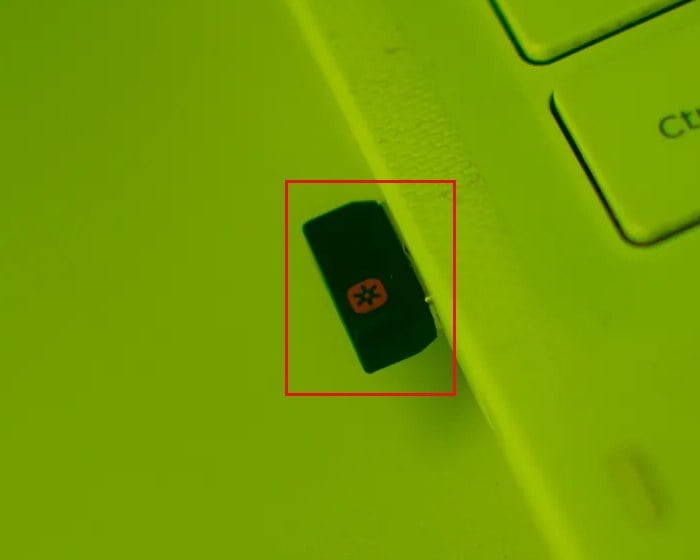
Here’s what you should try:
- Plug the receiver directly into the PC, not into a USB hub or a KVM switch.
- Try a different USB port. On a desktop PC, a receiver at the back of the case can have its signal blocked by the case itself, so a front port is often better.
- Keep the receiver away from USB 3.0 devices and their ports, ideally on the opposite side of the computer.
- Use a USB extension cable to bring the receiver onto your desk, closer to the mouse and farther from the PC.
- Keep other electrical devices at least 8 inches (20 cm) away from the receiver, and don’t use the mouse on a metal surface.
After moving the receiver, use the mouse normally for a while and see if the stuck clicks still happen.
Related problem: Logitech Wireless Mouse USB Receiver Lost or Broken
Make sure ClickLock isn’t turned on
ClickLock is a Windows feature that lets you highlight or drag things without holding down the mouse button. When it’s on, holding the button down a little longer “locks” it. If it was turned on by accident, it can easily look like your left click is stuck.
To check it on Windows 11 or 10, follow the steps below:
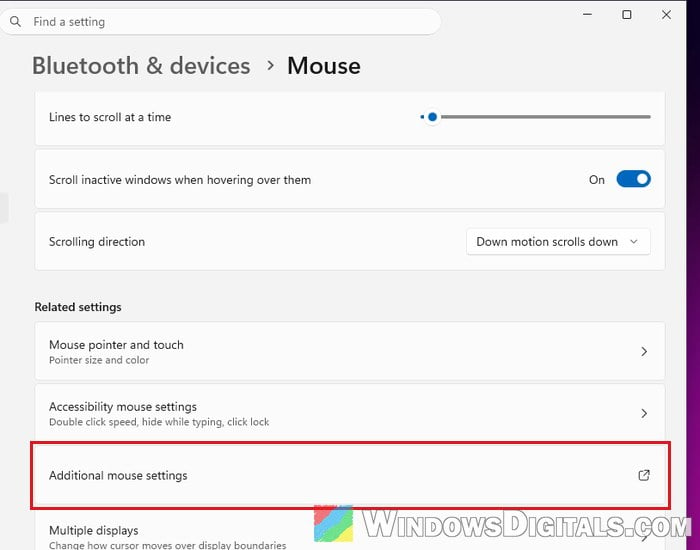
- Open Settings and go to “Bluetooth & devices” > “Mouse“.
- Scroll down and click “Additional mouse settings“.
- In the Mouse Properties window, stay on the “Buttons” tab.
- Under ClickLock, uncheck “Turn on ClickLock” if it’s checked.
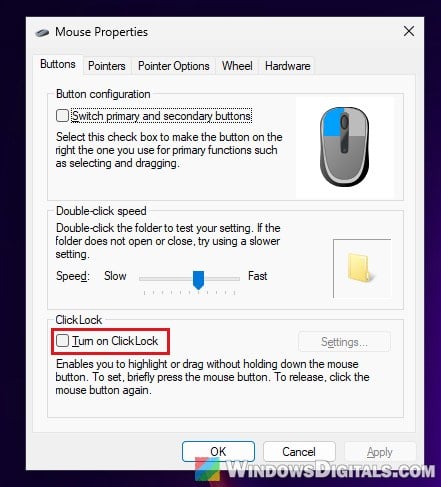
- Click “OK“.
If ClickLock was already off, leave it as it is and move on to the next fix.
Stop Windows from turning off the receiver to save power
Windows can turn off some USB devices to save power, and this can interrupt the connection to your mouse’s receiver. Turning this power saving off for the receiver is worth a try when the buttons behave strangely. Here’s how to do it:
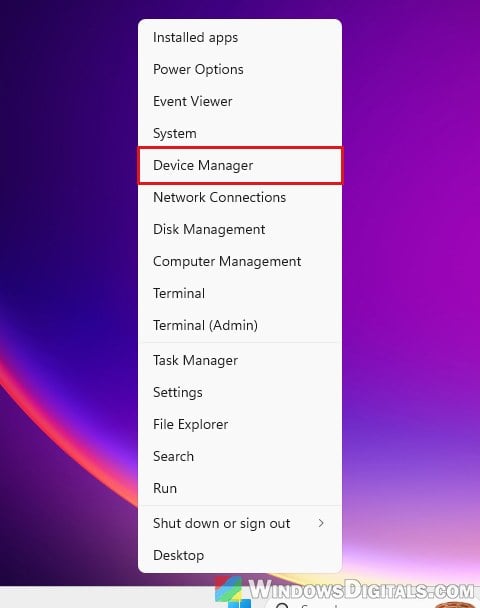
- Right-click the Start button and select “Device Manager“.
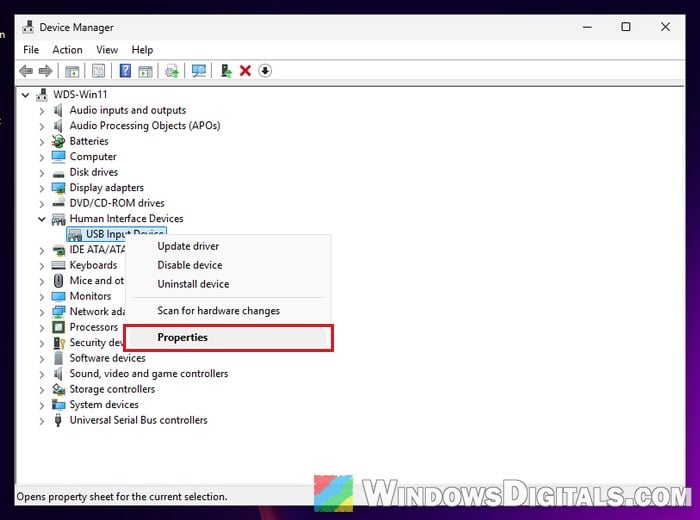
- Expand “Human Interface Devices“.
- Right-click “USB Input Device” and select “Properties“. If there’s more than one, you can repeat these steps for each.
- Go to the “Power Management” tab.
- Uncheck “Allow the computer to turn off this device to save power“, then click “OK“.
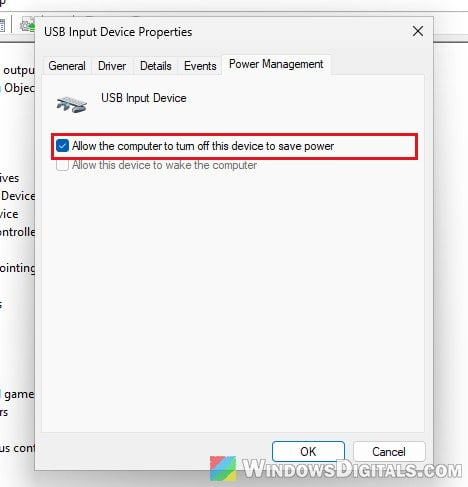
Restart your PC afterwards and check whether the left click still gets stuck.
Reinstall the mouse in Device Manager
Reinstalling the mouse in Windows gives it a fresh start in case its driver isn’t working right. Windows installs it again by itself after a restart. Here’s what you should do:
- Open Device Manager again.
- Expand “Mice and other pointing devices“.
- Right-click your mouse (often listed as “HID-compliant mouse“) and select “Uninstall device“.
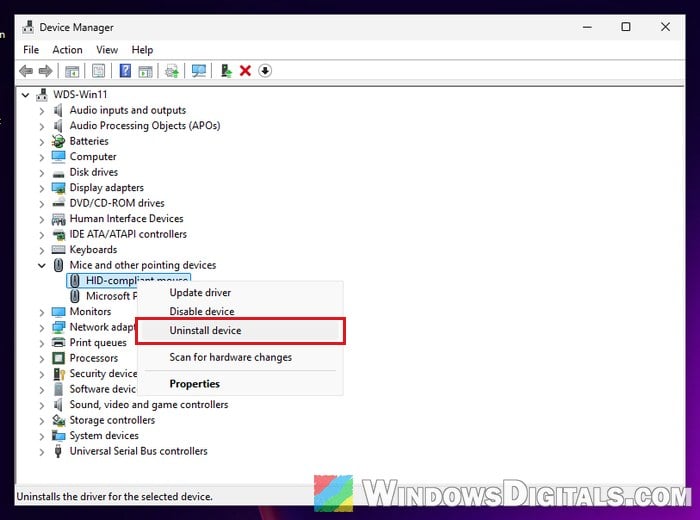
- Confirm, then restart your PC.
Once Windows is back, check whether the left click still gets stuck.
If your mouse connects through Bluetooth instead of a receiver, go to Settings > “Bluetooth & devices“, remove the mouse, restart the PC and pair it again.
Might be useful: Keyboard or Mouse Not Working After Windows 11/10 Update
Update the mouse’s software and firmware
Many wireless mice have their own app from the maker, which can also update the mouse’s firmware. For Logitech mice, that’s Logi Options+ or G HUB, both on Logitech’s support site. Other brands have their own apps on their websites.
Open the app, check if it shows an update for your mouse, and install it.
Check if the mouse itself is failing
If nothing above helped, the mouse itself is the most likely problem. To find out for sure, test it on another computer (or a phone, using a USB OTG adapter), and try a different mouse on your PC. If the stuck clicks follow the mouse, you know it’s the mouse and not Windows.
A few last things worth trying:
- Check that none of the mouse’s other buttons, such as the side buttons, is stuck in the pressed position.
- Clean around the left button with compressed air or a soft brush to remove any dust or dirt under it.
If the left click still gets stuck after cleaning, the button switch is likely worn out. If the mouse is new or still under warranty, return it or contact the manufacturer for a replacement. Otherwise, the switch can be repaired, but for most wireless mice, replacing the mouse is the simpler choice.