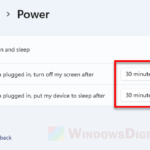
If your Lenovo ThinkPad, IdeaPad or Yoga keeps dimming and then turning off the screen every minute or two while you’re sitting right in front of it reading, even though Windows is set to turn the screen off after 15 minutes or more, it’s most likely the laptop’s presence sensor deciding that you’ve left. This guide will show you what’s doing it and the different places you can turn it off.
Also see: Windows 11 Locks the Screen After 1 Minute, Why?
Page Contents
Why does your Lenovo screen turn off while you’re using it?
Many newer Lenovo laptops have a human presence sensor. Depending on the model, it’s an ultrasonic sensor, a small ToF sensor or the IR camera, and some newer ThinkPads use Elliptic Labs’ software-based “virtual” presence sensor. Lenovo uses it for a few features, usually all on by default:
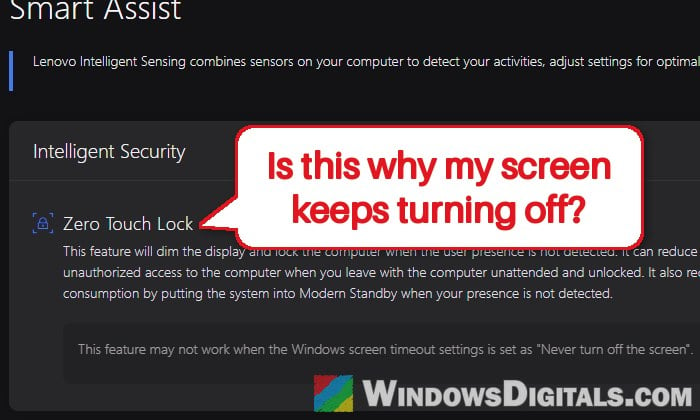
- Zero Touch Lock: dims the screen and then locks the laptop when it thinks you’ve walked away (older ThinkPads call this the “lock on leave” function).
- Adaptive Dimming: dims the screen when it thinks you’re looking away from it.
- Zero Touch Login: wakes the laptop and signs you in with your face when you come back.
These features work separately from the screen timeout you set in Windows, which is why a longer screen timeout doesn’t help. On some ThinkPads, the BIOS even has a setting called “Override Windows(R) Screen time-out settings” for this.
The sensor can easily get it wrong, for example with a bright light behind you, in a very dark room, when your face is partly covered, and especially when the camera’s privacy shutter is closed. Then it decides nobody is there and turns the screen off, even though you’re reading.
Pro tip: How to Stop Windows 11 From Turning Off Screen or Sleeping
Turn off Zero Touch Lock and Adaptive Dimming in Lenovo Vantage
The main switches are in “Lenovo Vantage” (called “Commercial Vantage” on many business ThinkPads). You can turn off only the part that bothers you, or the whole feature.
Here’s how to do it:
- Open “Lenovo Vantage” from the Start menu.
- Go to “Device” > “Smart Assist“.
- Turn off “Zero Touch Lock” if the screen turns off when you sit still, and “Adaptive Dimming” if it dims when you look down or away.
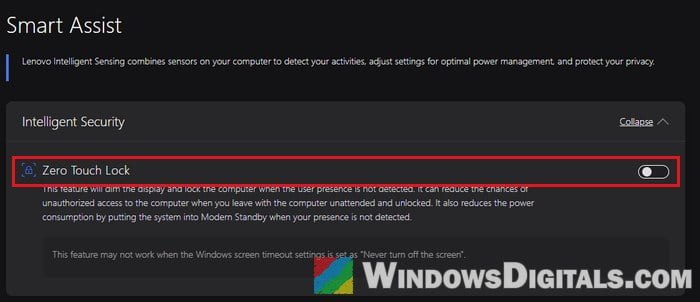
- Or turn off the whole “User Presence Sensing” switch. This also turns off Zero Touch Login, so the laptop won’t wake up and sign you in by itself anymore.
On some older ThinkPads with the ultrasonic sensor, there’s only a single “Zero Touch Lock” switch under Smart Assist.
Sit in front of the laptop without touching it for a few minutes and see if the screen still dims or turns off.
Please note that uninstalling Lenovo Vantage doesn’t get rid of the feature. According to Lenovo, on some models it goes back to its defaults when Vantage is removed, so keep the app. If you can’t find “Smart Assist” at all, run a “System Update” in Vantage first, then check again, or use one of the other ways below.
Turn off presence sensing in Windows Settings
If your laptop’s sensor works with Windows’ own Presence Sensing, Windows Settings has its own switch that turns the screen off when you leave. You’ll only see it on laptops with a supported sensor.
Here’s what you should do:
- Open “Settings” > “System” > “Power & battery” (just “Power” on some PCs).
- Expand “Screen timeout” (called “Screen, sleep, & hibernate timeouts” or “Screen and sleep” on some versions).
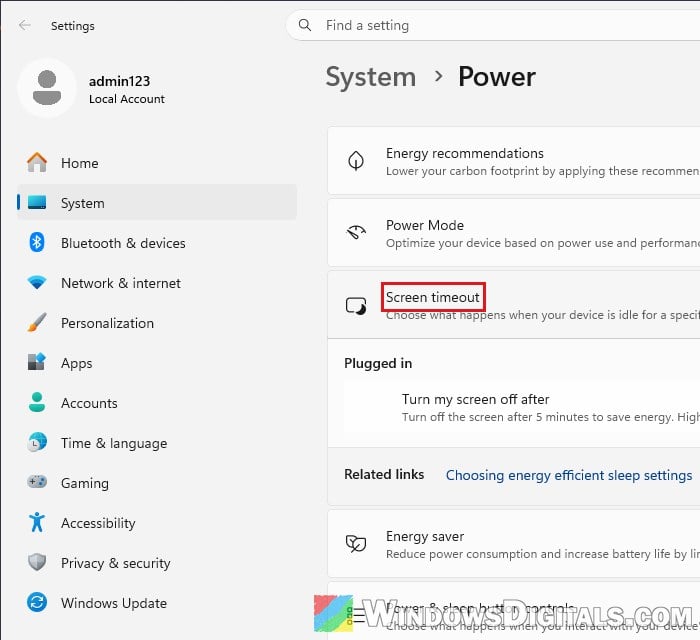
- Turn off “Automatically turn off my screen when I leave” (shown as “Turn off my screen when I leave” on some laptops).
- If your laptop also has a switch to dim the screen when you look away, turn it off too.
If you’d rather keep it, click “More options” instead to change how far away counts as gone and how long it waits before turning off the screen. Then check whether the screen still goes off early.
Suggested read: How to Turn Brightness Up or Down on Windows 11/10
Disable the Elliptic Labs presence services
On many ThinkPads, Windows services from Elliptic Labs run the presence feature and can keep turning the screen off even with the switches above off. Several users on Reddit and Windows forums confirmed that disabling them is what finally stopped it. The names depend on the model:
- Elliptic Human Presence Detection
- Virtual Lock Sensor
Here’s how to disable them:
- Press Win + R, type “services.msc” and press Enter.
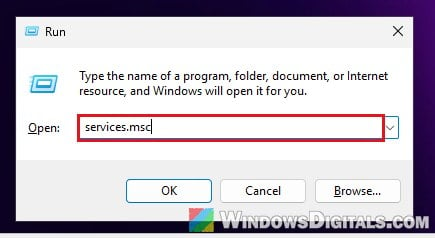
- Find “Elliptic Human Presence Detection” in the list, right-click it and select “Properties“.
- Set “Startup type” to “Disabled“, click “Stop“, then click “OK“.
- Do the same for “Virtual Lock Sensor“. Skip any service you don’t see.
- Restart your laptop.
Sit in front of it without touching anything for a few minutes and see if the screen still turns off early. If the problem ever comes back after a Lenovo update, check these services again.
Related guide: How to Disable Startup Services on Windows 11 or 10
Turn off User Presence Sensing in the BIOS
If Vantage and Windows Settings don’t have the option, or the screen keeps turning off even with the services disabled, you can turn the sensor off in the BIOS. It’s also what Lenovo tells you to use when Vantage isn’t installed.
Don’t change anything else in the BIOS. If you’re not sure what you’re doing, get someone to help you instead.
To do so, follow the steps below:
- Restart your laptop and press the BIOS key repeatedly when the Lenovo logo shows up to open the BIOS (UEFI) setup (F1 is the key on ThinkPads; other Lenovo models may use another one).
- Go to “Security” > “Intelligent Security“.
- Turn off “User Presence Sensing“.
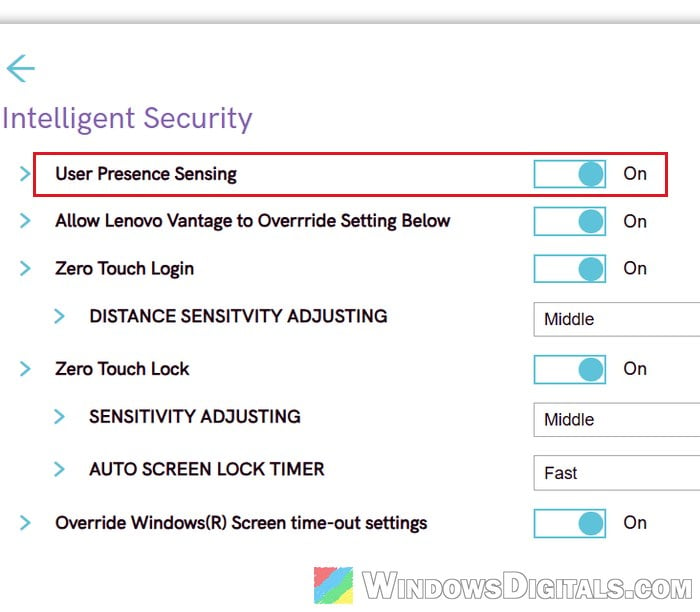
- Press F10 to save and exit.
Not every Lenovo laptop has this option in the BIOS. And on some ThinkPads, the Elliptic services in Windows keep running even with the BIOS switch off, so keep them disabled as shown in the previous section.
Might be useful: Reset BIOS Password for Lenovo ThinkPad, Ideapad, Yoga, etc.
Disable the presence sensor in Device Manager (last resort)
Some laptops, like the Lenovo Slim 5, have the sensor but no option for it in Vantage, the BIOS or Windows Settings. Then you can disable the sensor itself in Device Manager, which stops every presence feature, including the face sign-in when you walk up.
Here’s how to do it:
- Right-click the Start button and select “Device Manager“.
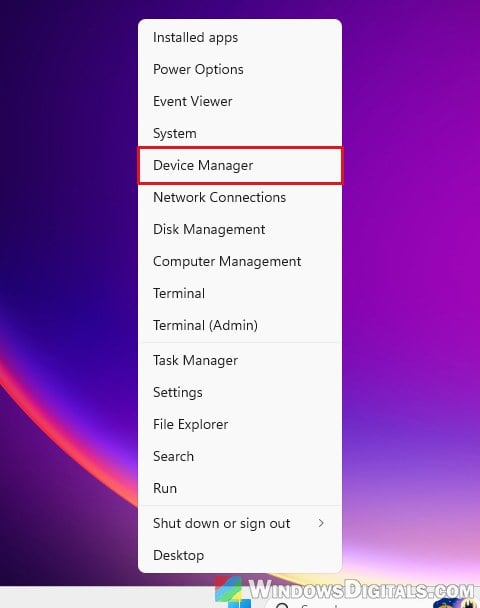
- Expand “Sensors“.
- Right-click each of the two “HID Custom Sensor” entries (the names can differ by model) and select “Disable device“, then confirm.
Sit in front of the laptop for a few minutes to check that the screen stays on. If anything you need stops working afterwards, go back and select “Enable device” on the same entries.
Want to keep the feature but stop the false alarms?
If you like your laptop locking when you actually walk away, you can help the sensor see you properly instead of turning it off:
- Open the camera’s privacy shutter. With it closed, the sensor can’t see you on models that use the camera to detect you.
- Sit facing the screen, within about 1.4 meters (4.6 feet) of the camera.
- Avoid a bright window right behind you or a very dark room.
- Turn off only “Adaptive Dimming” in Vantage and keep “Zero Touch Lock“, or set a longer distance and a longer delay in Windows’ “More options“.
Lenovo also notes that these features don’t work when the screen is set to never turn off, in tablet, tent or stand mode, or when the lid is closed.