If your Windows 11 PC locks itself after about a minute of not touching it, even though you’ve set the screen saver and the screen timeout to 15 minutes or more, it’s usually another timer that’s doing the locking, not the one you’ve been changing. This guide will show you which settings can lock your PC that quickly and how to turn each of them off.
Also see: How to Stop Windows 11 From Turning Off Screen or Sleeping
Page Contents
Why does Windows 11 lock after only 1 minute?
Windows 11 has several separate features that can lock your PC, and most of them ignore the screen saver and screen timeout you set. The usual ones are:
- The screen saver with “On resume, display logon screen” on and a short wait time, which some new PCs ship with.
- A presence sensor on your laptop that thinks you’ve walked away. On Dell laptops with this feature, the default lock timer is 60 seconds.
- Dynamic lock, which locks the PC when your paired phone’s Bluetooth signal drops.
- The “If you’ve been away” sign-in setting combined with a short screen-off time.
- A screen saver timeout of 60 seconds stuck in the registry, or a security policy that locks the PC after a set time.
It’s a common issue on Microsoft’s forums and Reddit, and the fix is usually finding which one is on.
Related guide: How to Turn On/Off or Change Screen Saver in Windows 11
Check the screen saver settings first
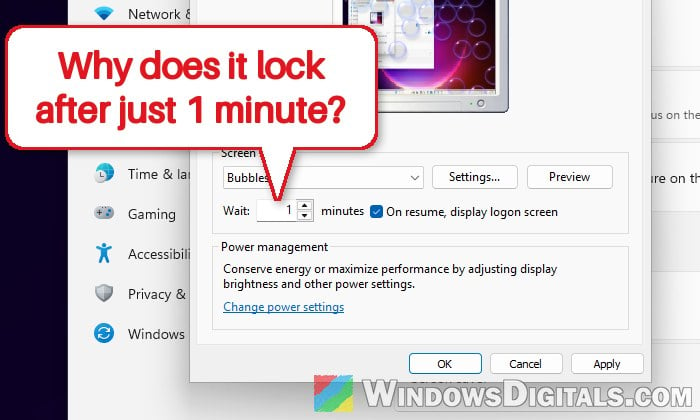
If the screen saver starts after 1 minute and “On resume, display logon screen” is checked, you land on the sign-in screen every time it kicks in, which looks exactly like Windows locking itself.
Here’s how to check it:
- Open Settings > Personalization > Lock screen.
- Under “Related settings”, click “Screen saver“.
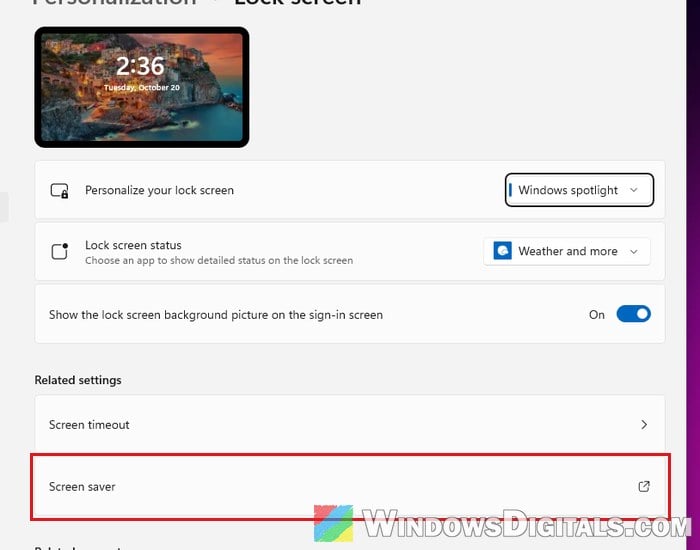
- In the Screen Saver Settings window, look at the “Wait” time. If it says 1 minute, set it to the time you actually want.
- Uncheck “On resume, display logon screen“, or set the screen saver to “(None)” if you don’t use it.
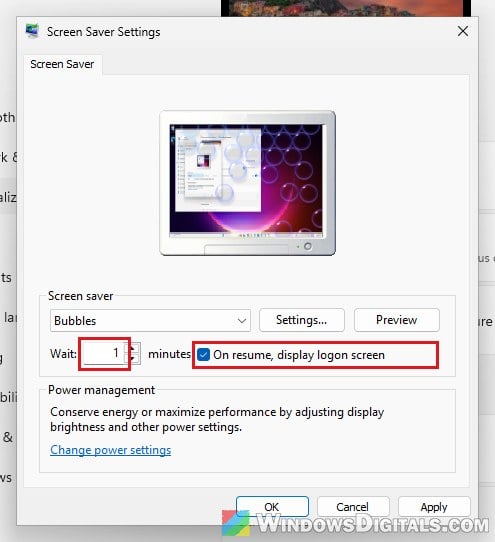
- Click “Apply” and then “OK“.
Wait a couple of minutes and see if it still locks.
Turn off your laptop’s presence sensor (lock when you leave)
Many newer laptops, especially Dell Latitude and Lenovo ThinkPad models, have a presence sensor that turns off or locks the screen when it thinks you’ve left. When it wrongly decides you’re gone, it locks the laptop after about a minute even with you right in front of it.
In Windows itself, on laptops with a presence sensor, go to Settings > System > Power & battery, expand “Screen timeout” (“Screen and sleep” on older versions) and turn off “Automatically turn off my screen when I leave“. To keep it, click “More options” and change how far away counts as gone or how long it waits instead. These options only show up on laptops with a sensor.
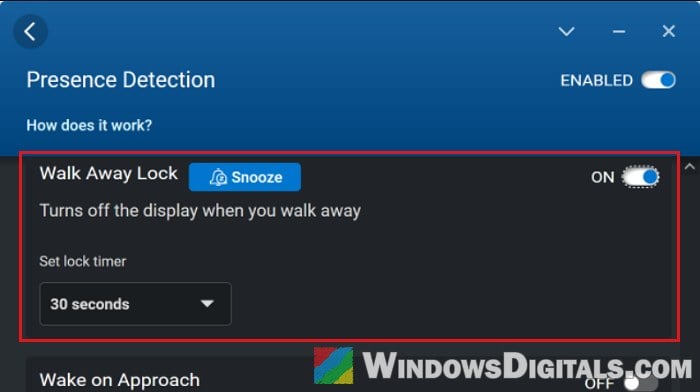
On Dell laptops, the feature is called “Walk Away Lock” and lives in Dell Optimizer:
- Open Dell Optimizer and go to “Presence Detection” (called “Proximity Sensor” in older versions).
- Under “Walk Away Lock“, set the lock timer to a longer time or switch Walk Away Lock off completely.
On Lenovo laptops, open Lenovo Vantage, go to “Device” > “Smart Assist“, and turn off “Zero Touch Lock” (or the whole “User Presence Sensing” switch).
Some ThinkPads (such as the T14 Gen 3) also have an ultrasonic sensor from Elliptic Labs called Virtual Lock Sensor. If the laptop still locks with all of the above off, open Services (services.msc), and stop and disable the Virtual Lock Sensor service, or turn off the human presence sensor in the BIOS if it has that option.
Turn off Dynamic lock
Dynamic lock locks your PC about a minute after your paired phone goes out of Bluetooth range. If the phone’s connection is weak or keeps dropping, Windows can think you’ve left while you’re sitting right there.
Here’s how to turn it off:
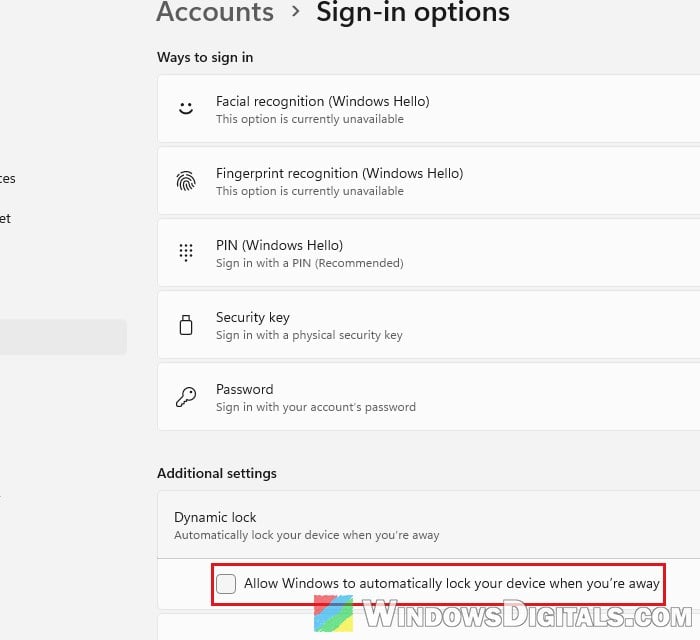
- Open Settings > Accounts > Sign-in options.
- Click “Dynamic lock” to expand it.
- Uncheck “Allow Windows to automatically lock your device when you’re away“.
Check whether it still locks with your phone nearby.
Change when Windows asks you to sign in again
On laptops and tablets that support Modern Standby, Windows can ask you to sign in again as soon as the screen turns off. So if your screen turns off after a minute, your PC locks after a minute too.
Please note that this sign-in option only shows on PCs with Modern Standby and an account that has a password. If you’ve set up face or fingerprint sign-in (Windows Hello), it may be grayed out.
Here’s what you should do:
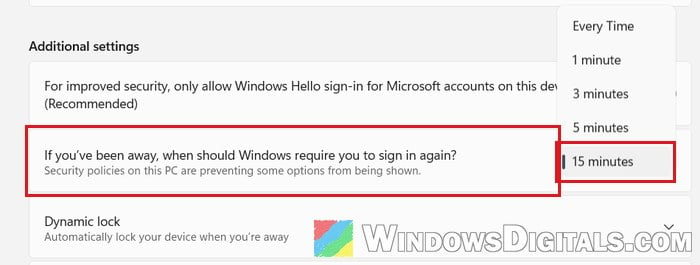
- Open Settings > Accounts > Sign-in options.
- Under “Additional settings”, find “If you’ve been away, when should Windows require you to sign in again?” and choose a longer time, or “Never” if it’s in the list.
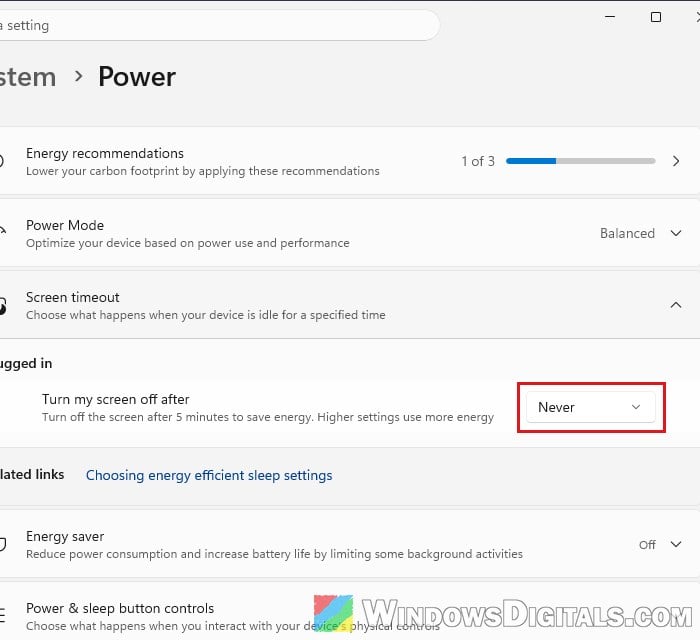
- Then go to Settings > System > Power & battery (just Power on a desktop PC) > “Screen timeout“, and make sure “Turn my screen off after” isn’t set to 1 minute.
Then see if it still asks you to sign in.
Might be useful: Laptop Stuck on Black Screen After Sleep (Windows 11/10)
Check the screen saver timeout in the registry
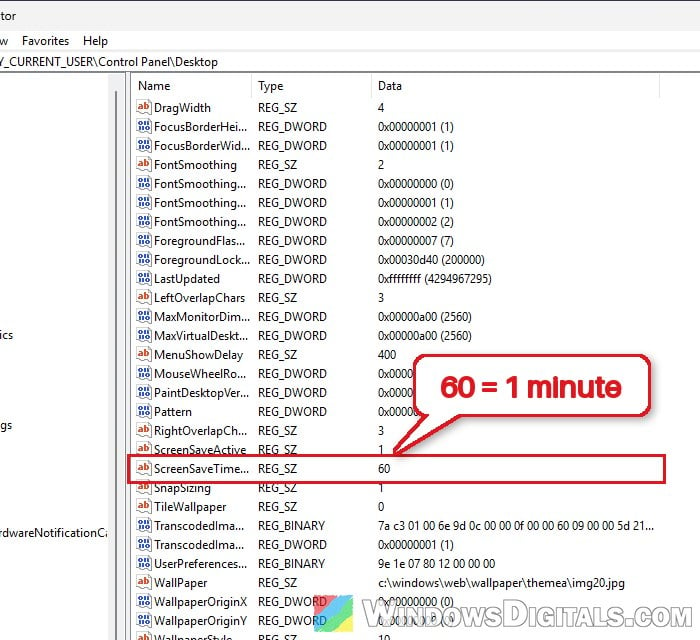
The screen saver’s wait time is also saved in the registry, in seconds, so 60 means 1 minute.
Incorrectly changing the registry could cause problems with Windows, so please create a system restore point first. If you’re not sure what you’re doing, it’s better to get someone to help you instead.
To check it, follow the steps below:
- Press Win + R, type “regedit” and press Enter.
- Copy and paste the following path to the address bar and press Enter:
HKEY_CURRENT_USER\Control Panel\Desktop
- Look for “ScreenSaveTimeOut” on the right. If it shows 60, double-click it and enter the number of seconds you want instead (for example, 900 for 15 minutes).
- Click “OK“, then sign out and back in (or restart) to be sure the new value is used.
Check the “Machine inactivity limit” policy (Pro edition)
The security policy Interactive logon: Machine inactivity limit locks the PC after a set number of seconds without input. When it’s on, Windows also locks whenever the screen saver starts or the screen turns off. It’s off by default, but a PC that once belonged to a company or school may still have it. You’ll need the Group Policy Editor (Pro, Enterprise and Education only).
Here’s how to check it:
- Press Win + R, type “gpedit.msc” and press Enter.
- Go to Computer Configuration > Windows Settings > Security Settings > Local Policies > Security Options.
- Double-click “Interactive logon: Machine inactivity limit“.
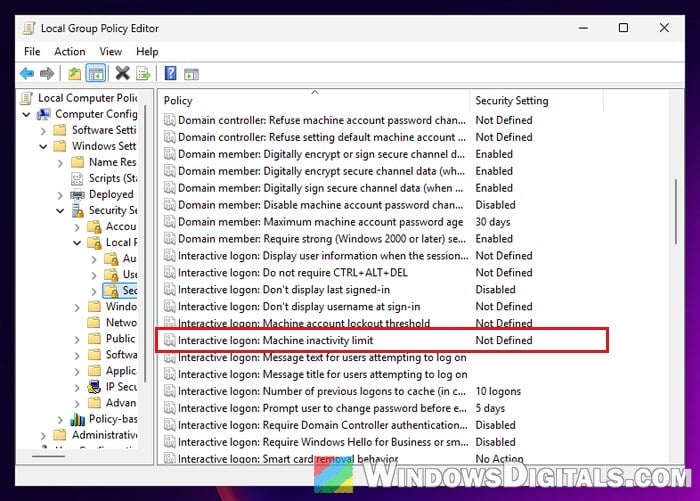
- Set it to 0 to turn it off, click “OK“, and restart your PC.
After the restart, check whether the PC still locks after a minute.
If it’s a work or school PC, your organization usually sets these, and they’ll just come back. Ask your IT department, since the short lock time is likely on purpose.
What if the screen only turns off a minute after you lock it?
If the PC doesn’t lock by itself, but the monitor goes black about a minute after you lock it (with Win + L, for example), that’s a different thing. According to Microsoft, this is by design: on the lock screen, Windows turns the display off after 60 seconds, whatever your normal screen timeout is.
To change it, run these commands one by one in Command Prompt as administrator, replacing 600 with the seconds you want:
powercfg.exe /setacvalueindex SCHEME_CURRENT SUB_VIDEO VIDEOCONLOCK 600
powercfg.exe /setactive SCHEME_CURRENT
The first command only covers the PC when it’s plugged in. For battery, run it again with /setdcvalueindex instead of /setacvalueindex, then the second command.