If you’re tired of running into games made with generative AI in the Steam store and want to filter them out, you’ve probably noticed that Steam doesn’t make it easy. There’s no “hide AI games” switch, and the “Artificial Intelligence” tag many people exclude doesn’t do what it seems to. This guide will show you the ways that actually work to hide AI games on Steam, plus how to hide adult games while you’re at it.
Also see: “Synchronizing Steam Cloud” is Taking Forever

Page Contents
Does Steam have a filter for AI games?
No, not yet. Since January 2024, Valve has required developers to say whether their game uses generative AI. In January 2026, Valve rewrote those rules: developers now have to disclose AI-made content that players see or hear, such as art, sound, story text or translations, whether it was made beforehand or is generated live while you play. AI tools used only behind the scenes, like coding assistants, don’t need to be disclosed.
What the developer says shows up on the game’s store page, in a section called “AI Generated Content Disclosure“. It sits near the bottom of the page, below the game’s description, so it’s easy to miss. The problem is that Steam has no option to filter the store or search results by it. Players asked Valve for one again after the October 2026 Next Fest, and Valve hasn’t said anything about it so far.

What about the “Artificial Intelligence” tag?
Many people recently found a tag called “Artificial Intelligence” that can be excluded in Steam’s store preferences and took it as a new AI filter, but it isn’t one. It’s an old user tag (tags that players add to games themselves) for games about AI, like games with robots or AI characters, and it has existed since at least 2017. Excluding it hides some of those games, while lots of games made with AI still show up because nobody tagged them that way. Developers can also remove user tags from their own games, so tags aren’t a reliable way to do this.
Several users on Reddit have pointed out the same thing: the developer’s own disclosure is the only thing worth filtering by, and the first two methods below both use it.
Hide AI games with SteamDB’s “AI Content Disclosed” tag
SteamDB (steamdb.info) is an unofficial site with data on every game on Steam. It reads Steam’s AI disclosures and turns them into a tag of its own, “AI Content Disclosed“, which you can exclude while browsing on SteamDB. More than 40,000 games carry it as of late October 2026. You then find games on SteamDB and buy the ones you like on Steam as usual.
Here’s how to do it:
- Open your browser and go to
https://steamdb.info/instantsearch/. - On the right side, find the Tags filter and type “AI Content” in its search box.
- Hover over the “AI Content Disclosed” tag and click (exclude) next to it. The tag is then crossed out and marked Excluded, so games with it are filtered out instead of shown.
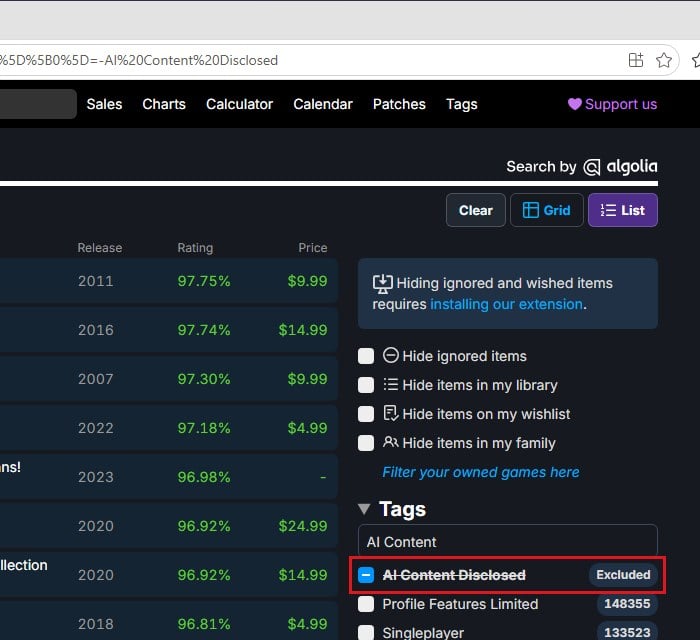
- Search or browse the list as usual.
Please note that this only catches games whose developers disclosed their use of AI. A game that uses AI without saying so will still slip through now and then.
Get a warning on AI games with a browser extension
If you’d rather browse Steam itself, a free, open-source browser extension called AI warning for Steam can help. It’s available for Chrome and Firefox. When you open the store page of a game with an AI disclosure, it shows a big warning, and since June 2026 its maker says it can also blur or hide those games in Steam’s search results.
The catch is that it only works on Steam’s website in a browser (store.steampowered.com), not in the Steam app itself. Here’s how to set it up in Chrome:
- Go to the extension’s page on the Chrome Web Store:
https://chromewebstore.google.com/detail/ai-warning-for-steam/clegcobheppnnigaaeelfkeomjcngmnh. For Firefox, usehttps://addons.mozilla.org/firefox/addon/ai-warning-for-steam/instead. - Click Add to Chrome, then confirm with Add extension.
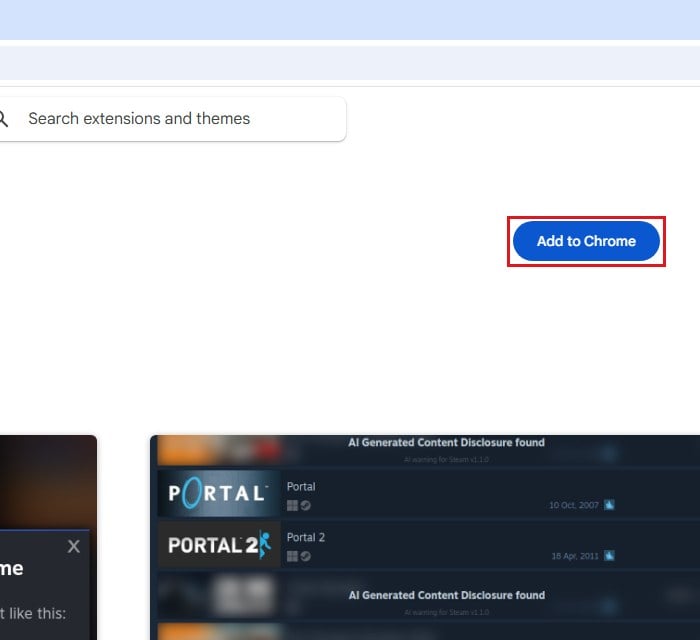
- Open
https://store.steampowered.com/in the same browser and browse or search as you normally would. A game page with an AI disclosure now opens with a pop-up that shows the developer’s disclosure right away, instead of leaving it at the bottom of the page.
Related concern: Is “AdBlock Next” Popup and Extension Safe or a Virus?
Hide a game you don’t want to see with “Ignore”
When a particular AI game keeps showing up in your recommendations, Steam’s own Ignore button gets rid of it. It works one game at a time. Here’s what you should do:
- Open the game’s page in the Steam store.
- Click the small arrow next to Ignore, below the game’s screenshots, to see the options. “Ignore This (Default)” hides the game from the store, ignores its notifications and stops Steam from using it for your recommendations.
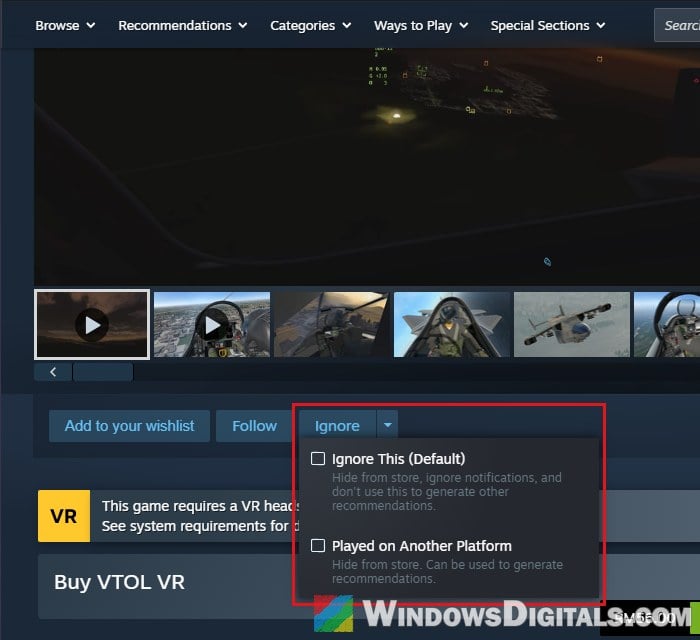
- Click Ignore.
Ignored games may still appear faded in a few places. If you change your mind, you’ll find them under Ignored Products in your store preferences (next section), with a View List button.
Exclude tags in Steam’s store preferences
The store preferences page has a Tags To Exclude option where you can pick up to ten tags to filter out. It’s not a reliable AI filter, but it’s handy for genres you never want to see. Follow the steps below:
- In the Steam app, click your account name at the top right and select Store Preferences. You can also go to
https://store.steampowered.com/account/preferences/in your browser.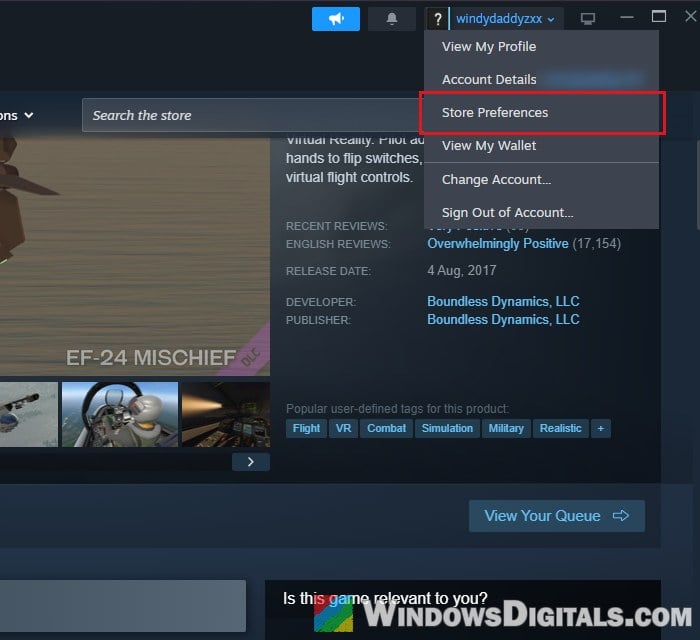
- Scroll down to Tags To Exclude under Store Content Preferences.
- Type the name of a tag, pick it from the list, and click Add. (The picture below uses “Artificial Intelligence”, which only hides games about AI.)
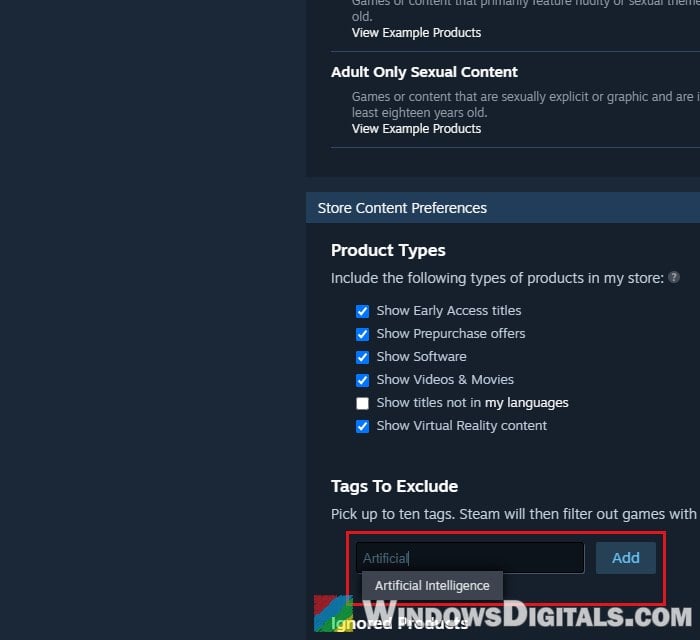
Games with that tag will then be filtered out of the store for your account.
Might be useful: How to Uninstall Games on Windows 11
How to hide adult games on Steam
Adult games are much easier to hide, since Steam has proper settings for them. They’re on the same store preferences page, under Mature Content Filtering, with a Store column and a Community column for five types of content. Unticking “Frequent Nudity or Sexual Content” and “Adult Only Sexual Content” hides games that are mainly about sex, while games that only have some nudity (The Witcher, for example) still show.
Here’s how to do it:
- Open Store Preferences as shown in the previous section.
- Under Mature Content Filtering, untick “Frequent Nudity or Sexual Content” and “Adult Only Sexual Content” in the Store column. Untick them in the Community column too if you don’t want to see that content in Steam’s community pages either.
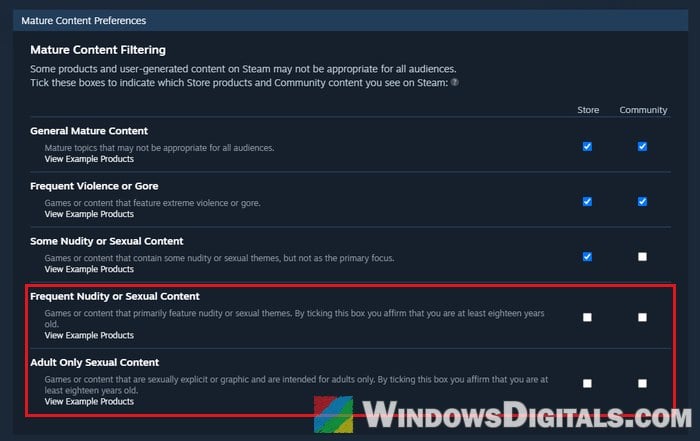
- If you also want to hide games that only have some nudity, untick “Some Nudity or Sexual Content” as well.
“Adult Only Sexual Content” is already off by default, so if you’re seeing those games, someone turned it on. For a child’s account, though, keep in mind that anyone using the account can tick these boxes again. To actually lock them, set up Steam Families and add your child with a child account (Family Management is in the left menu of the same account page).