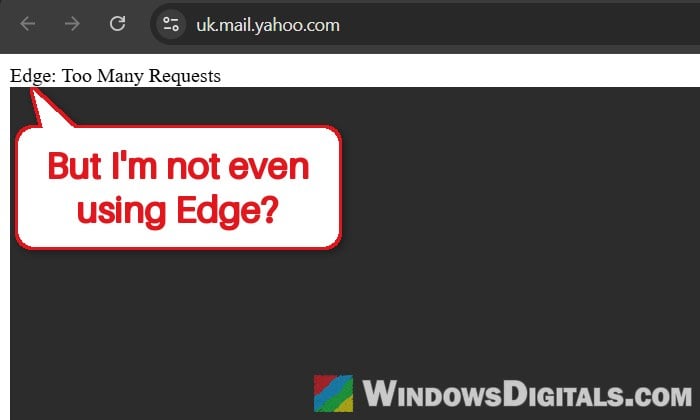
If you’re trying to open or sign in to Yahoo Mail and all you get is a nearly blank page that says “Edge: Too Many Requests“, you’re probably confused, especially if you don’t even use Microsoft Edge. The same page can show up in Chrome, Firefox, Safari and even Thunderbird. This guide will explain what the message actually means and what you can do to get back into your inbox.
Also see: How to Clear Cookies in Windows 11
Page Contents
What does “Edge: Too Many Requests” mean?
Despite the name, this message has nothing to do with the Microsoft Edge browser. It most likely comes from Yahoo’s own servers, the ones that sit at the “edge” of Yahoo’s network and handle your connection before it reaches Yahoo Mail. That’s why people get the exact same page no matter which browser or computer they use.
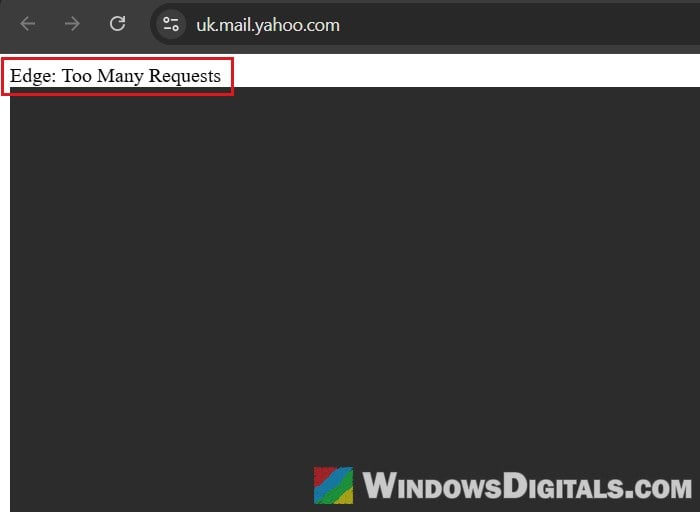
“Too Many Requests” is the standard name of a web error (HTTP 429). It means the server thinks it has received too many requests in a short time and is temporarily refusing more, which is called rate limiting. The limit is usually tied to your IP address, sometimes to your account or browser cookies.
In practice, you’ll see it for one of two reasons:
- Yahoo itself is having problems. This is the most common case. On January 21, 2026, Yahoo Mail, AOL Mail, Yahoo Finance and the Yahoo homepage all showed this page worldwide. Yahoo said it was caused by a change to its traffic management system, and that everything recovered in under an hour once the change was reverted. A similar wave of reports happened in October 2025.
- Your connection or account is being limited. When it only happens to you, Yahoo may be blocking sign-ins from your network for a while, for example after many quick sign-in attempts, or when you’re on a VPN or another connection whose IP address keeps changing.
Might be useful: Chrome Keeps Redirecting to Yahoo Search Through smartingly.com
Check if Yahoo Mail is down first
Before you change anything on your PC, find out whether everyone else is seeing the same thing. When it’s a Yahoo outage, nothing you do on your side will fix it, and it’s usually back within an hour or a few hours.
Here’s how to check:
- Look up Yahoo Mail on an outage tracker like Downdetector. A sudden spike of reports means the problem is on Yahoo’s end.
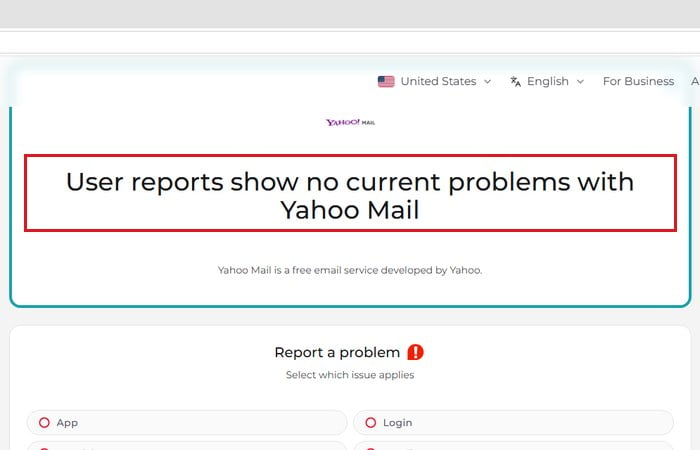
- Check Yahoo’s support account on X (YahooCare), which posts when Yahoo is aware of a problem.
If Yahoo is down, just wait. Meanwhile, the Yahoo Mail app on your phone may still work: during the January outage, some people could still read their email in the app while the website was down. Once it’s back, refreshing the error page can be enough to get you to your inbox again.
Stop retrying and give it some time
When the problem is only on your side, the worst thing you can do is spam the reload button or keep typing your password in again. Each attempt is another request, which can keep the limit going for longer.
Close the Yahoo tab and wait at least 15 to 30 minutes, then try once. If it still shows the same page, give it a few more hours before you try again.
Please note that “Too Many Requests” isn’t the same as a locked account. If you instead get a message saying your Yahoo account is locked, the lock is lifted by itself after 12 hours, or right away if you use Yahoo’s Sign-in Helper.
Try another network or turn off your VPN
Since the limit usually follows your IP address, a different connection can get you past it. A quick way to test this is your phone: turn off its Wi-Fi so it uses mobile data, then open Yahoo Mail in the phone’s browser. If it works there but not on your home Wi-Fi, your home connection is the one being limited.
If you use a VPN or a proxy on your PC, turn it off and try again. Yahoo’s own help page says it may block sign-ins from hidden or constantly changing IP addresses. To check for a VPN in Windows 11:
- Open Settings (Win + I) and go to Network & internet > VPN.
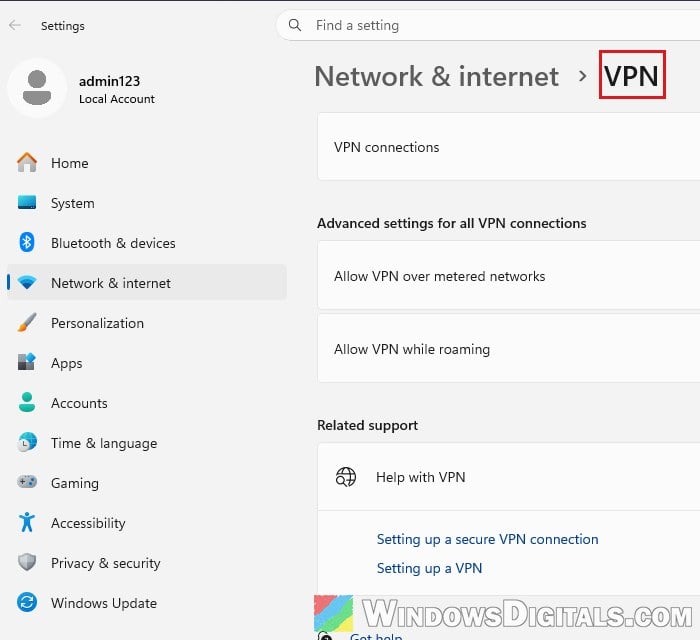
- If a VPN connection is listed there as connected, disconnect it.
- If you use a VPN app instead, turn it off in the app itself.
Restarting your router may also give you a new IP address from your internet provider, though not every provider changes it. Try signing in again afterwards.
Pro tip: How to Disable VPN in Windows 11
Clear Yahoo’s cookies in your browser
If Yahoo is up and other devices work fine, the problem might be the data your browser has stored for Yahoo. Yahoo’s own sign-in help suggests clearing your cookies and restarting the browser. This doesn’t help during an outage, but it’s worth doing when only your PC is affected.
First, do a quick test with a private window, which starts without any of your stored cookies:
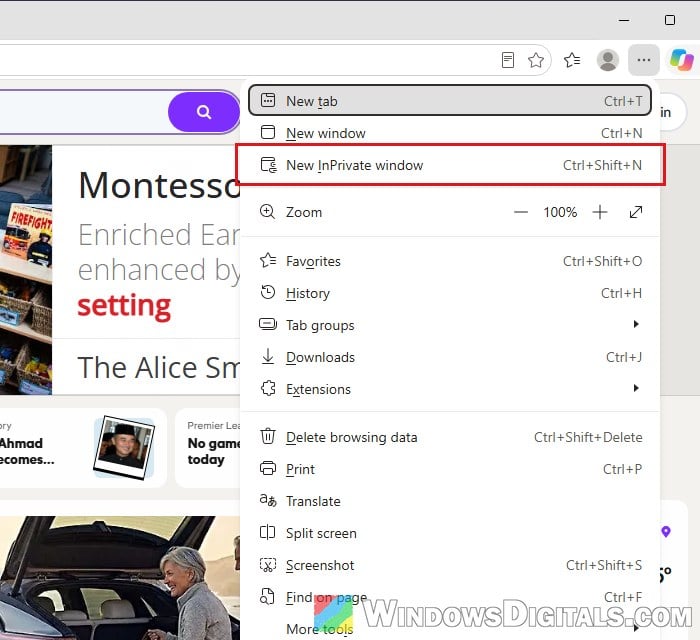
- In Edge, click the three-dot menu (Settings and more) and select New InPrivate window, or press Ctrl + Shift + N.
- Go to
https://mail.yahoo.com/and sign in.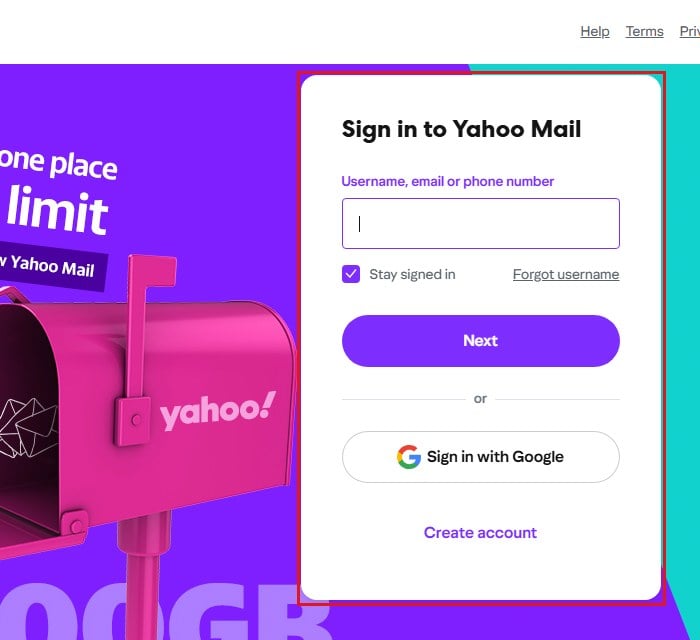
If Yahoo Mail works in the private window, delete Yahoo’s stored data in your normal window:
- In Edge, open Settings, select Privacy, search, and services on the left, then click Cookies.
- Click See all cookies and site data, then type “yahoo” in the search box.
- Once only the Yahoo entries (such as yahoo.com) are listed, click Remove all shown. This deletes only what the search shows, not your other cookies.
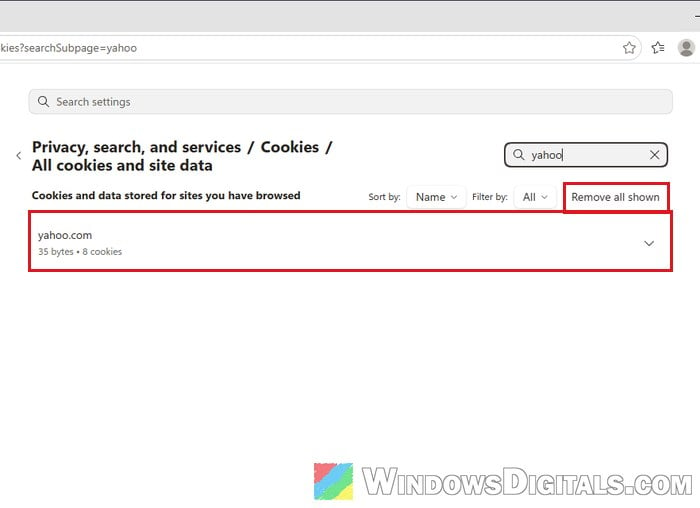
- Close every Edge window, open Edge again and sign in to Yahoo Mail.
Chrome and Firefox let you delete one site’s cookies from their privacy settings too. You can also try Yahoo Mail in another browser to see whether the problem is tied to one of them.
In Thunderbird or another email app, use an app password
Thunderbird users have also run into this page when adding a Yahoo account, at the point where Thunderbird opens Yahoo’s sign-in page. In earlier cases it went away once Yahoo fixed it on its side. In the meantime, what worked was switching the account in Thunderbird from Yahoo’s sign-in window (OAuth2) to normal password authentication, and using an app password from Yahoo as that password.
To create one, here’s what you should do:
- Sign in to your Yahoo Account Security page in a browser.
- Under External connections, click Create app password.
- Enter the name of your email app and click Generate password.
- Copy the password, click Done, then use it in your email app instead of your normal Yahoo password.
The app password keeps working even if you change your main Yahoo password later. You can delete it from the same page whenever you want.
Related problem: Thunderbird Not Receiving AT&T (att.net) Email, What to do?
What if it still won’t go away?
If the page still shows up after a day, on every network and device you’ve tried, the limit may be tied to your Yahoo account rather than your connection. In that case, check your account for unfamiliar sign-ins or devices, and try Yahoo’s Sign-in Helper or its support pages. Meanwhile, the Yahoo Mail app on your phone may still let you read and send email.