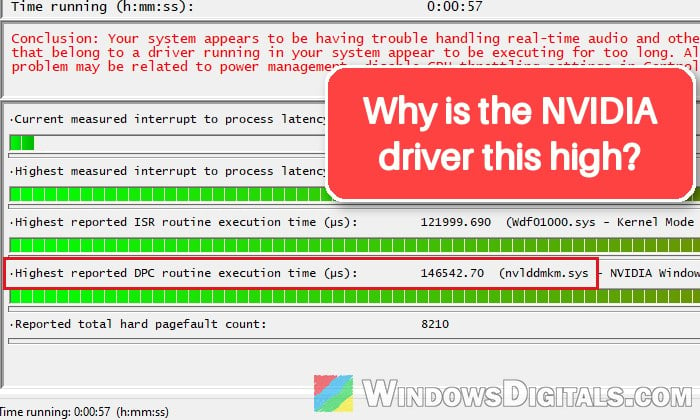
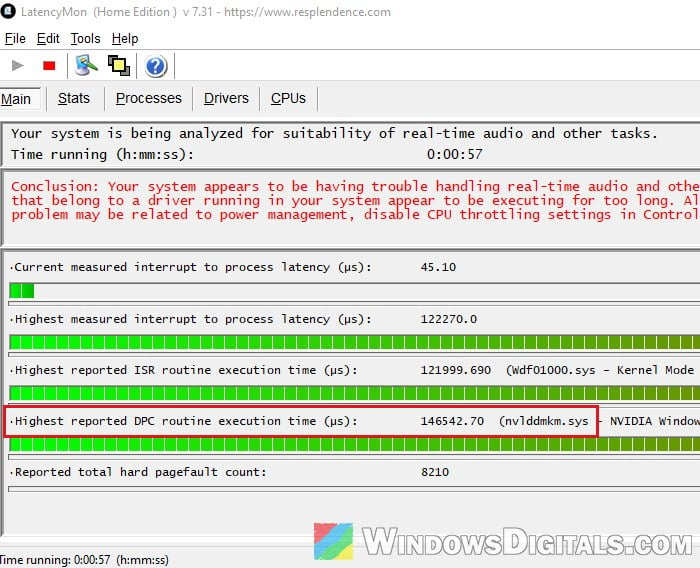
If your games keep stuttering, your audio crackles, pops or cuts out, and LatencyMon shows nvlddmkm.sys as the driver with the highest DPC routine execution time, the NVIDIA graphics driver is holding up your CPU for longer than it should. Here’s what the numbers mean and how to bring the spikes down.
Also see: High DPC Latency by Storport.sys in Windows 11/10 (Fix)
Page Contents
What does nvlddmkm.sys high DPC latency mean?
nvlddmkm.sys is NVIDIA’s kernel-mode display driver, the main part of your graphics driver. A DPC (Deferred Procedure Call) is a short piece of work a driver hands to the CPU. While it runs, that CPU core can’t do anything else, so when a driver’s DPC takes too long, sound buffers run dry and frames arrive late. That’s the crackling audio and the stutter you notice.
According to LatencyMon’s maker, anything under 2,000 µs is fine for real-time audio, 2,000 to 4,000 µs is doubtful, and anything over 4,000 µs makes the PC unsuitable. People with this problem often see nvlddmkm.sys hit 5,000 µs or more, and some see spikes of 20,000 µs or far more.
This has been reported on many NVIDIA cards and driver versions, from the RTX 30 series to the RTX 50 series. A few things are worth knowing before you start changing settings, though:
- The spikes may build up over time. On some PCs the stutter only starts after a few hours, gets worse the longer the PC stays on, and goes away after a restart, only to come back later.
- A new driver can start it. The same pattern has been reported after NVIDIA driver 621.01.
- LatencyMon only points at a suspect. The graphics driver is often the one that gets blamed, but an unstable RAM overclock or an overheating CPU can make it look like the culprit.
Linked issue: nvlddmkm Event ID 153 After NVIDIA Driver 621.01, What to do?
Restart the PC and see if it comes back
If the stutter is gone right after a restart and slowly returns after a few hours of use, closing your games and apps won’t help. That pattern points to the driver version you’re on, so skip ahead to the driver section below.
If the spikes are there from the moment Windows starts, go through the settings below first.
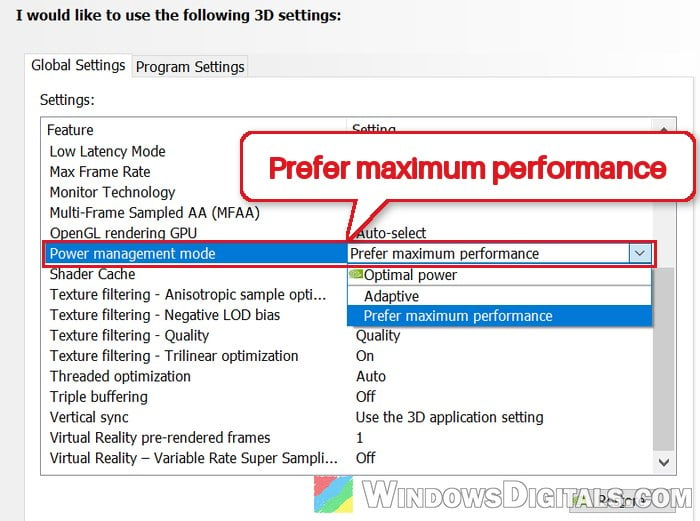
Set “Power management mode” to “Prefer maximum performance”
When it isn’t fully loaded, the graphics card keeps dropping into lower power states and back up again when it isn’t fully loaded. These quick changes are often linked to DPC spikes from nvlddmkm.sys. Keeping the card at its higher clocks is one of the most suggested fixes, and it can bring the spikes down from thousands of microseconds to a few hundred.
Here’s how to do it:
- Open NVIDIA Control Panel (search for it in Start).
- Under 3D Settings on the left, select Manage 3D settings.
- On the Global Settings tab, find Power management mode and set it to Prefer maximum performance.
- Click Apply.
Run LatencyMon again for a few minutes while playing and see if the highest DPC execution time from nvlddmkm.sys has gone down. Please note that your card will use a bit more power when idle with this setting, and it doesn’t fix the problem on every PC.
Might be useful: How to Fix Game Stuttering on Windows 11
Turn off hardware-accelerated GPU scheduling
On some setups, especially with two or more monitors, turning off Hardware-accelerated GPU scheduling (HAGS) in Windows’ graphics settings has helped with the huge nvlddmkm.sys spikes. It doesn’t help everyone, so treat it as a test.
Be aware that DLSS Frame Generation needs HAGS turned on. With it off, the Frame Generation option in your games will be unavailable, so turn HAGS back on if this doesn’t make a difference.
Here’s how to turn it off:
- Open Settings (Win + I) and go to System > Display > Graphics.
- Look for “Hardware-accelerated GPU scheduling” (it may be under the default or advanced graphics settings, depending on your Windows version) and turn it off.
- Restart your PC.
Run LatencyMon again while gaming and see if the nvlddmkm.sys spikes have gone down.
Go back to an older NVIDIA driver with a clean install
If the problem started after a driver update, or it follows the “gets worse with uptime” pattern, the driver version itself is the likely cause. NVIDIA has listed higher DPC latency in LatencyMon as a known driver issue in the past and fixed it in a later release, so a different version can really change the numbers.
To roll back to the driver you had before:
- Right-click the Start button and select Device Manager.
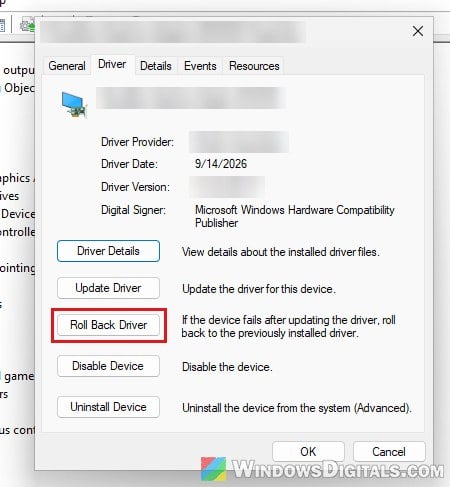
- Expand Display adapters and double-click your NVIDIA graphics card.
- Go to the Driver tab and click Roll Back Driver. If it’s grayed out, Windows didn’t keep the previous driver, so use the method below instead.
You can also download an older driver yourself. If you’re on 621.01, the Game Ready driver before it is 617.42. Here’s how to do it:
- Go to
https://www.nvidia.com/en-us/drivers/and use the manual driver search to find your card and the version you want.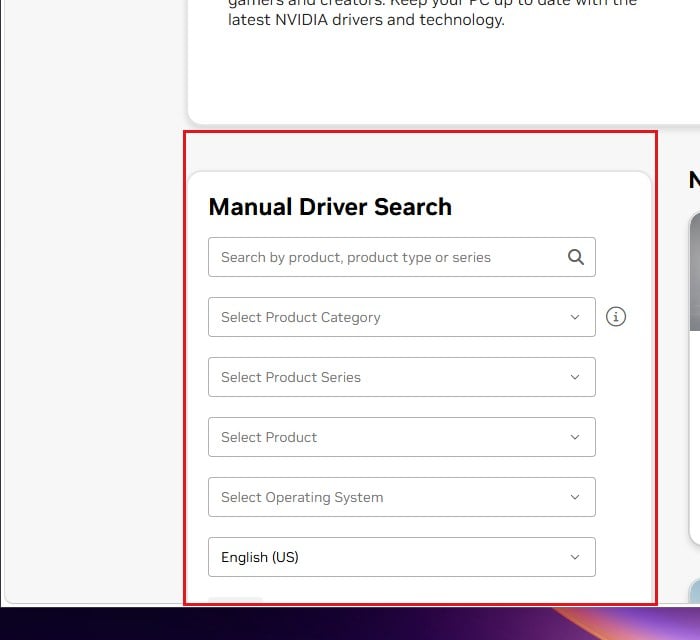
- Run the installer and select Custom (Advanced).
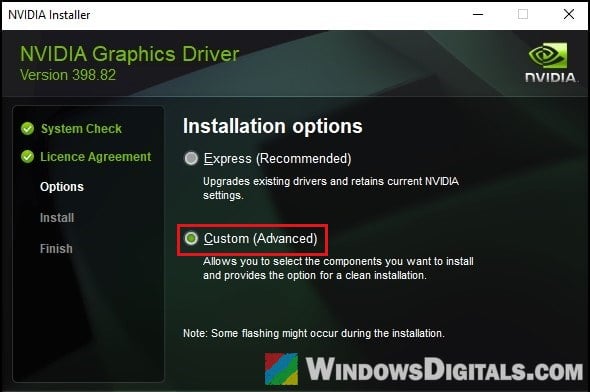
- On the next page, tick “Perform a clean installation” and continue. This resets your NVIDIA settings to their defaults and removes any profiles you created.
Restart your PC, then run LatencyMon again while gaming and see if the nvlddmkm.sys spikes are lower. Since the clean install resets your NVIDIA settings, set Power management mode back to Prefer maximum performance afterward.
Many people also use Display Driver Uninstaller (DDU) in Safe Mode to remove every trace of the old driver before installing. It’s worth trying if a normal clean installation doesn’t help, though for some people it only brought the spikes down a little. Once you find a driver that behaves, don’t let Windows Update put the bad one back (see how to stop Windows Update from installing an NVIDIA driver).
Related concern: LiveKernelEvent 141 or VIDEO_TDR_FAILURE Crashes on NVIDIA GPU
Remove RGB and hardware monitoring software
Software that constantly talks to your hardware, like ASUS Armoury Crate and other RGB lighting or monitoring tools, has been linked to this kind of stutter, and Armoury Crate is the one that comes up most, so start with it. It’s worth a try, but it isn’t a sure fix.
Closing these apps isn’t always enough, so uninstall them (use the maker’s own uninstall or cleanup tool if it has one), restart, and run LatencyMon again.
If it still isn’t fixed, check the rest of the PC
If nothing above helps, the NVIDIA driver might only be the messenger. Check these too:
- Overclocks and undervolts: An unstable RAM overclock (XMP or EXPO) or a CPU undervolt can cause glitchy audio and spikes that show up on the graphics driver. Set them back to default and test again.
- CPU temperature: A CPU that overheats while gaming can throttle and cause the same symptoms, with the graphics driver taking the blame. Check your temperatures and clean or re-paste the cooler if they’re high.
- BIOS: Update your motherboard’s BIOS to the latest version from the maker’s website. A BIOS update that goes wrong can leave the motherboard unable to start, so don’t turn off the PC while it runs. If you’re not sure how, get someone to help you.
If you’re getting black screens or crashes on top of the stutter, the problem is likely bigger than DPC latency. See LiveKernelEvent 141 or VIDEO_TDR_FAILURE Crashes on NVIDIA GPU for what to check next.