If you’ve noticed a process called Defender AI Platform Host Process (or DefenderAiPlatformHost.exe in the “Details” tab) in Task Manager on Windows 11 or 10, often alongside Antimalware Service Executable, it’s probably new to you. It started showing up on a lot of PCs after a Microsoft Defender update in September 2026, including PCs where nobody uses any AI apps. This guide explains what this process actually is, whether it’s safe, and if you can get rid of it.
Also see: Antimalware Service Executable High Disk or CPU Usage
Page Contents
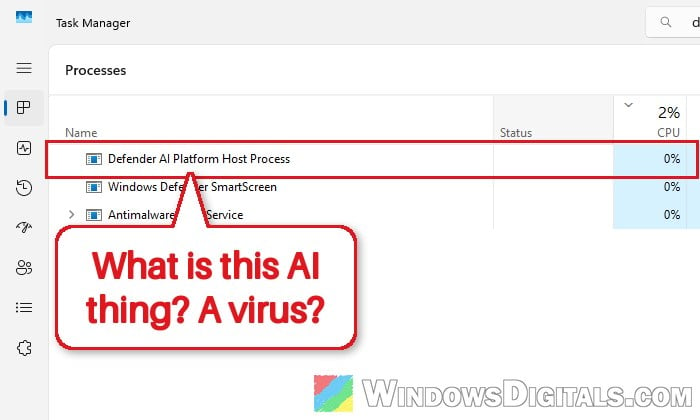
What is Defender AI Platform Host?
Defender AI Platform Host is part of Microsoft Defender Antivirus, the antivirus that comes built into Windows. It isn’t a separate app you installed, and it isn’t Copilot. It’s started by Defender’s own service, MsMpEng.exe (the one Task Manager calls “Antimalware Service Executable”), which is why people usually notice the two together.
To find it quickly, type “defender” in Task Manager’s search box at the top.
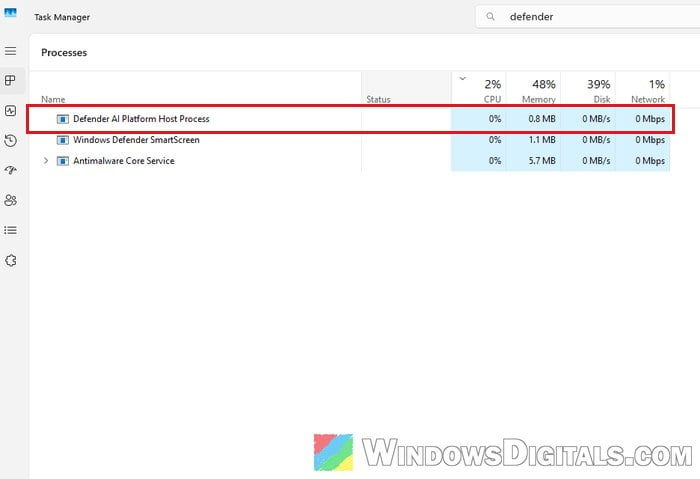
The file lives in Defender’s own program folder, which looks like this (the version number at the end changes as Defender updates itself):
C:\ProgramData\Microsoft\Windows Defender\Platform\4.18.26080.4-0\DefenderAiPlatformHost.exe
It arrived with a Defender platform update (version 4.18.26080, released in September 2026), not with a Windows feature update. Defender updates itself separately from the rest of Windows, which is why the process appeared even on a PC where Windows updates were turned off, and on Windows 10 as well as Windows 11.
Might be useful: What is SecurityHealthSystray.exe that Runs on Startup?
Why is there “AI” in Defender if you don’t use AI?
The name sounds worse than it is. The “AI” here refers to Defender’s own AI models, not Copilot or a chatbot. The same update that added the process also turned on an “AI platform” feature flag in Defender and added a version entry for those AI models next to its virus definition updates.
On the business side, Microsoft also uses Defender to protect AI agents like Claude Code, Codex CLI and GitHub Copilot CLI from hidden instructions planted in web pages or files (known as prompt injection). DefenderAiPlatformHost.exe sits right next to the scanner used for that protection. However, that feature is a preview for companies with Defender for Endpoint licenses, it’s off unless an IT admin turns it on, and it doesn’t run on a normal home PC.
Microsoft hasn’t explained what the process actually does on a home PC, though. Its release notes for that Defender version don’t mention it at all, so it’s no surprise people were worried when it showed up.
Can Defender AI Platform Host be a virus?
The real one is safe. It’s signed by Microsoft, it runs inside a restricted sandbox under a limited service account, and it doesn’t get flagged by virus scanners. Still, any malware can name itself after a Windows process, so it’s worth a quick check. Here’s how:
- Open Task Manager with Ctrl + Shift + Esc.
- Right-click on “Defender AI Platform Host Process” and select “Open file location“.
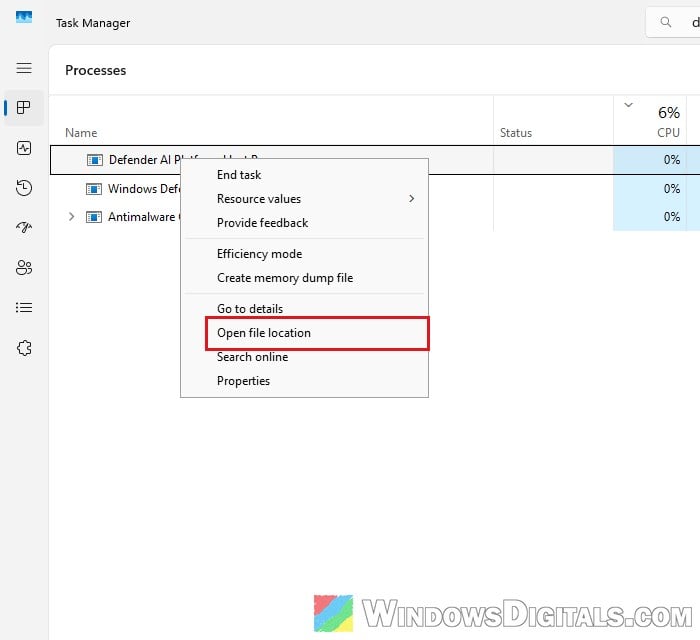
- File Explorer should open in a folder under
C:\ProgramData\Microsoft\Windows Defender\Platform\, with DefenderAiPlatformHost.exe highlighted (it shows as just DefenderAiPlatformHost if file extensions are hidden). If the file is anywhere else, such as your Downloads, Temp or AppData folder, treat it as suspicious.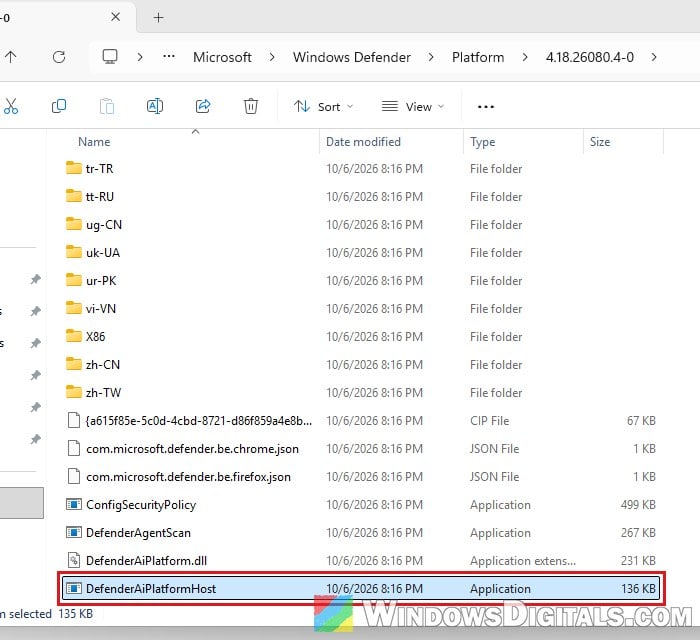
- Right-click on it and select “Properties“.
- Open the “Digital Signatures” tab. The signer should be “Microsoft Windows Publisher“.
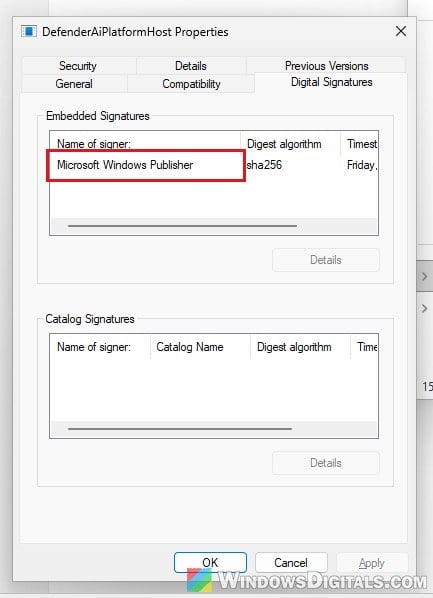
If the location or the signature doesn’t match, run a full scan right away, and check the file with a second scanner too.
Pro tip: How to Scan an .exe File for Viruses to Check If It’s Safe
Can you remove or end it?
You can’t, at least not in any supported way. It’s part of Microsoft Defender, and Defender itself can’t be uninstalled from Windows (much like Microsoft Edge). Ending it in Task Manager may work once or twice, but it starts again, and after that Task Manager may just refuse with an access denied error. You can’t delete the file either, even as an administrator, and turning off Defender through a policy doesn’t seem to remove it.
You’ll find debloat scripts and registry tricks online that claim to block the process for good. I would strongly suggest you stay away from them. They tamper with the antivirus that protects your PC, and a broken Defender is a much bigger problem than one extra process in Task Manager. If a script already left Defender broken on your PC, see: How to Reinstall Windows Defender in Windows 11.
If you already use another antivirus (and it’s properly registered with Windows Security), Defender turns off its own active protection and lets that antivirus take over. Microsoft hasn’t said whether this process stops running then, so don’t install another antivirus just to get rid of it.
Linked issue: Windows 11 Antimalware Service Executable Access Denied
Can it slow down your PC?
It shouldn’t. Your fans might spin up for a moment when the process first appears after the Defender update, but there haven’t been reports of it using a lot of CPU or memory after that. If your PC is slow and Task Manager points at Defender, check Antimalware Service Executable instead: Antimalware Service Executable High Disk or CPU Usage.
What if you’re worried about what Defender sends to Microsoft?
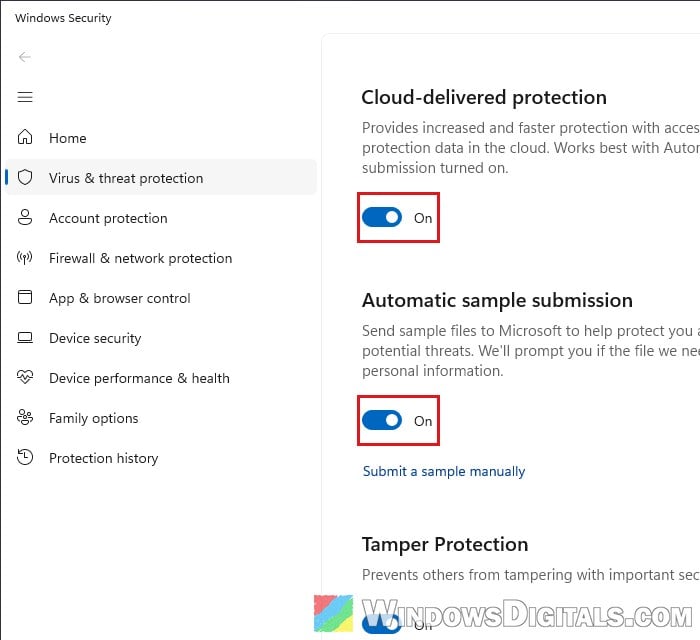
Microsoft points to two settings in Windows Security for this, and you can turn both off yourself. Please be warned that turning them off makes Defender rely only on what’s already on your PC. It will be slower to catch brand-new threats, so only do it if privacy matters more to you than that.
- Open “Windows Security“, then go to “Virus & threat protection“.
- Under “Virus & threat protection settings“, click “Manage settings“.
- Turn off “Cloud-delivered protection” and “Automatic sample submission“. If they won’t switch off, Tamper Protection may be blocking the change.